
Task Dashboard - Custom Task Management Feature Overview
SPRY's new custom task component lets your team easily assign, track, and complete follow-ups—right inside your dashboard. Here’s how to make the most of this feature and keep your teamwork organized.
Get to Know the Task Dashboard
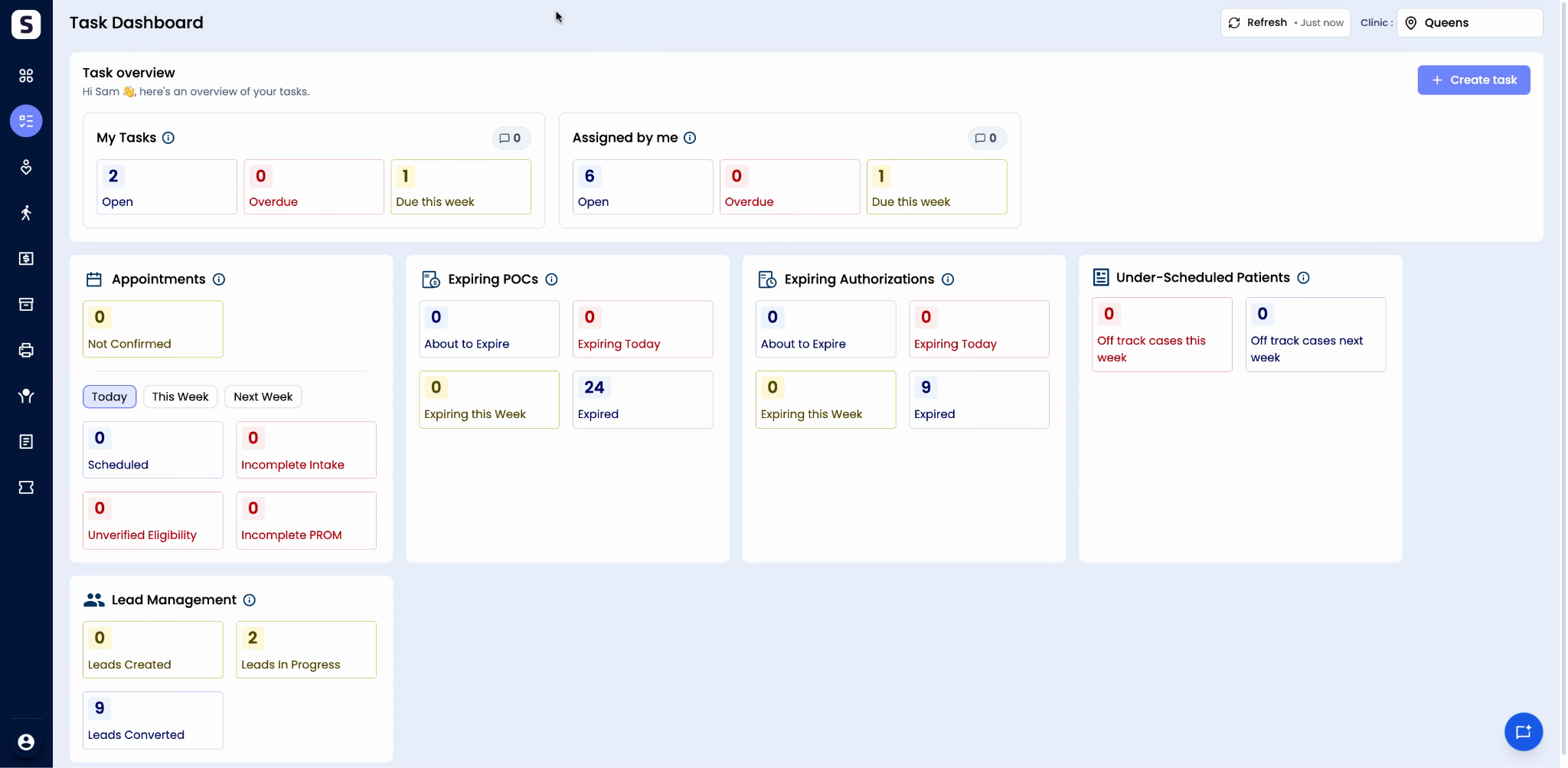
Step 1: Open the Task Dashboard to view tasks assigned to you and those you’ve assigned to others.
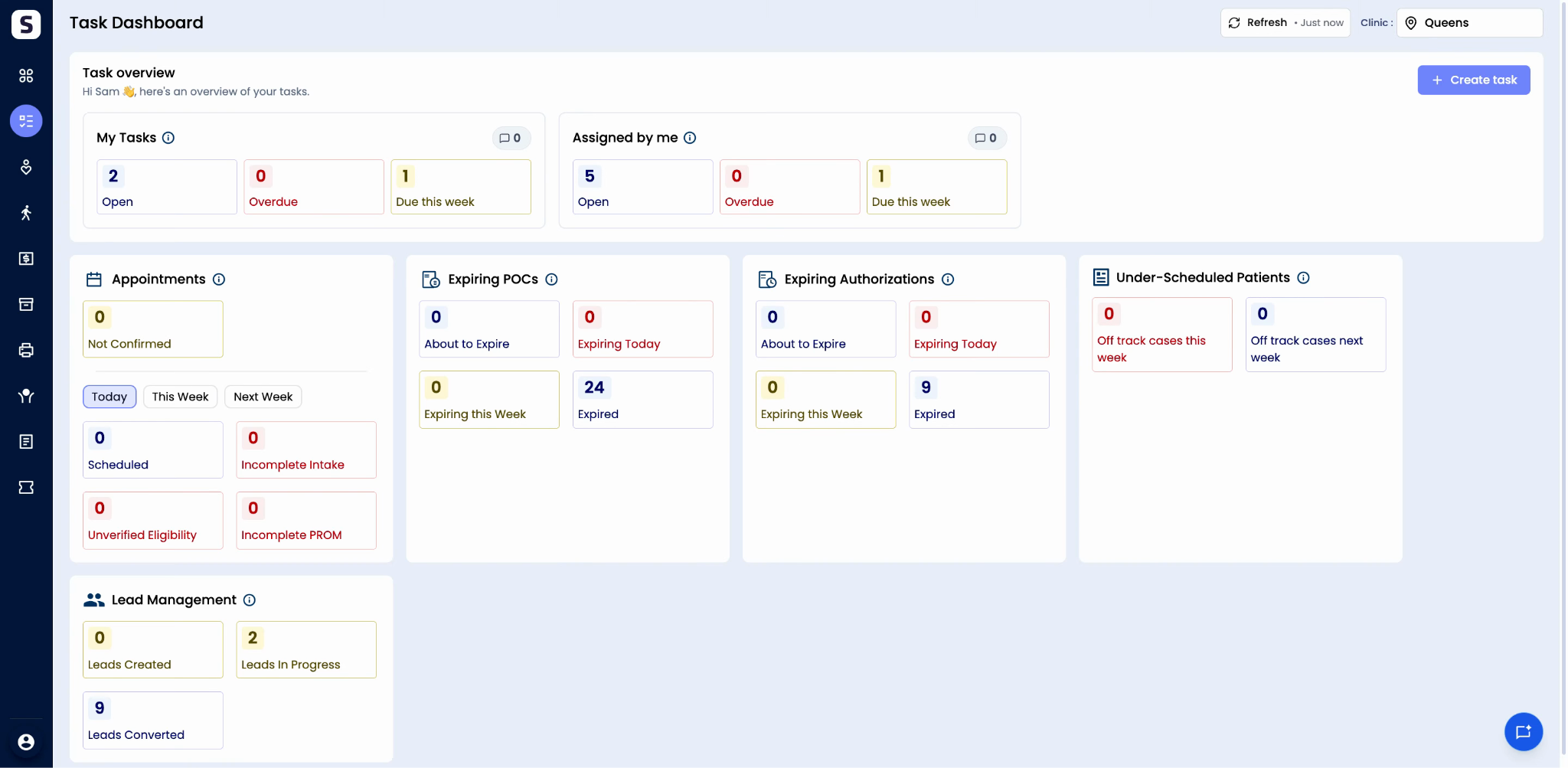
Step 2: Check the Open section for all tasks that are still in progress or pending.
Step 3: The Overview section highlights overdue tasks. Use Due This Week to see what needs attention over the next few days.
Create and Assign a Task
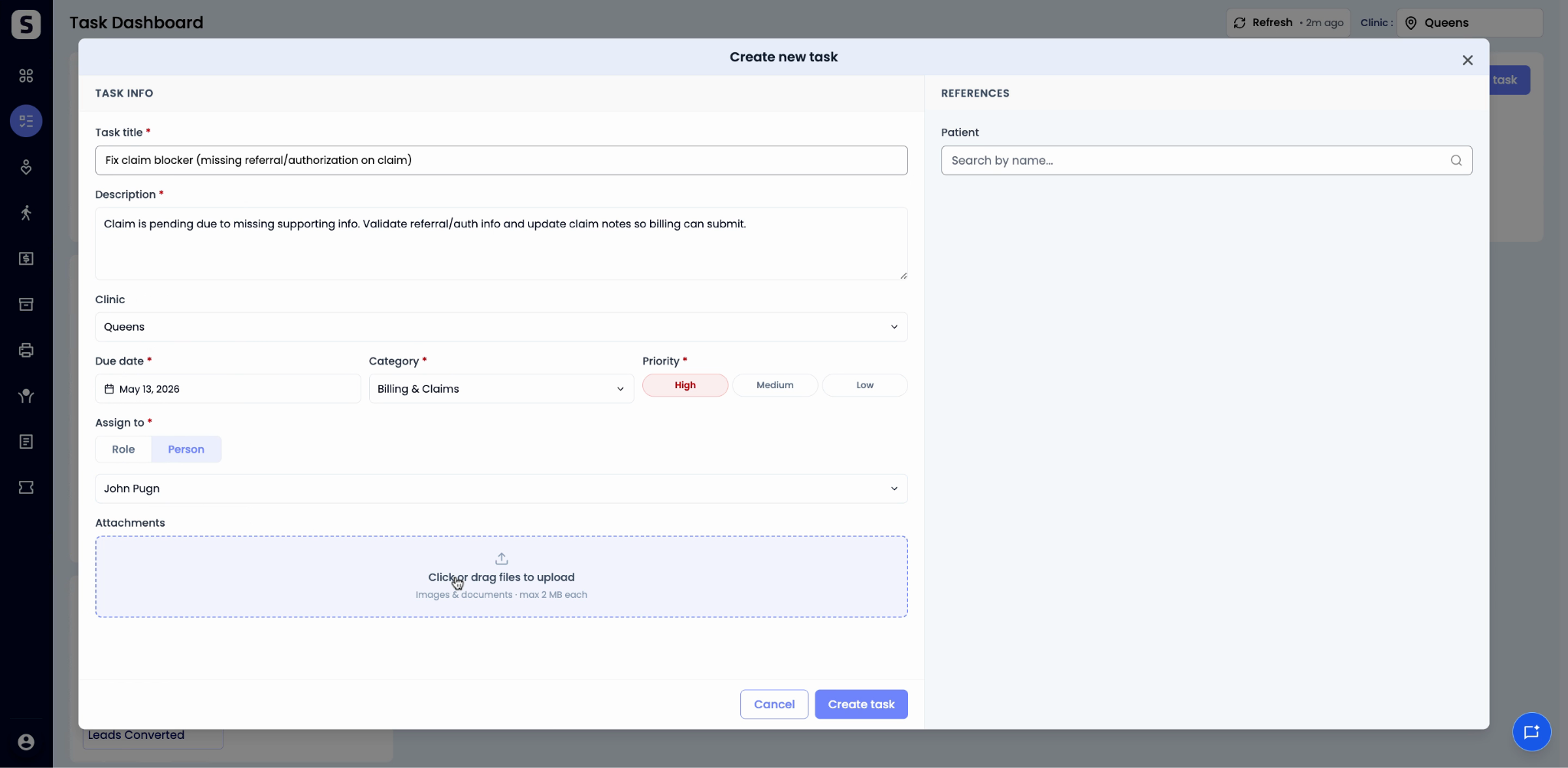
Step 1: Click Create Task.
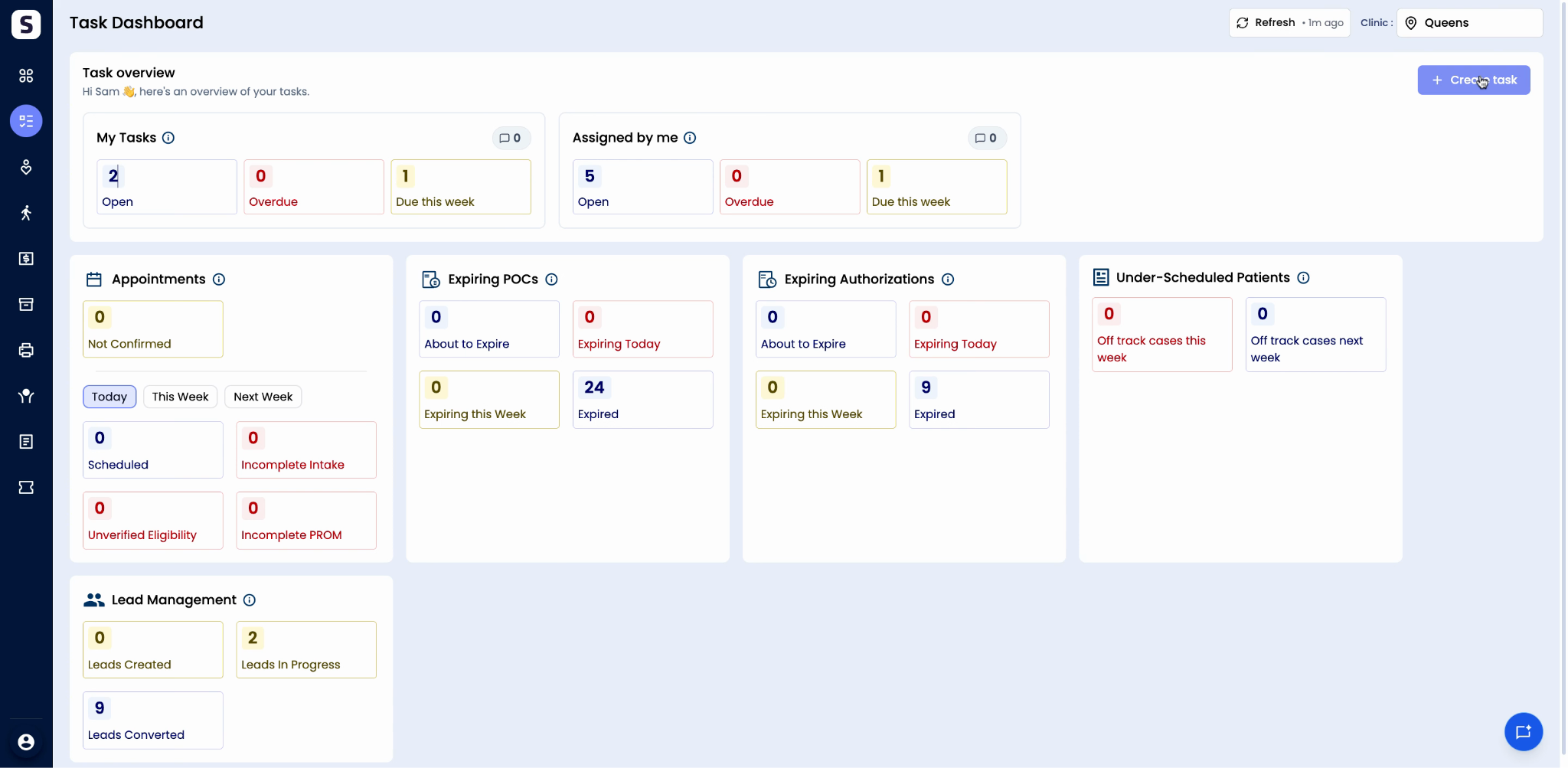
Step 2: Enter the task name and description.
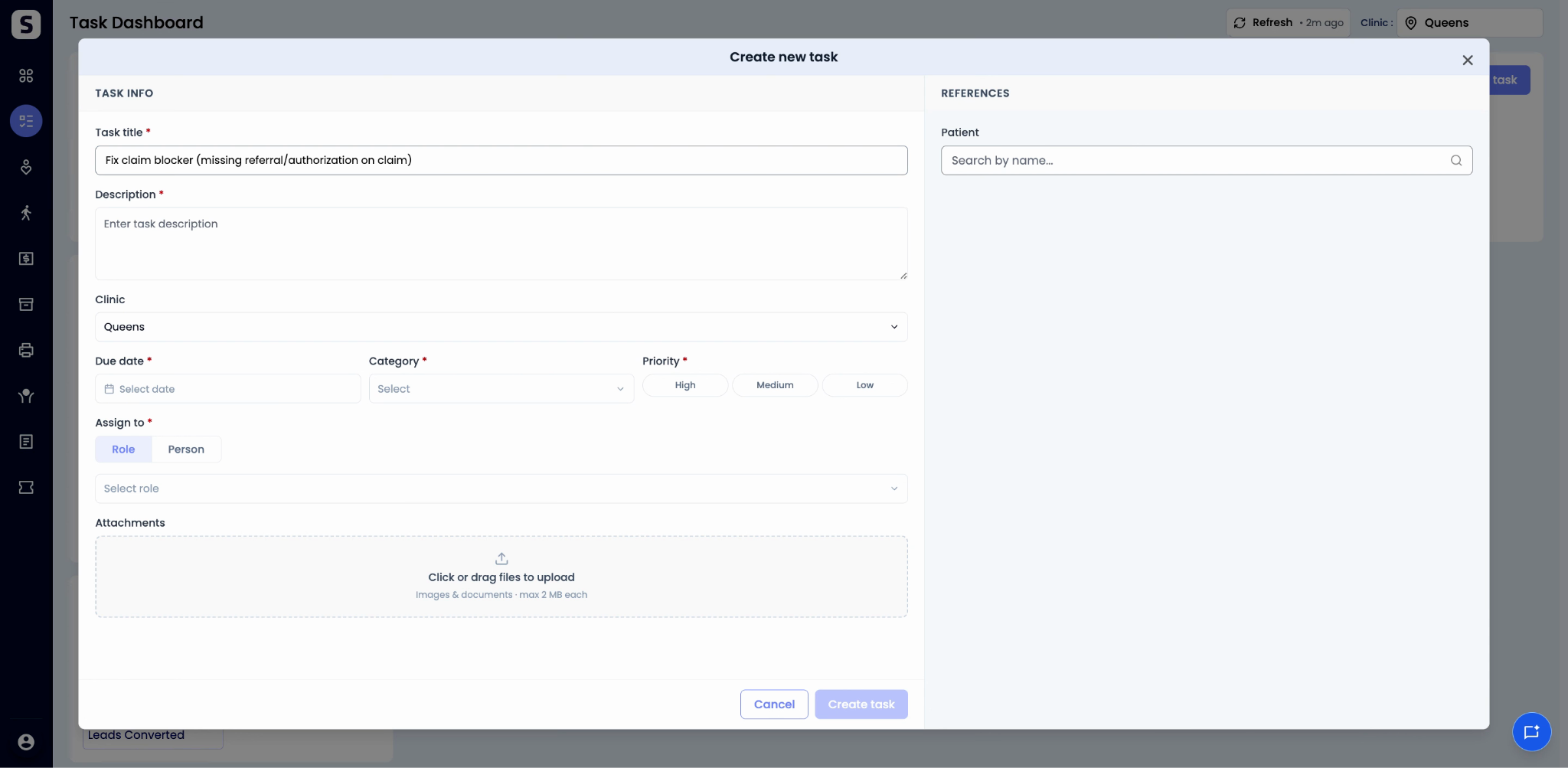
Step 3: Set the Due Date.
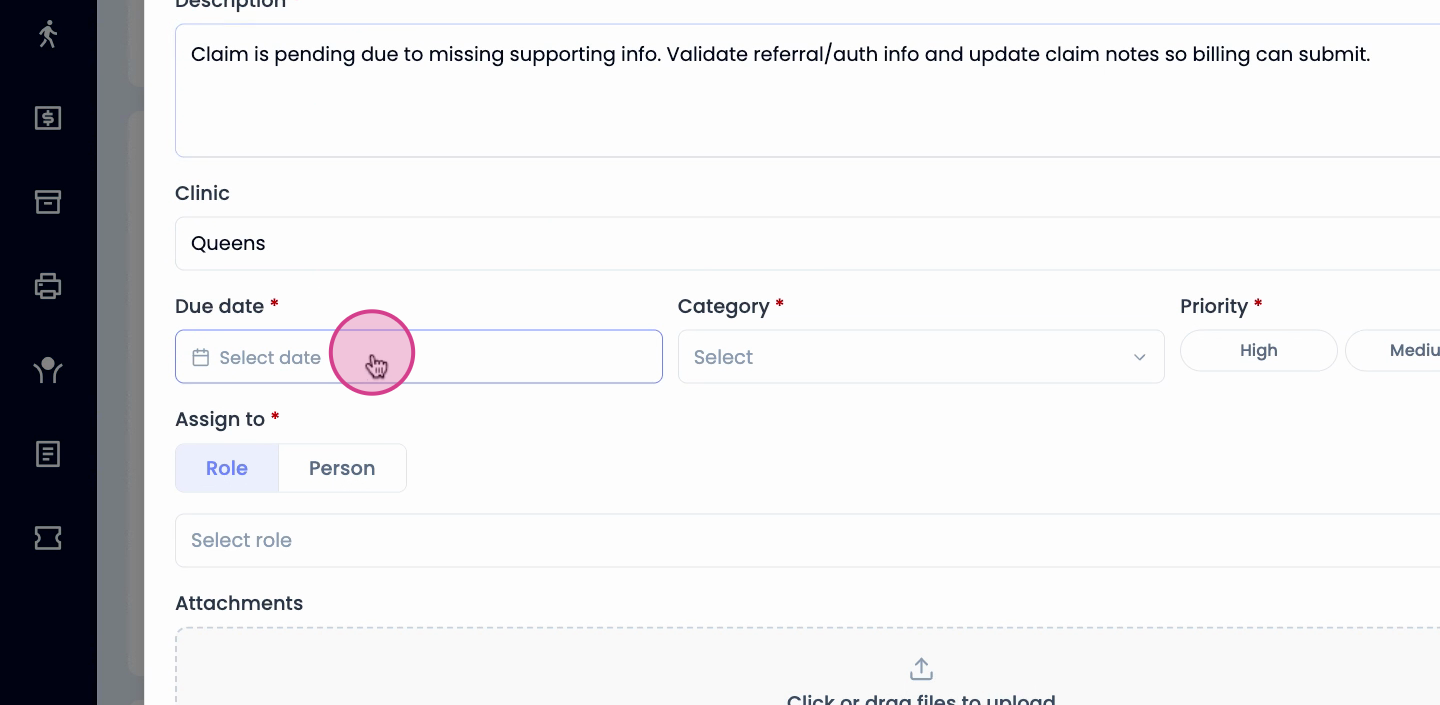
Step 4: Choose the Category and assign a Priority level.
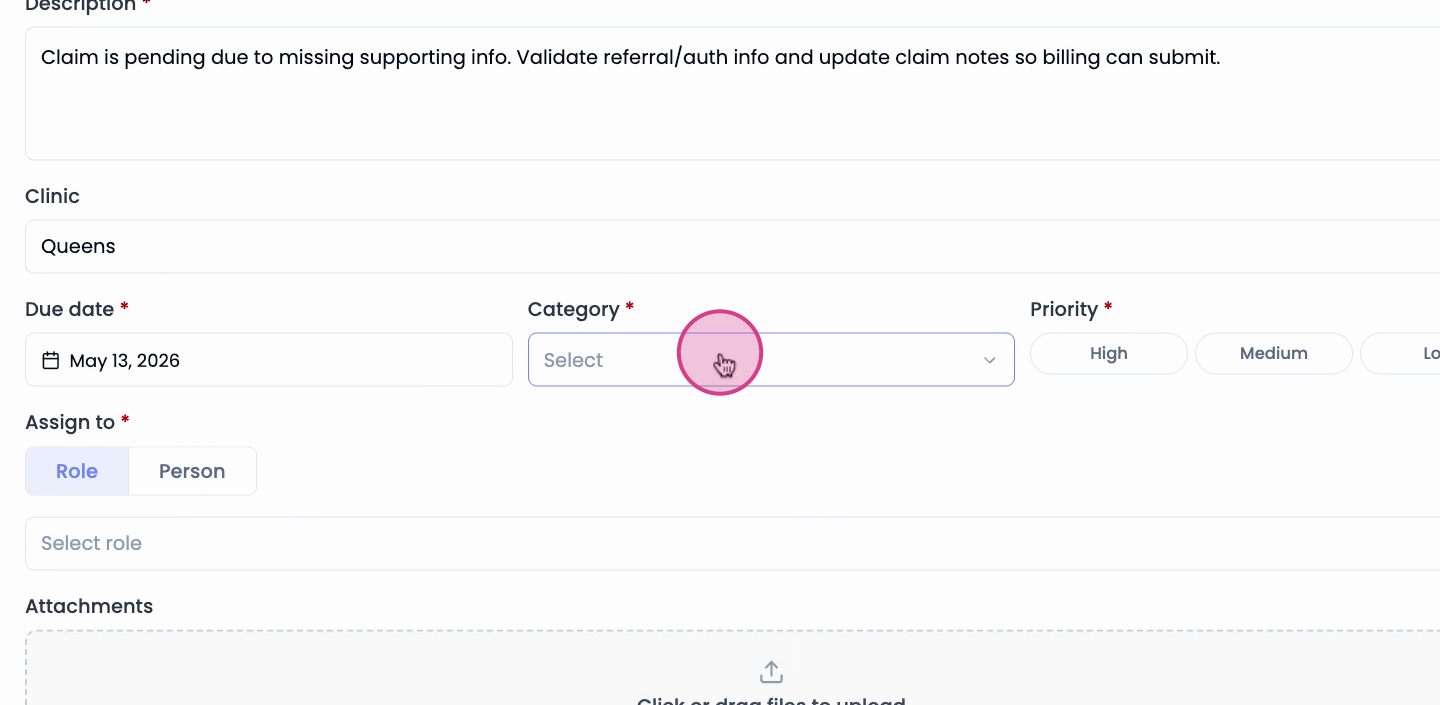
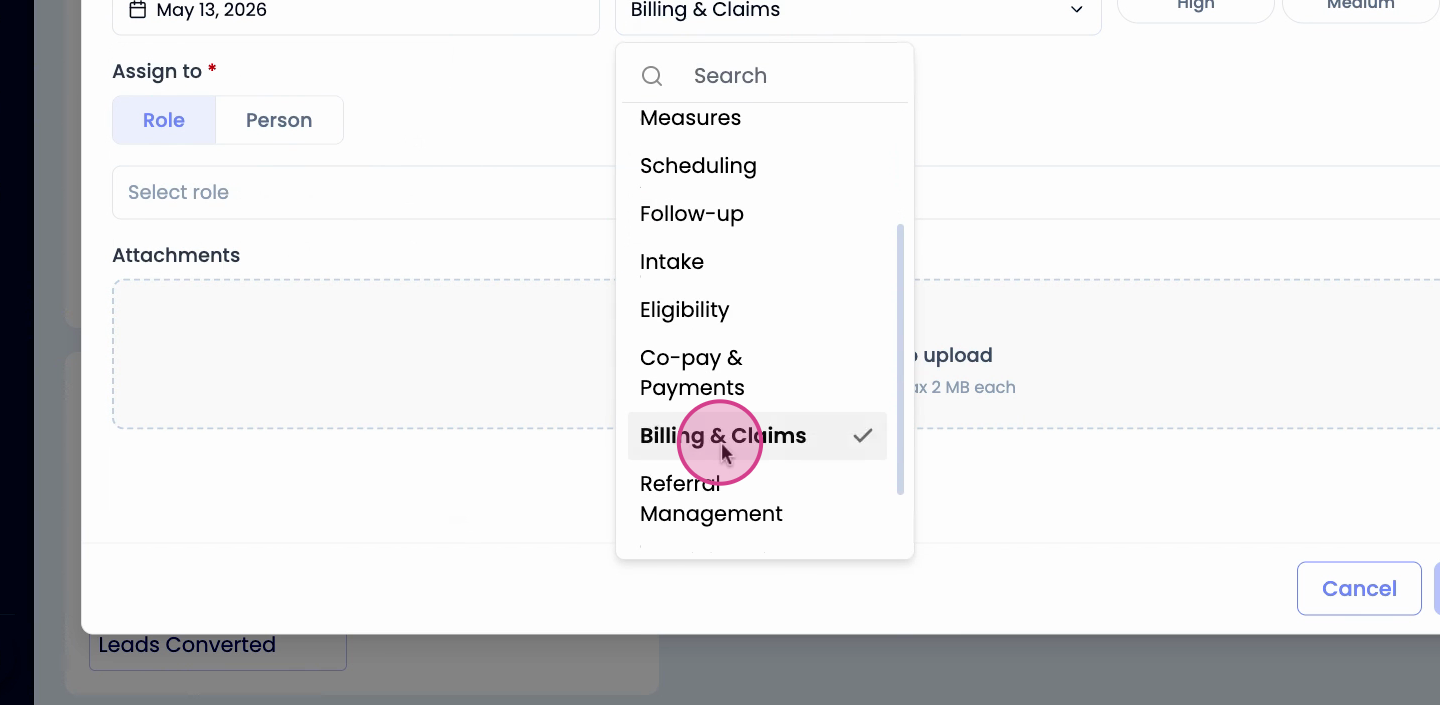
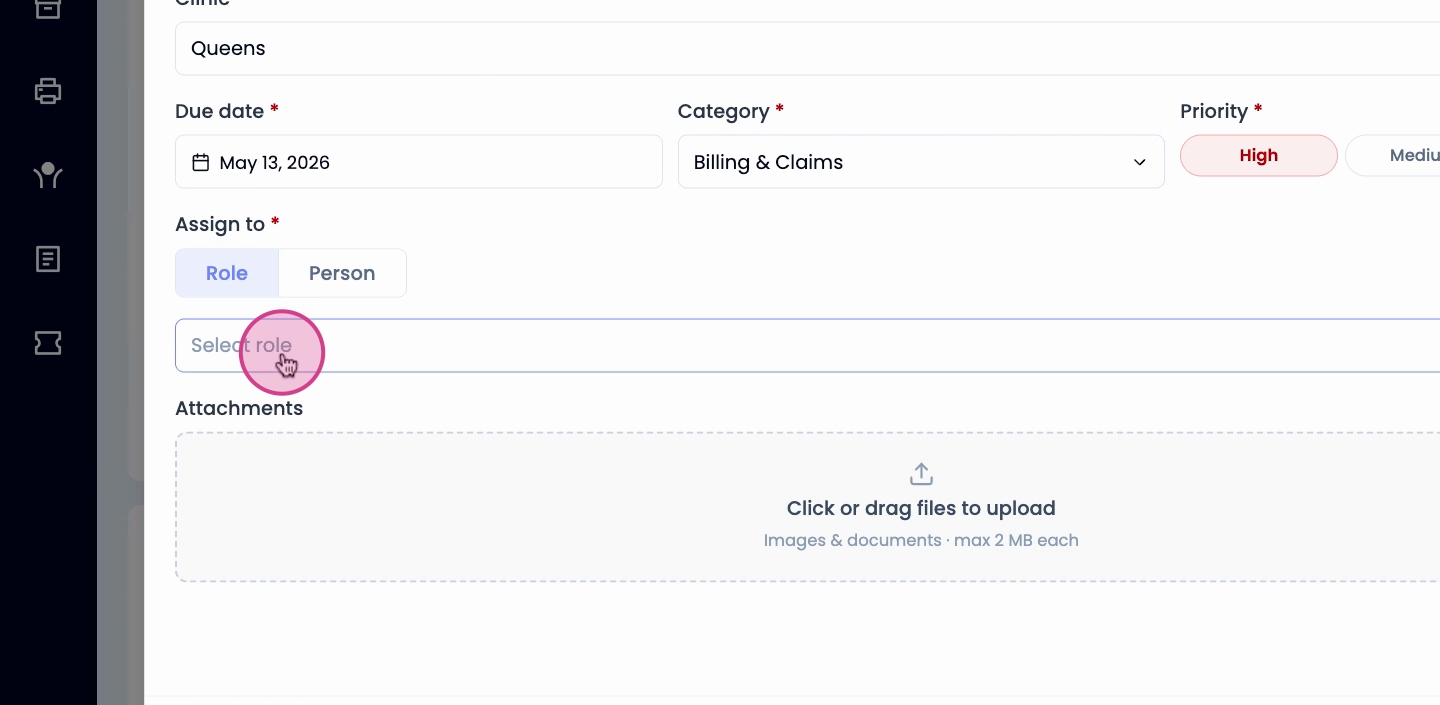
Step 5: Assign the task to an entire group or a specific user.
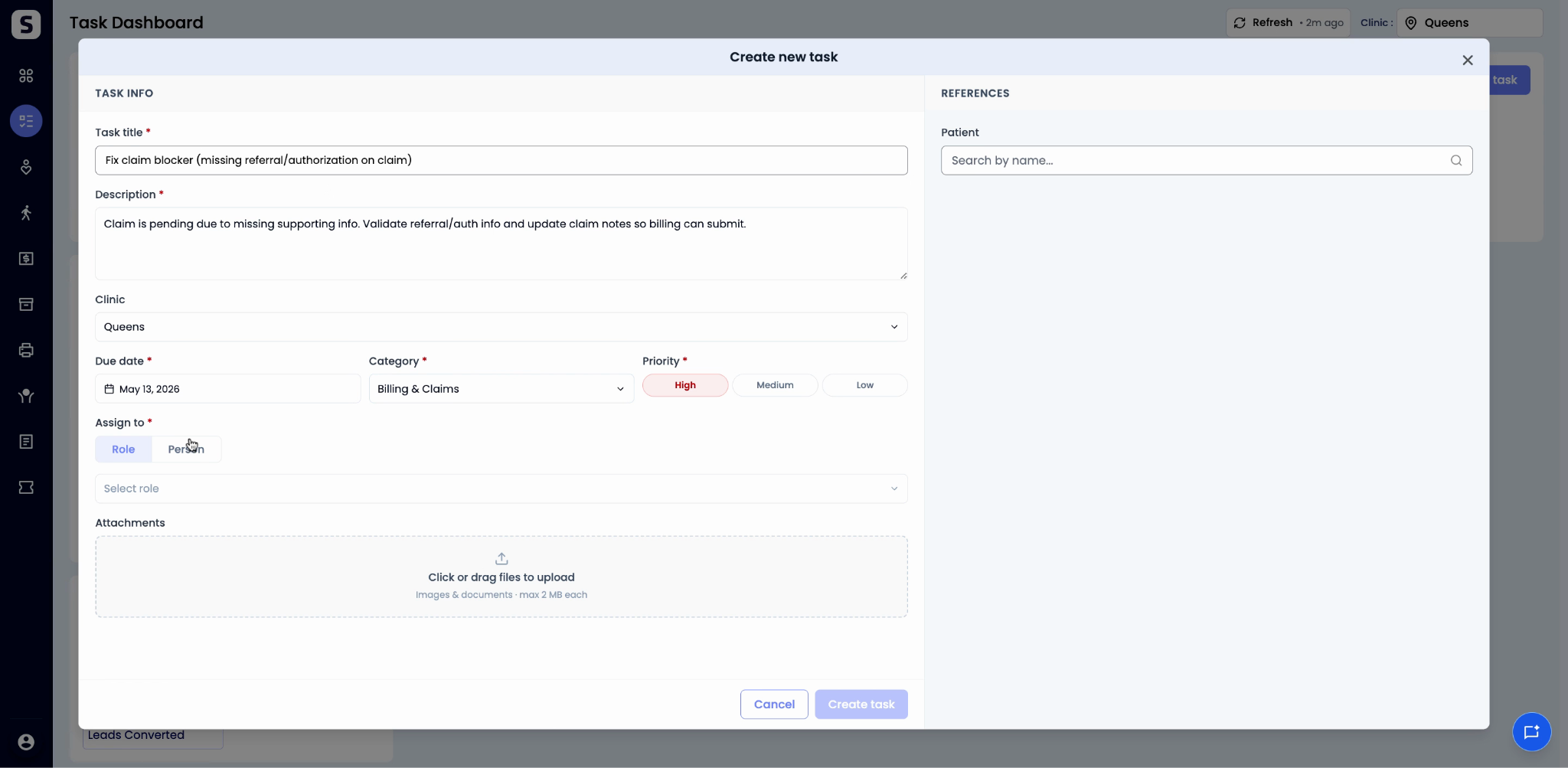
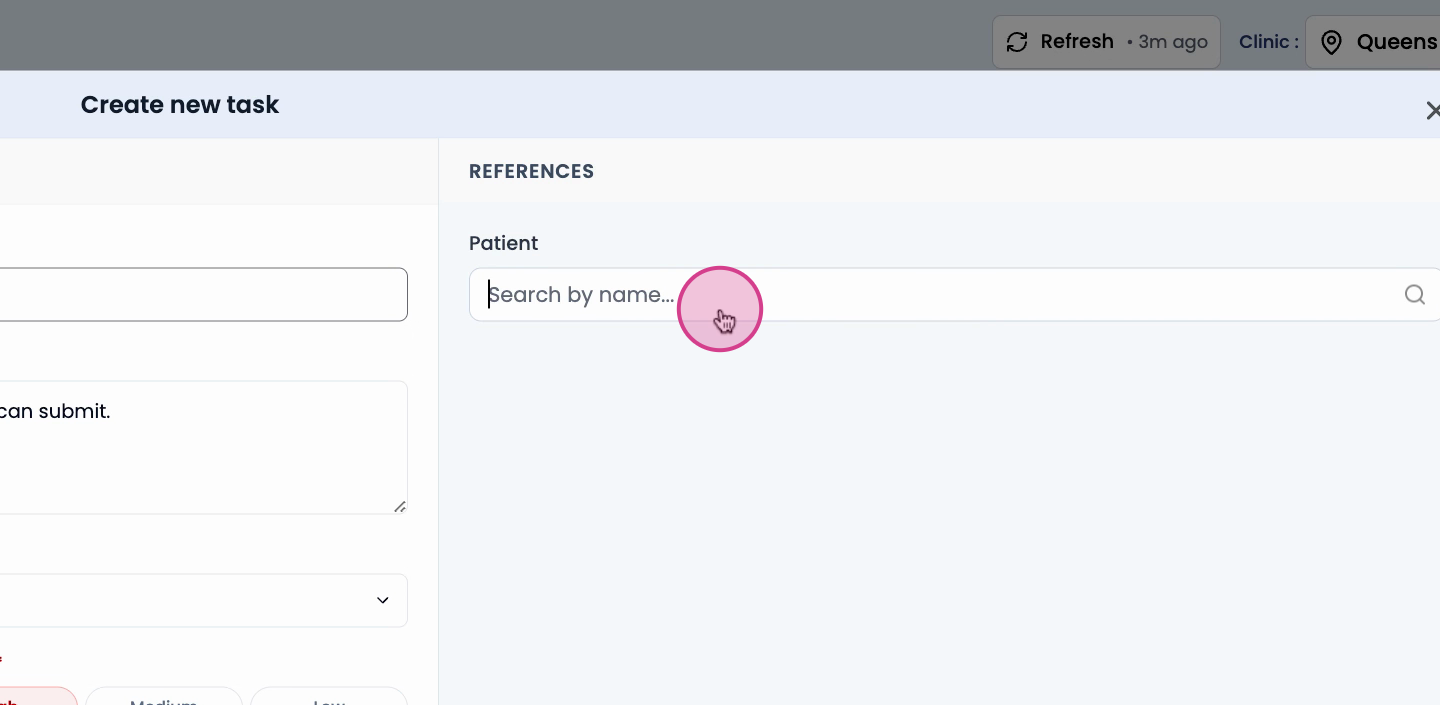
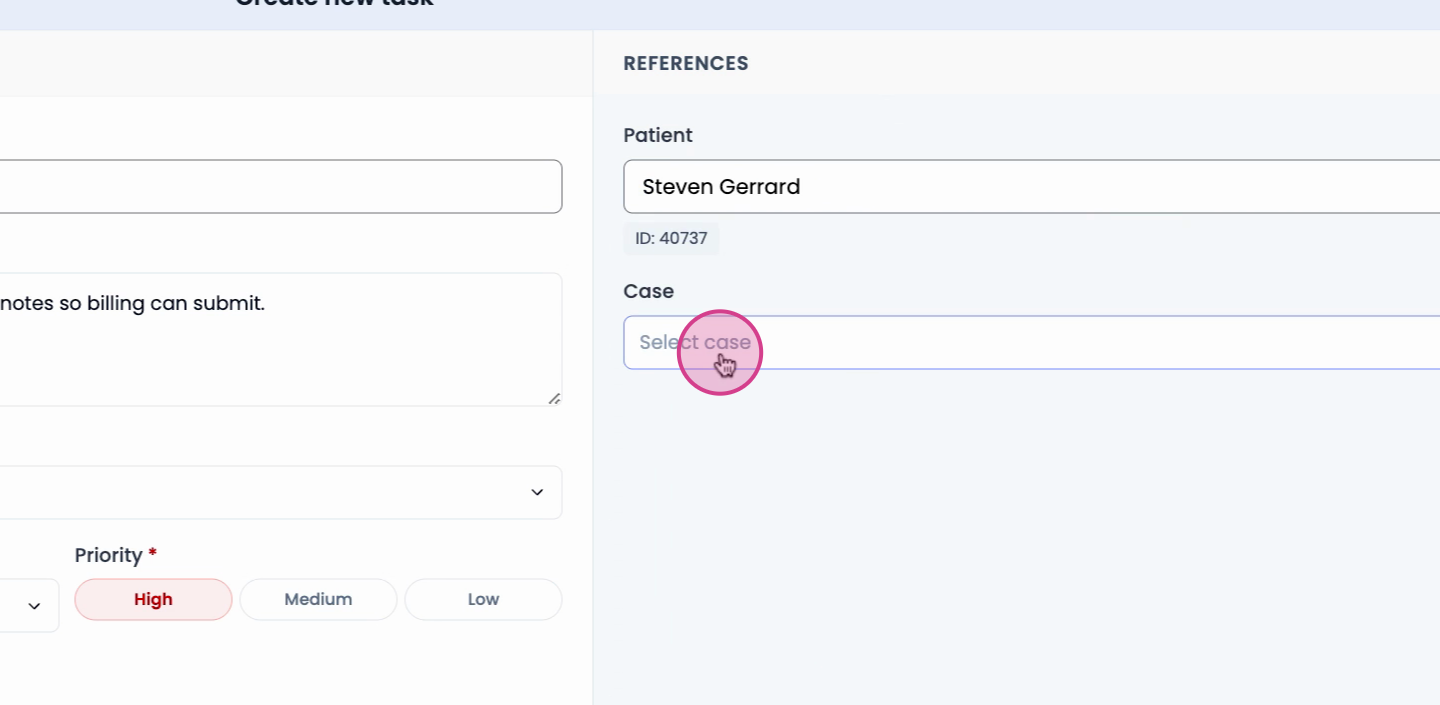
Step 6: Add references, link the task to a patient if needed, and include any extra details. More context makes it easier for teammates to pick up and complete the task.
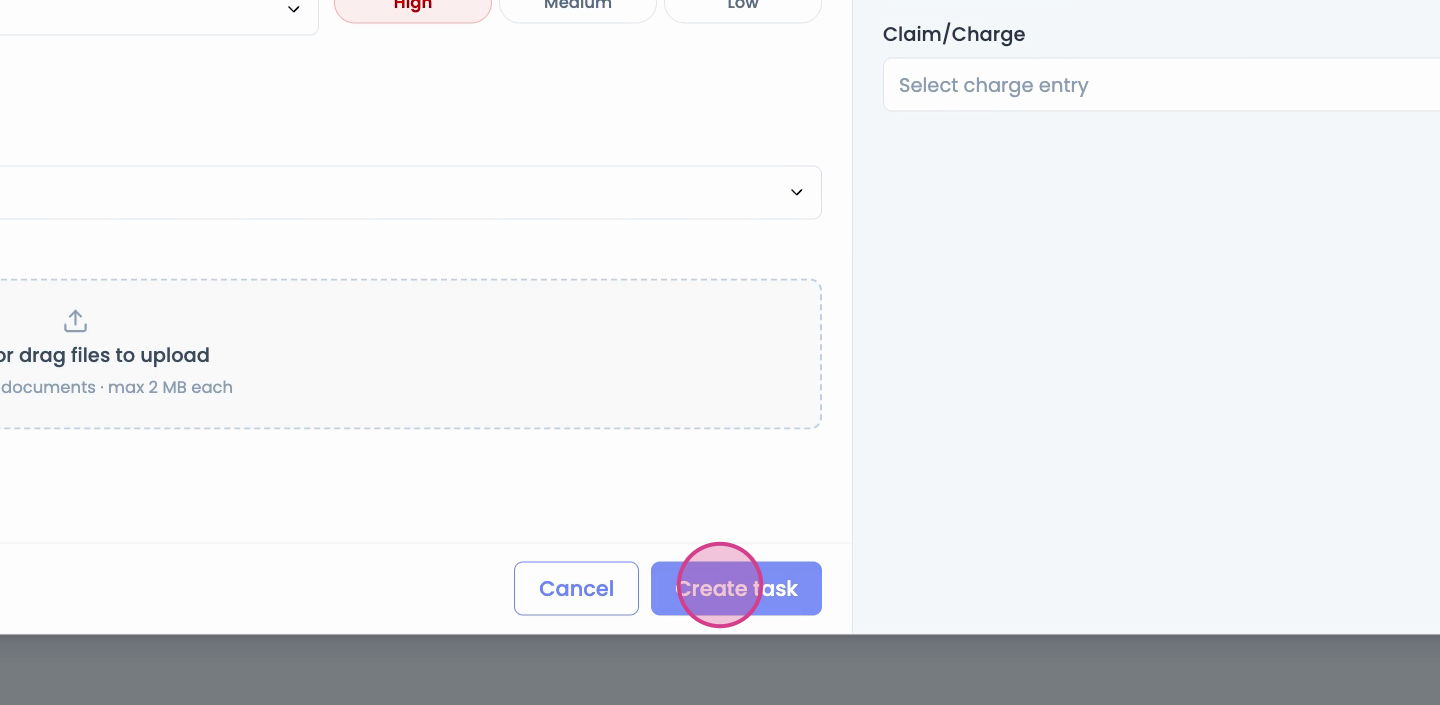
Step 7: Click Create Task to finish.
Track Progress and Collaborate
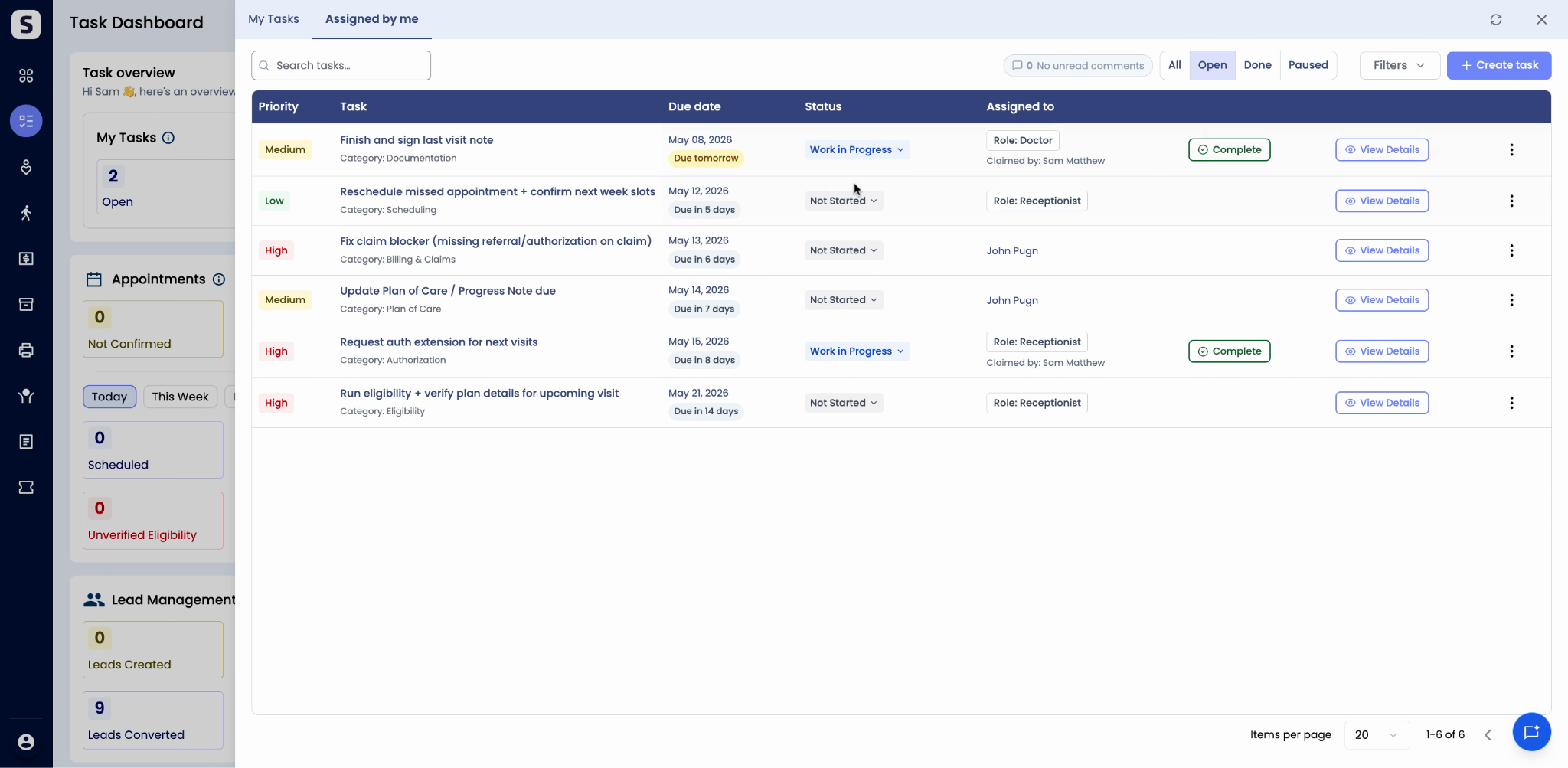
Step 1: Find your task under Assigned by Me so you can track its progress every step of the way.
Step 2: If you assign a task to a team role, anyone in that role can claim it by changing the status to Work in Progress.
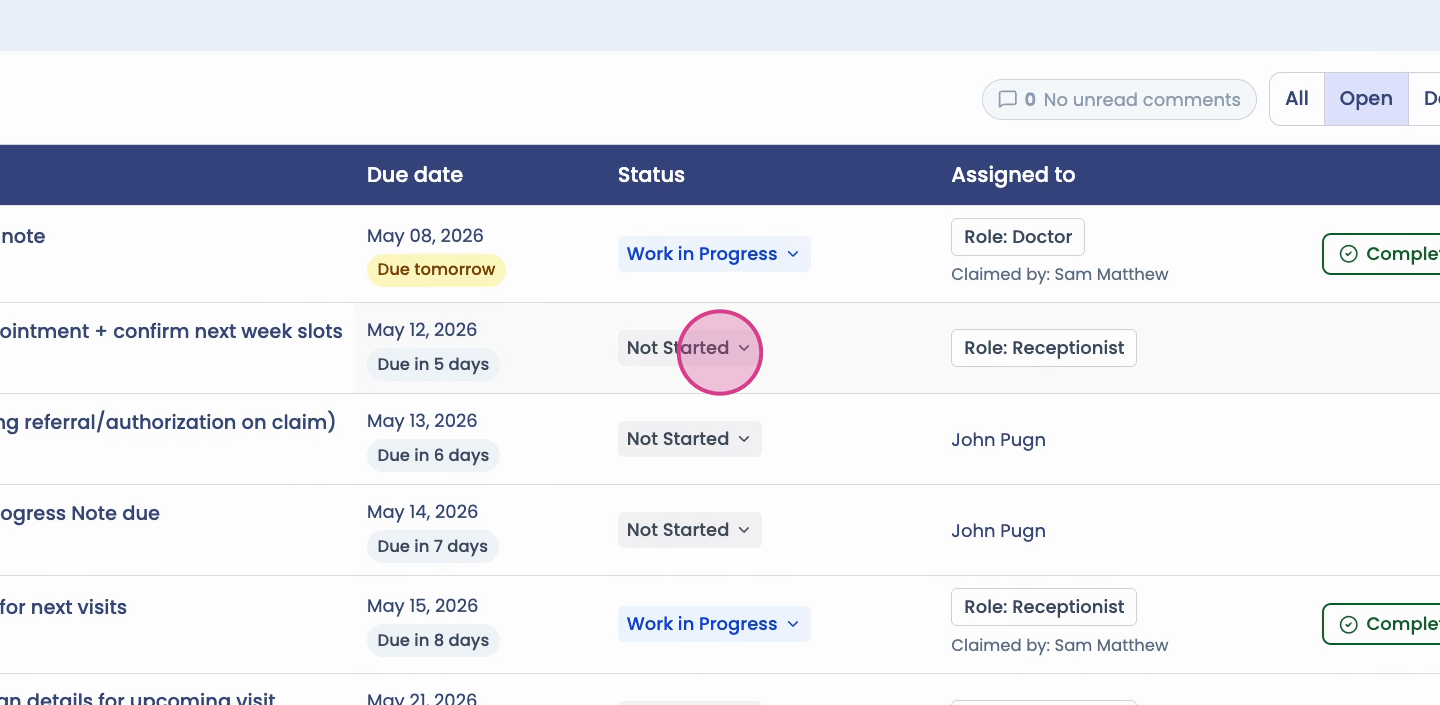
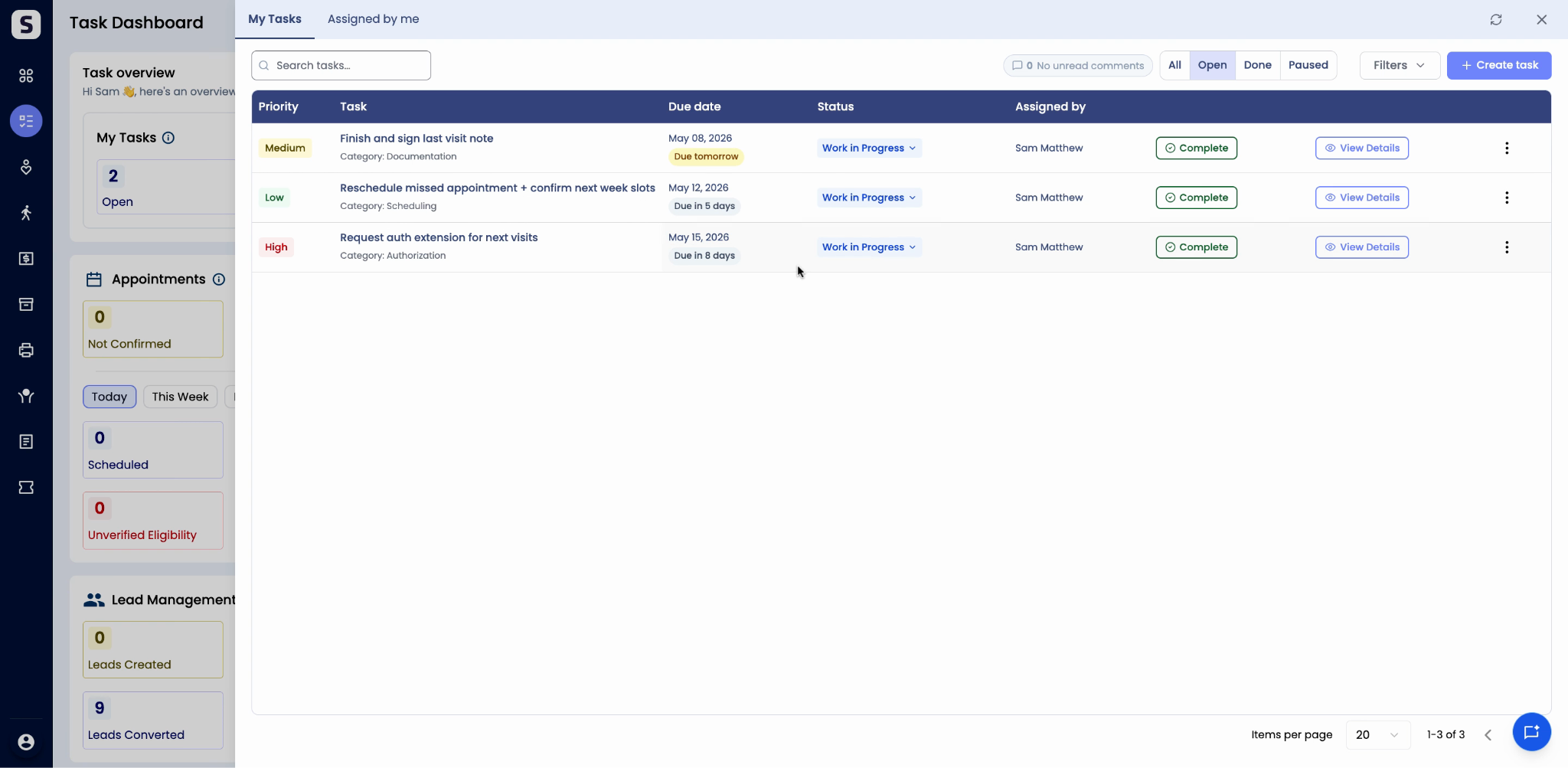
Step 3: The task is now automatically claimed and assigned to that teammate.
Step 4: Open the task to review activity and add comments.
Step 5: Leave a quick comment to keep your team in the loop.
Completing and Closing Tasks
Step 1: When work is finished, mark the task as Done.
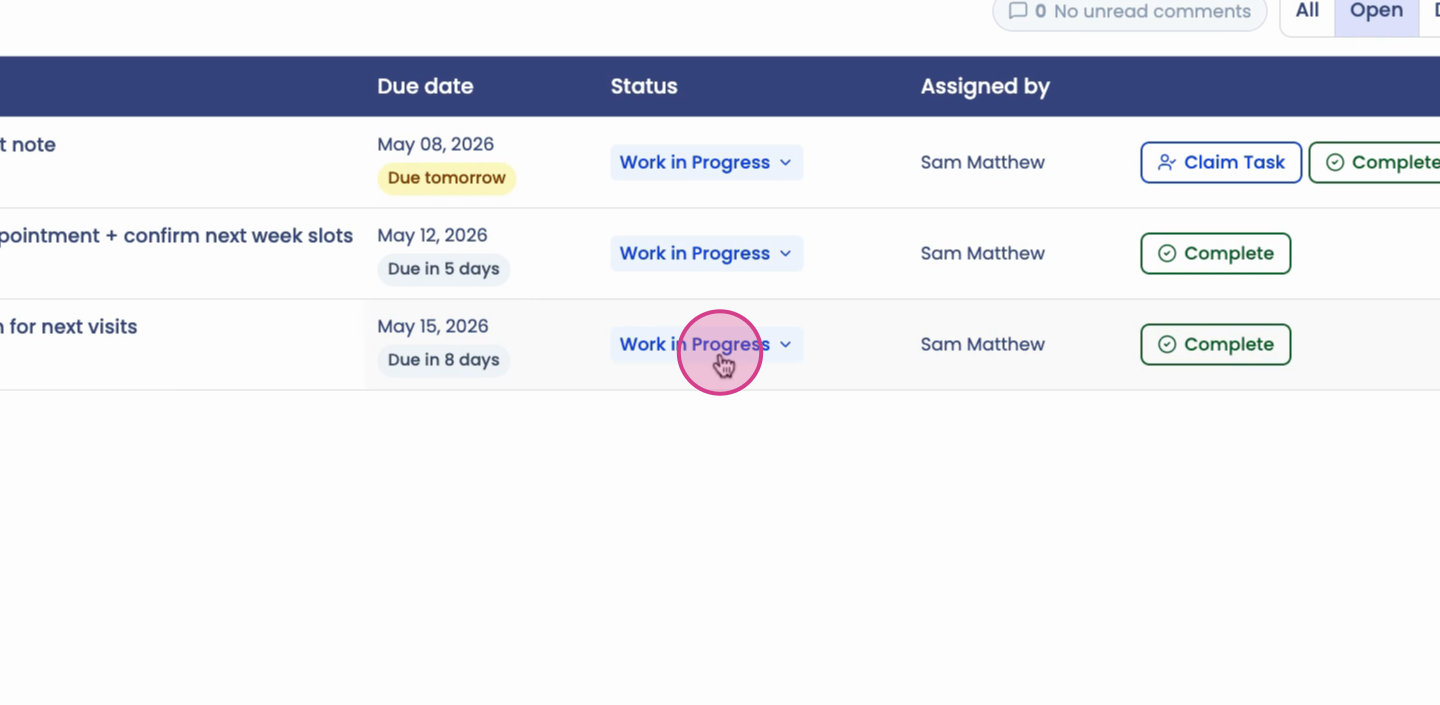
Step 2: Completed tasks move out of the active list, helping everyone focus on what’s next.
A well-organized task dashboard boosts team efficiency and accountability. Start assigning and tracking your team’s follow-ups in SPRY to keep work moving and nothing slipping through the cracks.