
Adding Recurring Blocks to Calendar
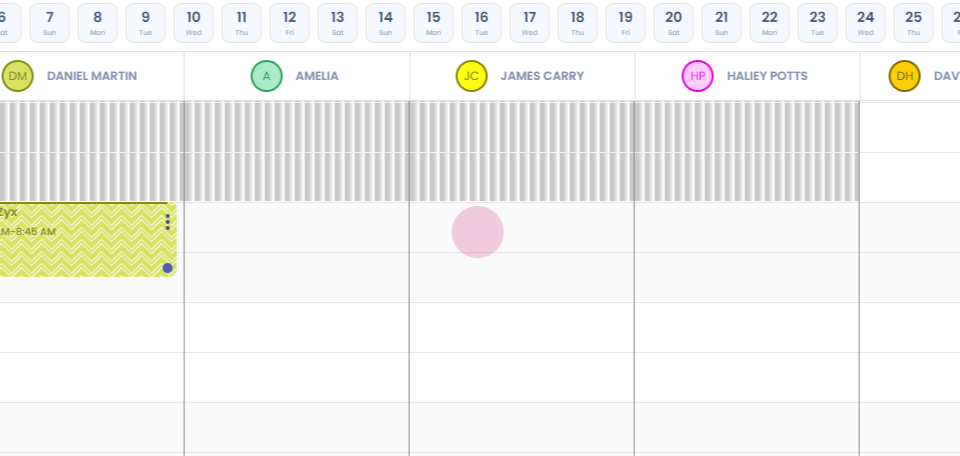
Step 1: Hi. This video demonstrates how to add a recurring block to your calendar. Go to the therapist column and in the required time slot, right click and add a block.
Step 2:
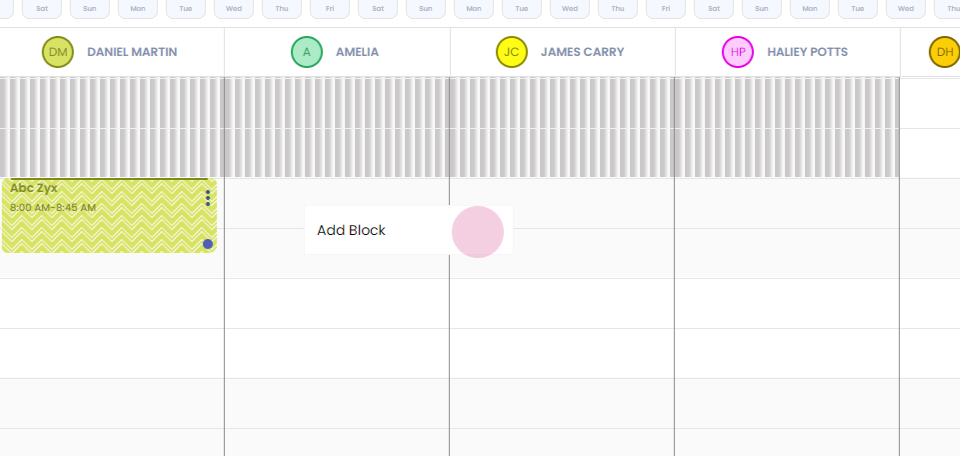
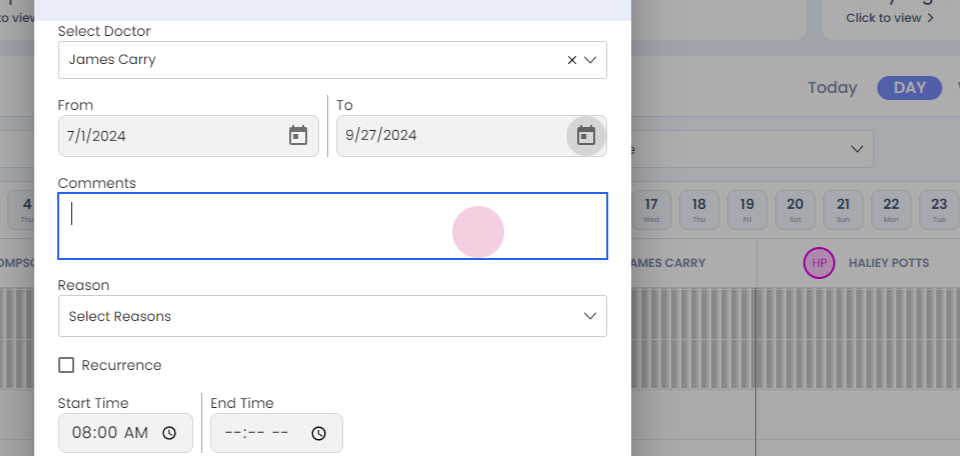
Step 3: The name of the doctor, date and the time gets auto populated.
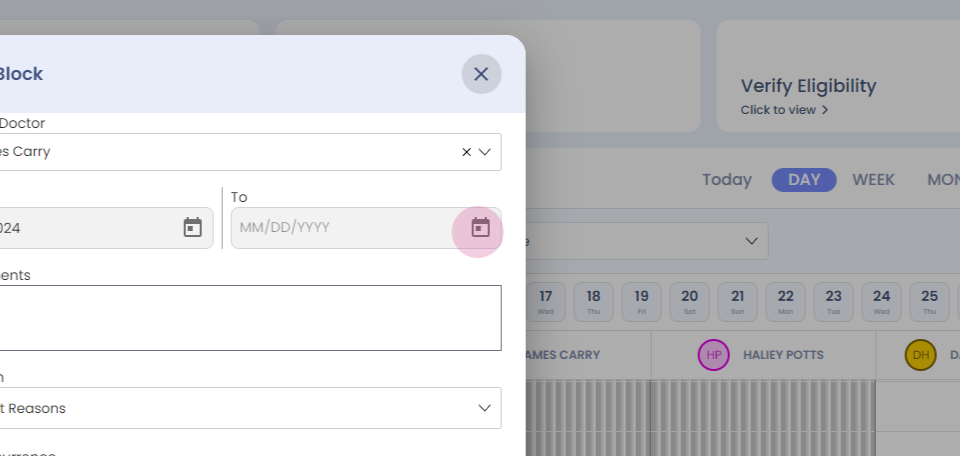
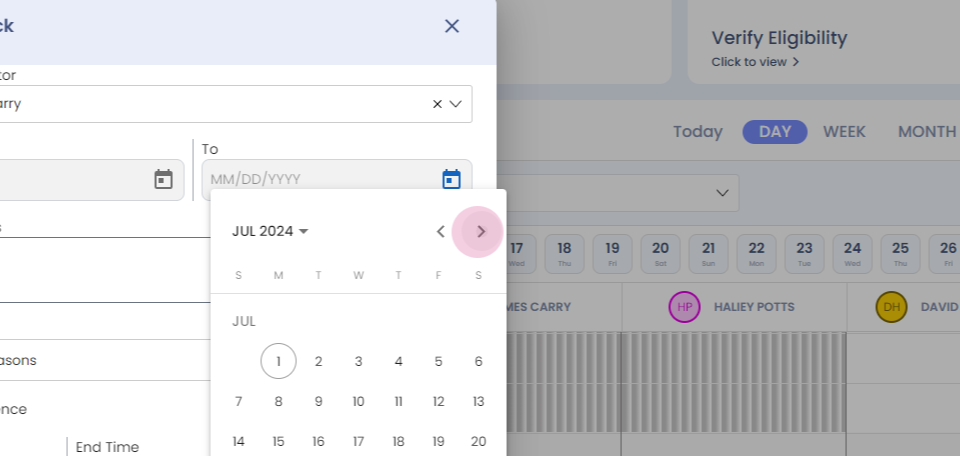
Step 4: Now you can even go and add the end date.
Step 5:
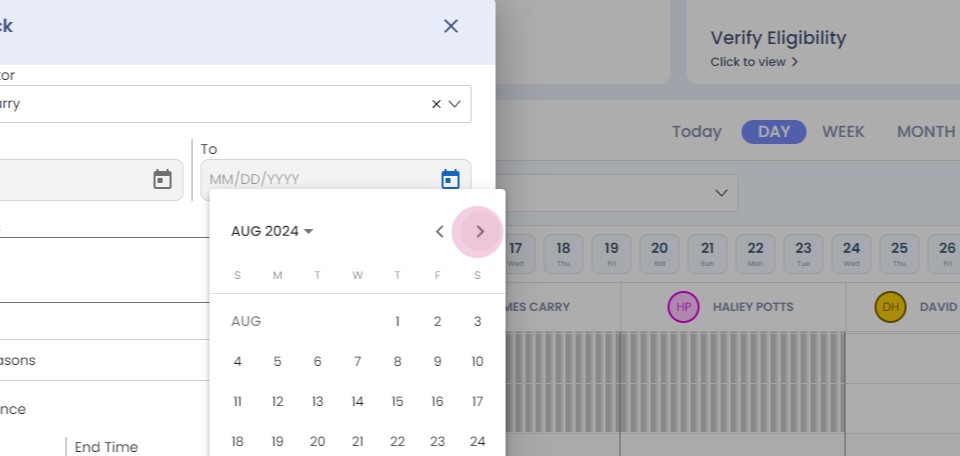
Step 6:
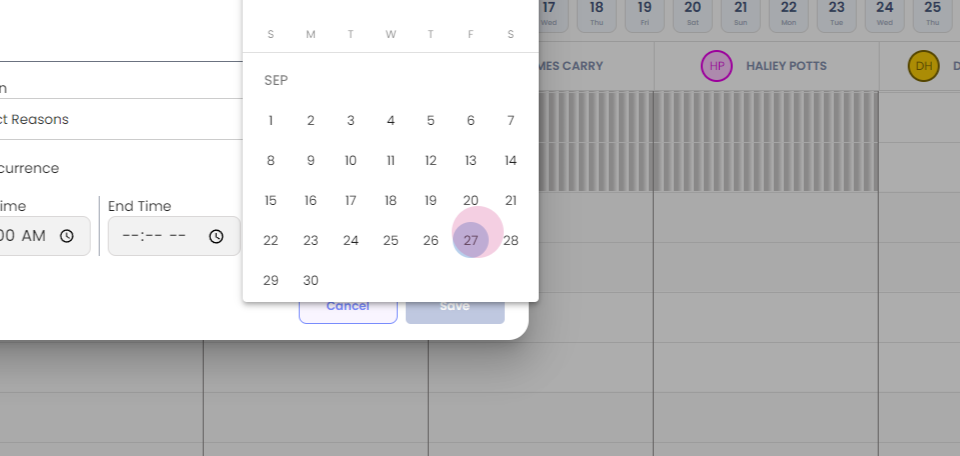
Step 7: You can add the comments if required.
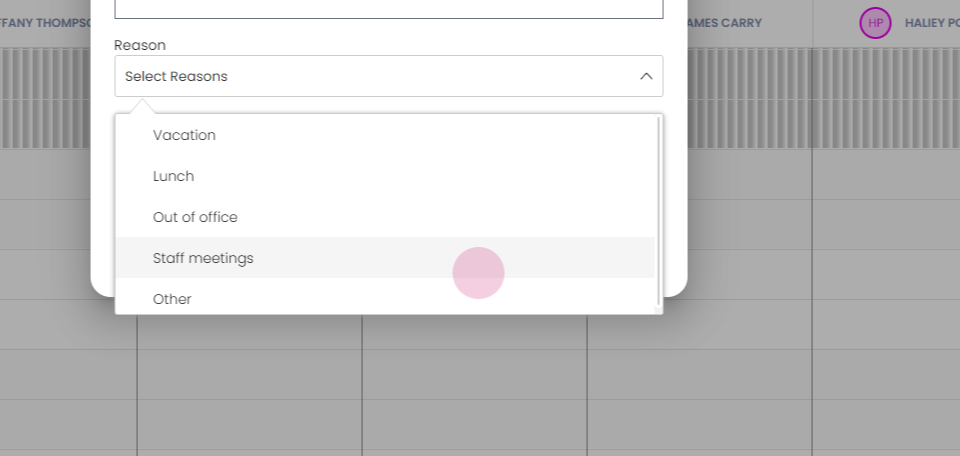
Step 8: Now once you come to the reasons, select from the drop down.
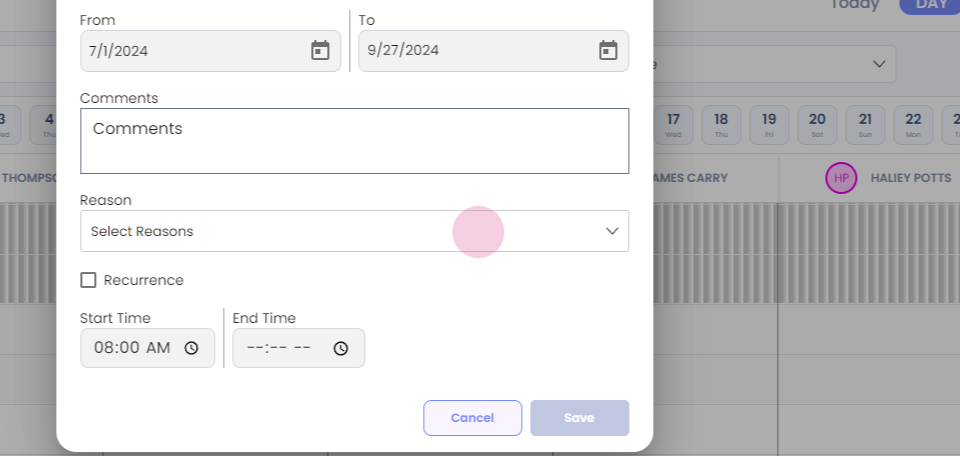
Step 9: I am adding staff meetings.
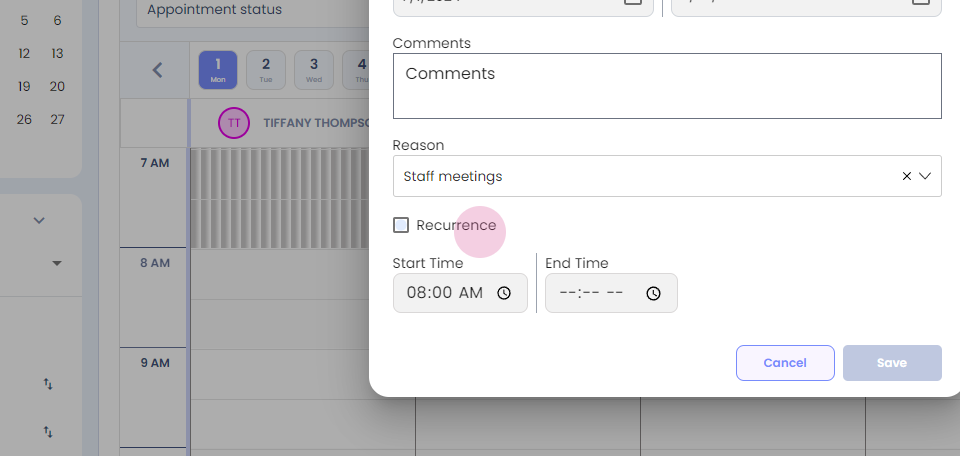
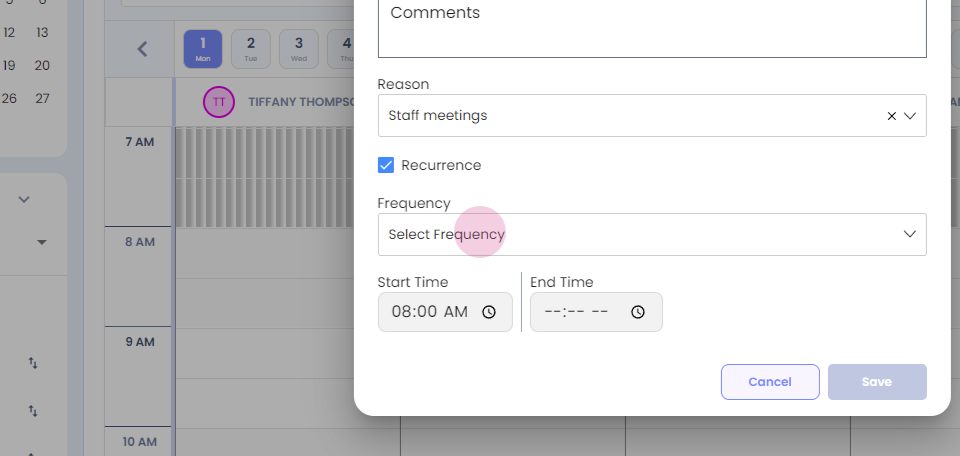
Step 10: Now click on the recurrence and select the frequency.
Step 11:
Step 12:
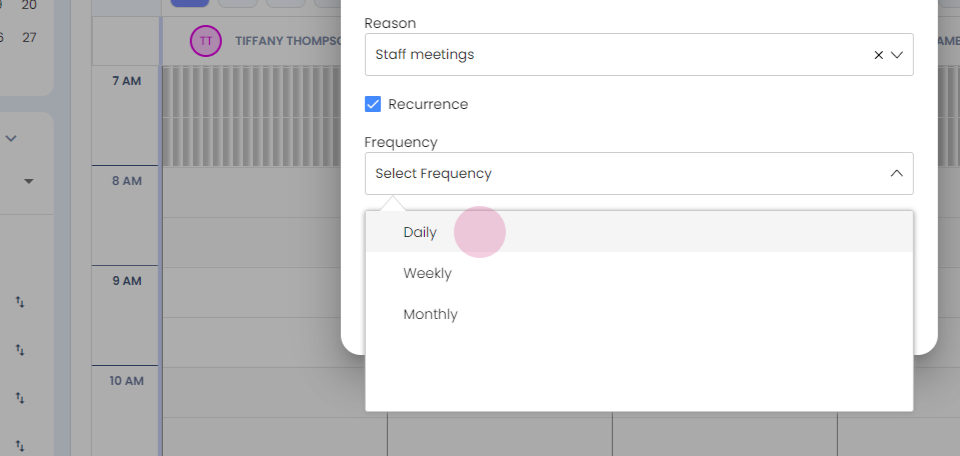
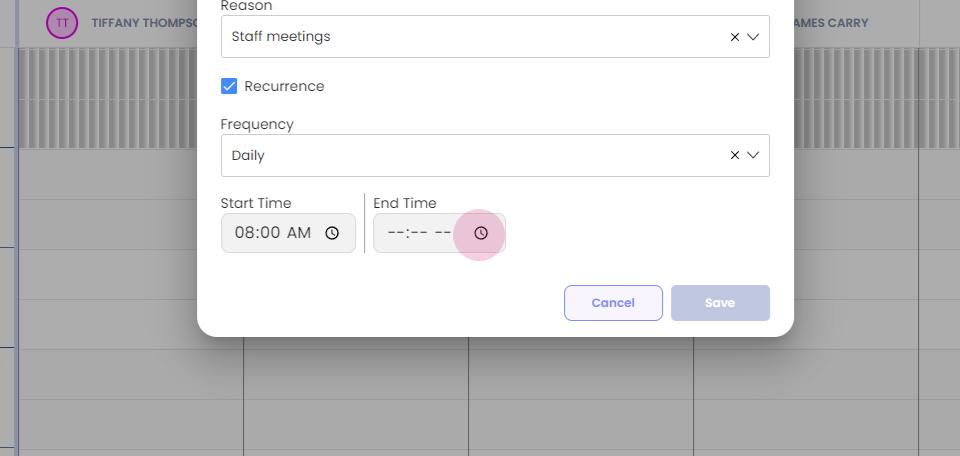
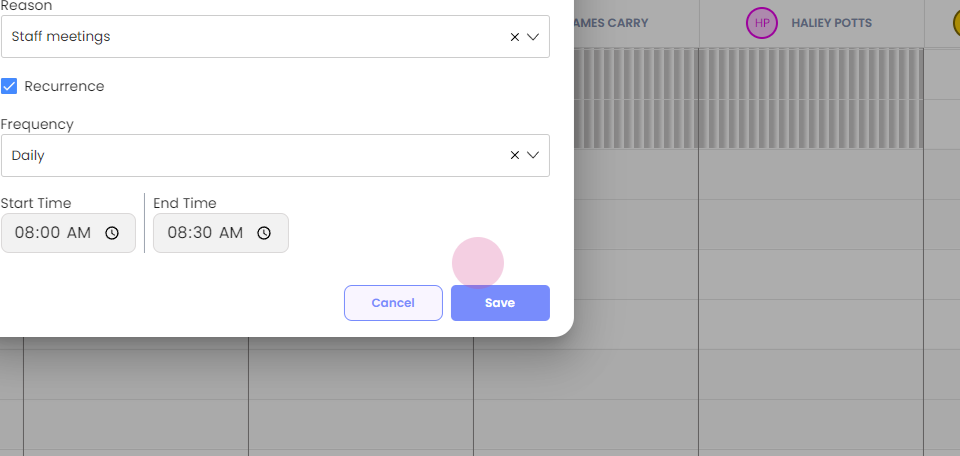
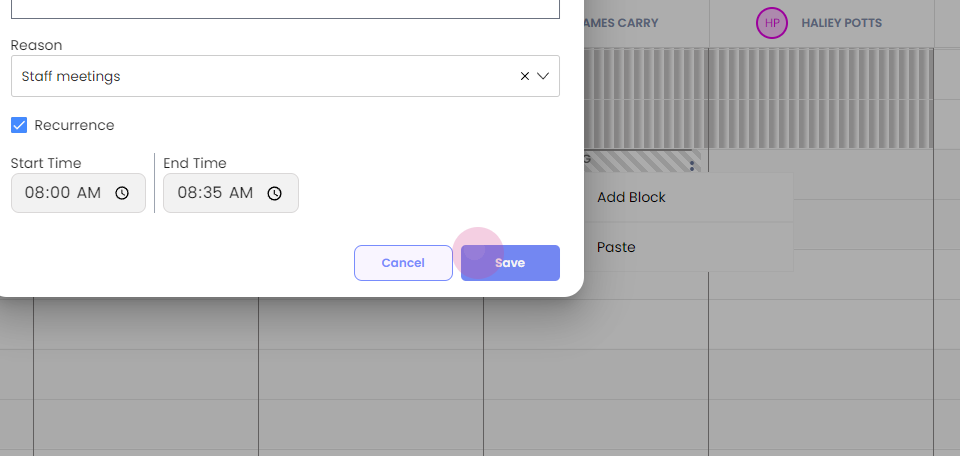
Step 13: Add the end time and save.
Step 14:
Step 15:

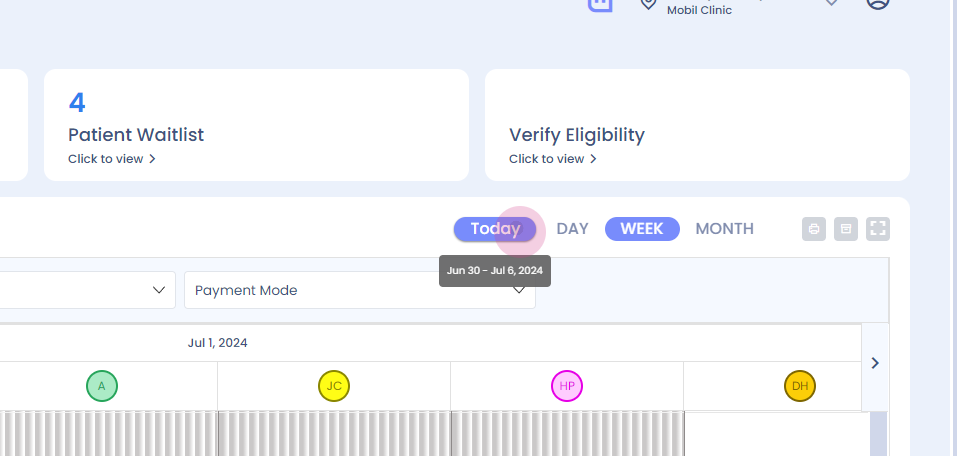
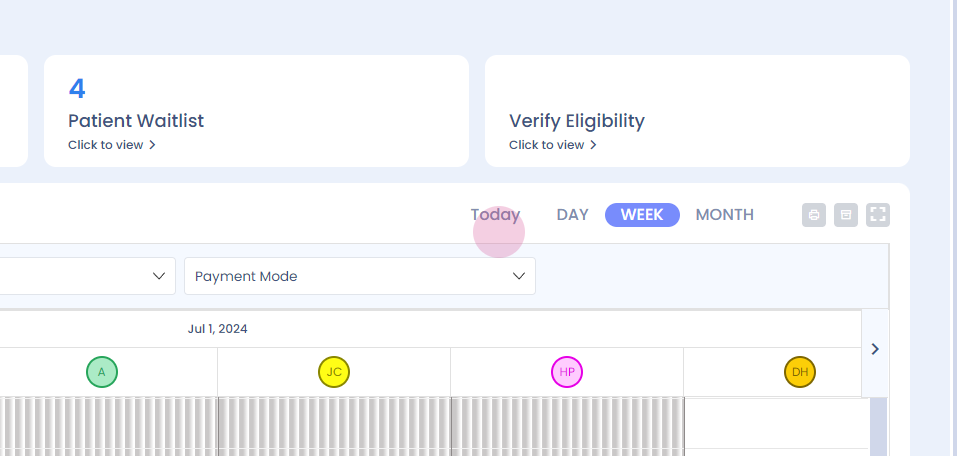
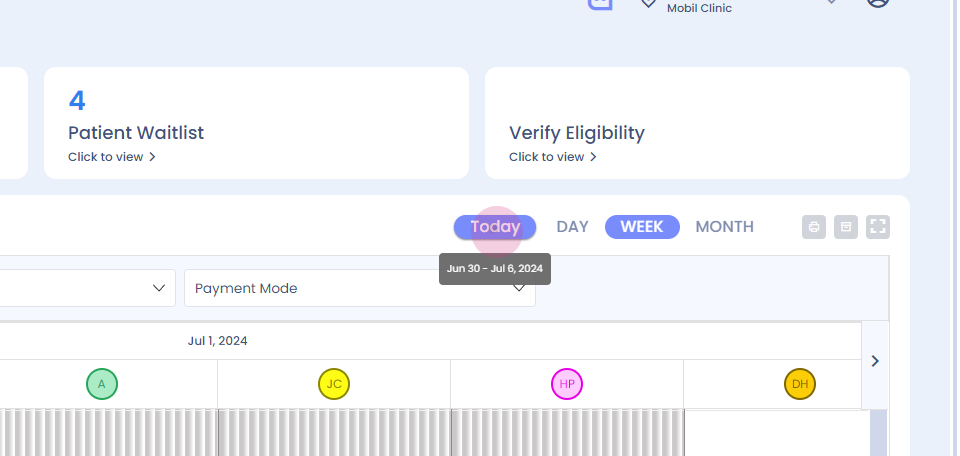
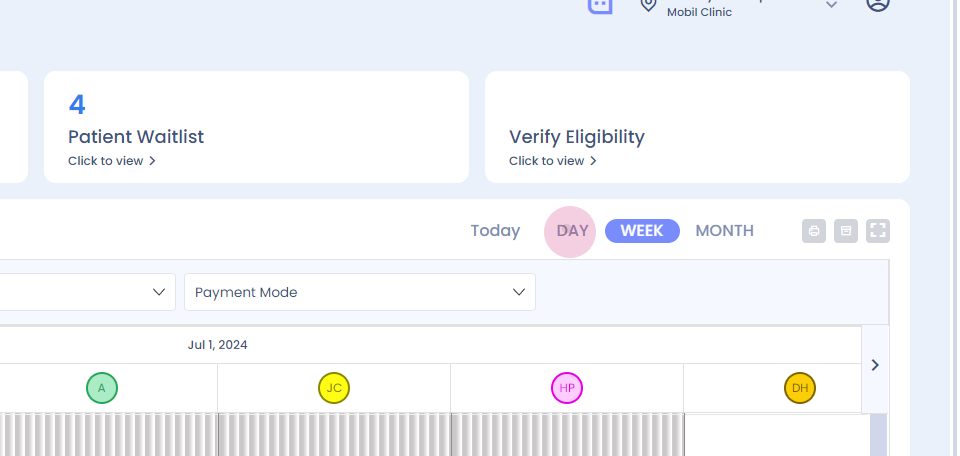
Step 16: This gets seen on the dashboard. You can even check it for the week.
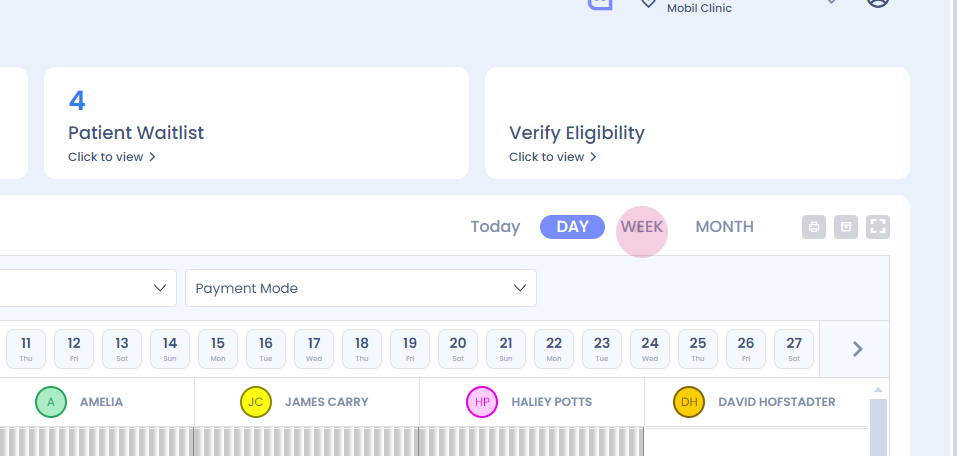
Step 17: You will see it here.
Step 18:
Step 19:
Step 20:
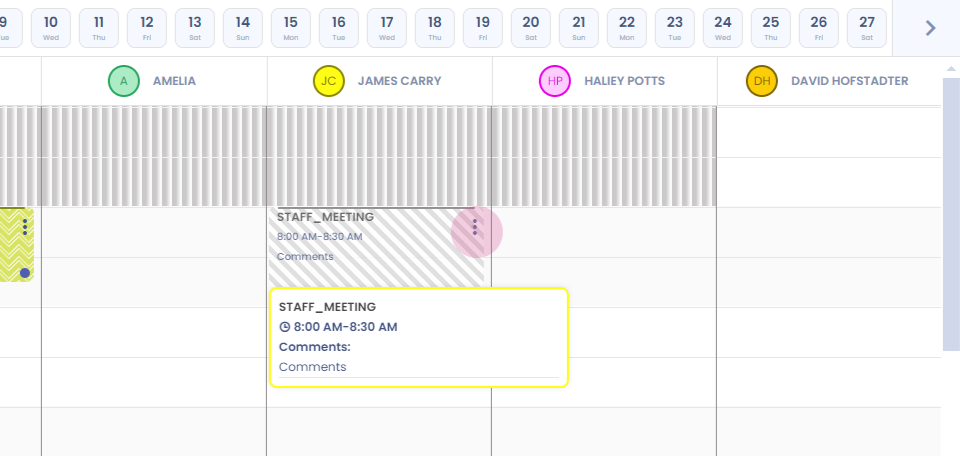
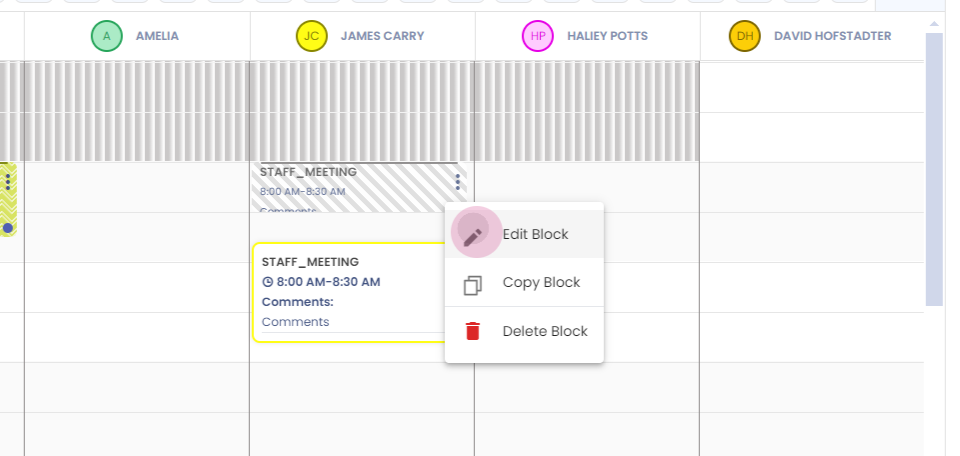
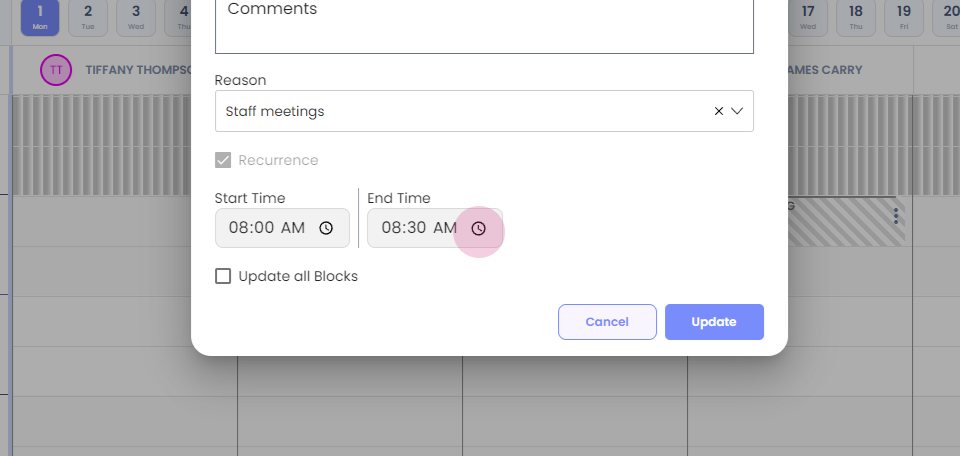
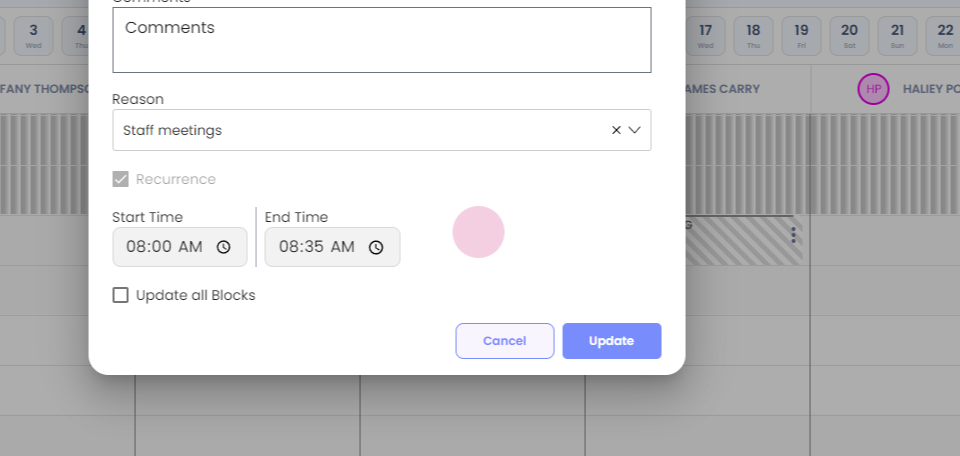
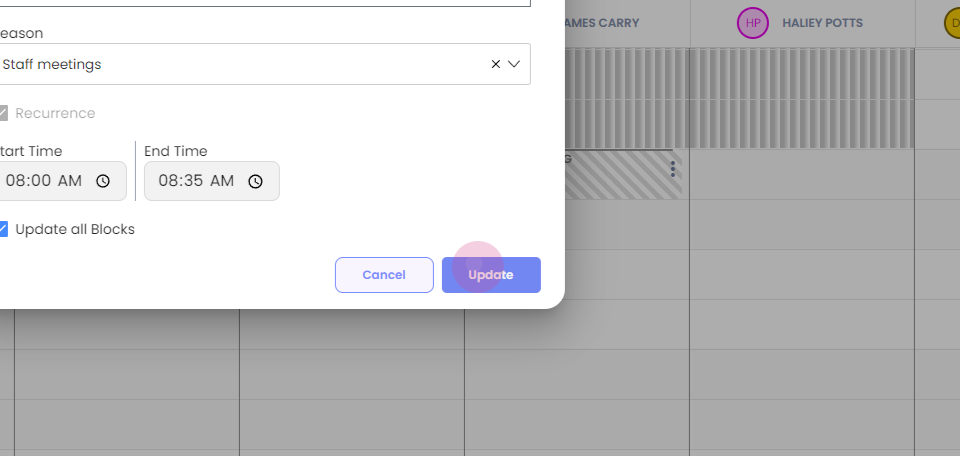
Step 21: Now if you want to edit the block, you can by making necessary changes and choose to update in all blocks or this block.
Step 22:
Step 23:
Step 24:
Step 25:
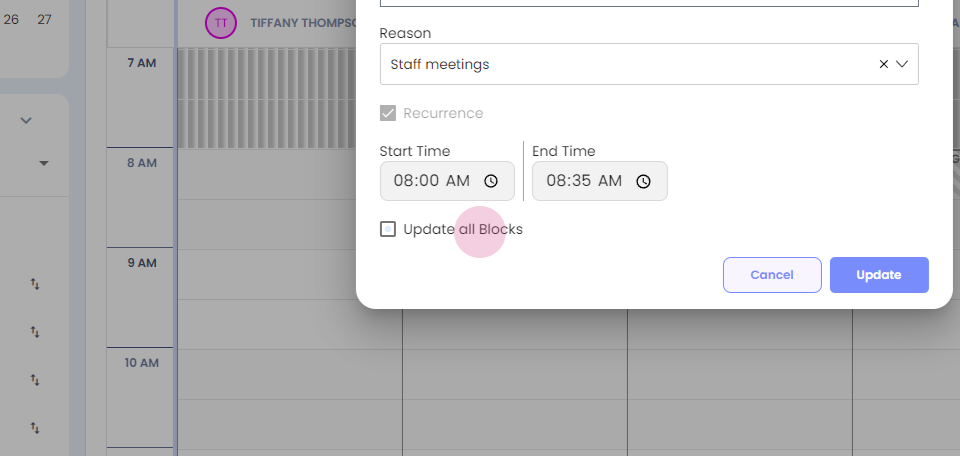
Step 26: I am going ahead with all blocks and update.
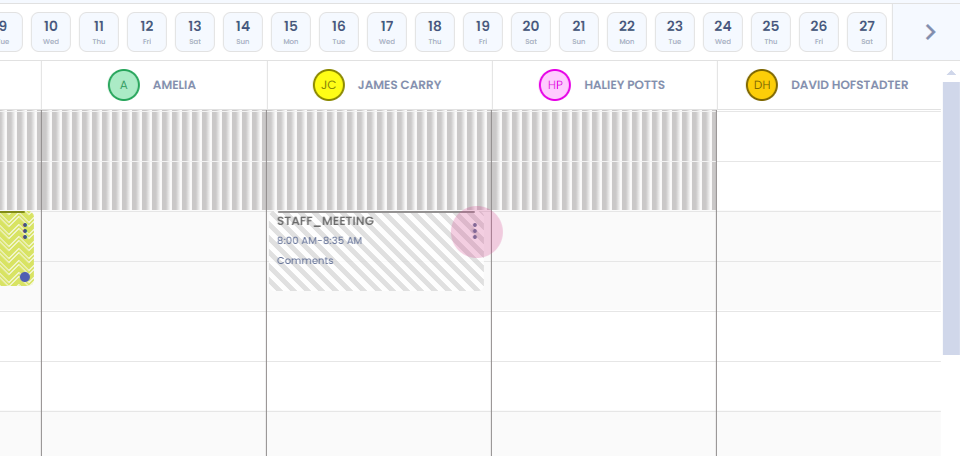
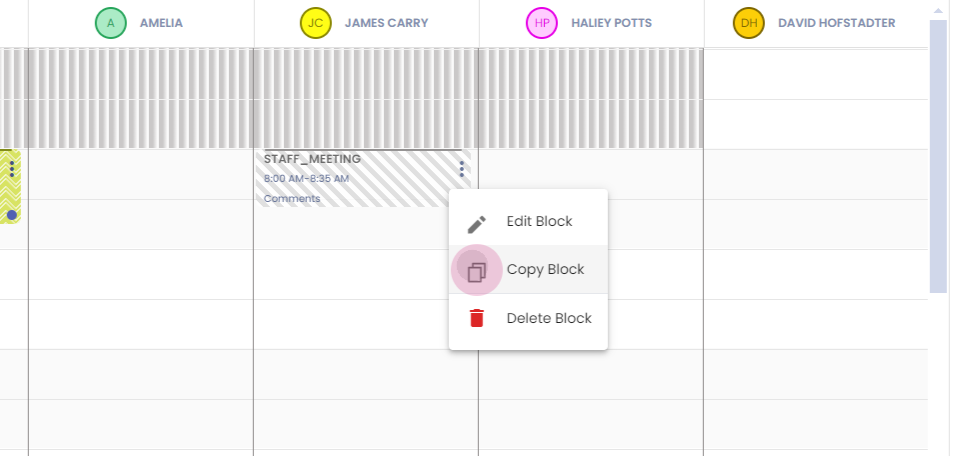
Step 27: Now you can even copy the block and paste it in other therapist schedule or in your own schedule.
Step 28:
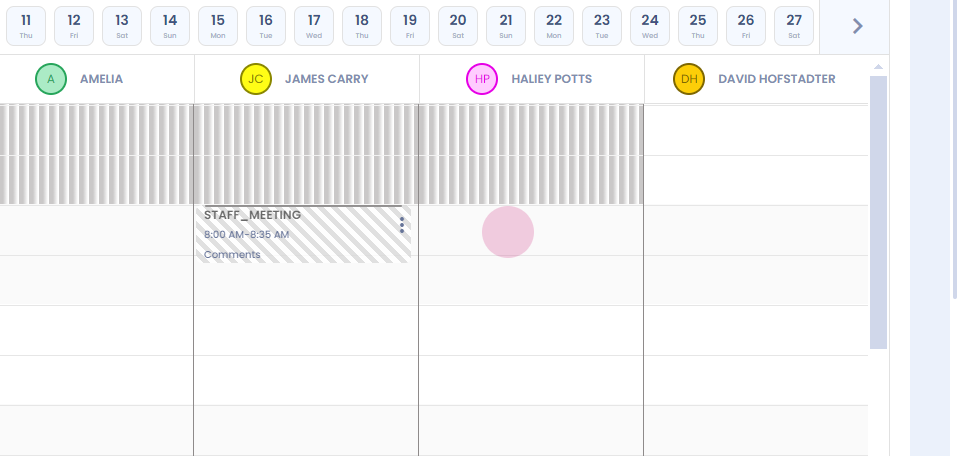
Step 29: I am going to paste it here.
Step 30:
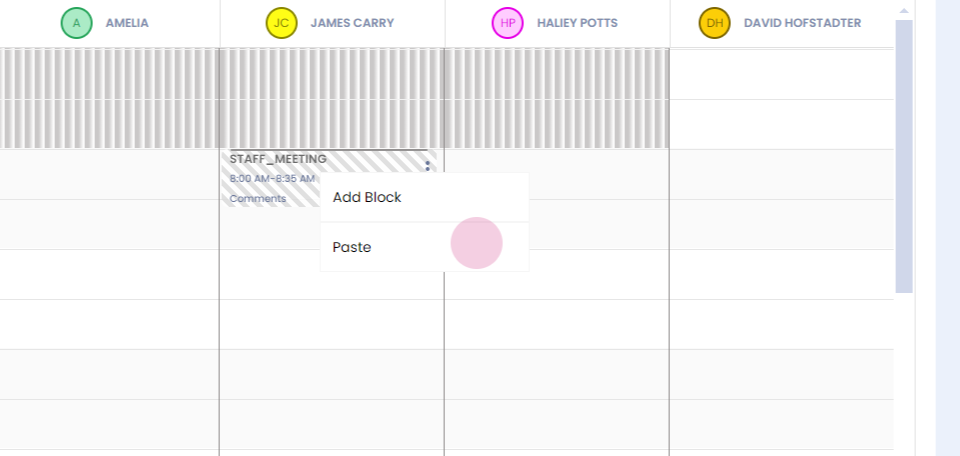
Step 31: You can see the name of the doctor, the date, and time gets auto populated, check and save.
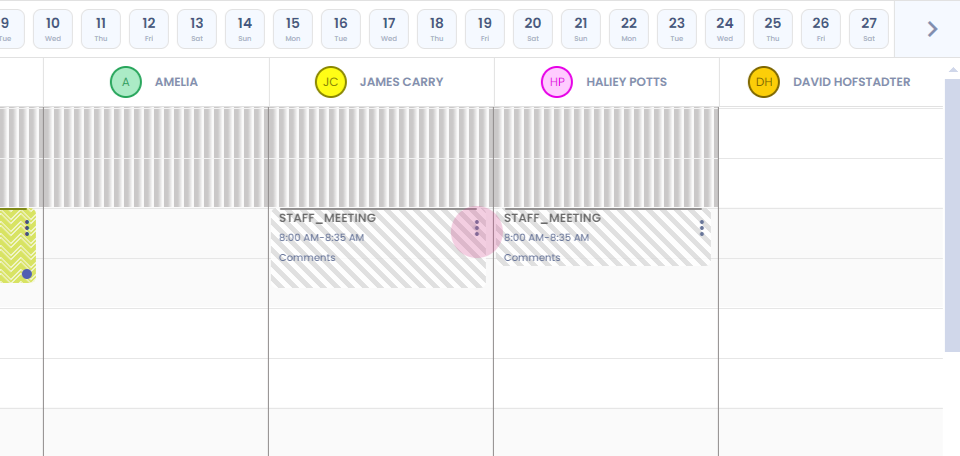
Step 32: If you want to delete the block, you can go ahead and even delete it.
Step 33:
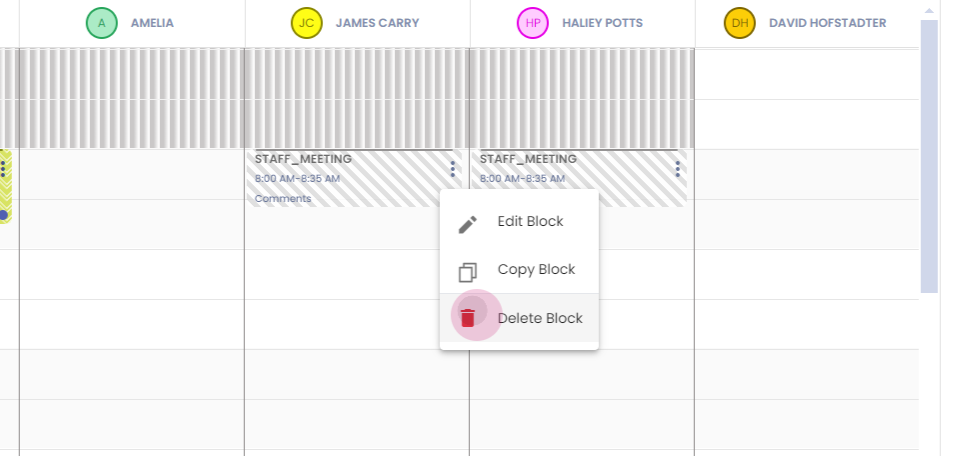
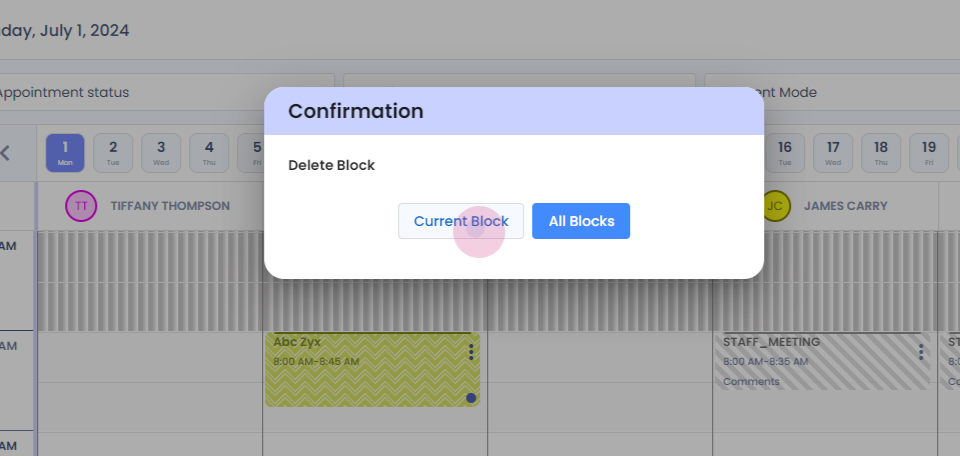
Step 34: A prompt appears to delete the current block or all the blocks. I'm going to delete the current block.
Thank you.