
Add Communication Note
In this article, you'll learn how to add a Communication Note to a patient's profile.
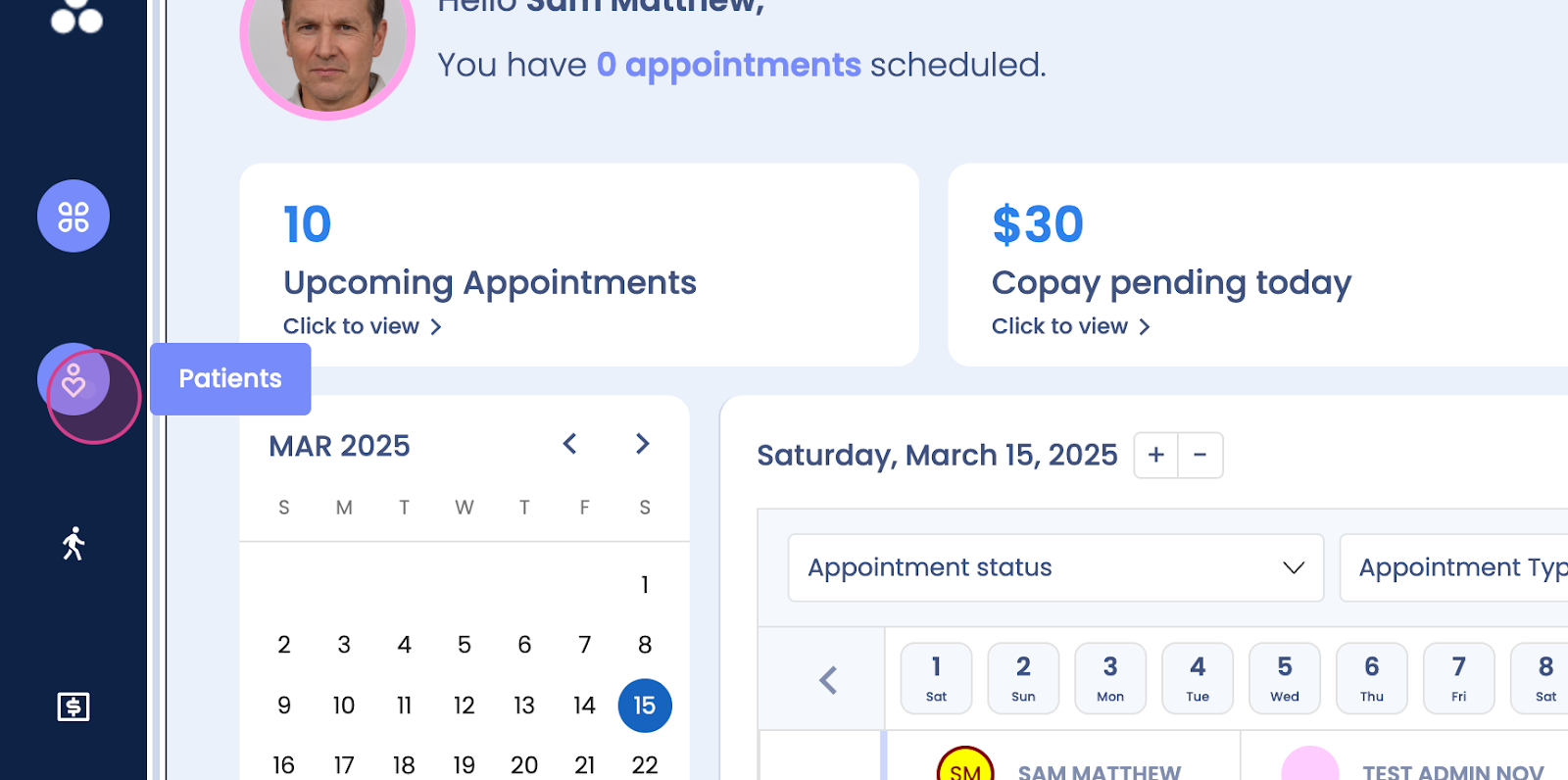
Step 1: Navigate to the patient's profile.
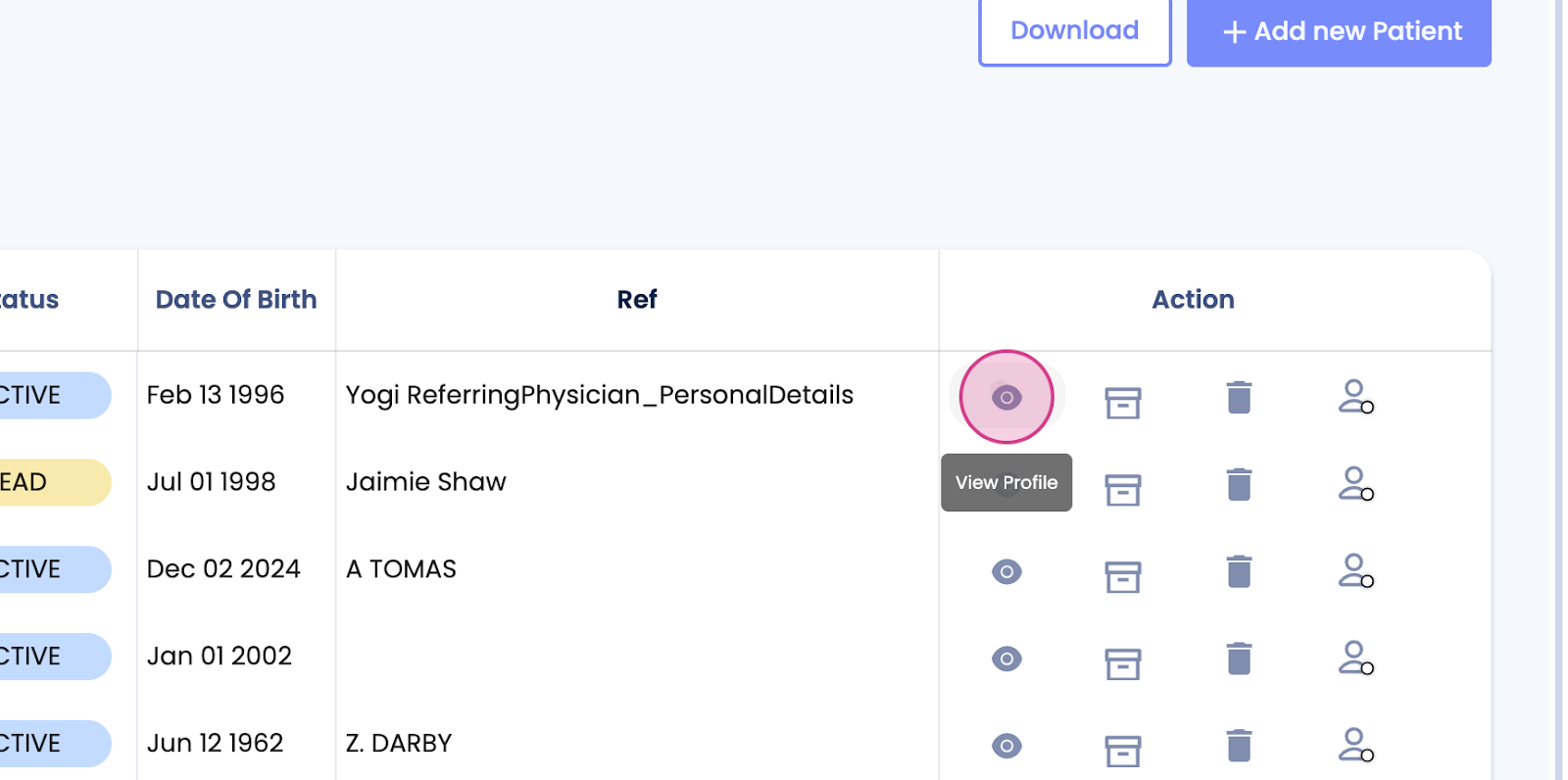
Step 2: Click on View Profile to access the Patient Timeline.
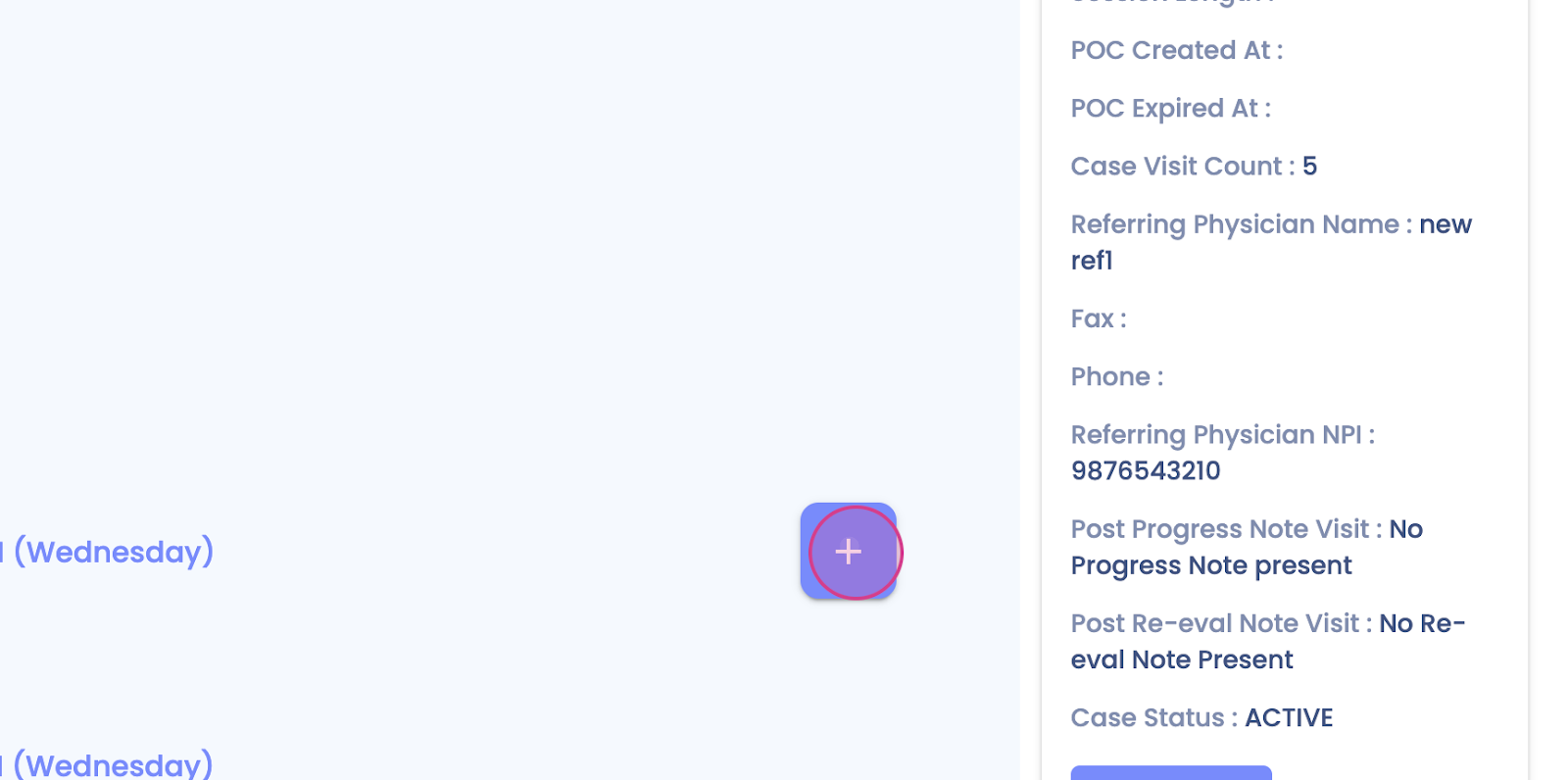
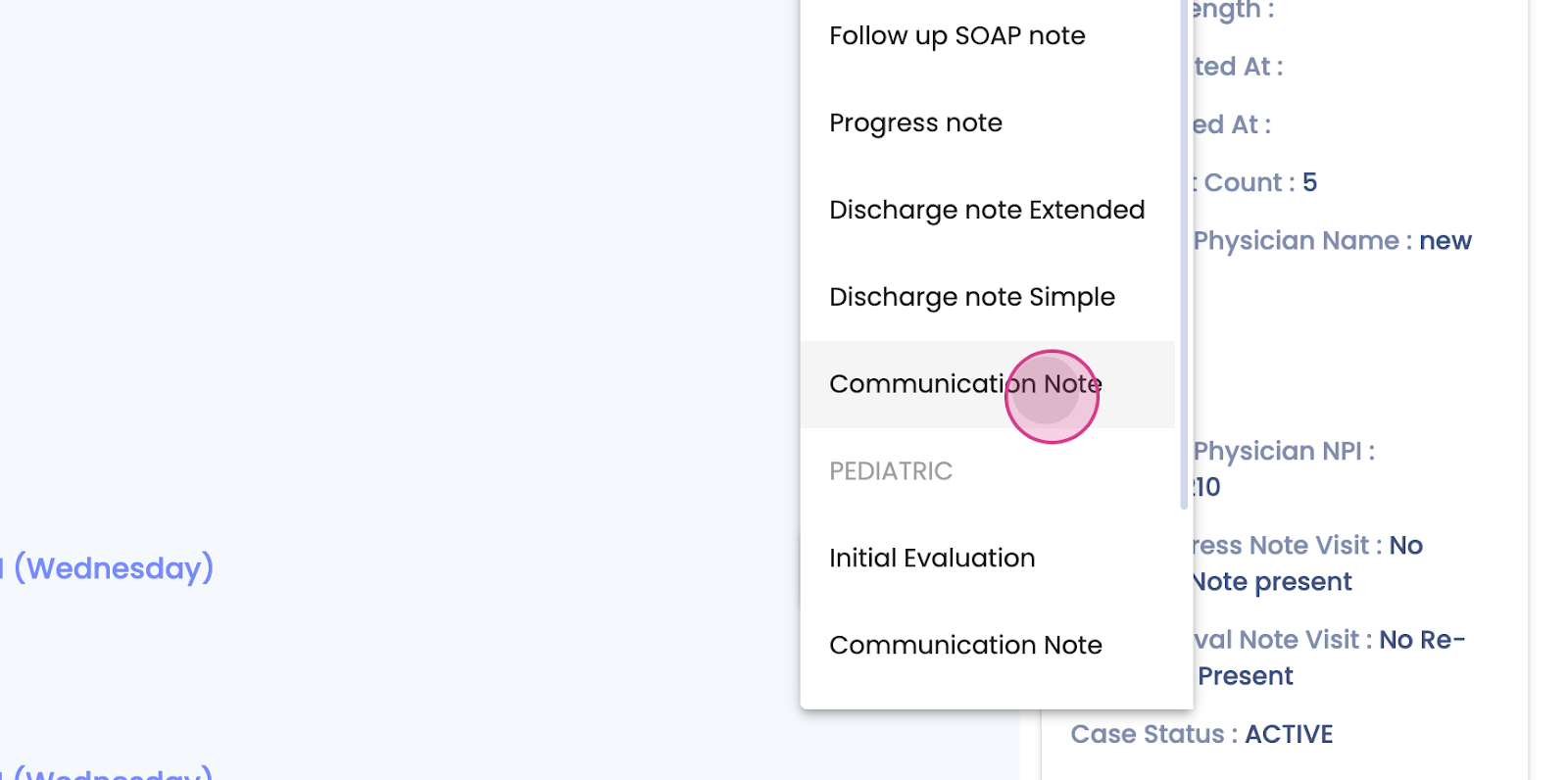
Step 3: Locate and click on the Communication Note option.
Step 4: A new window for your Communication Note will open.
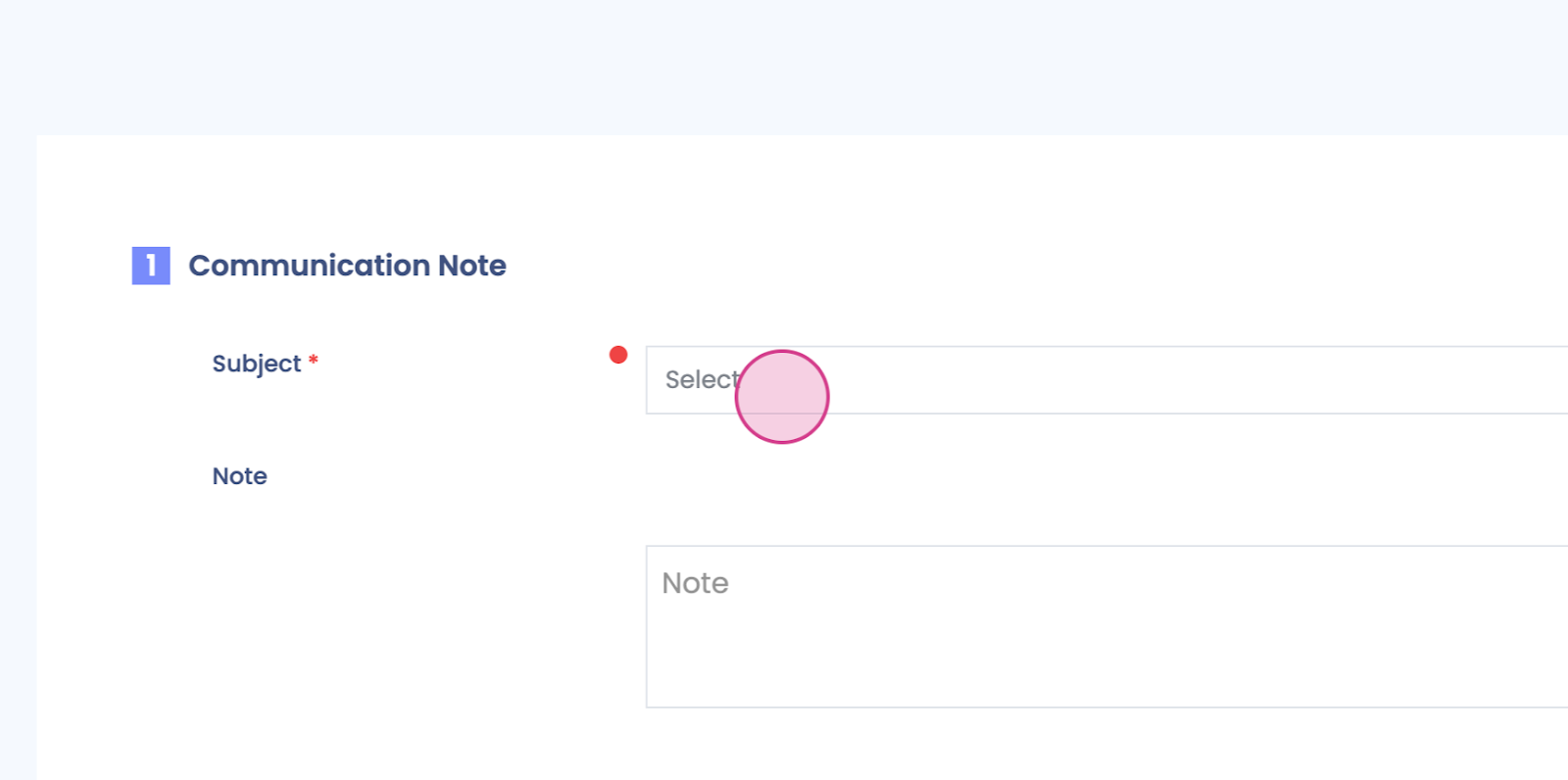
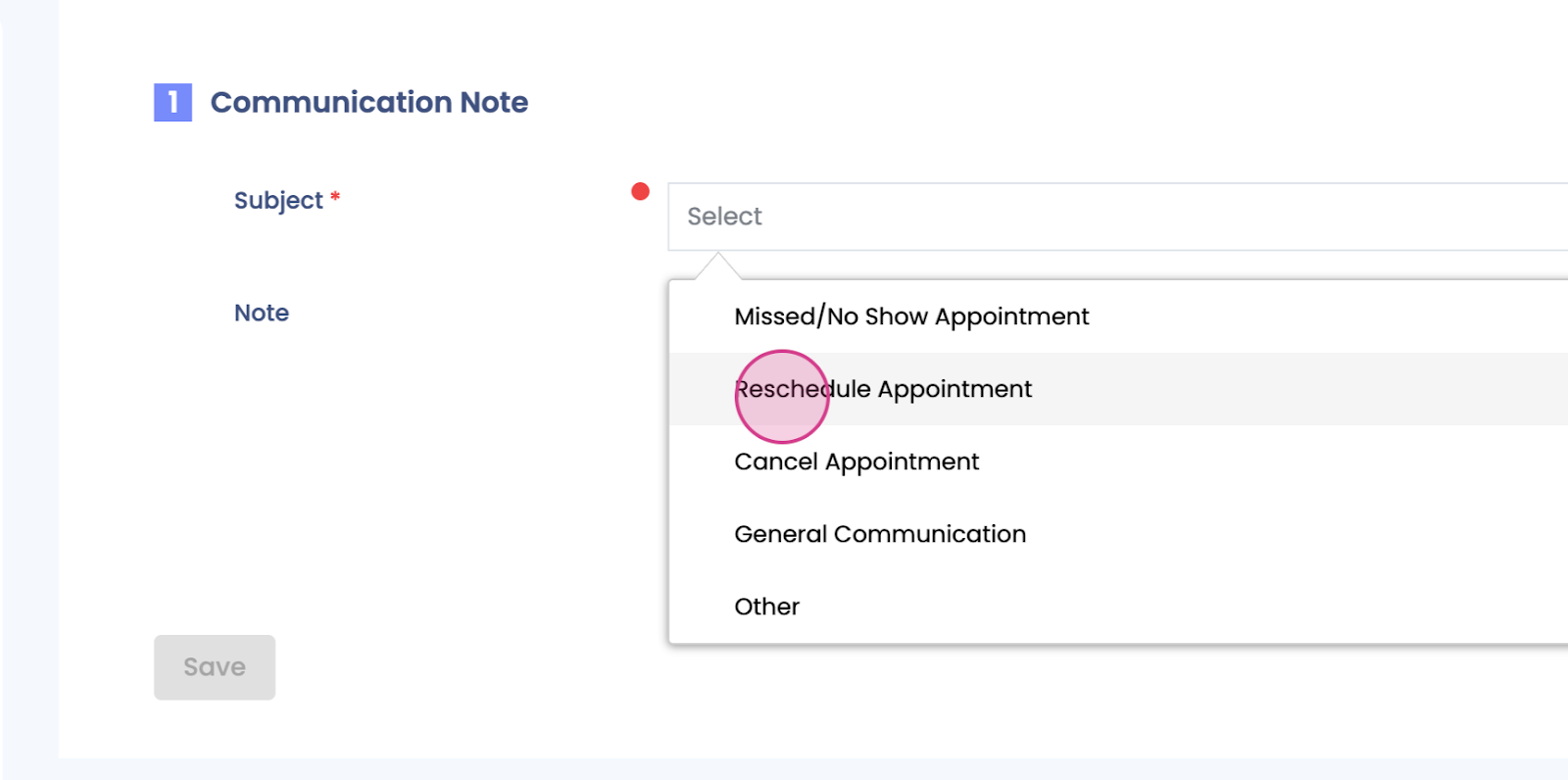
Step 5: Choose a subject for your note. In this example, we're selecting Reschedule.
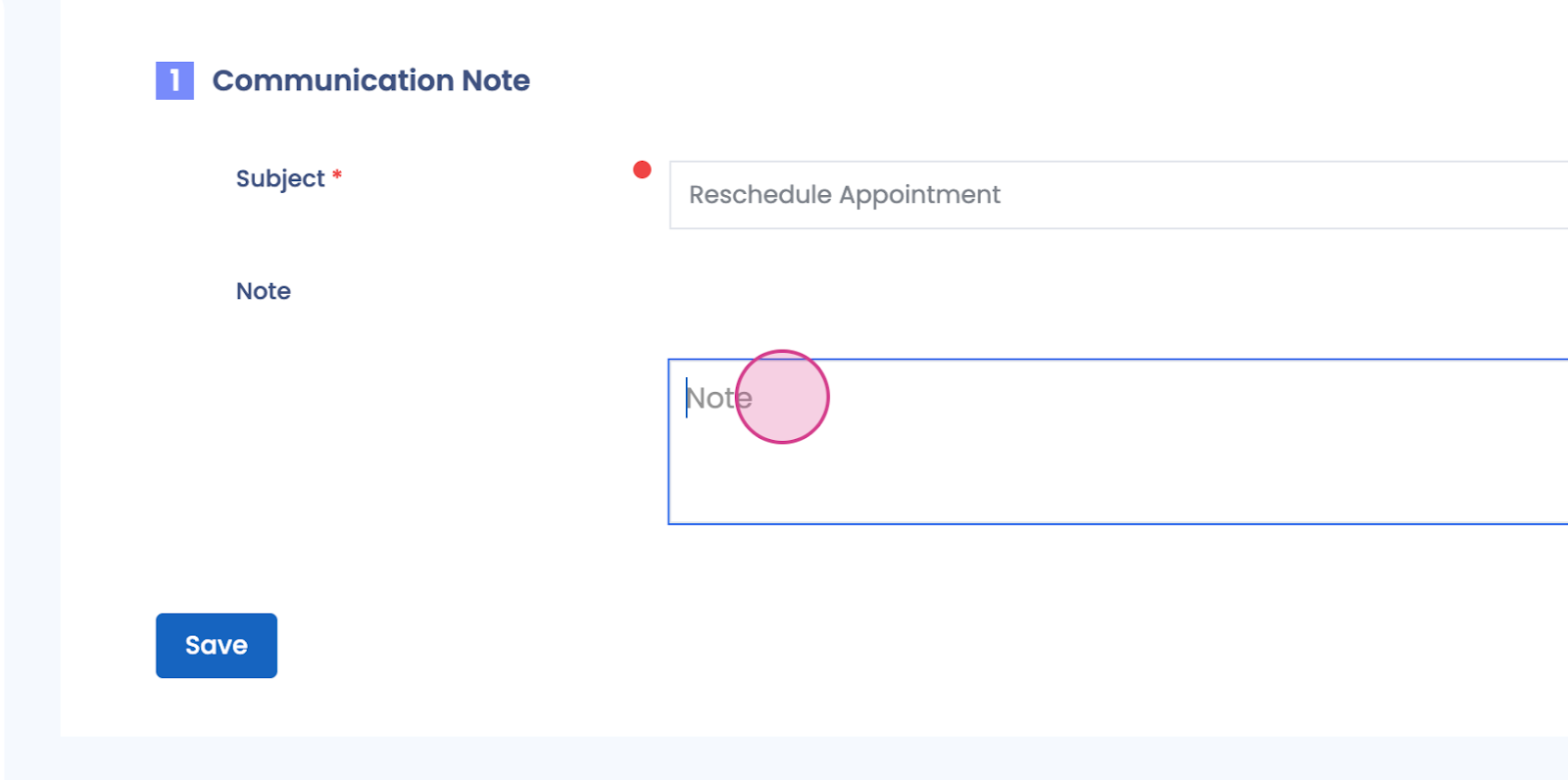
Step 6: Save your note by clicking on Save.
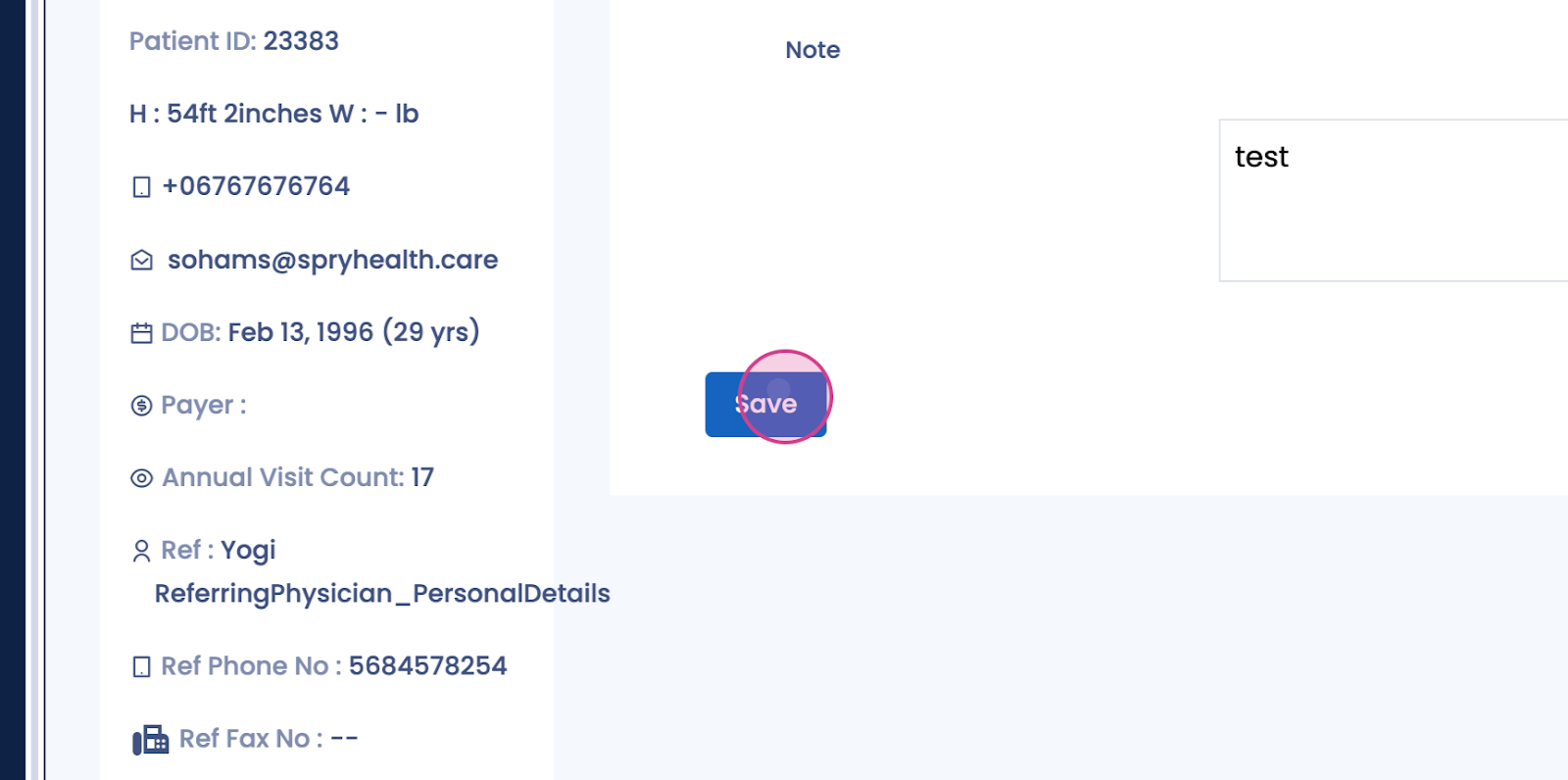
Step 7: Your Communication Note is now saved. You'll find it on the left side of the scroll view.
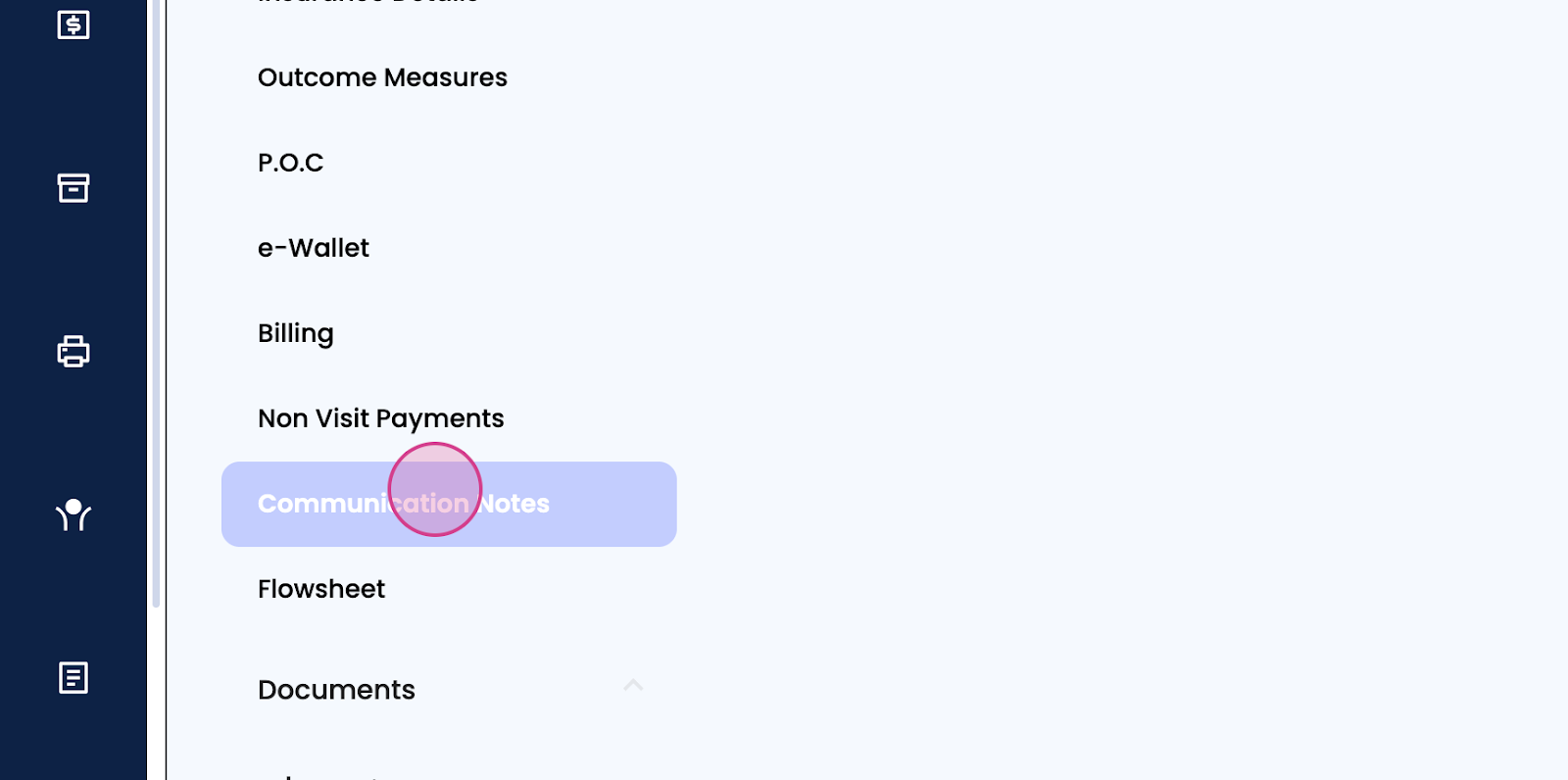
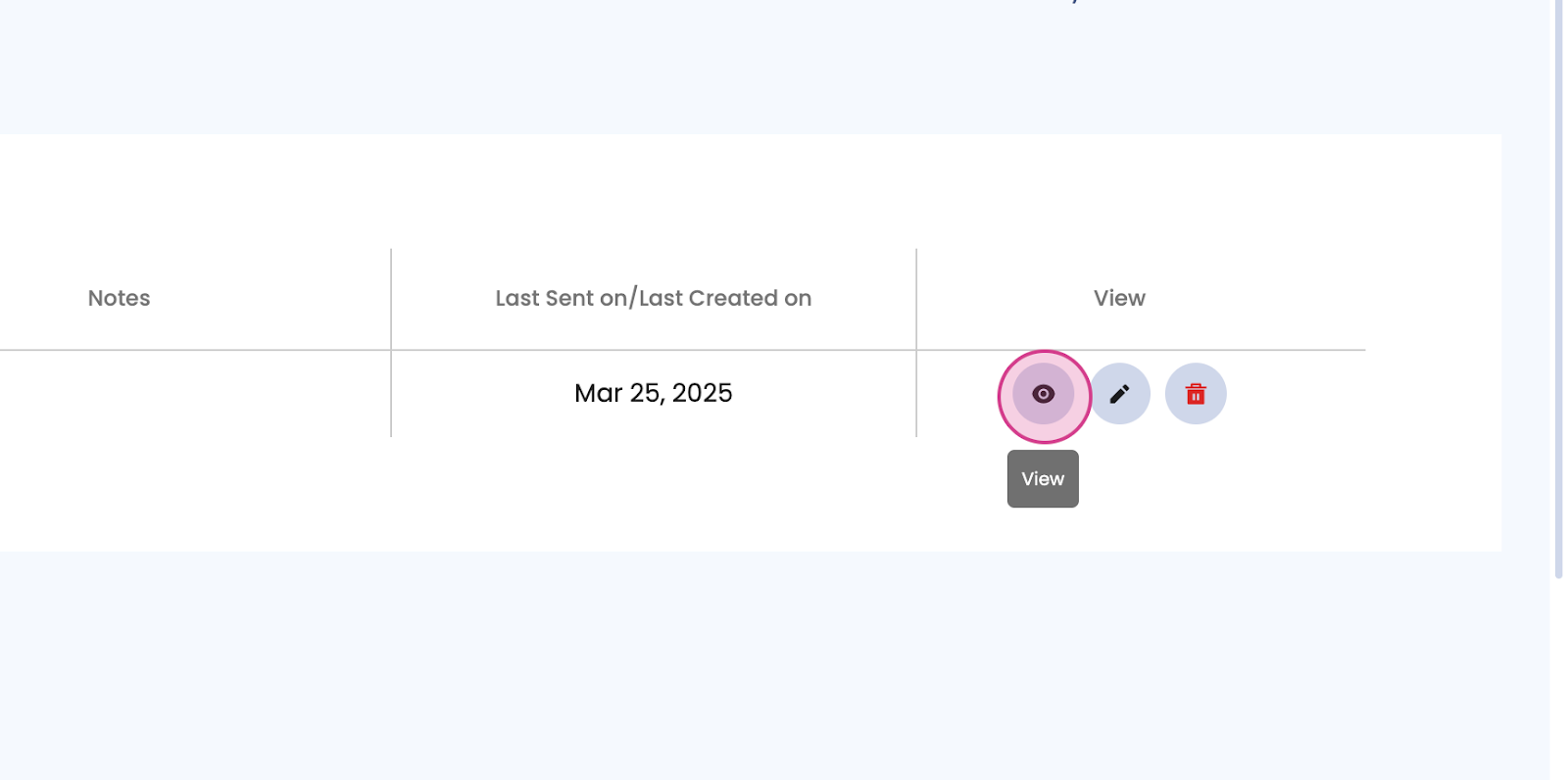
Step 8: Click on your saved Communication Note to view it. From here, you're also able to download the note.
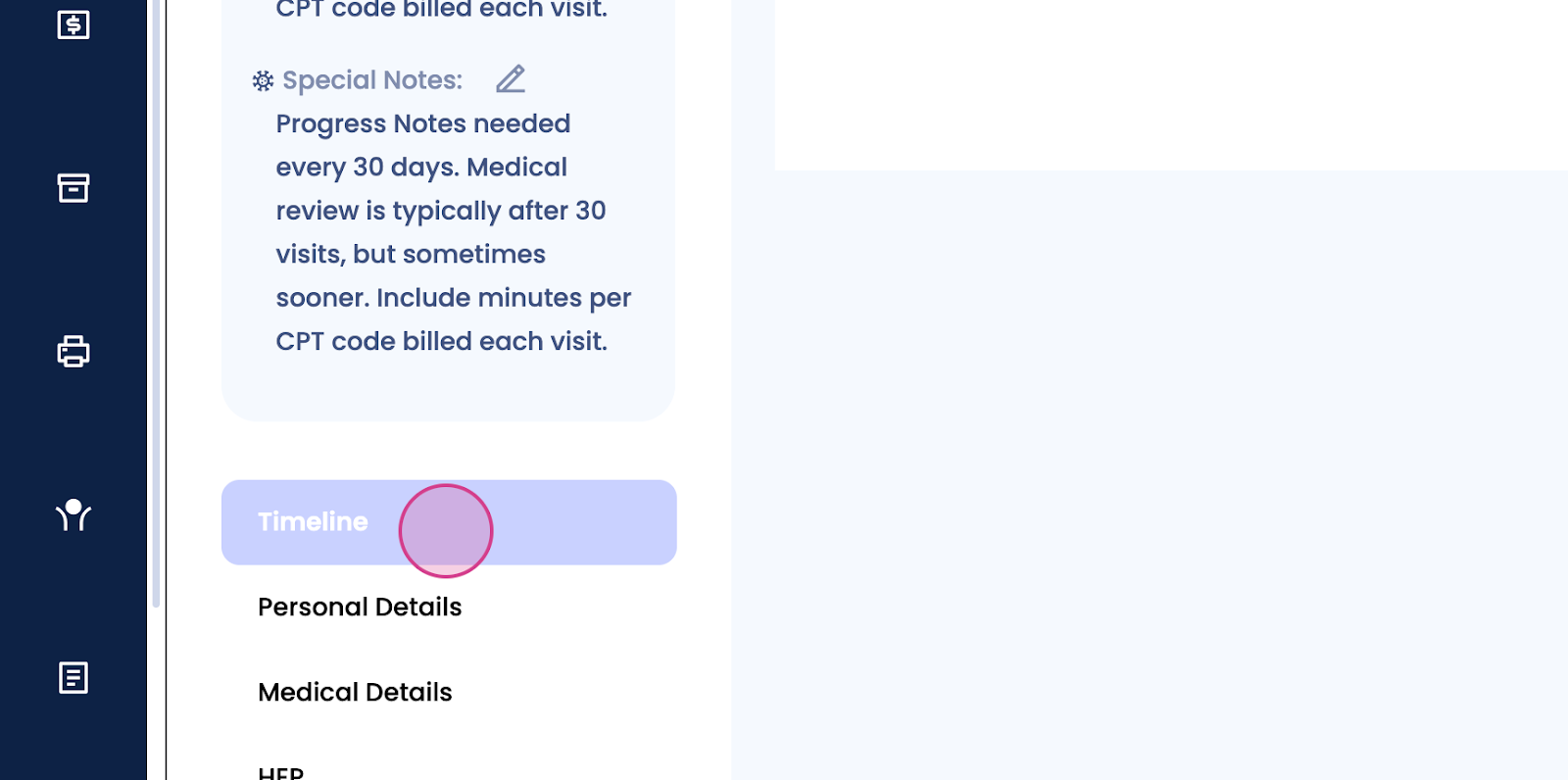
Step 9: To see the most recent Communication Note, navigate to the Timeline.
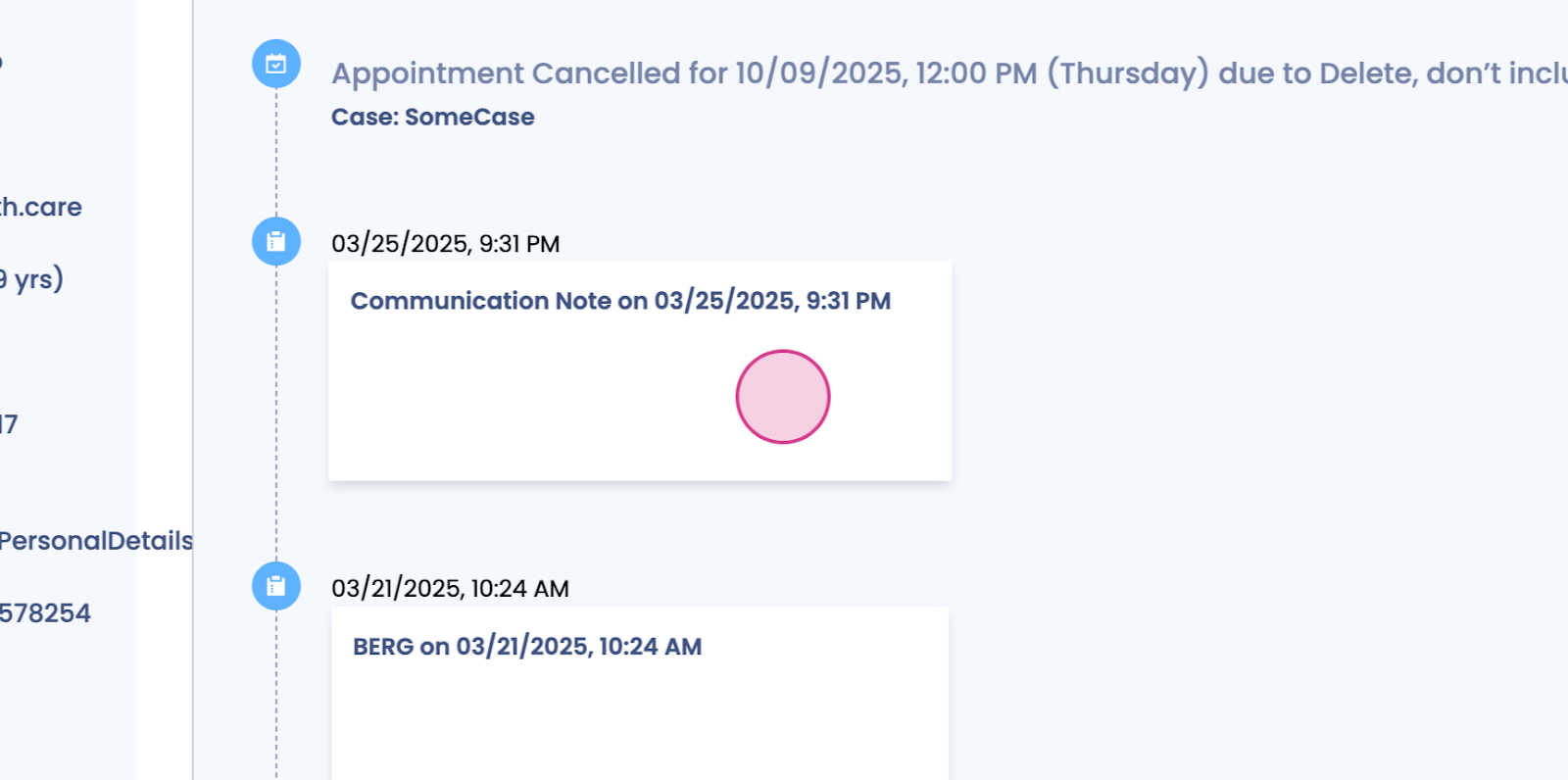
Step 10: Here, you'll find the latest Communication Note.
And that's it! You've successfully added a Communication Note to a patient's profile. Thank you for following along.