
Missed Copay Feature
This guide explains how to use the "Missed Copay" feature in the Billing tab and the significance of the red and green dollar icons on the scheduler.
The scheduler displays two appointments for the therapist, Megan Young. The patient, Ross Helms, has a red dollar sign next to his appointment.
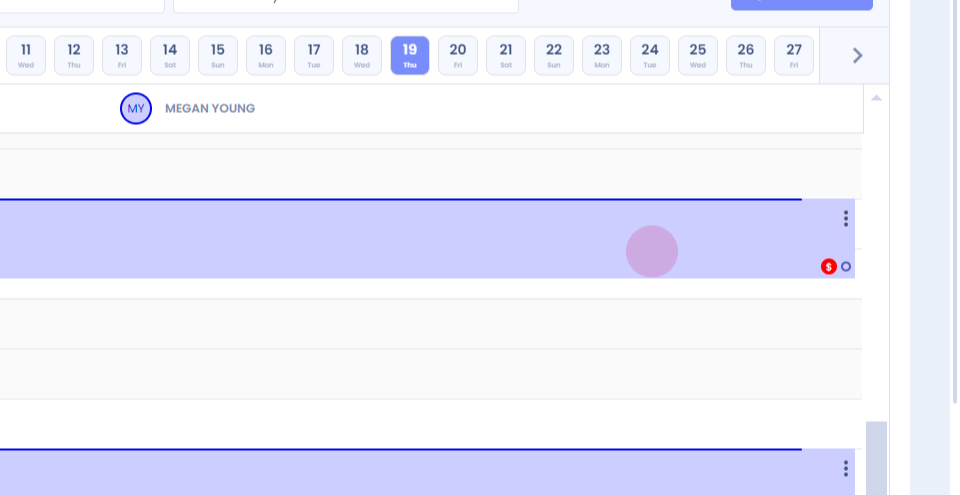
This red dollar sign indicates that the copay has been entered in the total copay field, but it hasn't been collected yet.
On the other hand, the patient, Courtney Butler, has a green dollar sign next to her appointment.
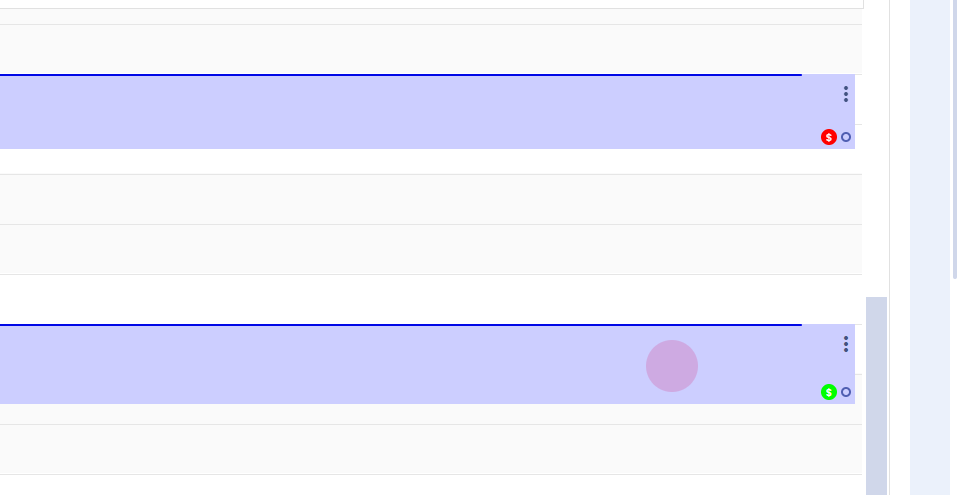
This green dollar sign signifies that the copay has been collected.
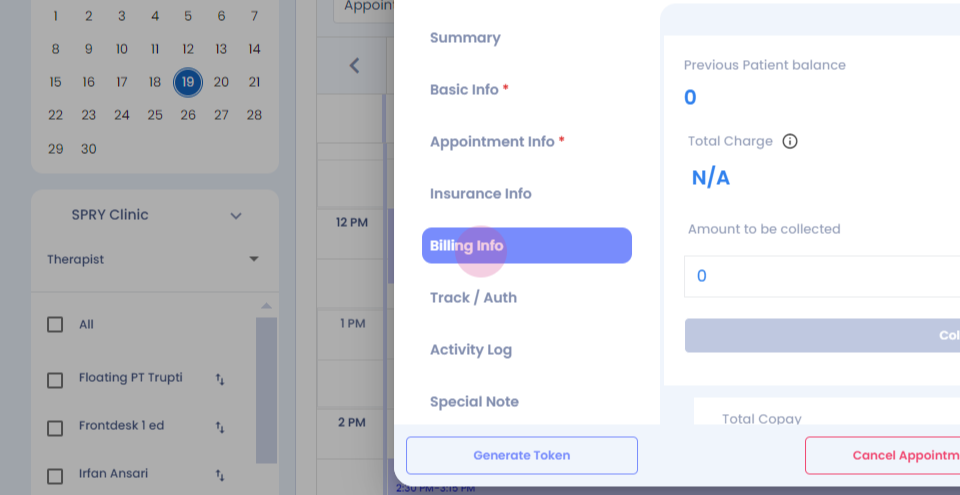
For instance, Courtney's copay is twenty dollars, and the collected amount is also twenty dollars. Hence, a collected copay is represented by a green dollar sign.
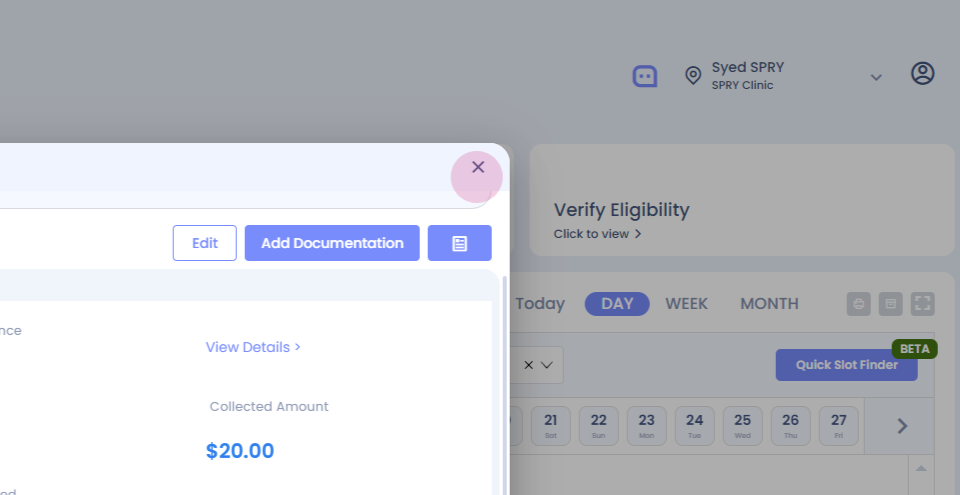
Now, let's consider a scenario where a patient has a copay of thirty dollars, but it was missed during collection.
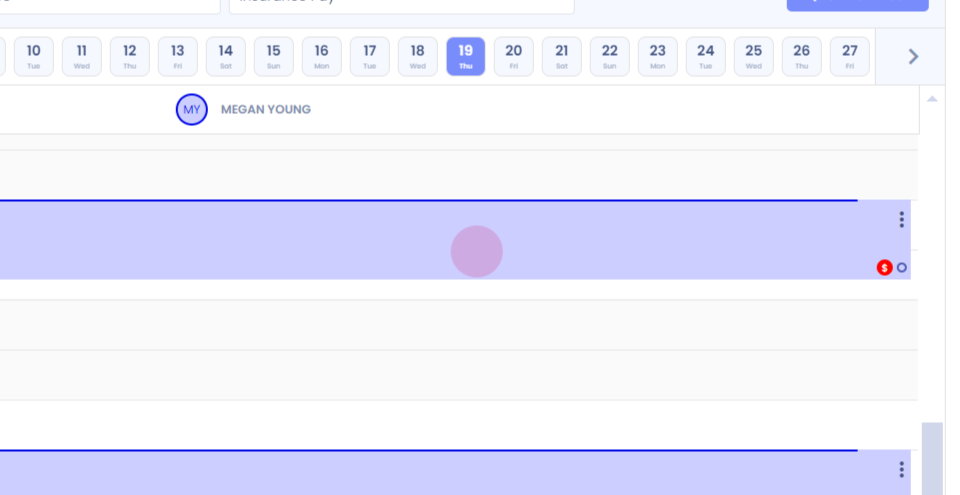
To rectify this, navigate to the patient's timeline.
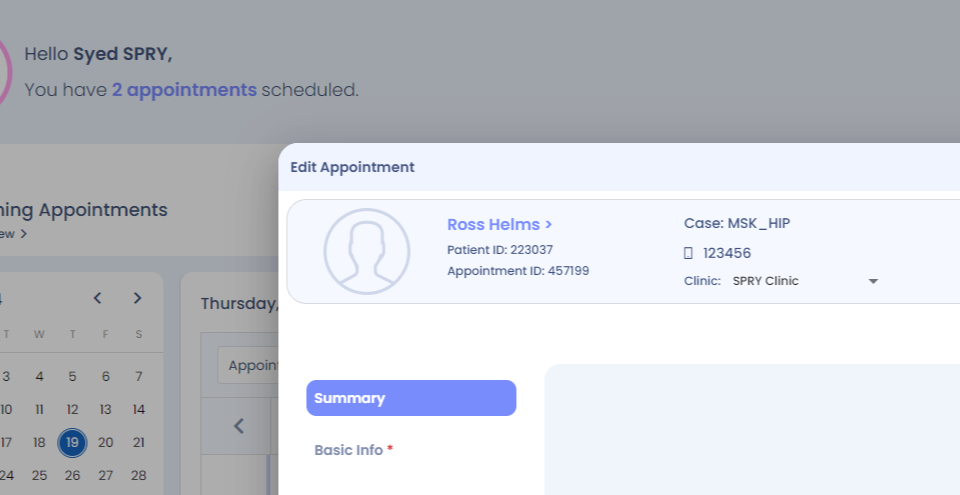
Then, proceed to the Billing tab.
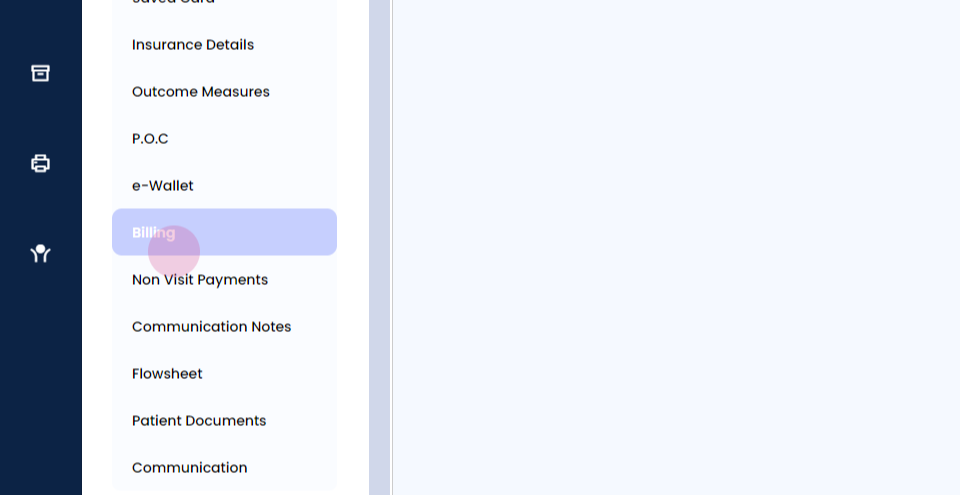
Here, we've added a "Missed Copay" feature. It shows a missed copay amount of thirty dollars that needs to be collected from the patient. To collect this payment,
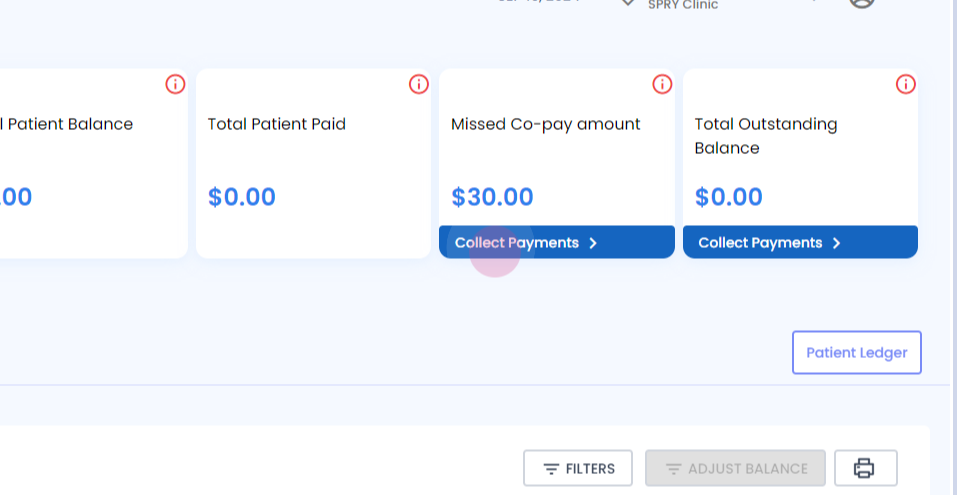
click on "Collect Payments". If there are multiple missed copays, select the relevant charge IDs. All copays will be listed in the columns. After selecting the charge IDs for which payment needs to be collected, click on
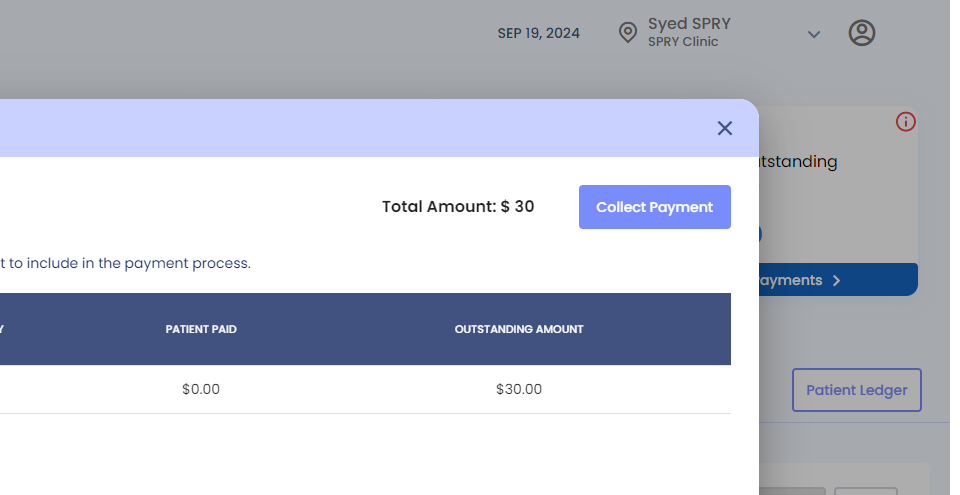
"Collect Payment". This allows you to collect the payment from the patient using different payment methods. After choosing the payment method, click on the "Collect Payment" option.
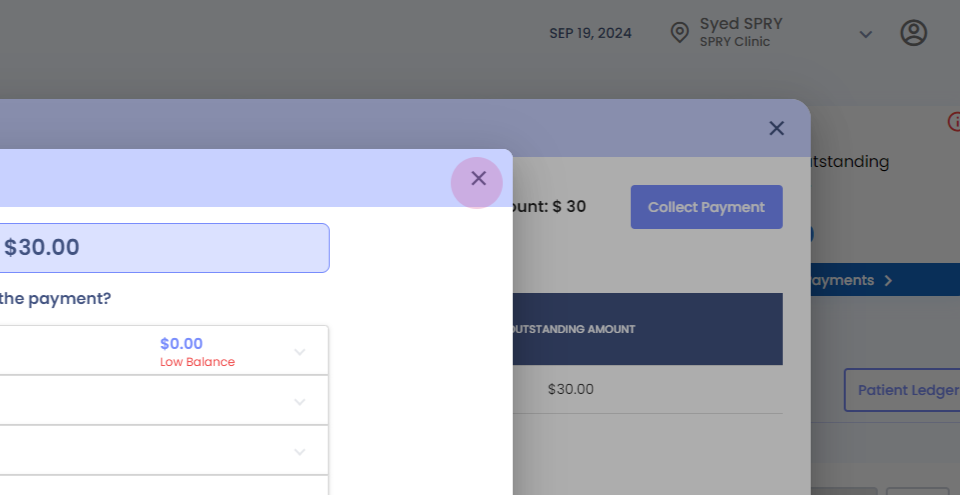
If you need to send an invoice to the patient for the missed copay, there's an option in the total outstanding balance called "Collect Payments".
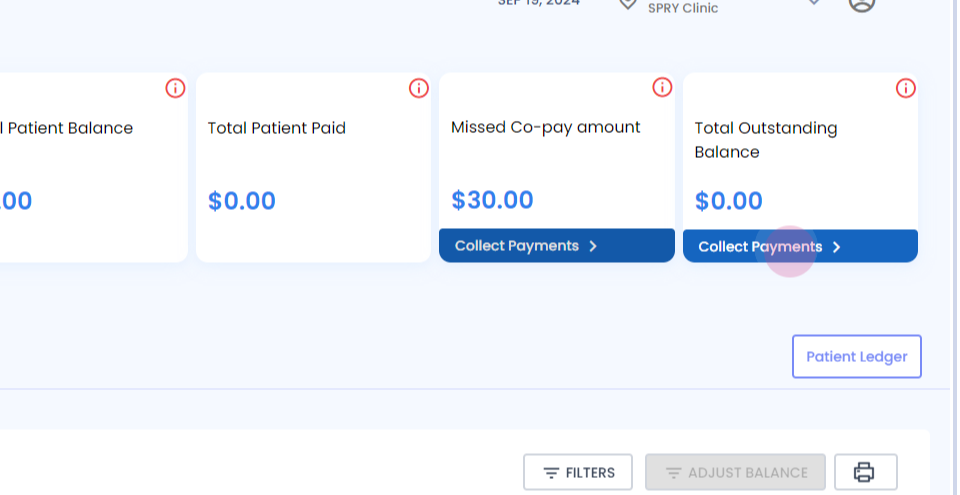
Click on it. The missed copay invoice will appear on the left screen panel. To send the invoice to the patient, click
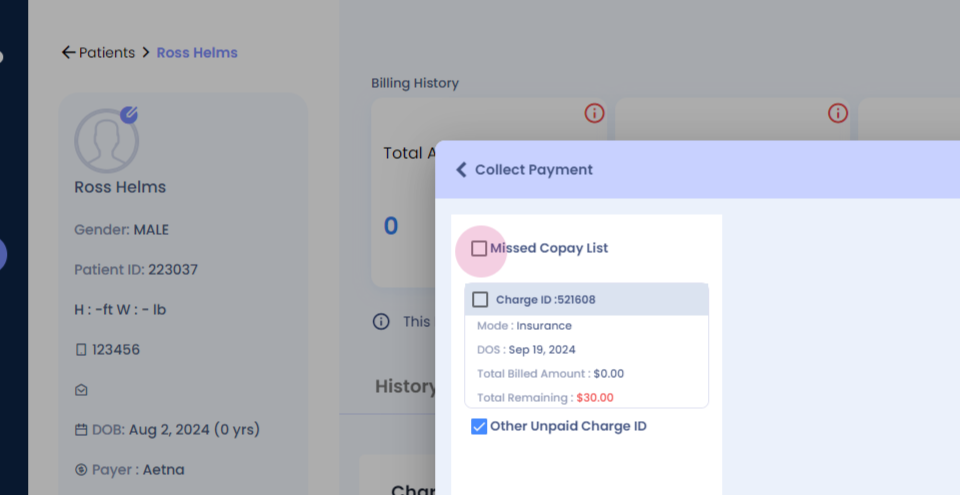
on "List Copay List".