
Policy Visit Tracking and Alerts
In this article, you'll learn how to use the policy visit tracking feature to monitor the number of visits authorized by a specific payer within a year or any selected date range.
Step 1: Start by opening the patient's appointment card. We've added an insurance pay appointment with Aetna Better Insurance for this example. It's possible to add policy visits directly from the appointment card.

Step 2: Click on the plus button to add policy visits.

Step 3: Enter the limits of the policy visits in the provided field.
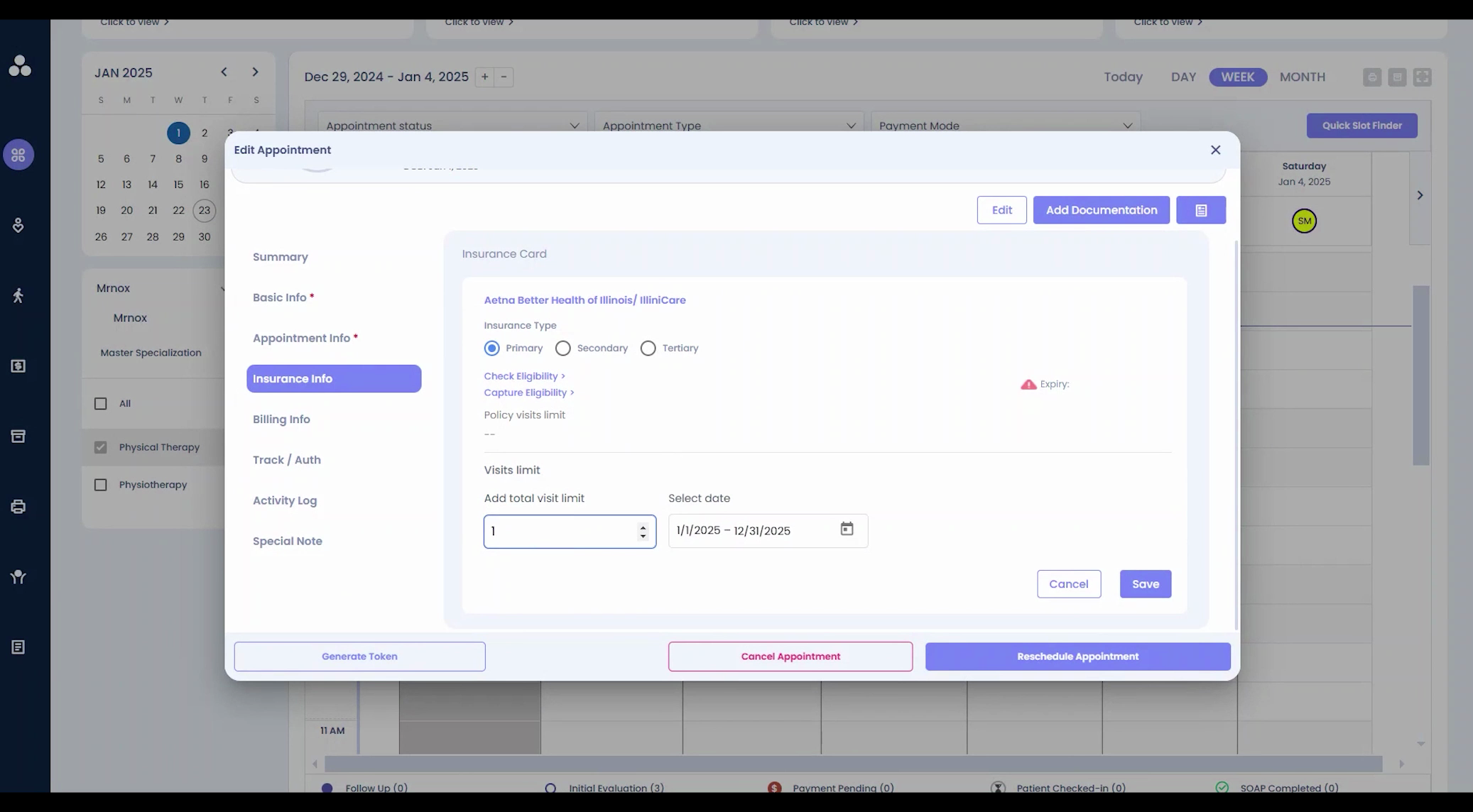
Step 4: The date range for the current year is selected by default. However, you're free to edit the date range if needed.

After saving, the system will display the number of consumed visits within these policy visits. For instance, between January 1 and December 31, two visits out of 10 have been consumed.
Step 5: You can also access this feature from the Insurance tab.

From here, you're able to edit or delete the policy visits date range. The value will be recalculated based on the consumed visits to date.
Step 6: Check the alerts. We display alerts based on the number of visits consumed and the policy's expiry date. This ensures you don't miss any compliance requirements.

For example, if the total visit limit was two and both visits have been consumed, an alert will be triggered notifying that this is the final visit covered under the current policy. Similarly, an alert will be issued if a policy is about to expire, stating that the policy visit has expired. This way, we ensure that these policy widgets do not interfere with compliance.