
Claim Submission Process Update
This article will guide you through the process of submitting claims to secondary or tertiary pairs.
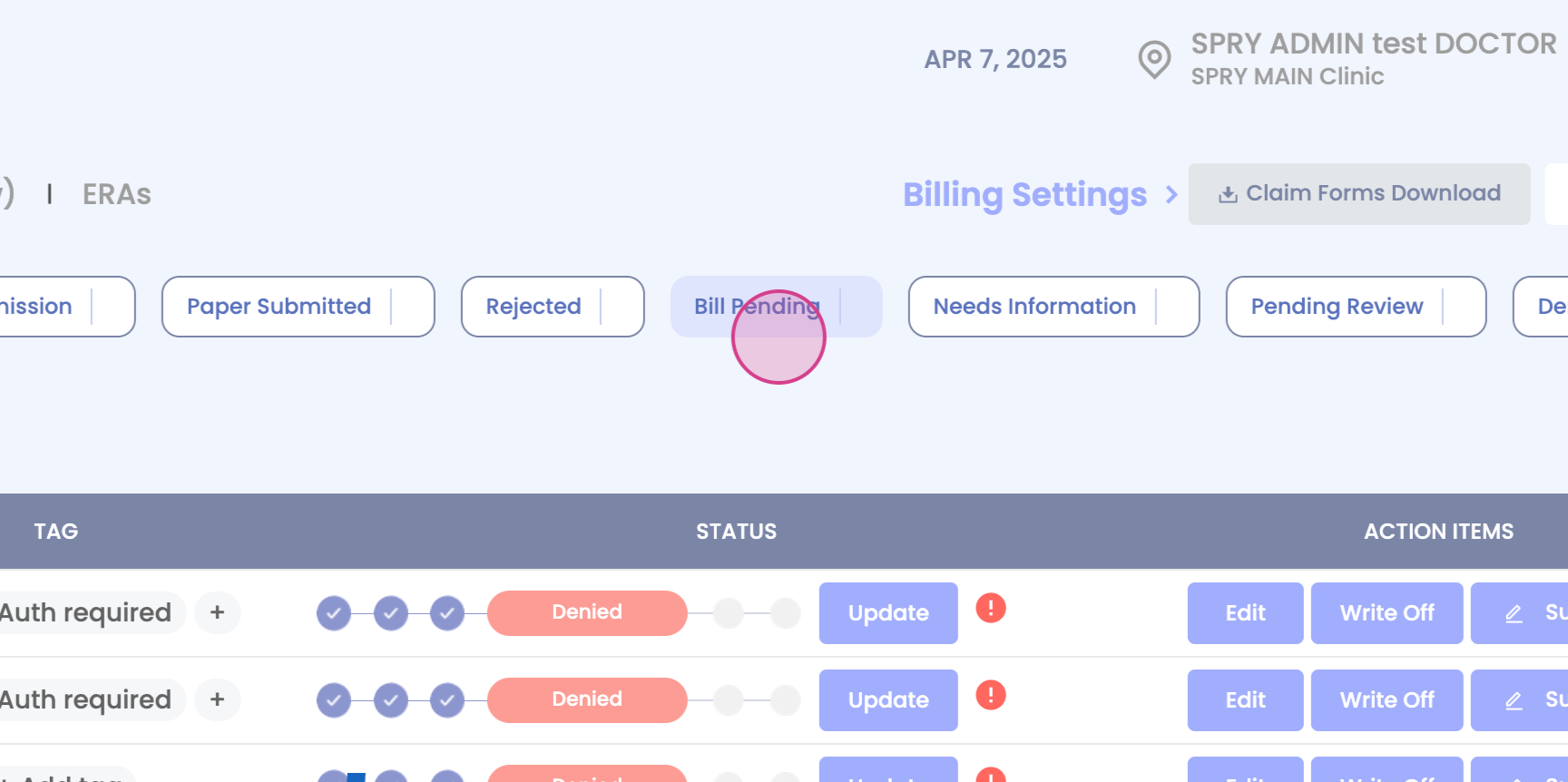
Step 1: Navigate to the Rejected, Denied, or Pending Status buckets.
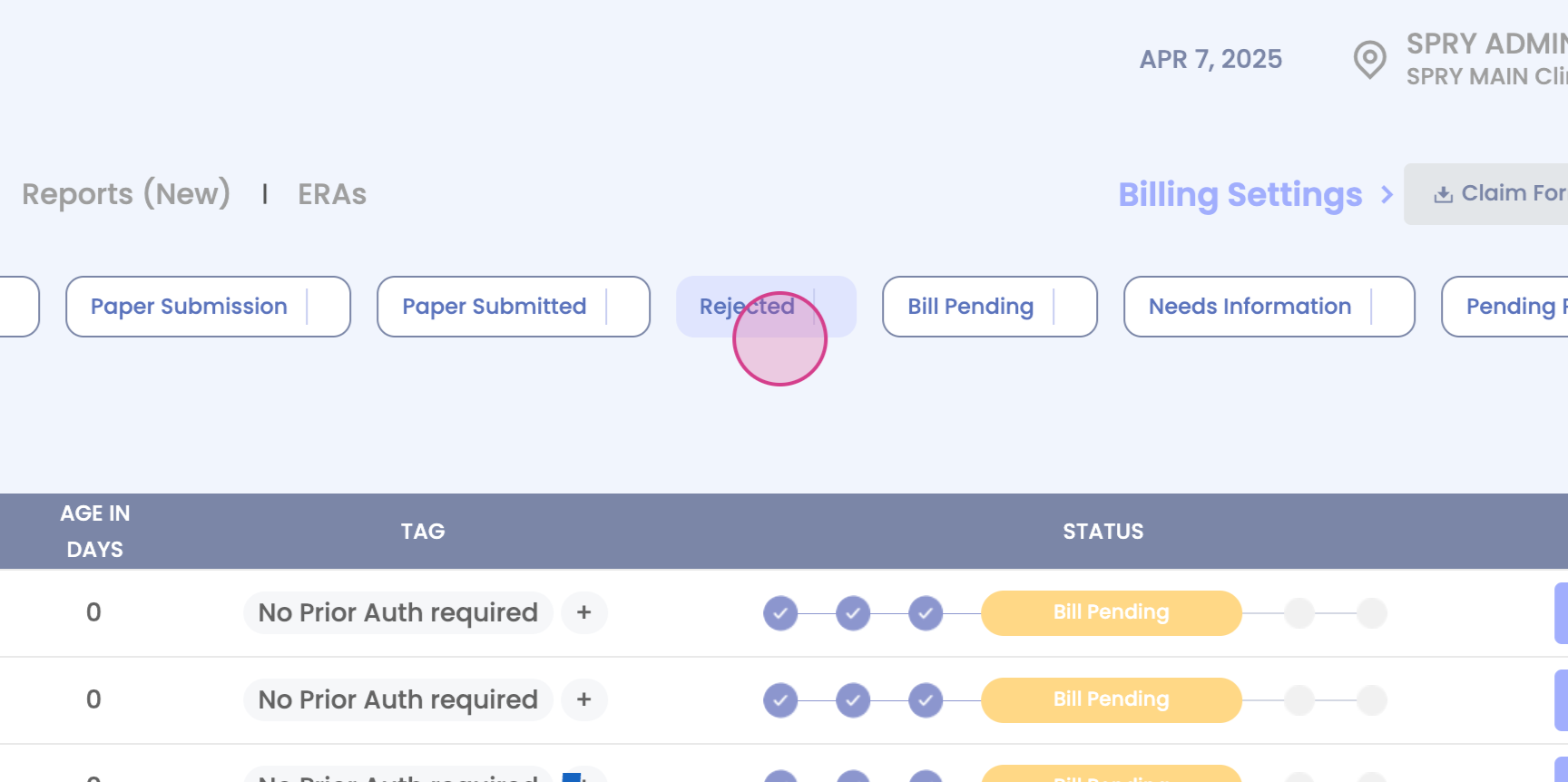
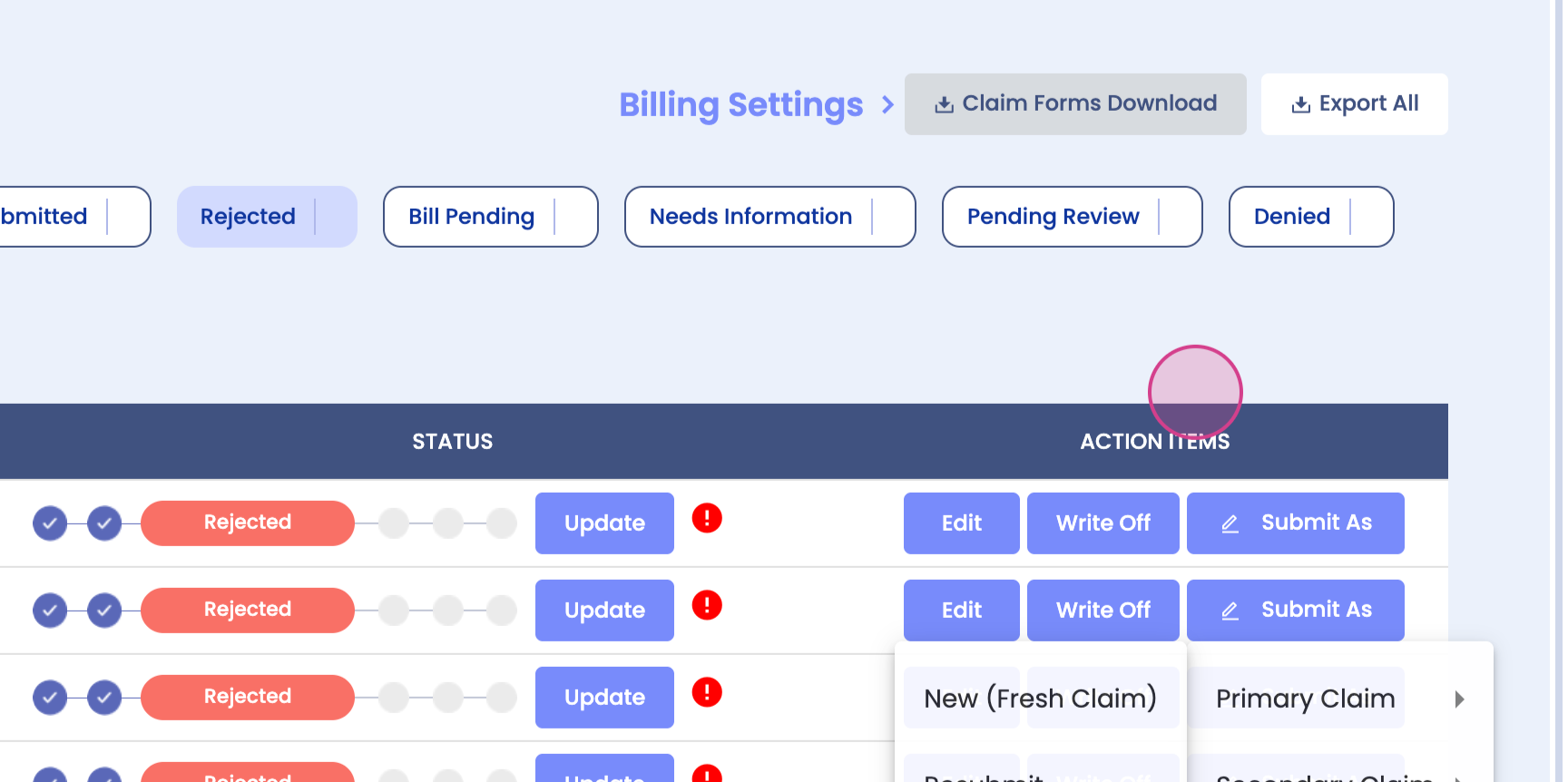
Step 2: Click on any bucket and move to the right side of the window. Here, you'll find the Submit as button.
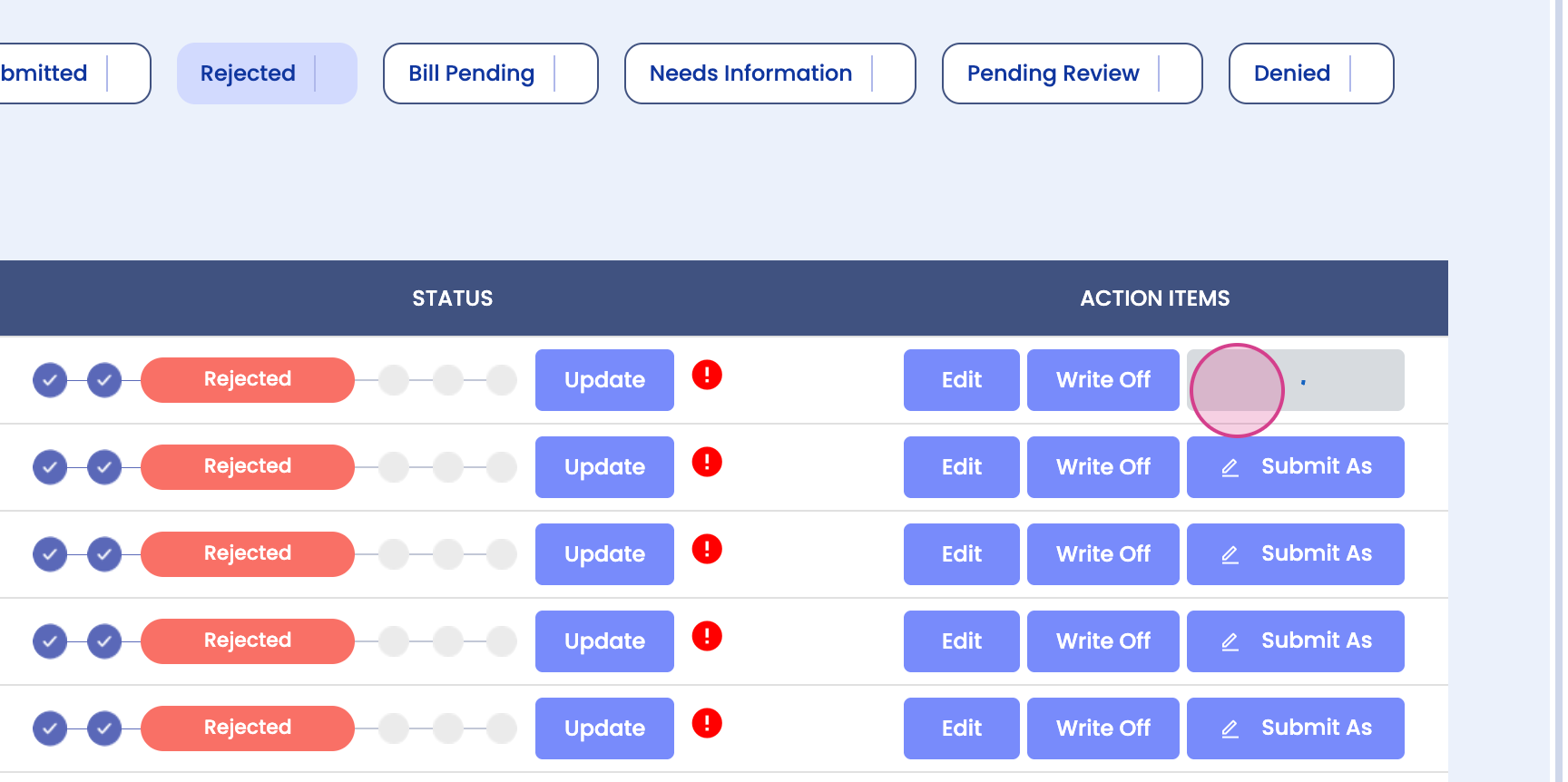
Step 3: Click on the Submit as button. This will display all the associated claims with that particular charge id. If multiple claims are present, you'll see all of them.
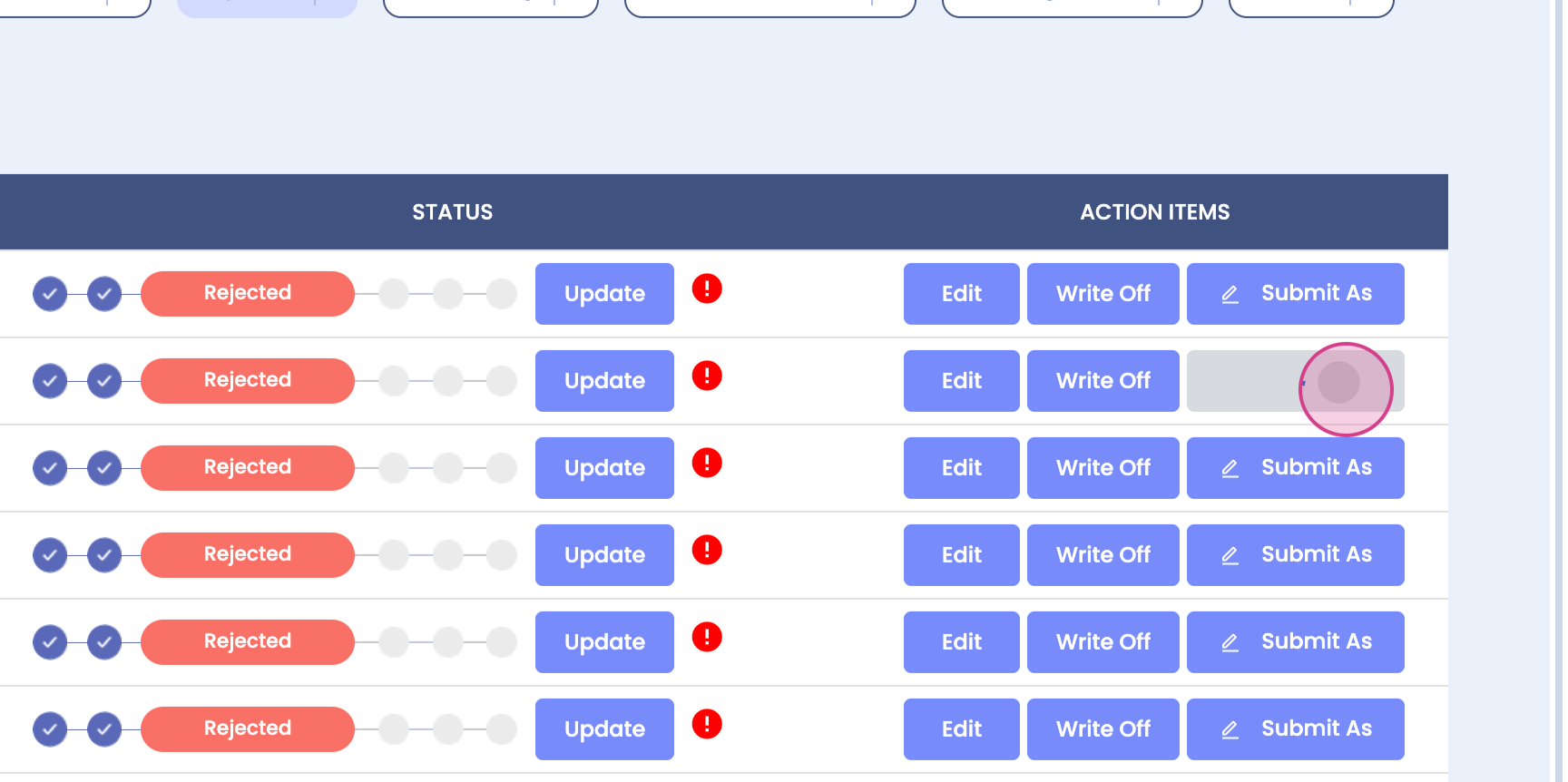
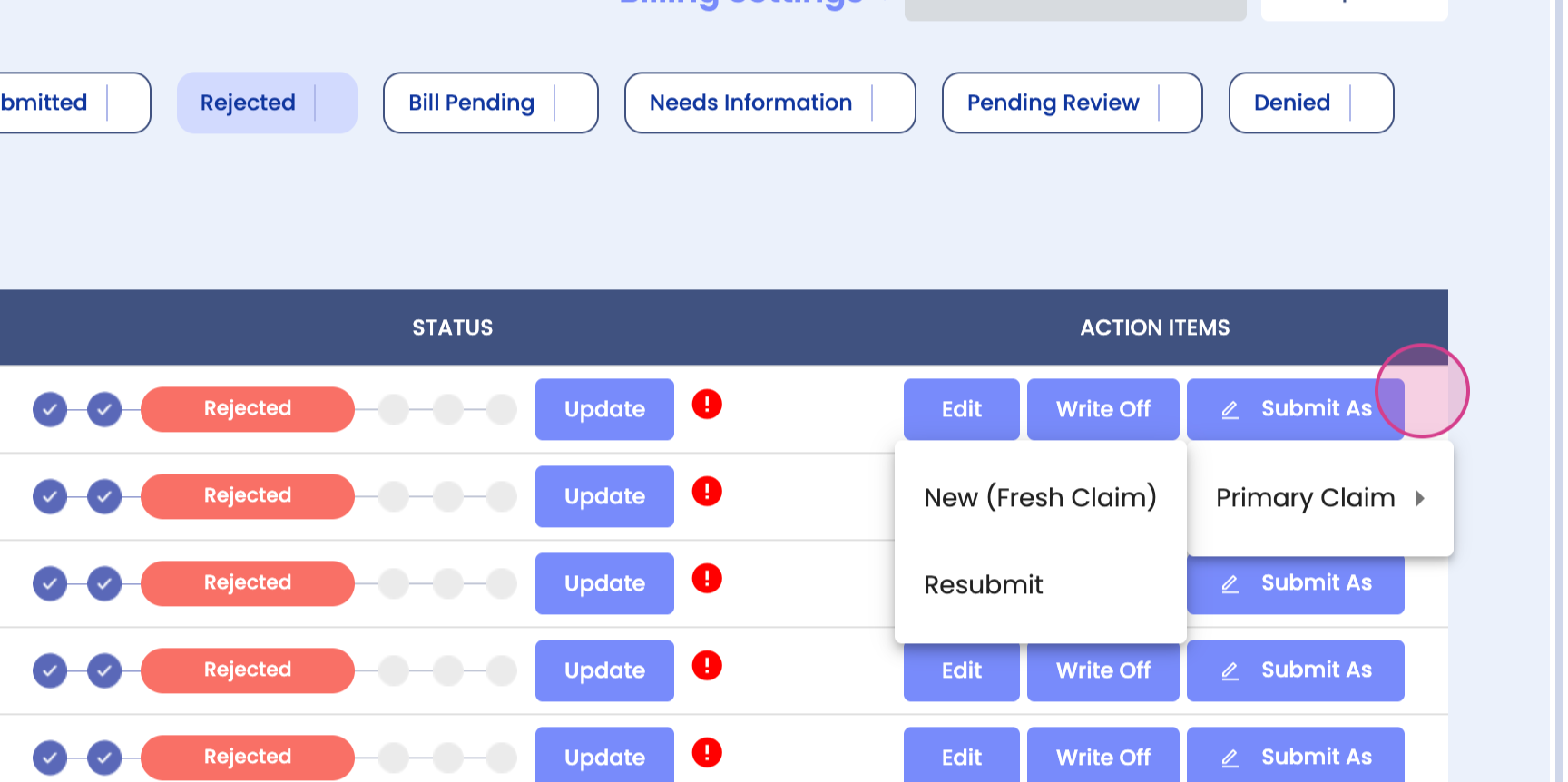
Step 4: Choose the charge id for which you want to submit the claim. For instance, if there are three claims, you'll see that in primary claims, you have the option to submit a fresh or a resubmit claim.
Step 5: In the secondary claims, you'll find the option to submit a new fresh claim. Once you submit a fresh claim, the resubmit option will appear under the same menu. This applies to tertiary claims as well.
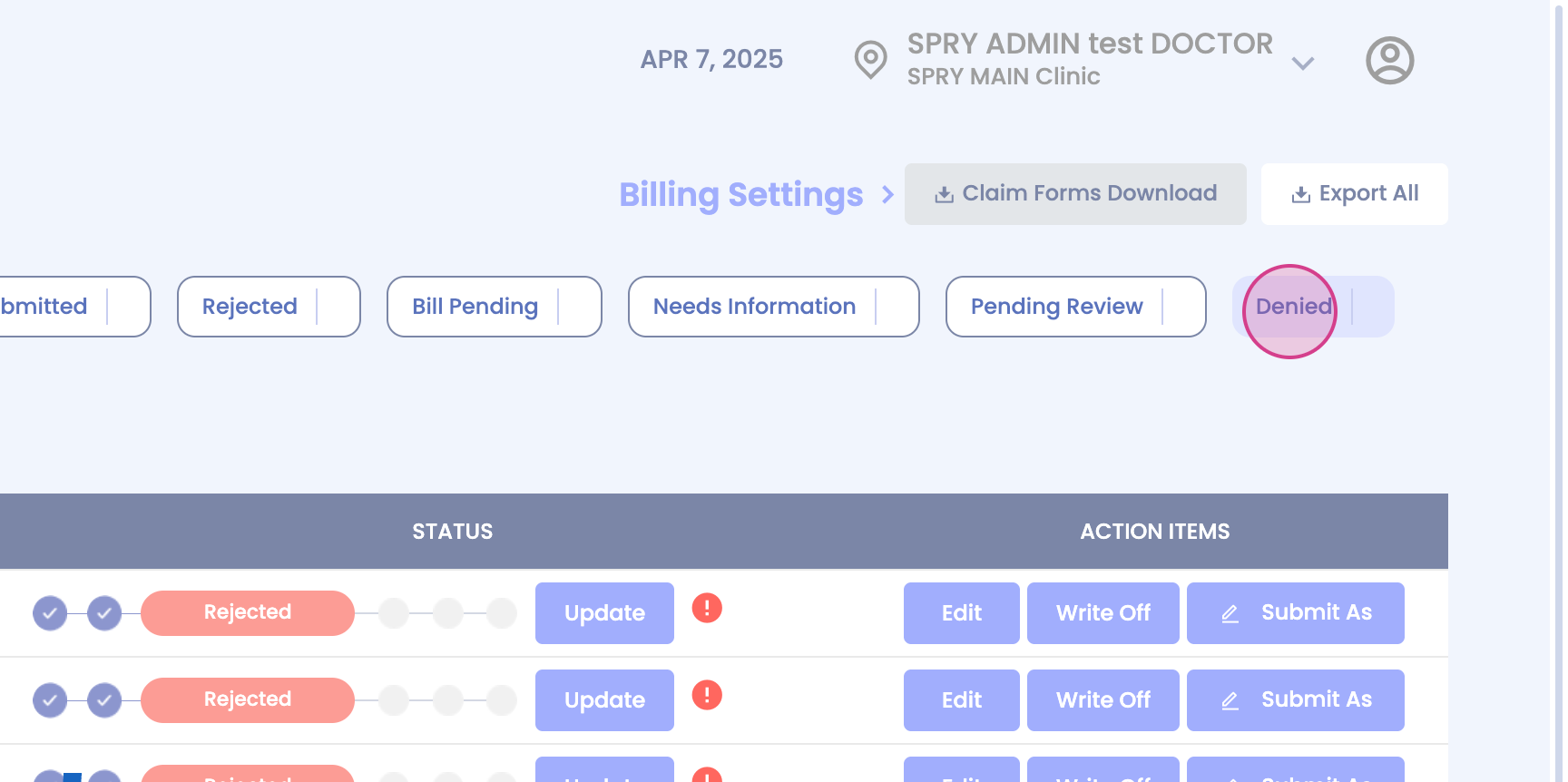
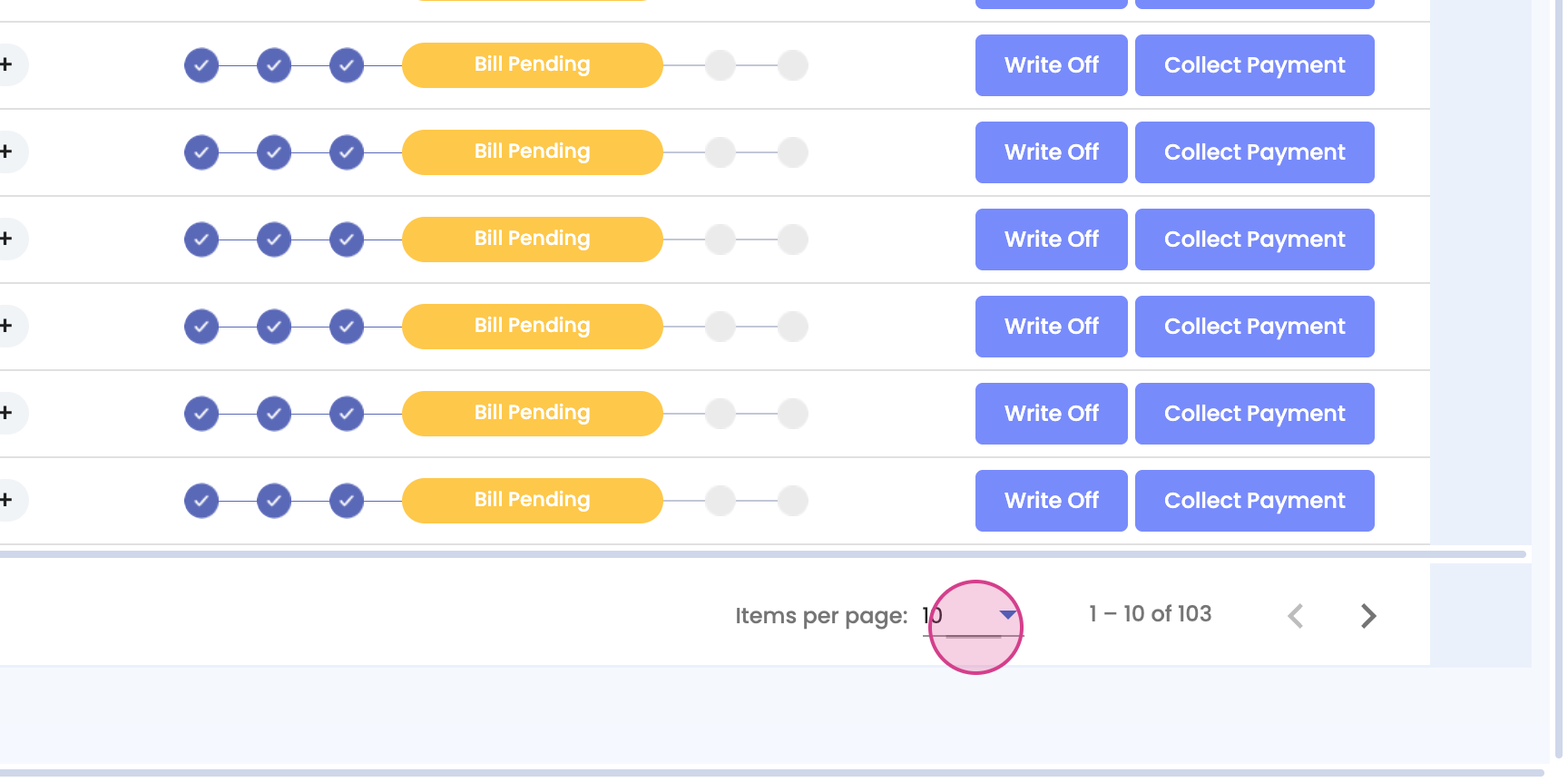
Step 6: The same option is available in the Denied and Bill Pending buckets.
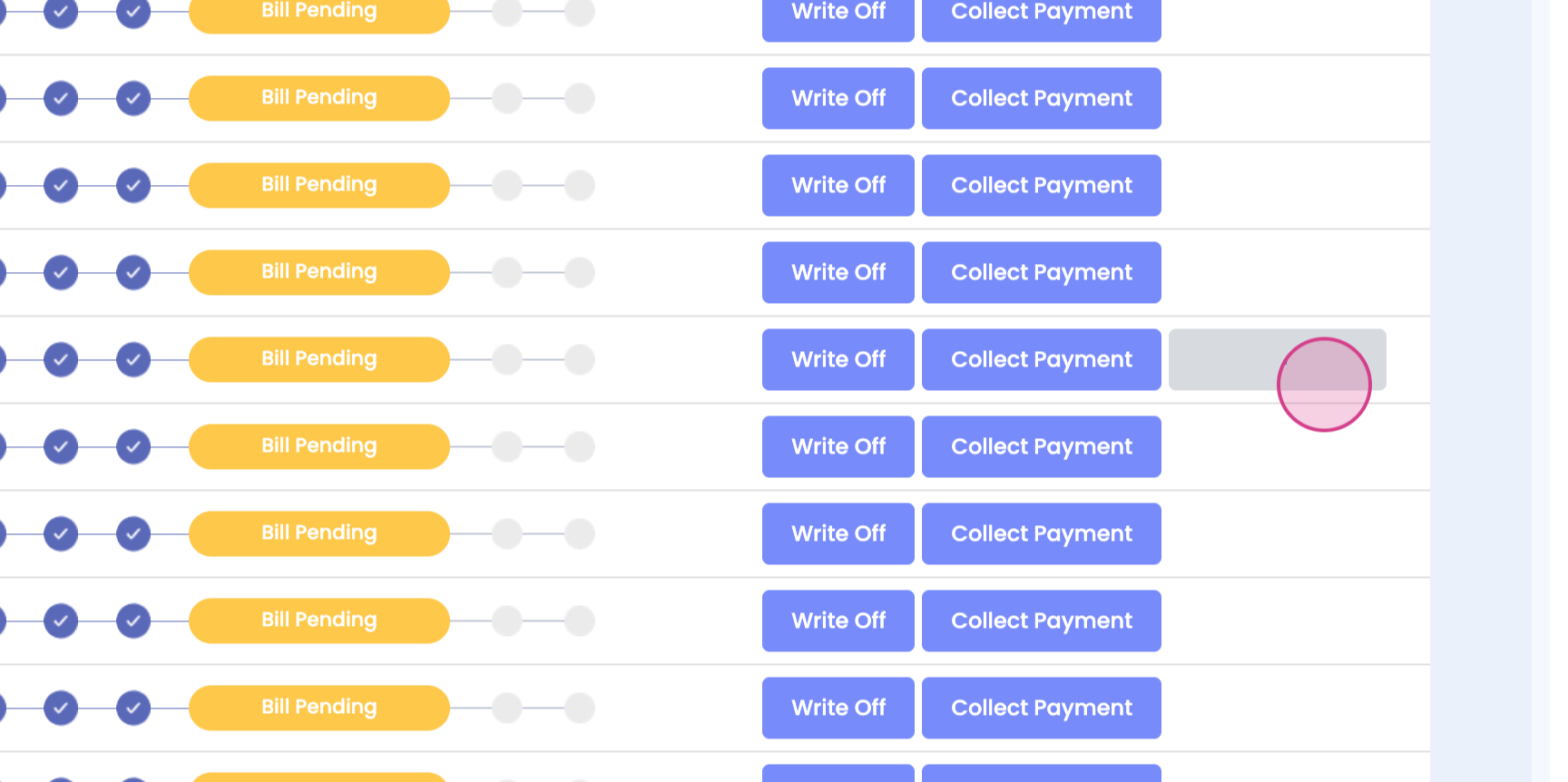
Please note, if the claim is self-pay,the resubmit button or Submit as button won't be available to click on. For instance, this is an insurance pay claim and theSubmit as button is available for this claim. And that's it! You've successfully navigated the claim submission process.