
Scribe SOAP Documentation Improvements
In this article, you'll learn about the enhanced features of Scribe that make your SOAP documentation process smoother and more flexible.
Step 1: Begin with the Settings window.
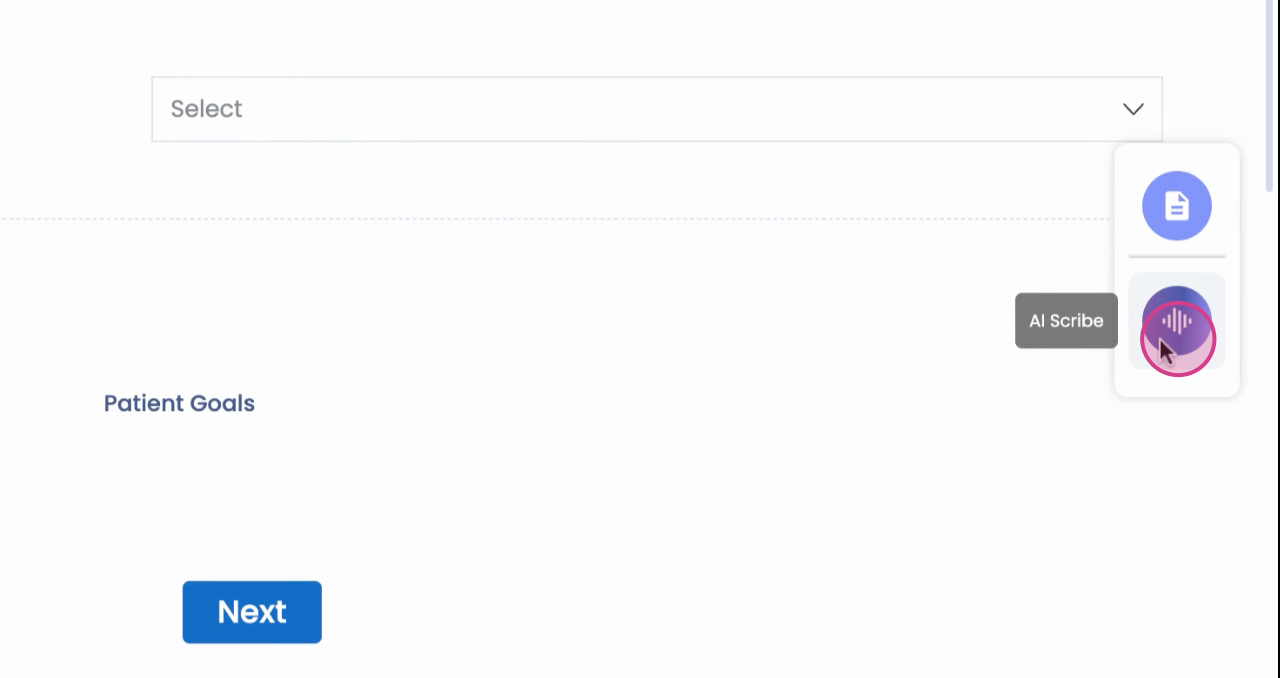
Step 2: Click on the Settings window.
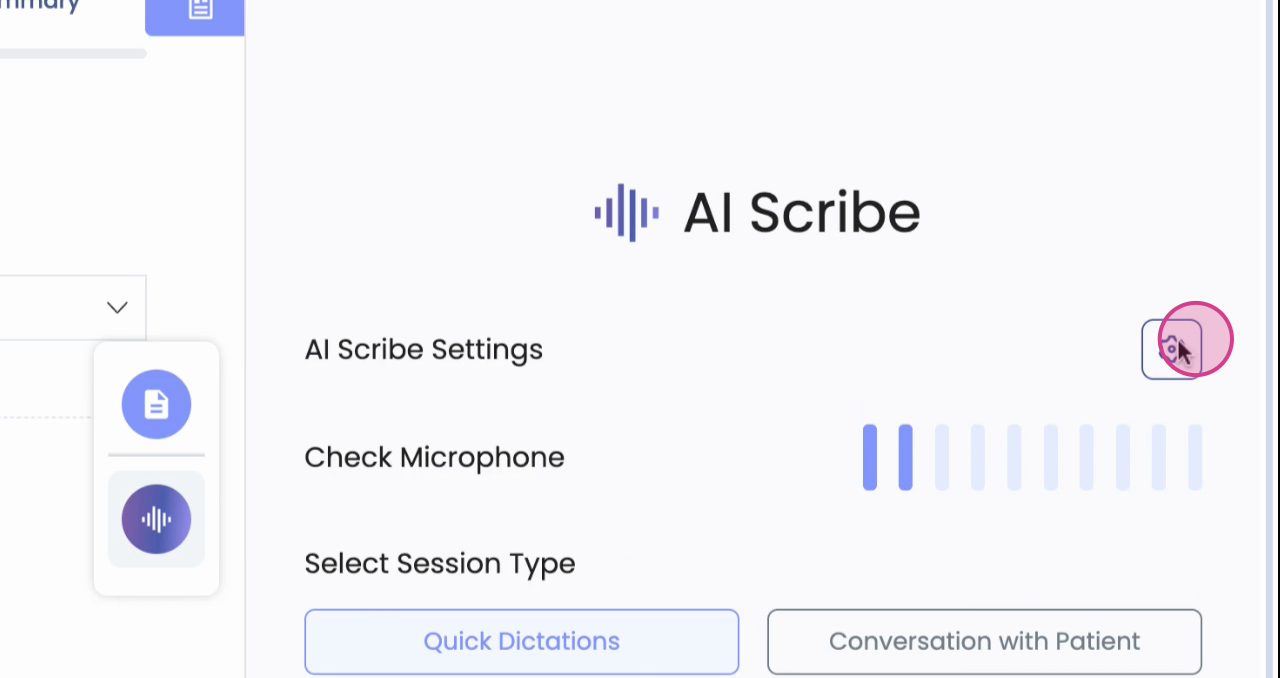
Step 3: Choose the level of notes - high, medium, or low, based on your preference.
Step 4: Utilize the Custom Instructions feature.
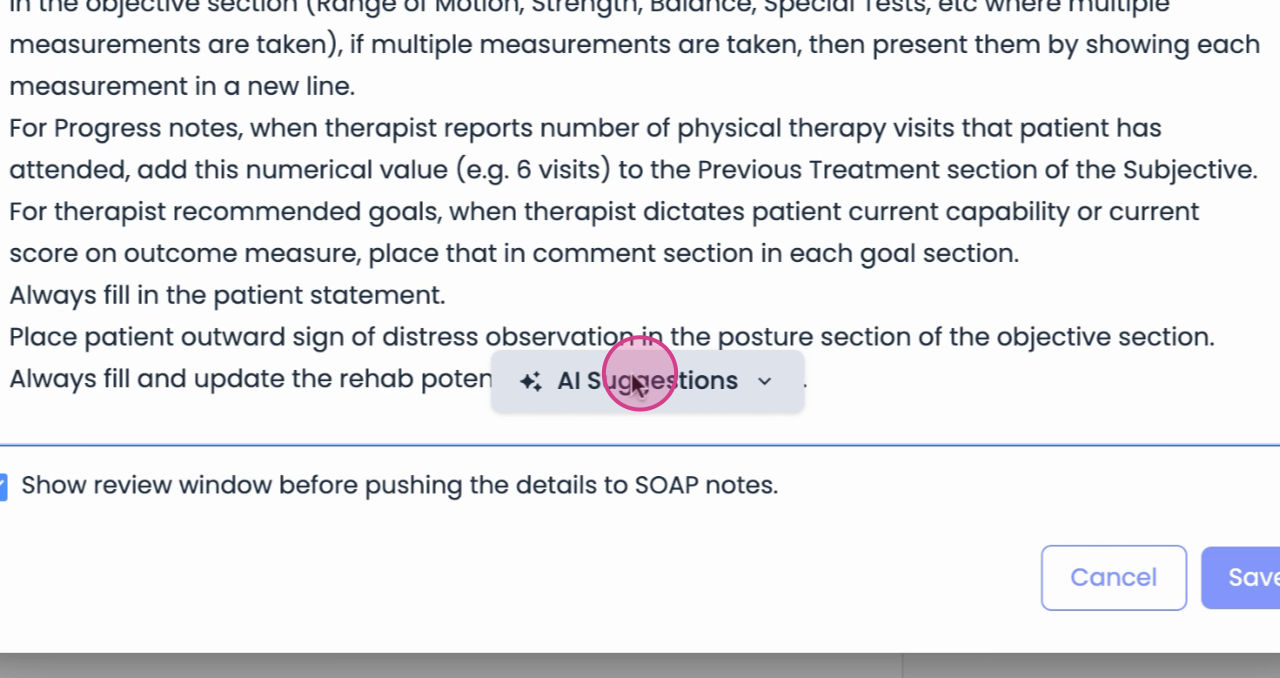
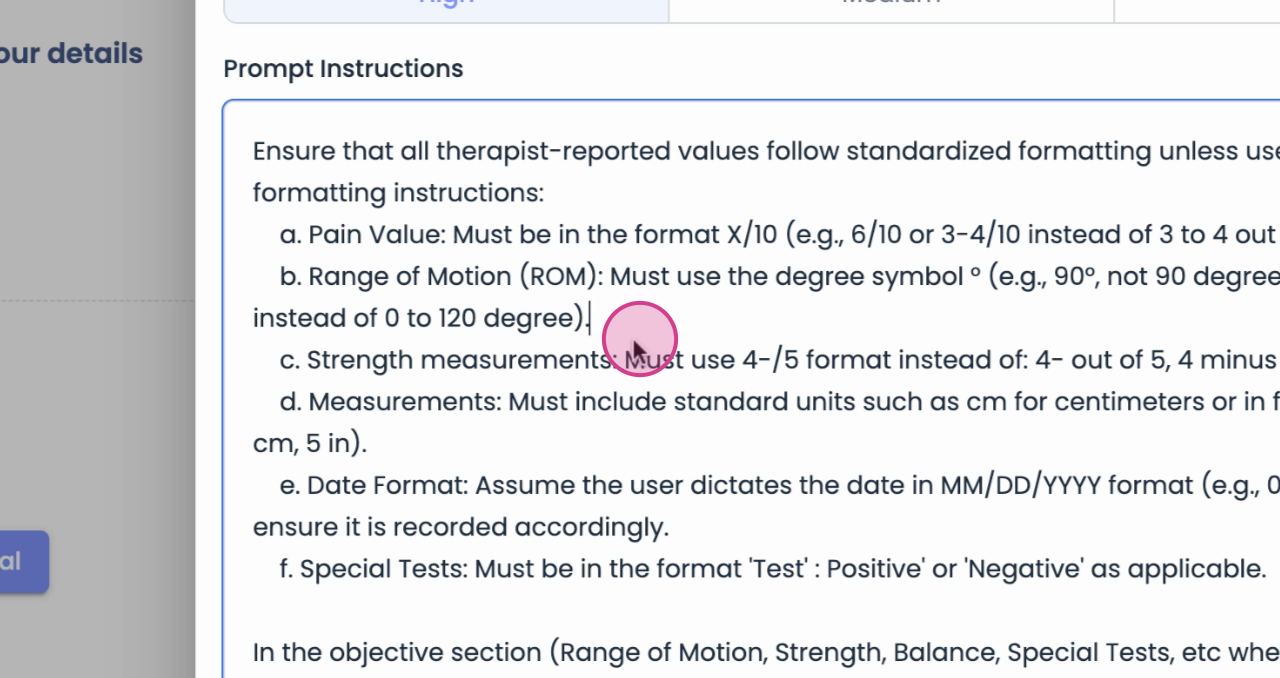
Here, you're able to add your own guidance beyond presets, allowing Scribe to document in specific scenarios. This feature empowers you to personalize your notes to suit your practice style.
Step 5: Enable or disable the Review window using a simple checkbox.
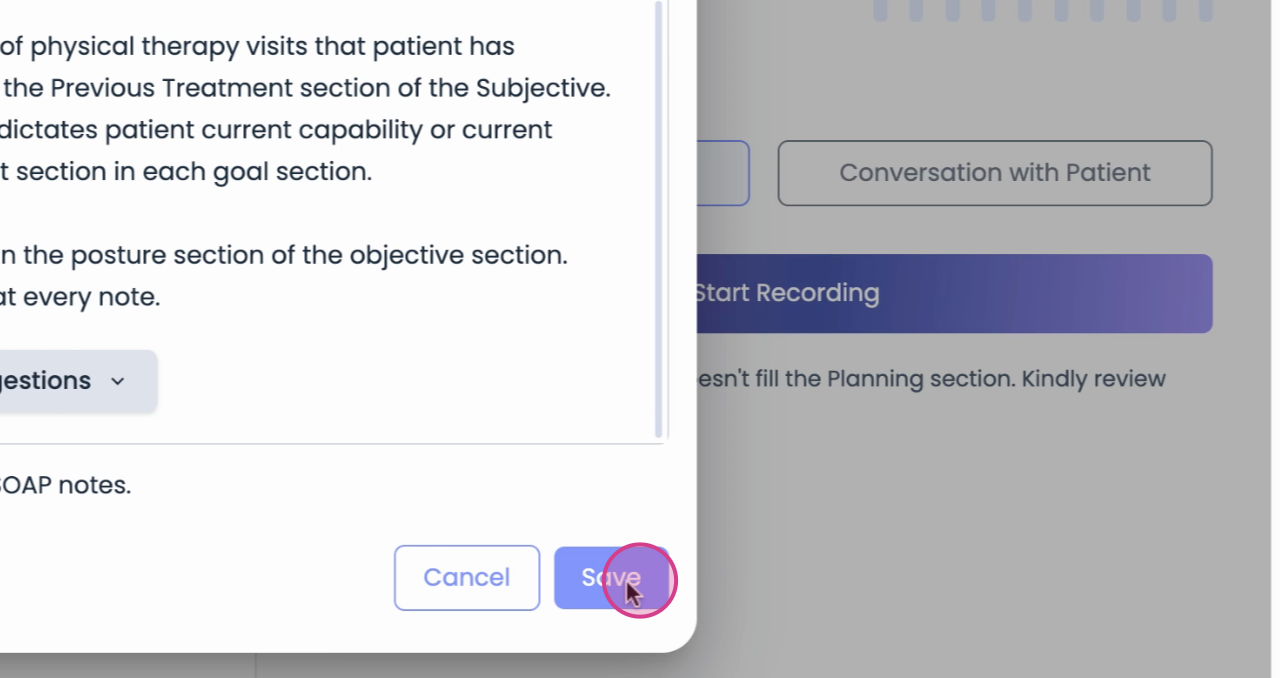
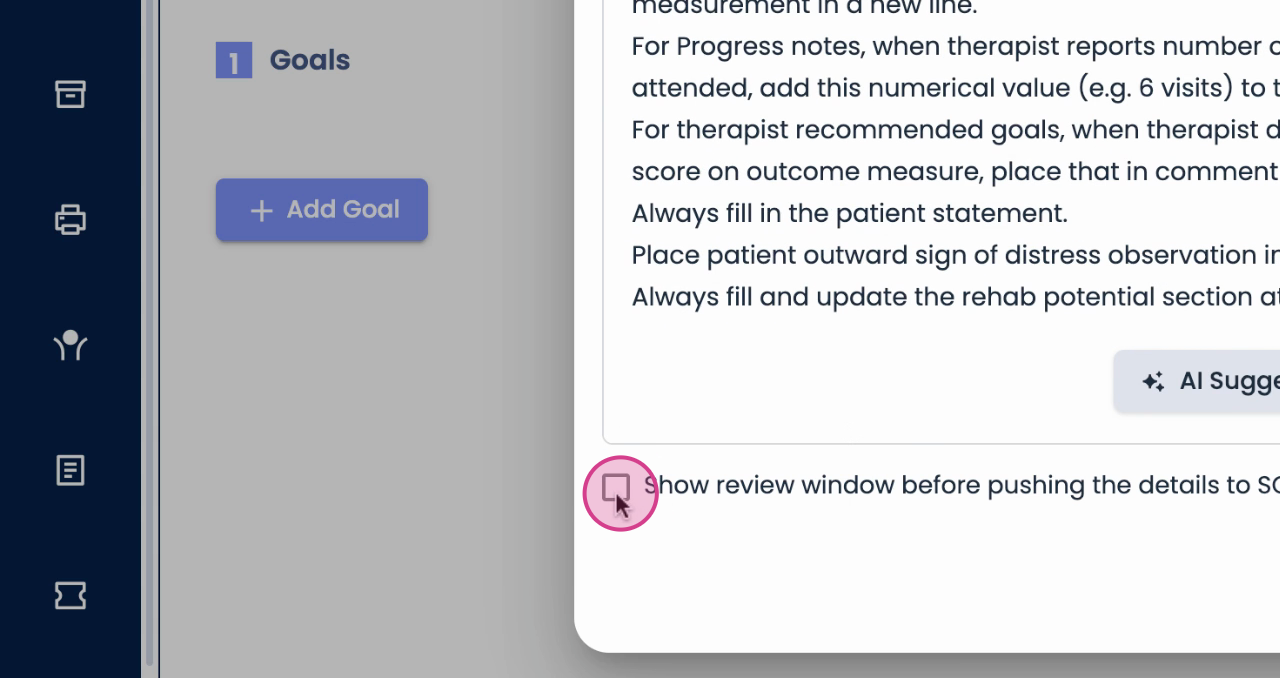
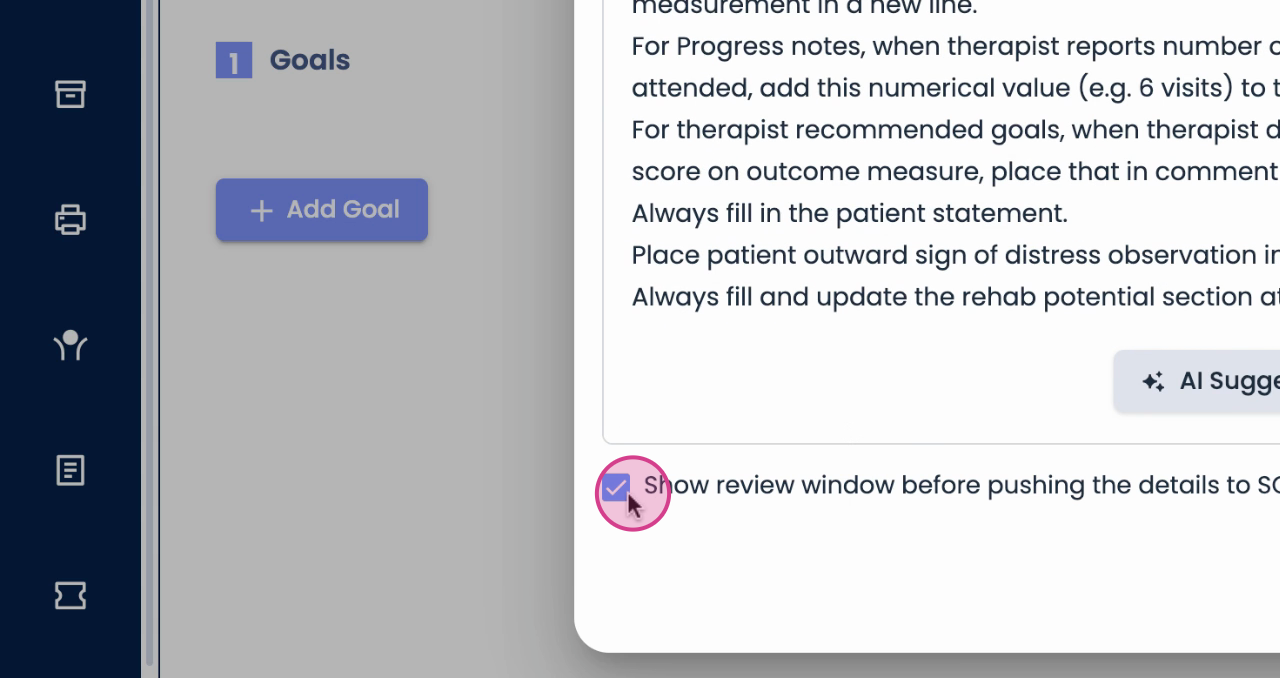
When enabled, every output will first go to a review screen before entering your note, providing you with full control and peace of mind.
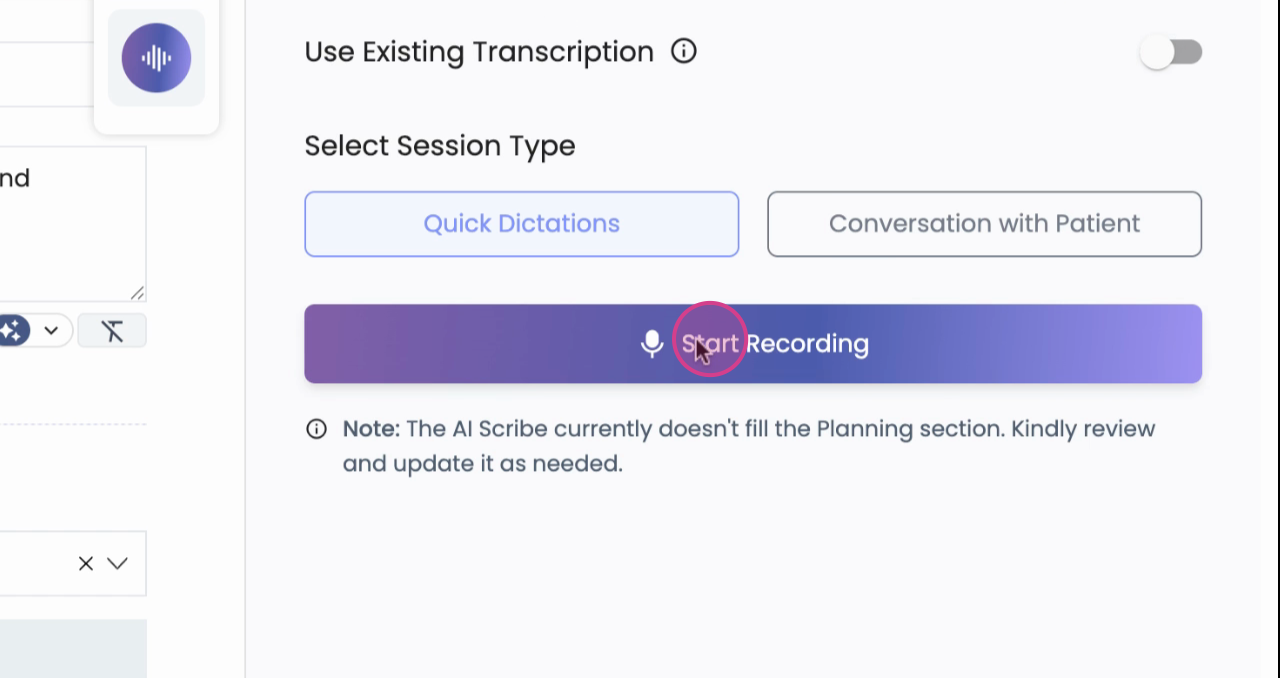
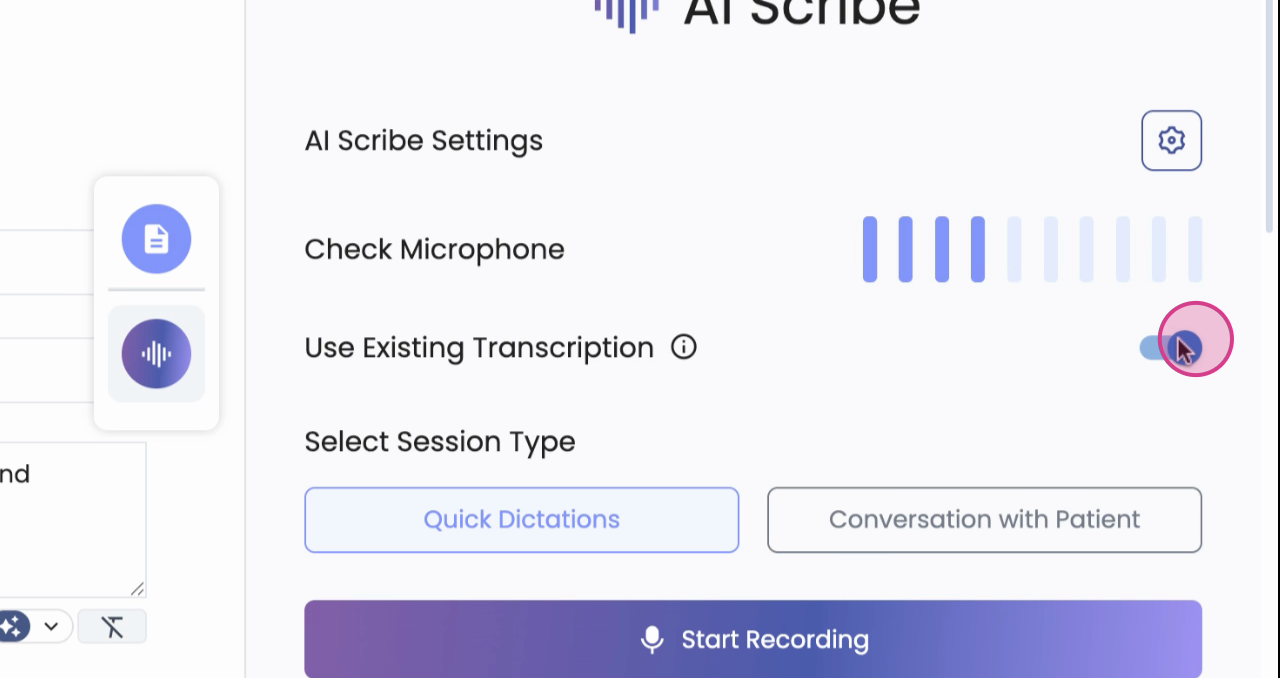
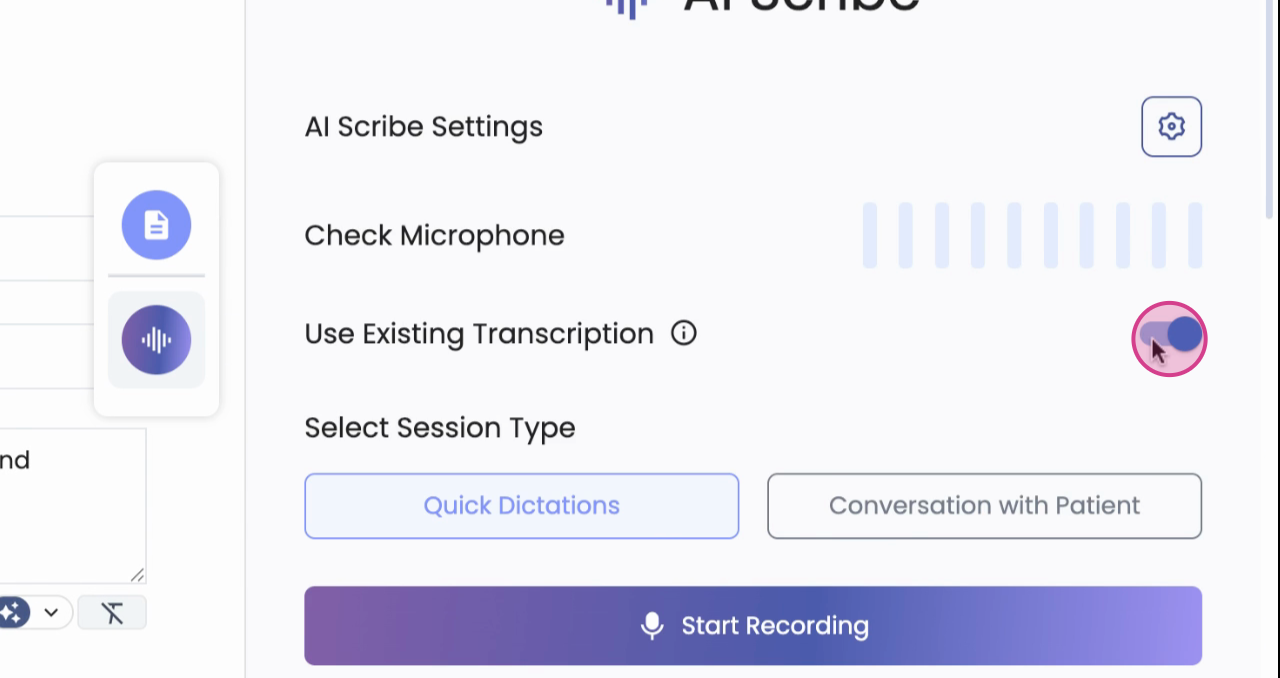
Step 6: Once settings are saved, proceed to use Scribe. For this demonstration, we'll select Quick Dictation.
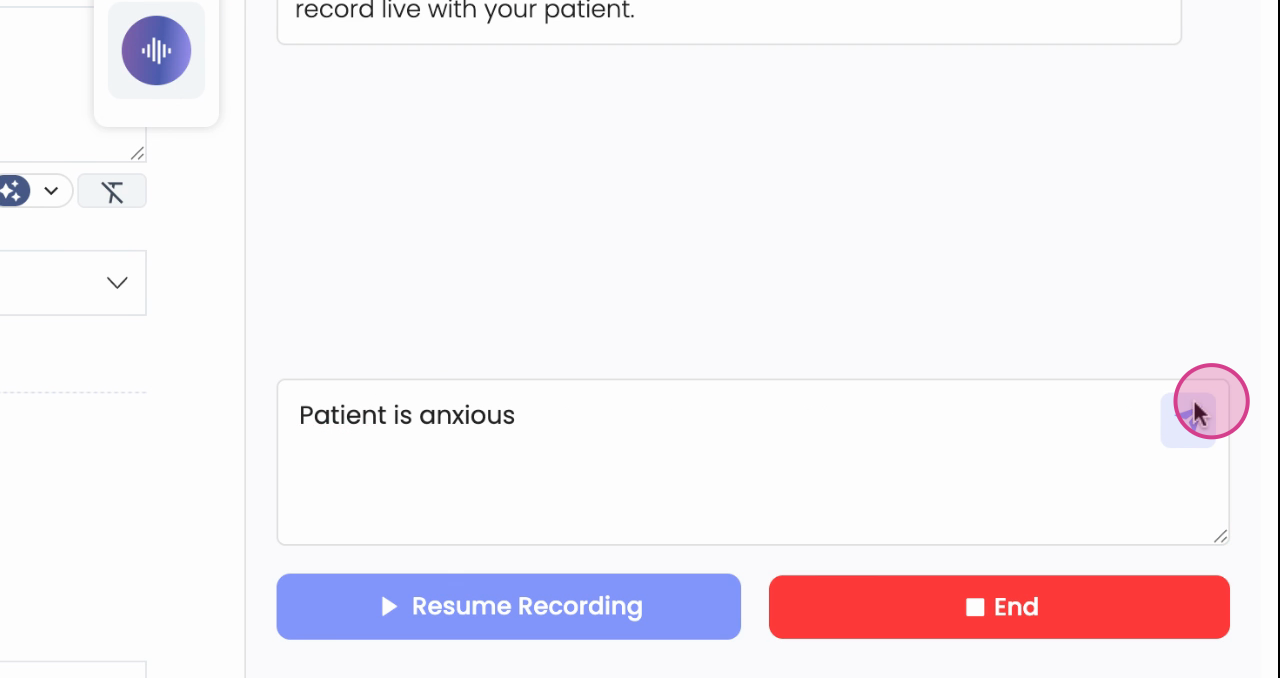

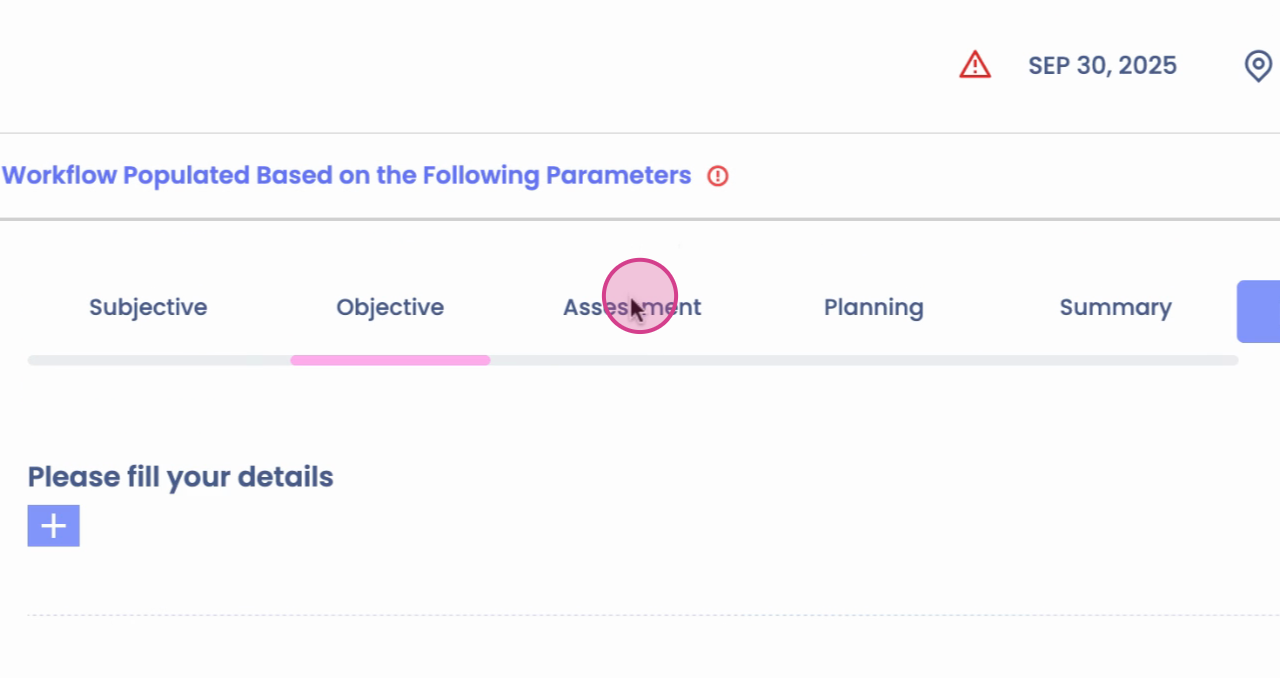
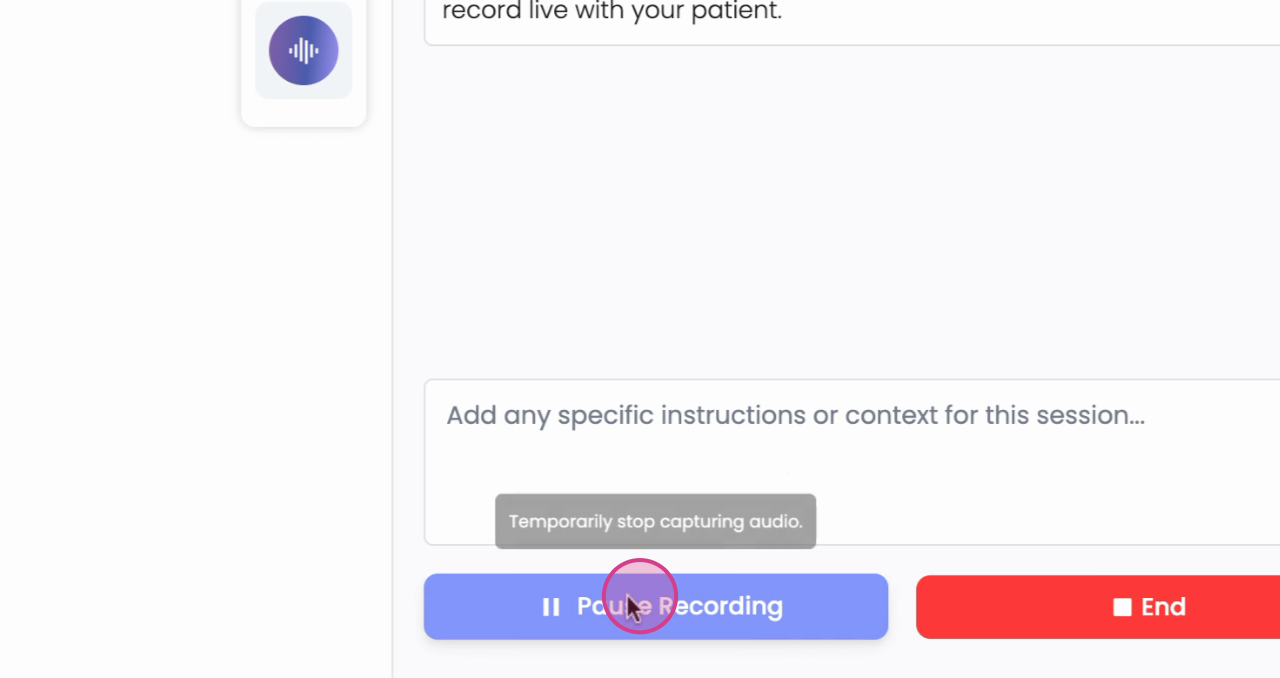
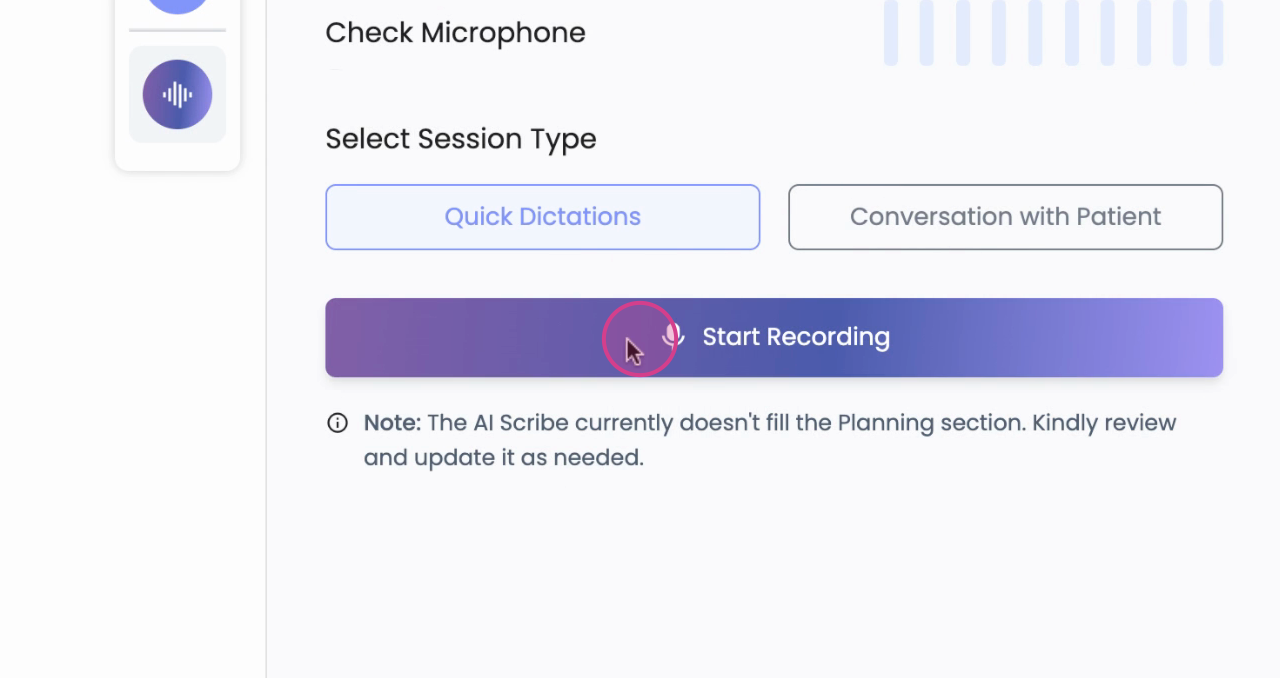
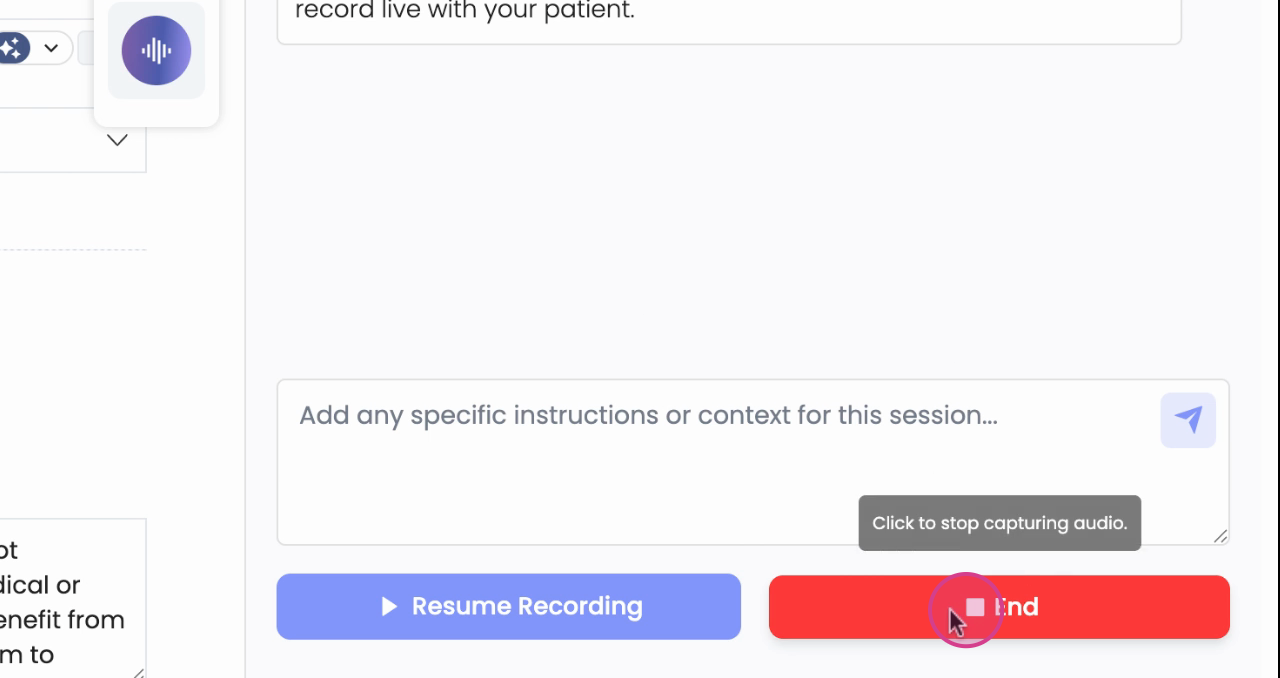
You're not limited to using a predefined transcription, you're also able to record live with your patient. During recording, you have the ability to pause,navigate to different SOAP sections,or add extra instructions at any time.
Step 7: After finishing, click Generate Review.
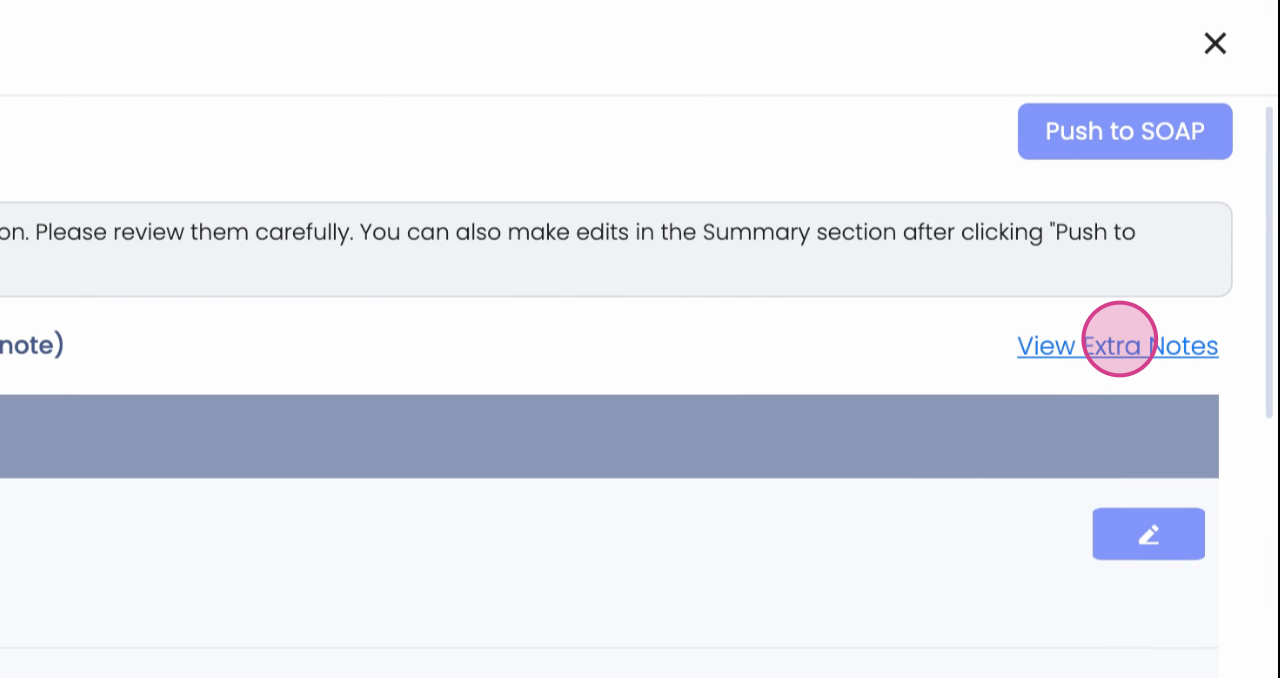
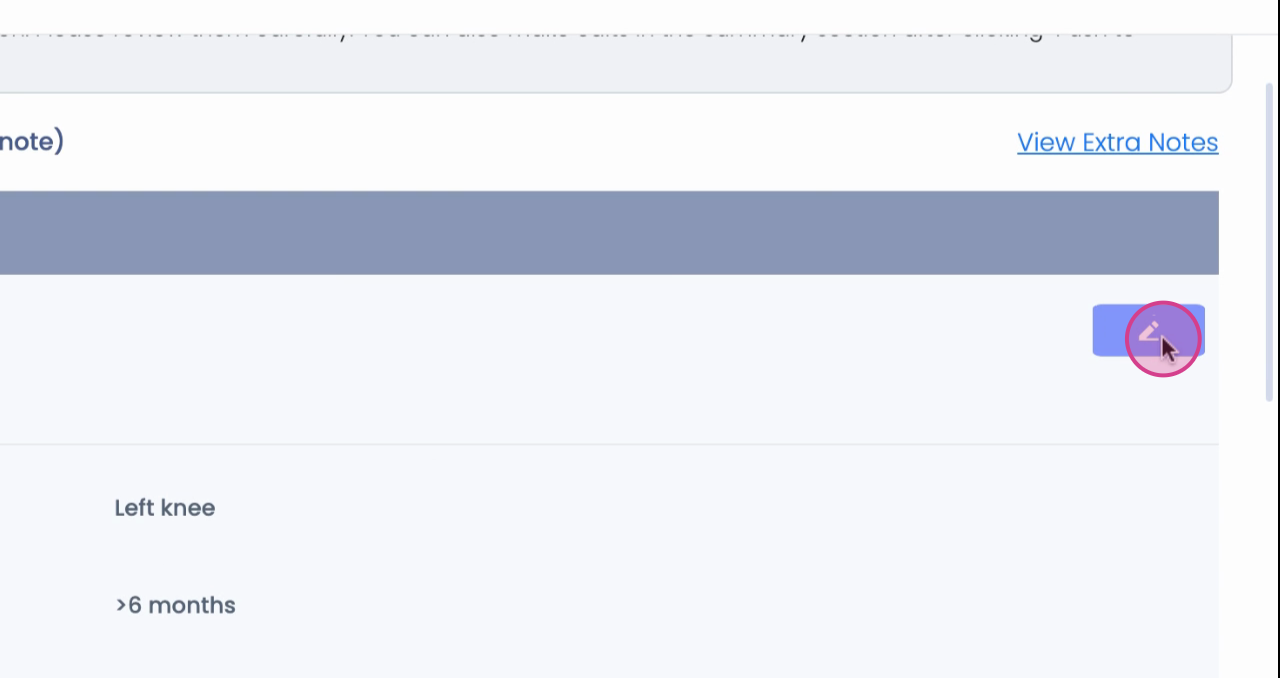
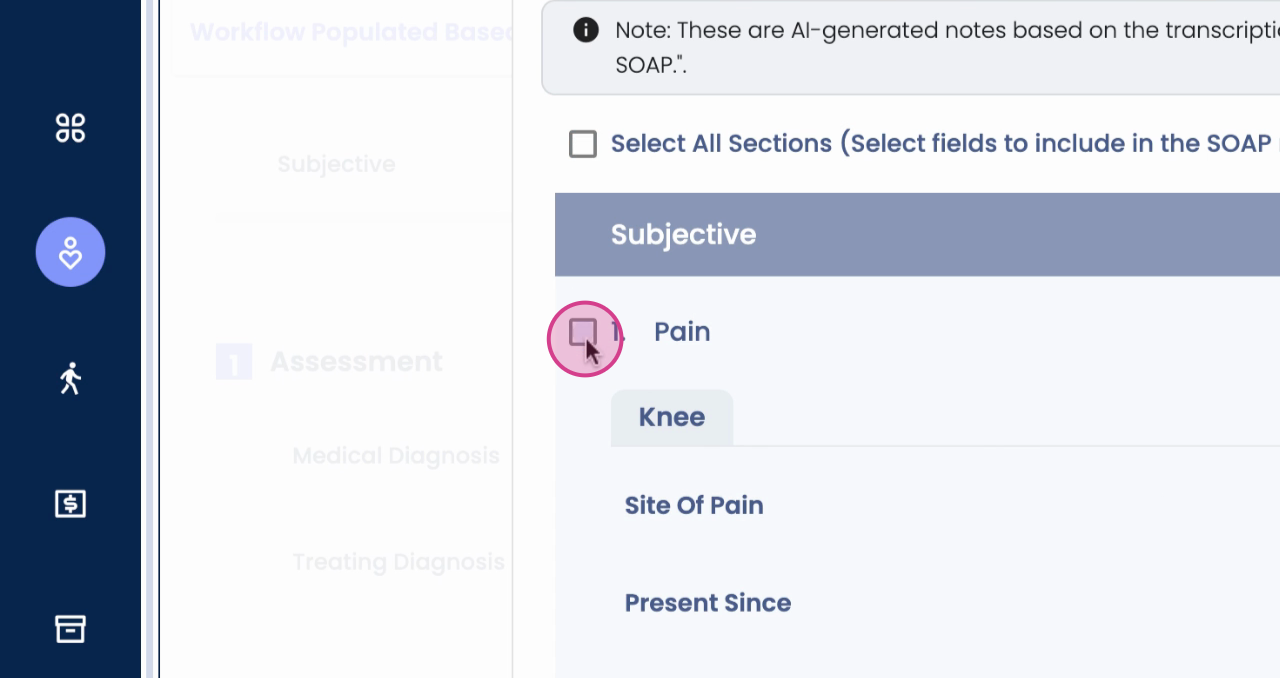
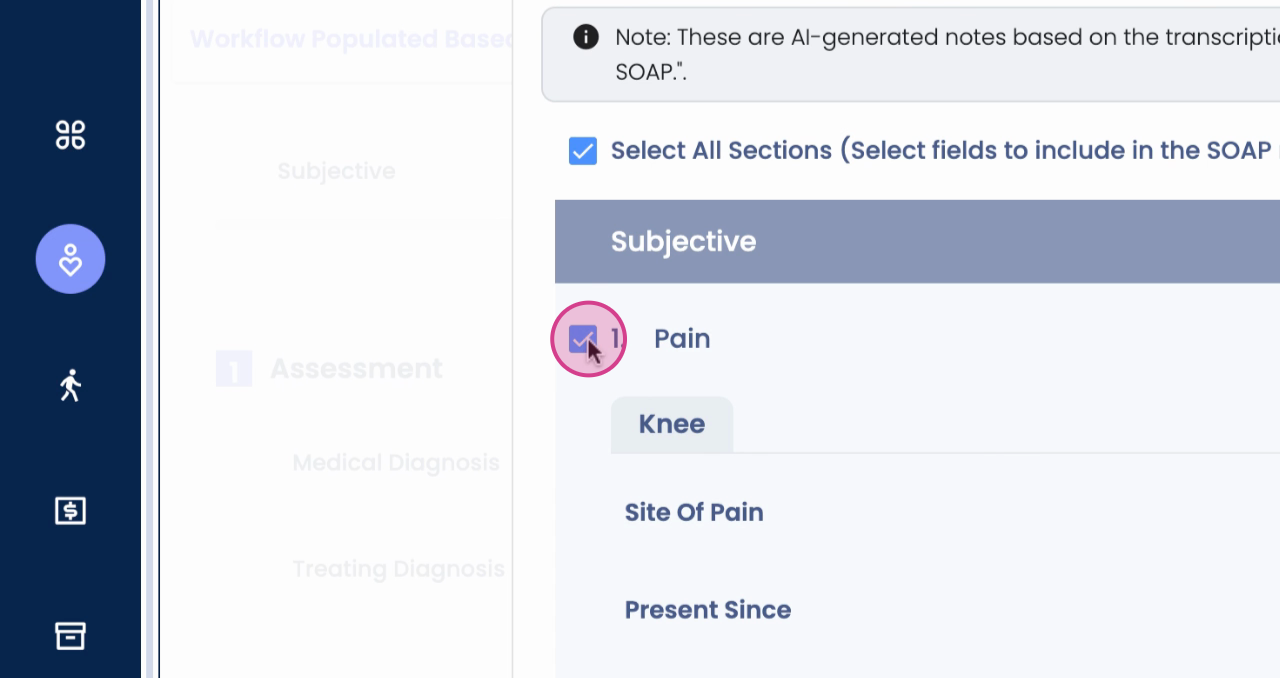

Scribe will process the transcript and open the review window. Here, you have the option to select ordeselect sections you wantapplied,edit values directly if needed,and view extranotes that Scribe couldn't map into fields, ensuring nothing is lost.
Step 8: Once satisfied, click Push to SOAP.


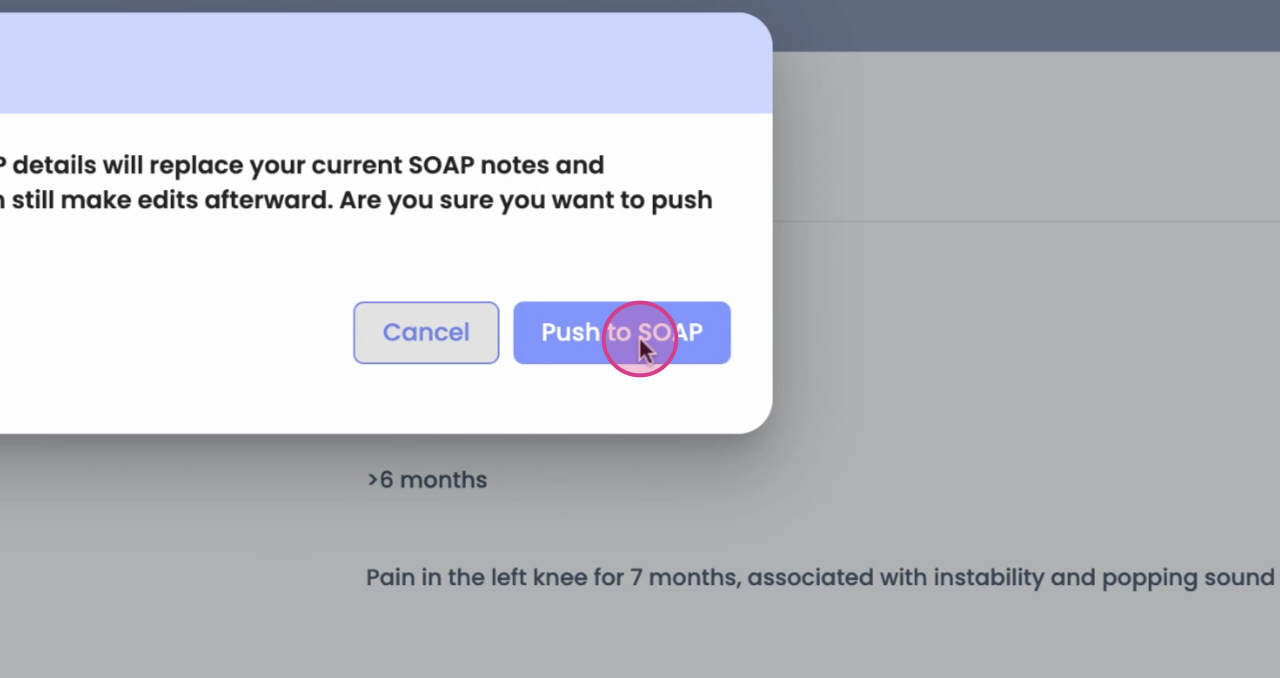
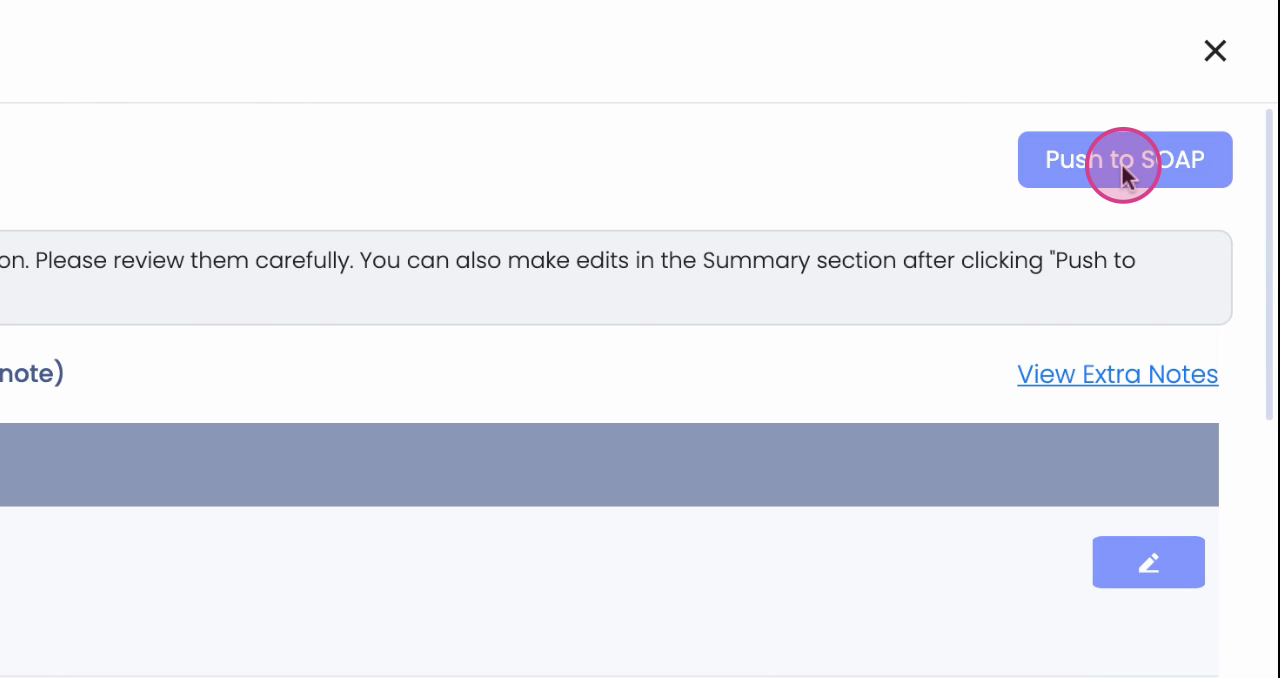
Your selected content will instantly fill into your notes.For future use, you have the option to build onan existing Transcriptor refine it to further enhance outputs, orstart a fresh new one.That's it! With these improvements, Scribe offers smoother navigation, personalized settings, and a review-first process, giving you complete control over your documentation.