
SPRY AI Fax
Explore the AI-enhanced eFax feature in this guide. This feature includes an AI analyzer for faxes, providing information about the sender, recipient, and a summary of the fax content.
Step 1: Navigate to the eFax section.

Step 2: Choose efax.

Step 3: Click on analyze. The AI analyzer identifies the sender and recipient of the fax. Hover over the analyzed fax to view a summary.

Step 4: Open the fax by clicking on it. The AI creates a patient profile based on the information from the fax.

Step 5: Ensure all mandatory details are filled in. If any information is missing, fill it in.

Step 6: Click on add patient. The AI prepopulates the data, and the patient is added successfully.

Step 7: Verify the addition of the patient by going to your patient dashboard.

Step 8: Search for the patient's name. The new patient should now be visible in the system.

Step 9: Return to the eFax section to analyze the second document.
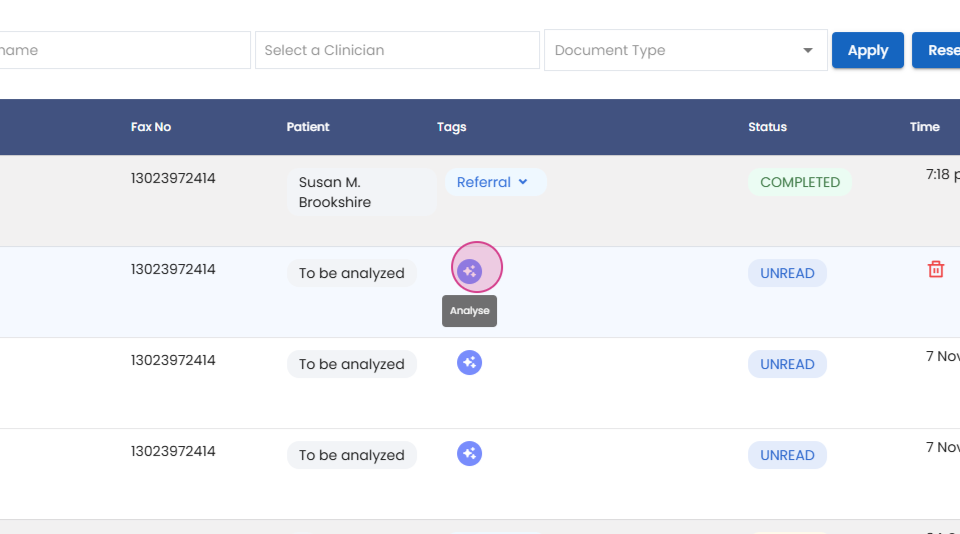
Step 10: Open the eFax.
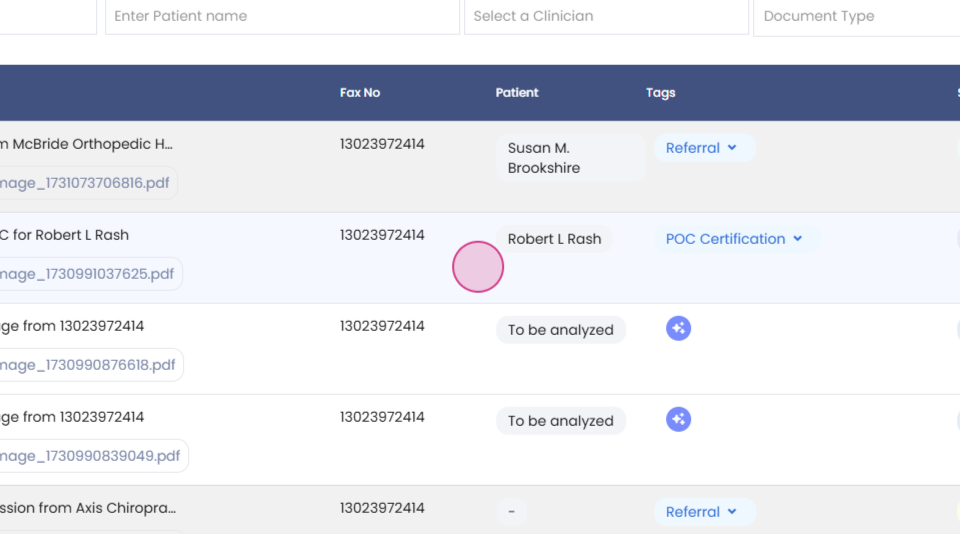
Step 11: Select the patient from the drop-down menu. The AI identifies the patient.
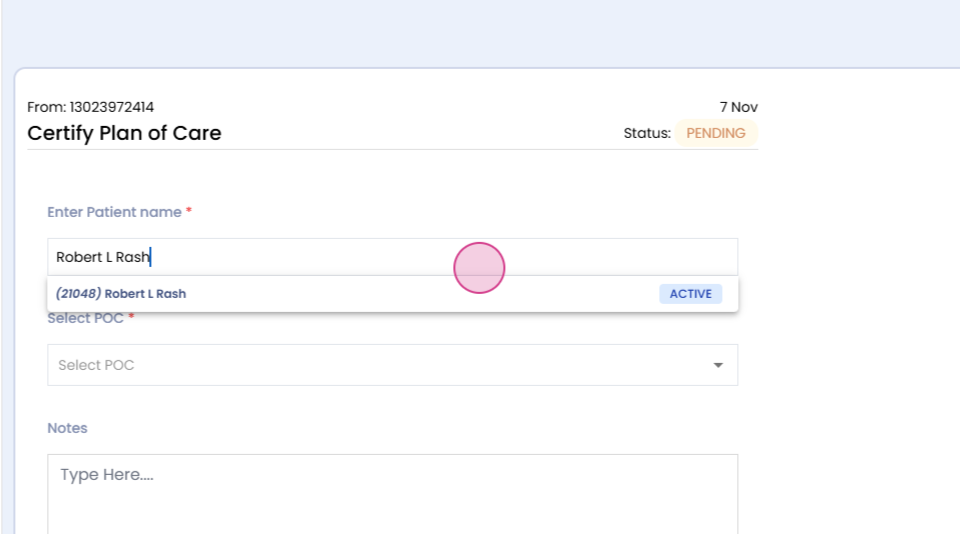
Step 12: Select the case.

Step 13: If applicable, write any notes.
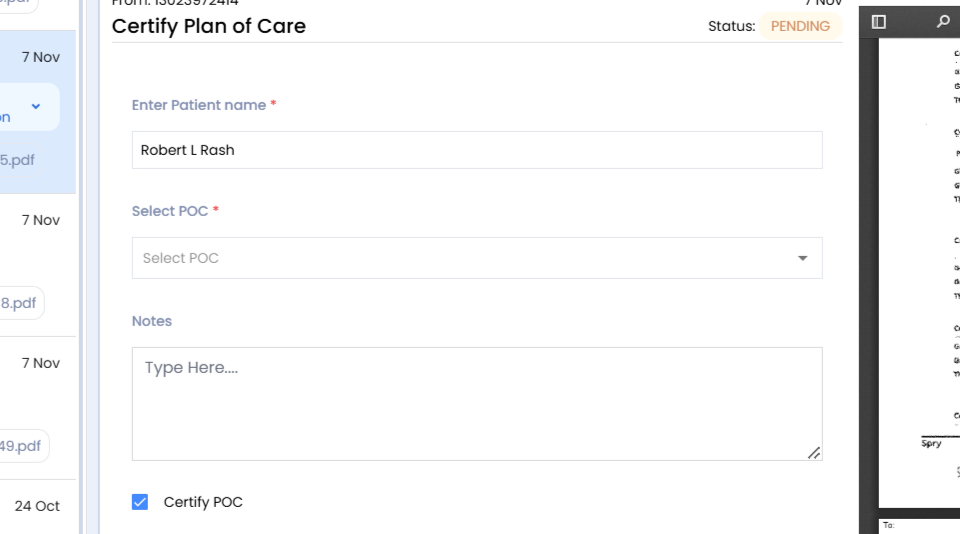
Step 14: Click on submit.

Step 15: Return to the patient tab to see the updated status.

Step 16: Analyze the third document. The AI identifies the sender and recipient of the fax.

Step 17: Open the fax and select the patient.

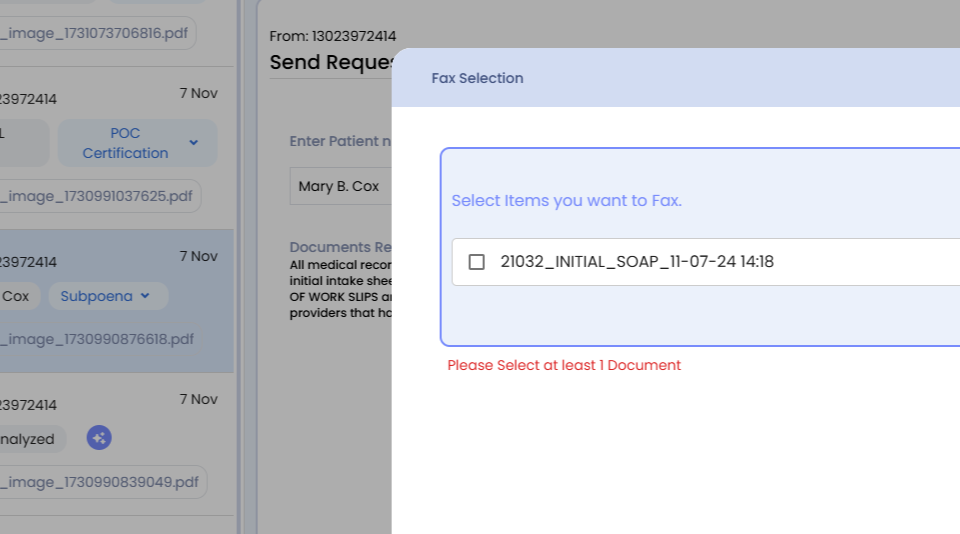
Step 18: View the fax. When you click on compose fax, the AI identifies which document to send.

Step 19: Click on the identified document.
Step 20: Click on save.
Step 21: Enter the fax number and other details, then click send to send the efax.

Step 22: Analyze the fourth document.
Step 23: Open the fax. The AI identifies the patient and the reference ID from the authorization.

Step 24: Select the case and verify the other information which the AI has auto-populated.

Step 25: Click on add authorization. The authorization is added to the patient's dashboard.

Step 26: Return to the eFax dashboard. The AI updates the status of all your faxes.

This concludes the guide on using the AI-enhanced eFax feature.