Skip to content Addendum SOAP Notes
← Back to list
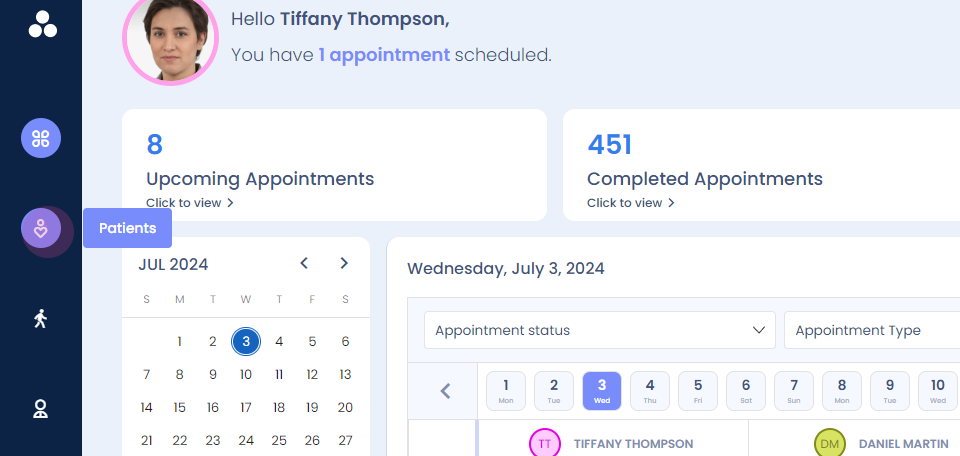
Step 1: Add an addendum,
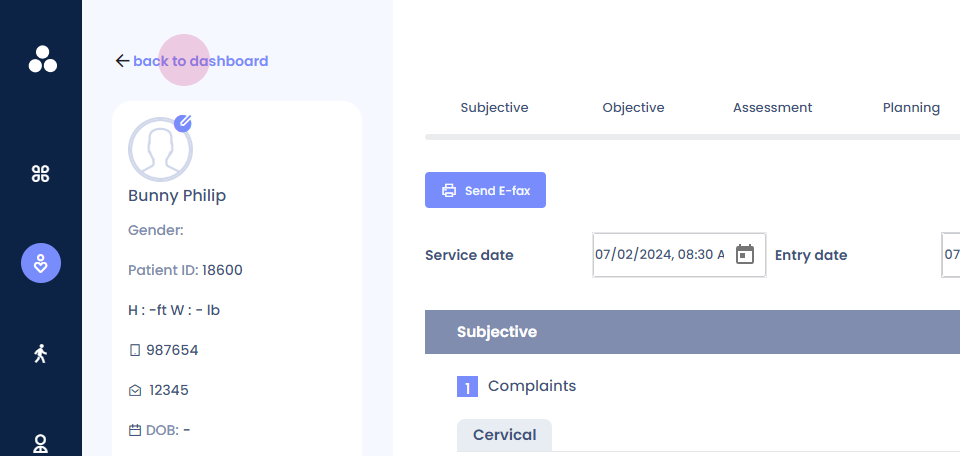
you have to go to the patient dashboard.
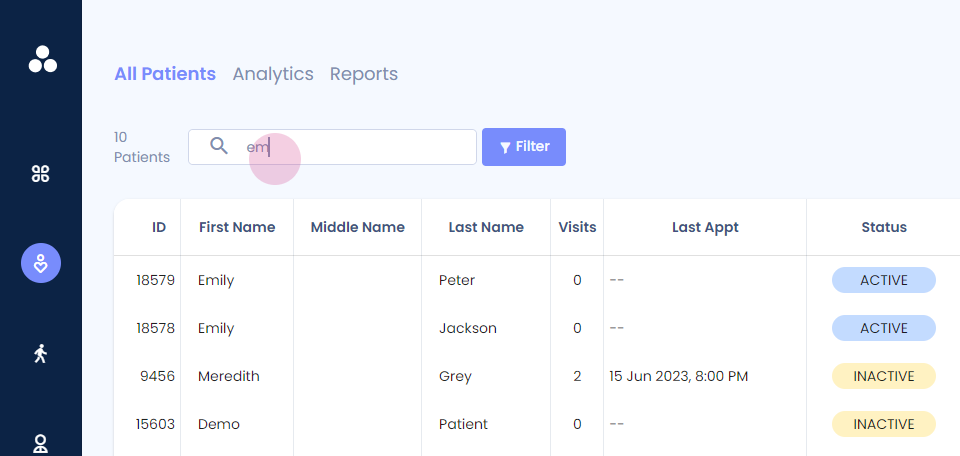
Step 2: Once you're here, you can search for your patient.
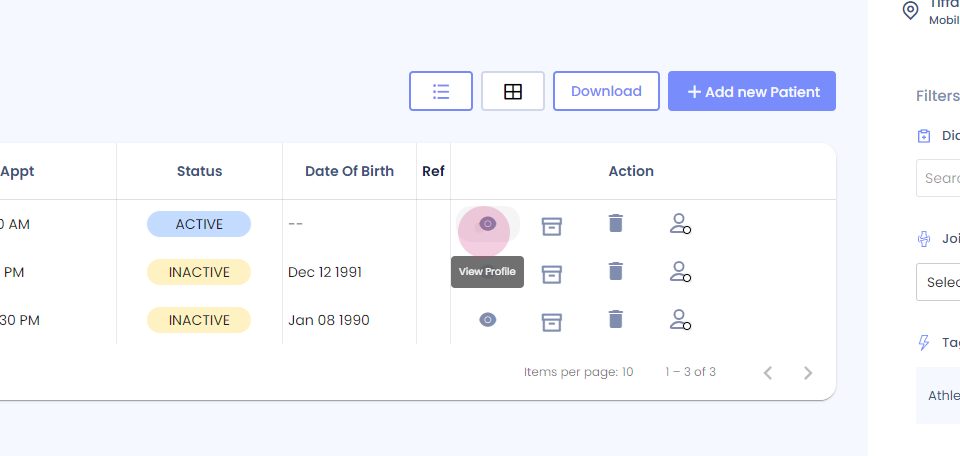
Step 3: And view the profile.
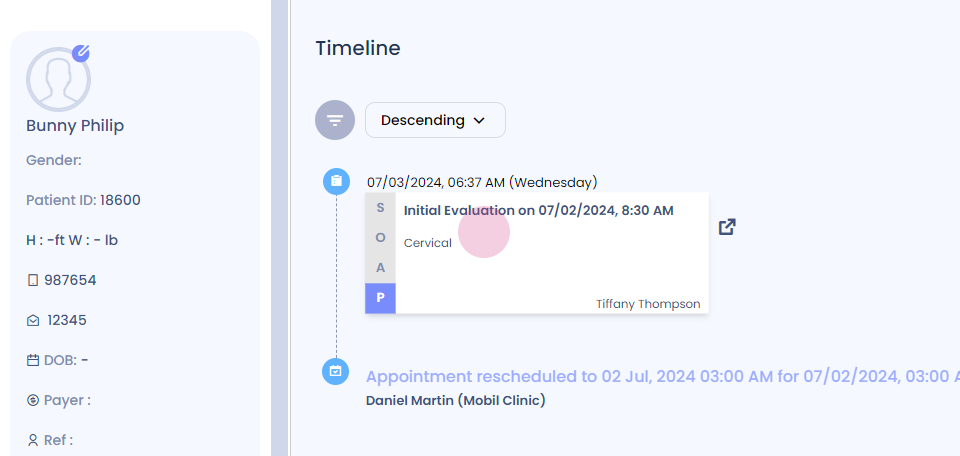
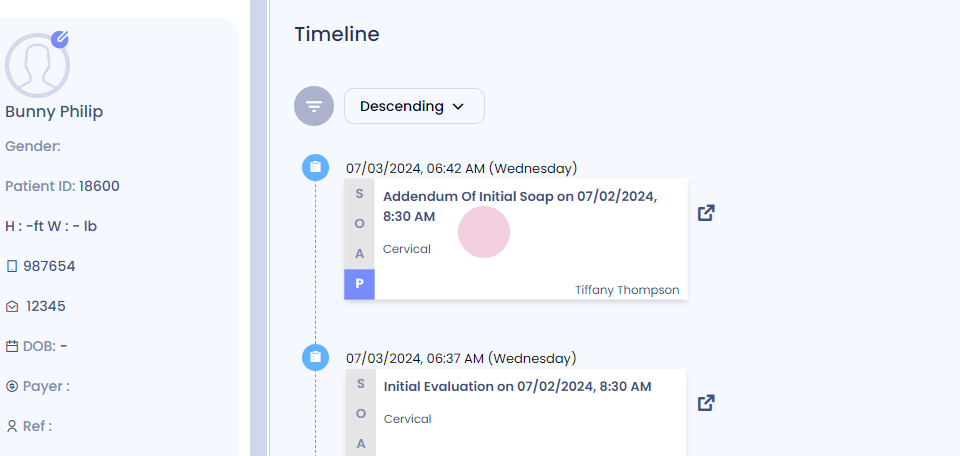
Step 4: This way, you will reach the patient timeline. Now you can go to the SOAP note.
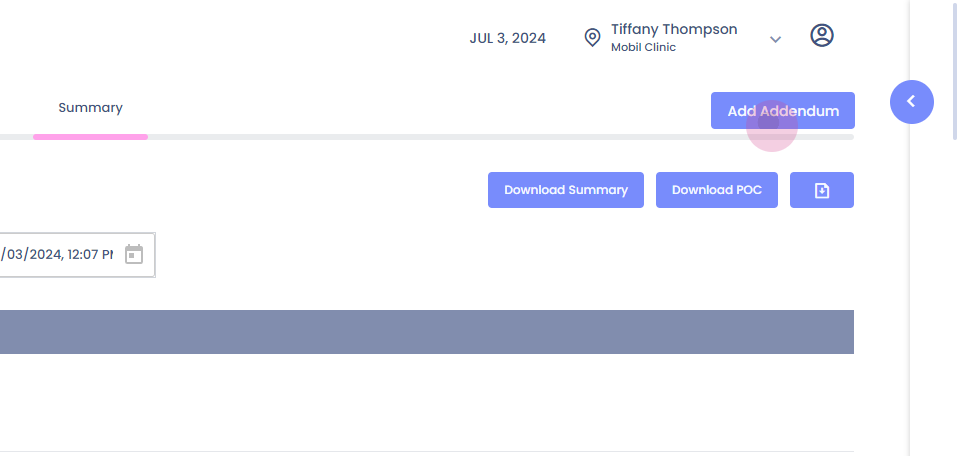
Step 5: You will reach the summary. On the right hand upper corner, you will see add addendum.
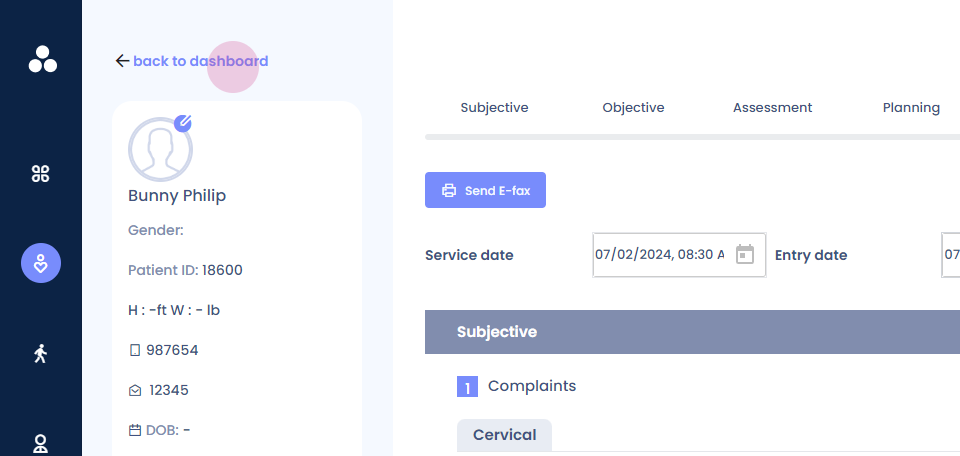
Step 6: You have to click on it, and you will reach the SOAP documentation.
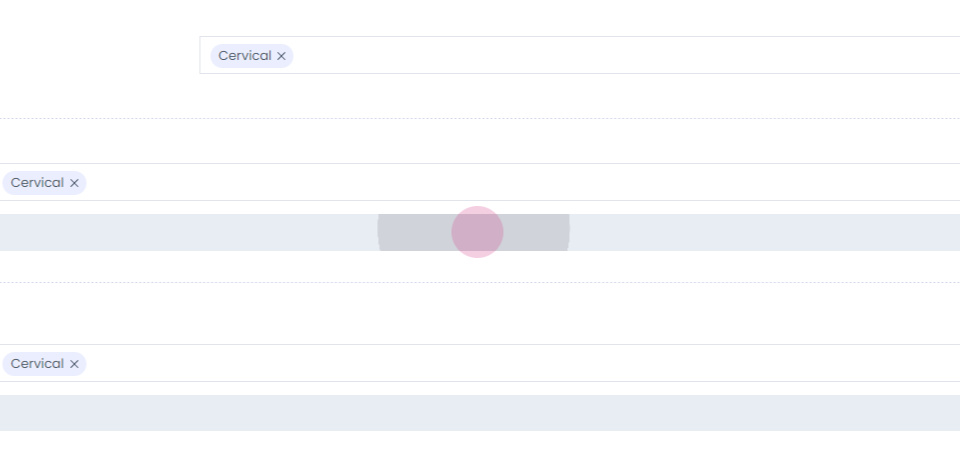
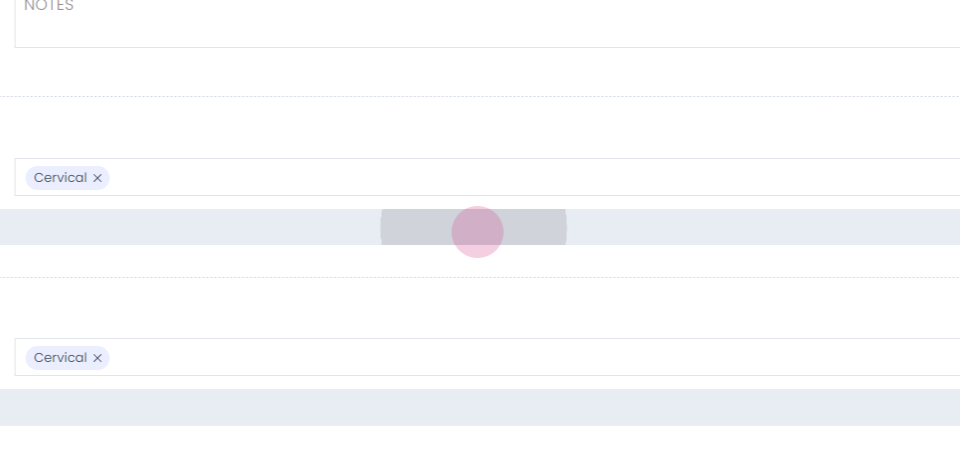
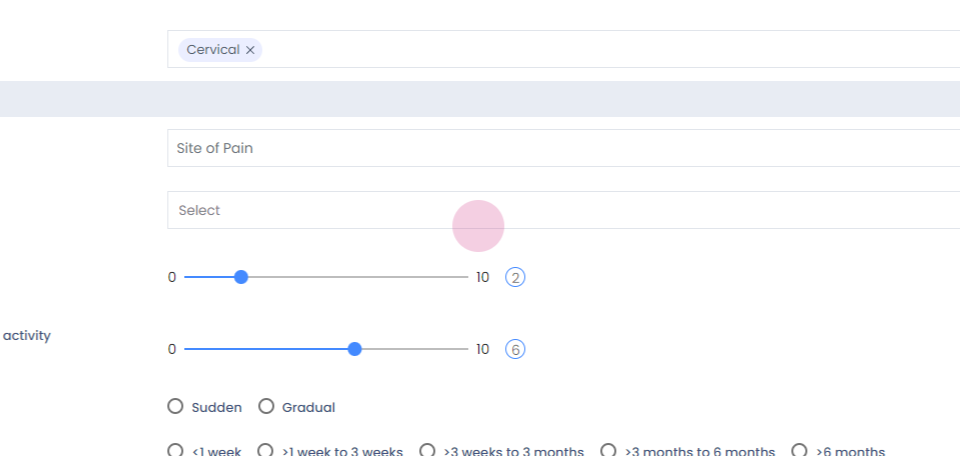
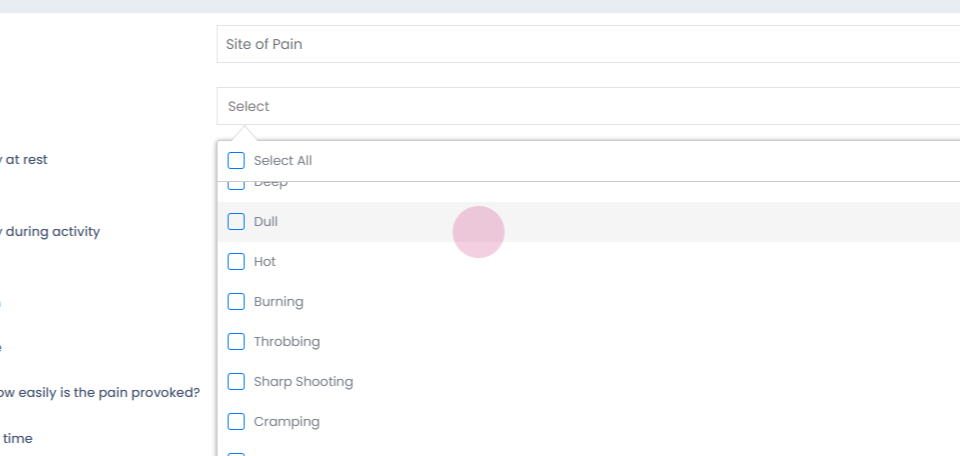
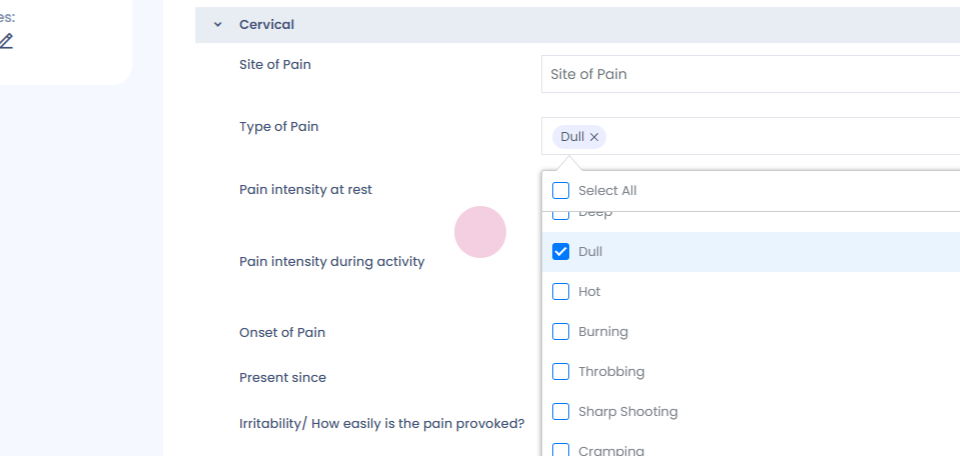
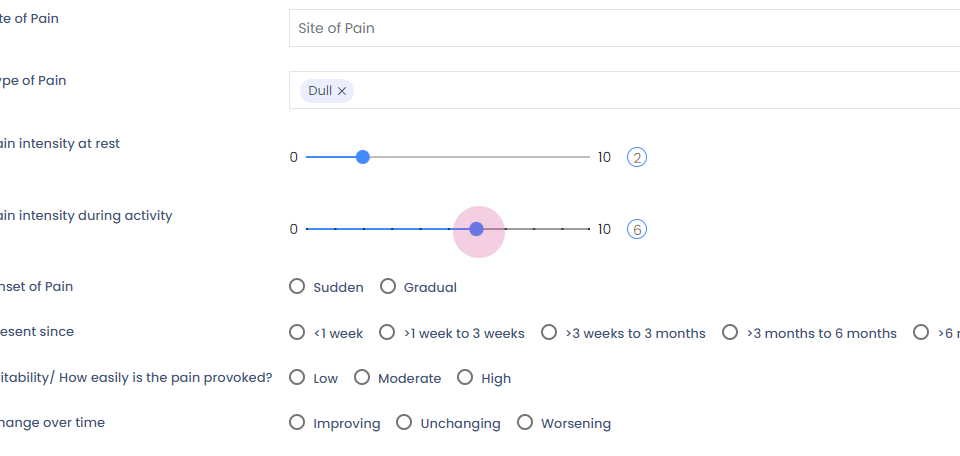
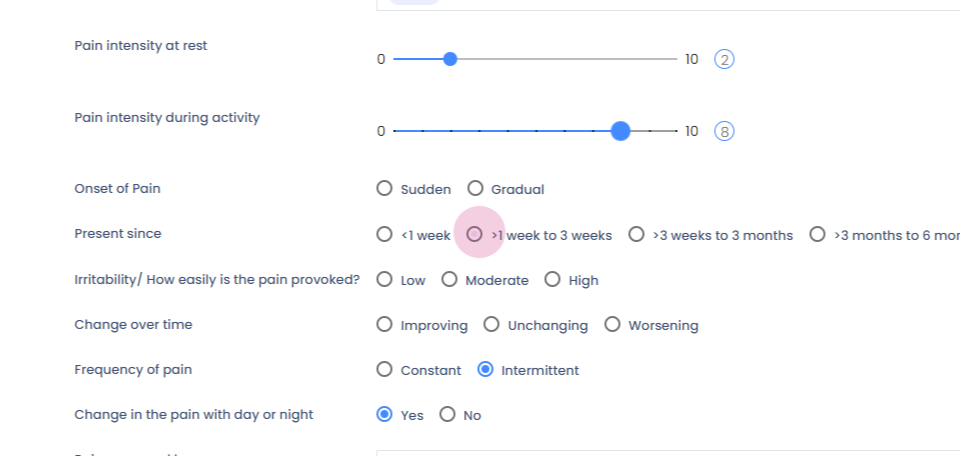
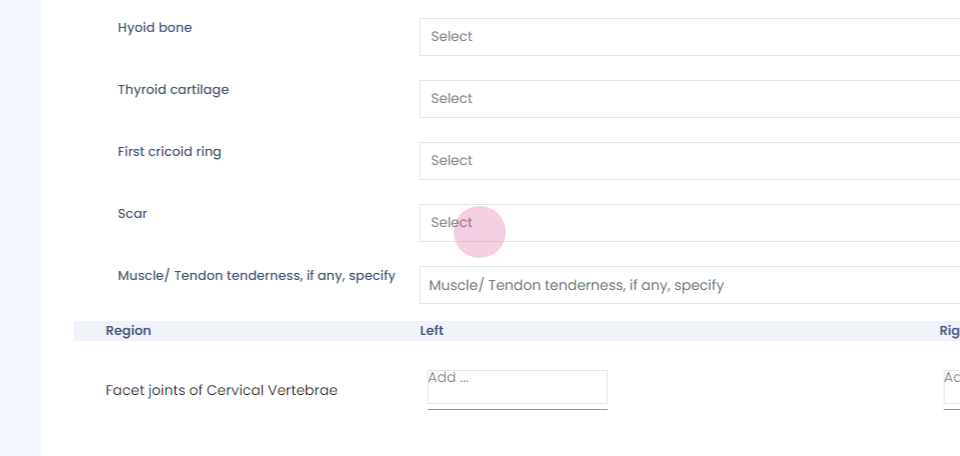
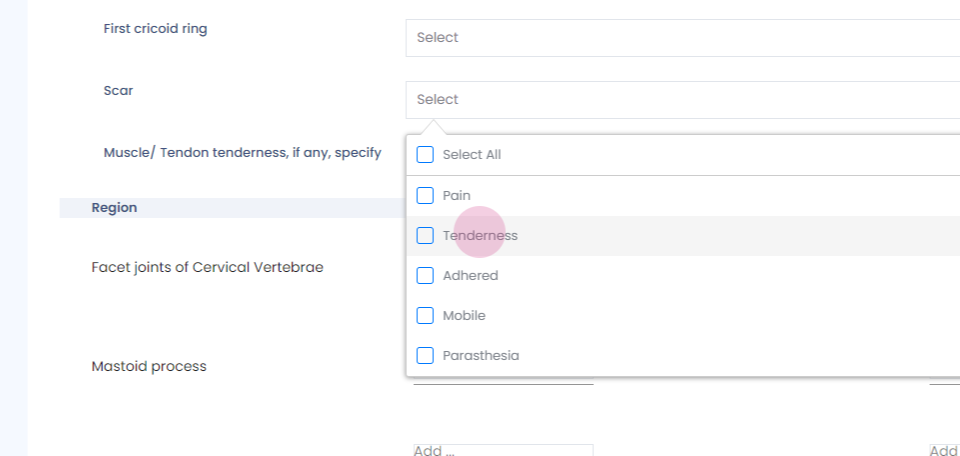
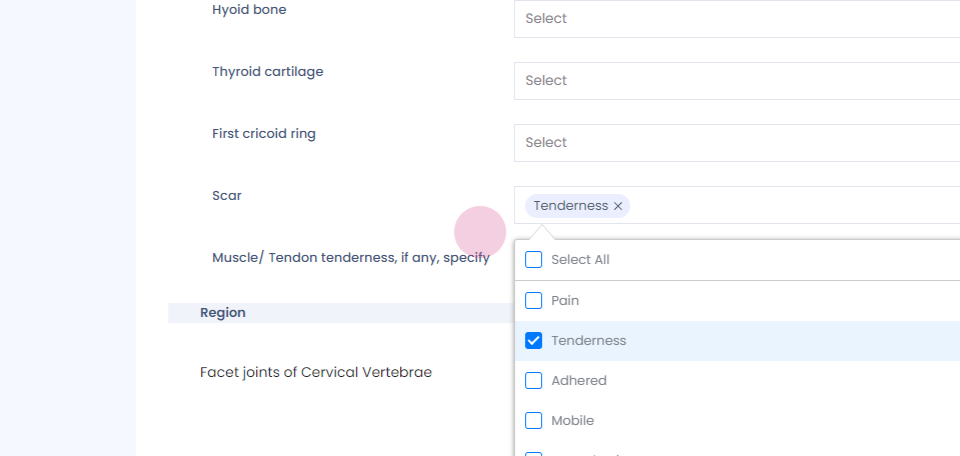
Step 7: You can make any changes you want.
Step 8:
Step 9:
Step 10:
Step 11:
Step 12:
Step 13:
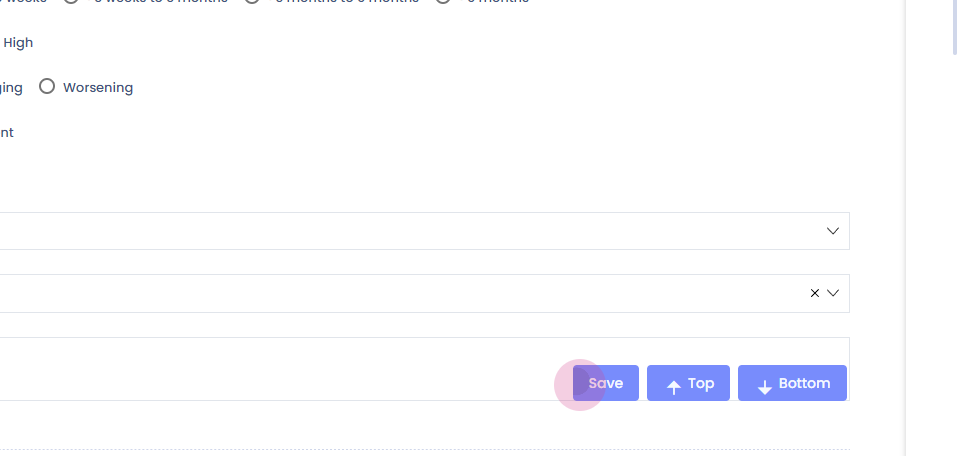
Step 14: Click save. It will be saved successfully.
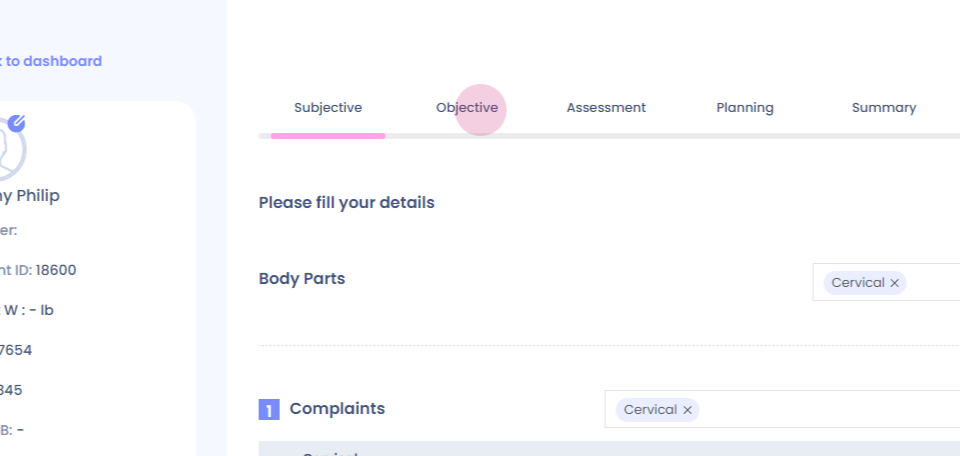
Step 15: You can go to the next section and add necessary additions.
Step 16:
Step 17:
Step 18:
Step 19:
Step 20:
Step 21:
Step 22:
Step 23: Once yu reach the summary section, click complete soap.
Step 24:
Step 25:
Step 26:
Step 27: Addendum added.
Step 28: You can see that in Patient's timeline.
Step 29:
Step 30: Thank You!