How to Book an Appointment for New and Existing Patients
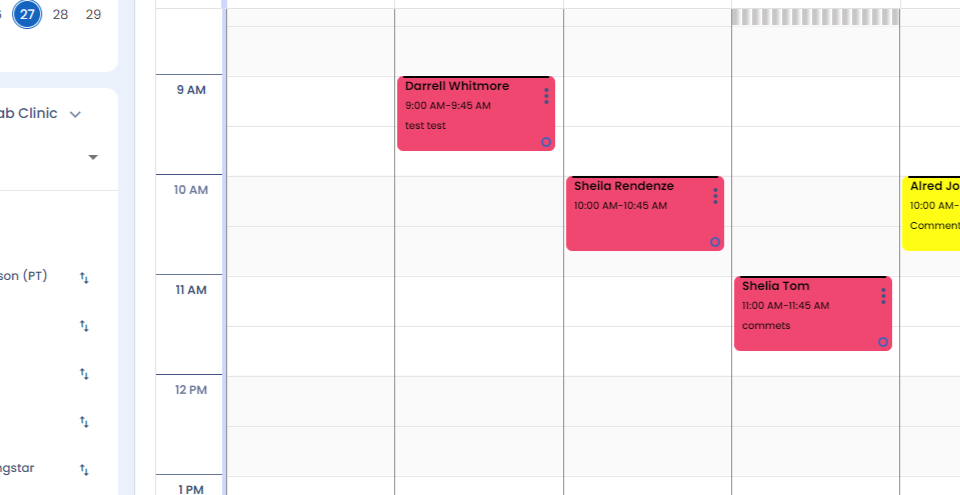
Step 1: Hi. How to book an appointment for a patient? Right click on the column.

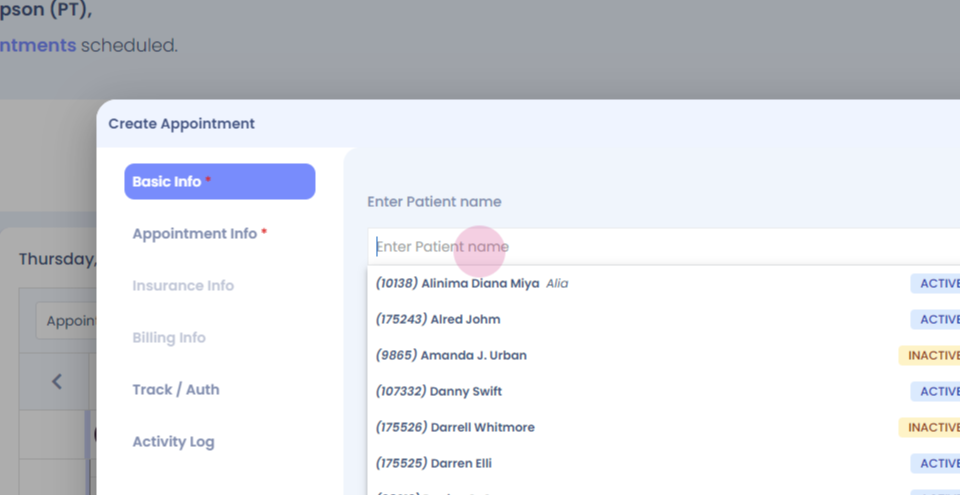
Step 2: Enter the patient's name
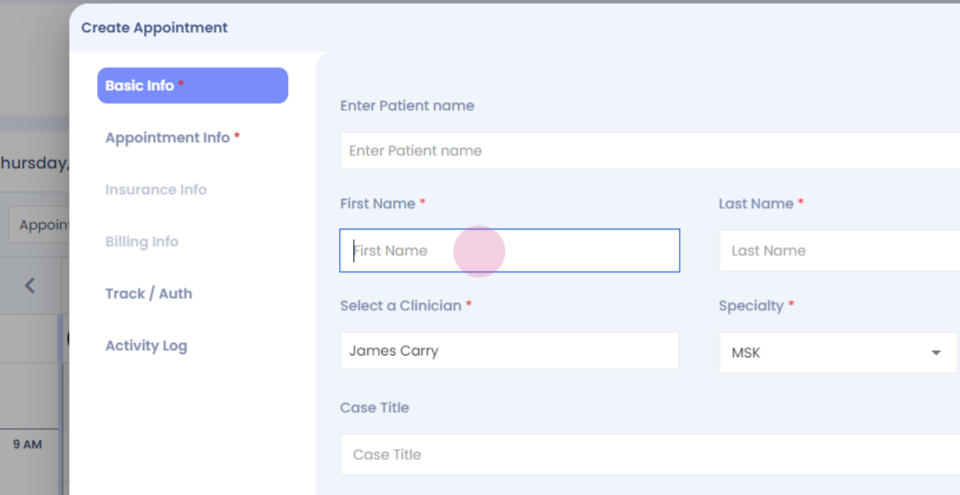
Step 3: Enter the mandatory details.
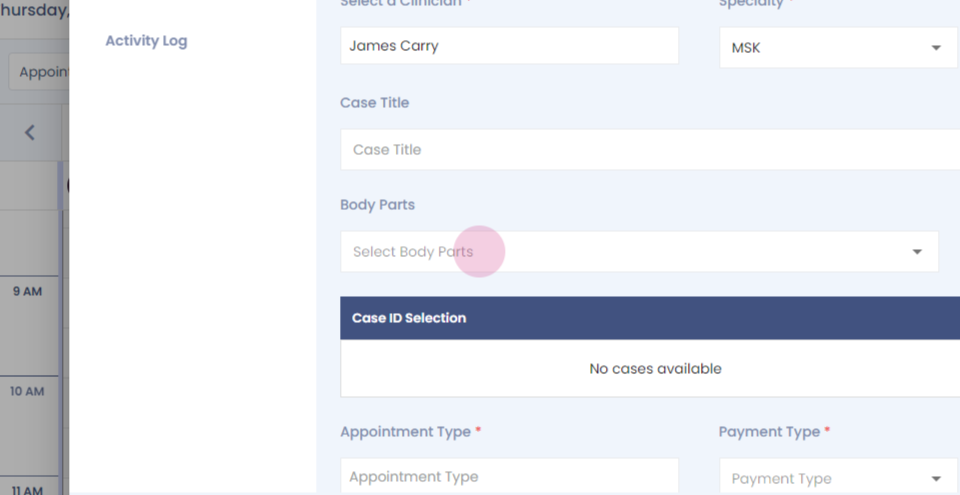
Step 4:
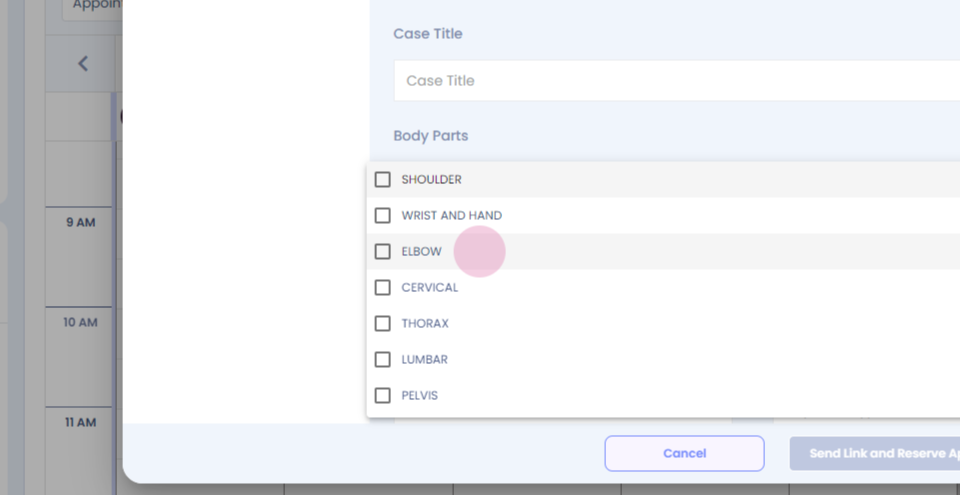
Step 5:
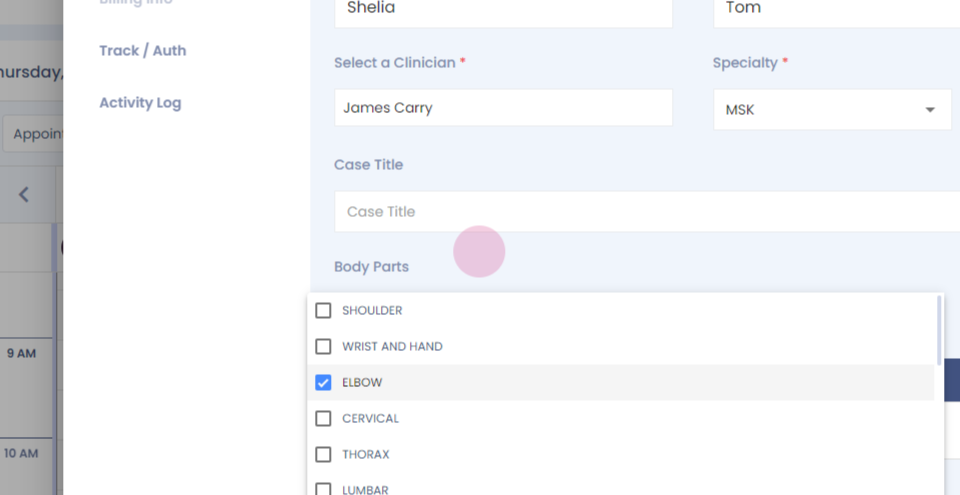
Step 6:
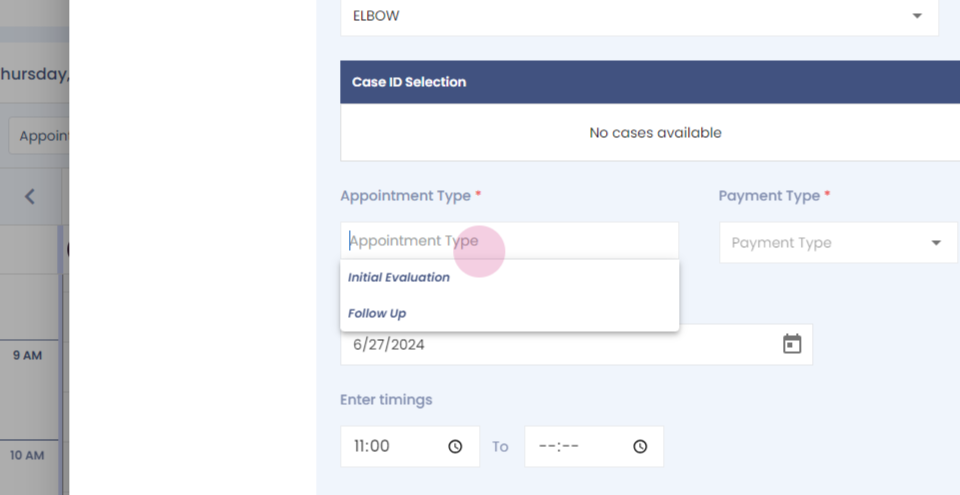
Step 7: Select the appointment type.
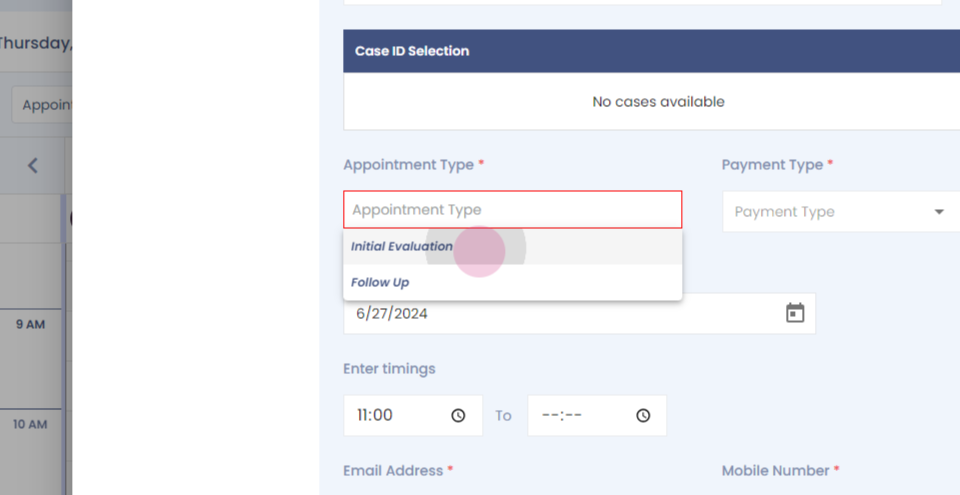
Step 8: The timing of the odd appointment gets automatically calculated as per the information provided.
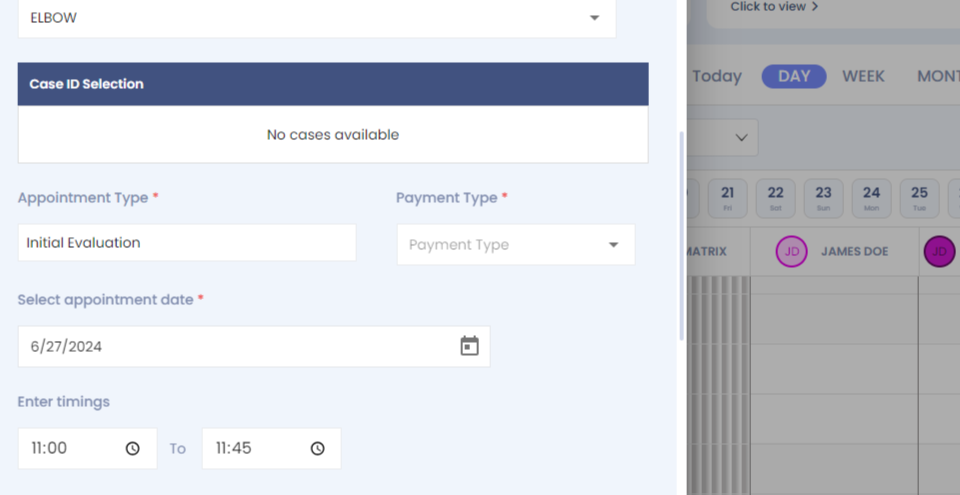
Step 9: Select the payment method.
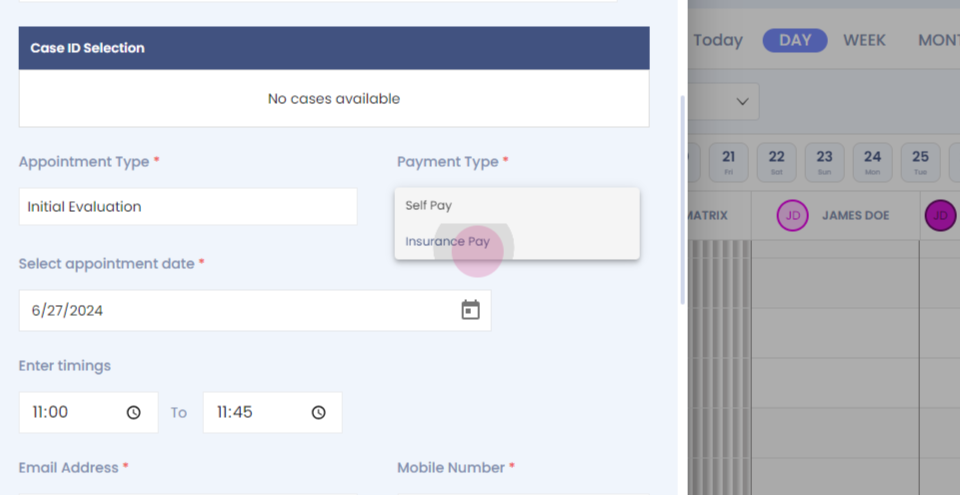
Step 10:
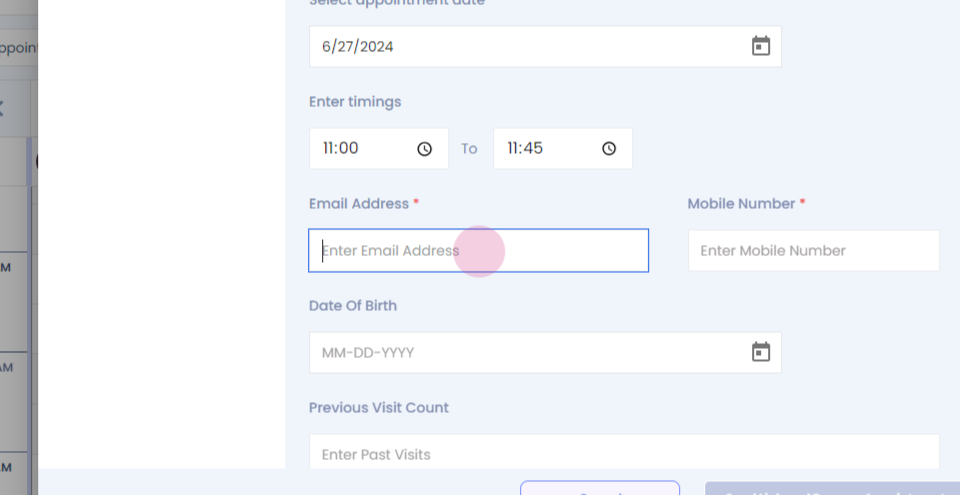
Step 11: Enter the email address. Into the phone number.
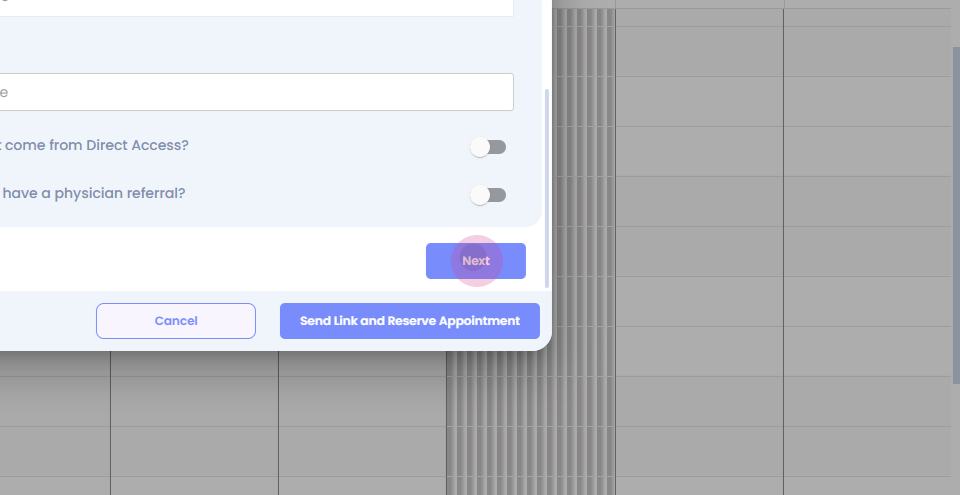
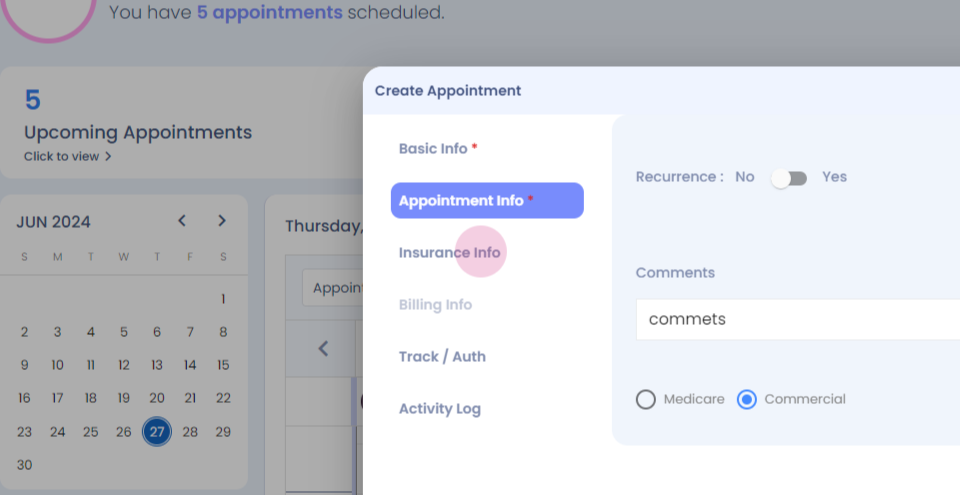
Step 12: You can add specific comments associated to the appointment.
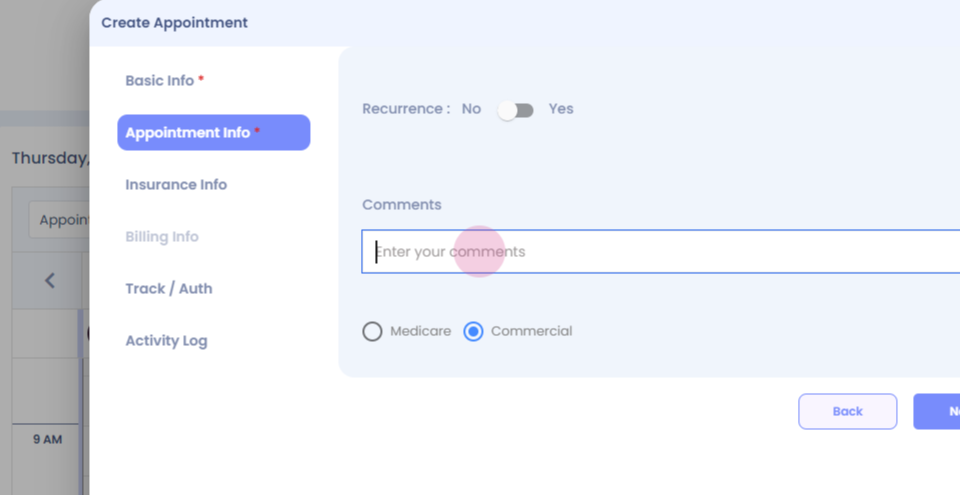
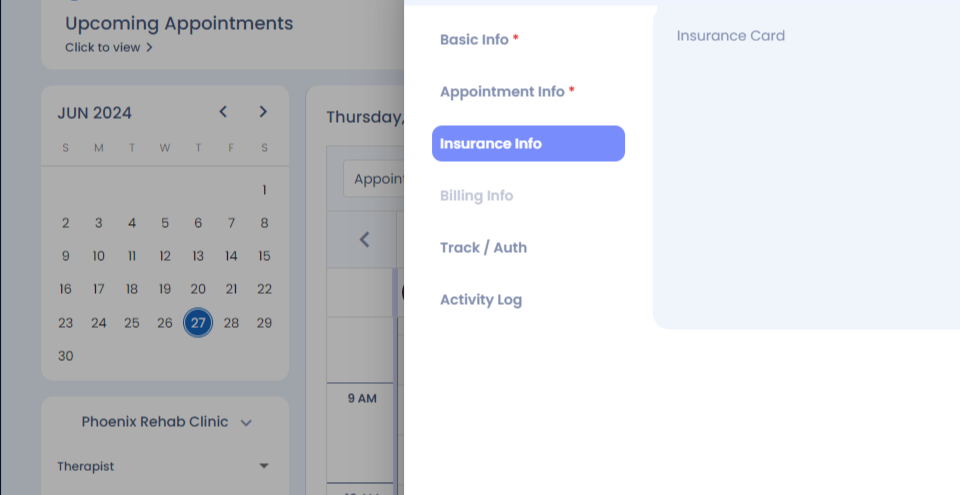
Step 13: You have your insurance info tab here, which lets you add an insurance card of the patient while booking the appointment.
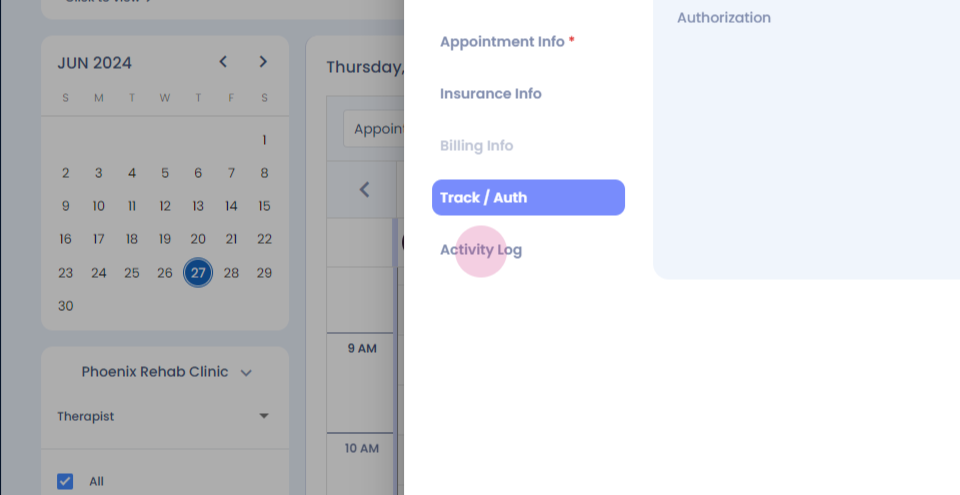
Step 14: The billing info section becomes active once the appointment is booked. The tracking and authorization section allows you to add prior auths and authorizations received for the plan plan of care.
Step 15: And your activity log shows you your appointment booking and other activities associated with the appointment that you've booked
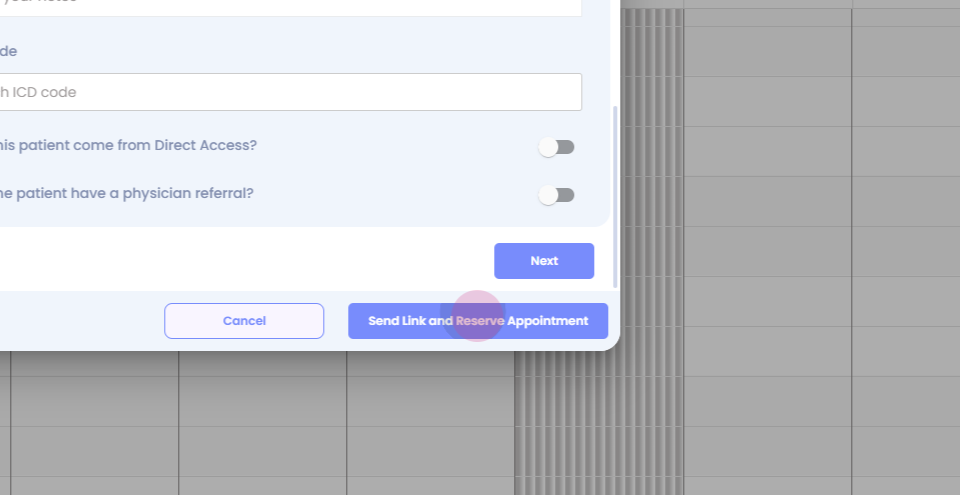
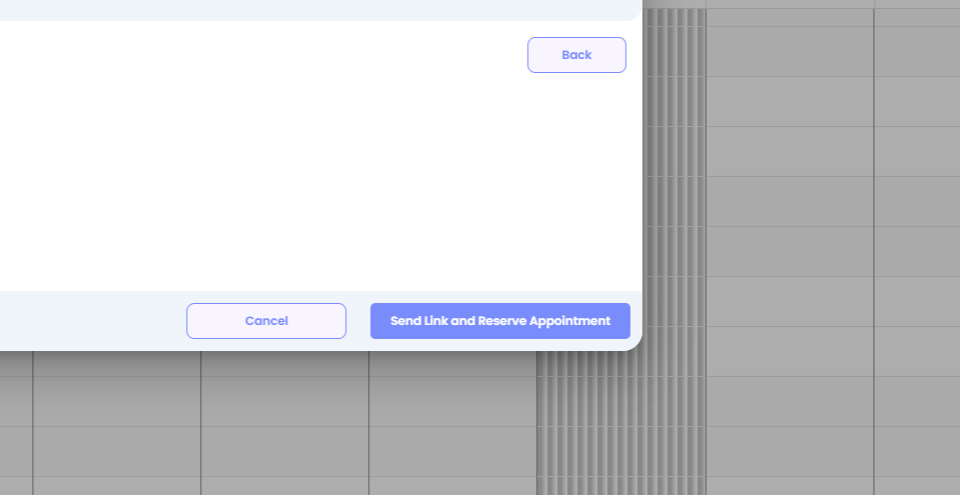
Step 16: Once you click on send link and reserve appointment, your appointment will be booked successfully, and you will be able to also view the comments that you have entered on the hover and on the appointment card.
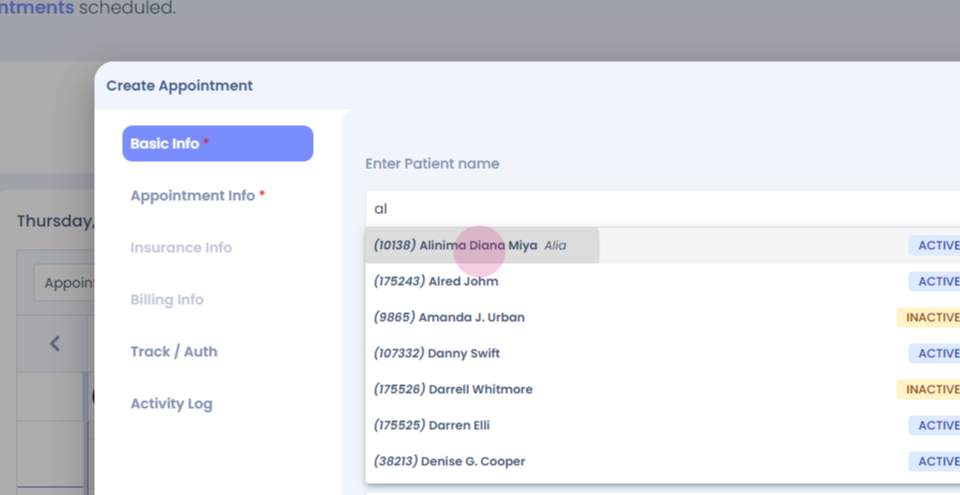
Step 17: To book an appointment for an existing patient, right click, search for the patient, Verify the details.
Step 18:
Step 19:
Step 20: Select the case for which you want to book the appointment.
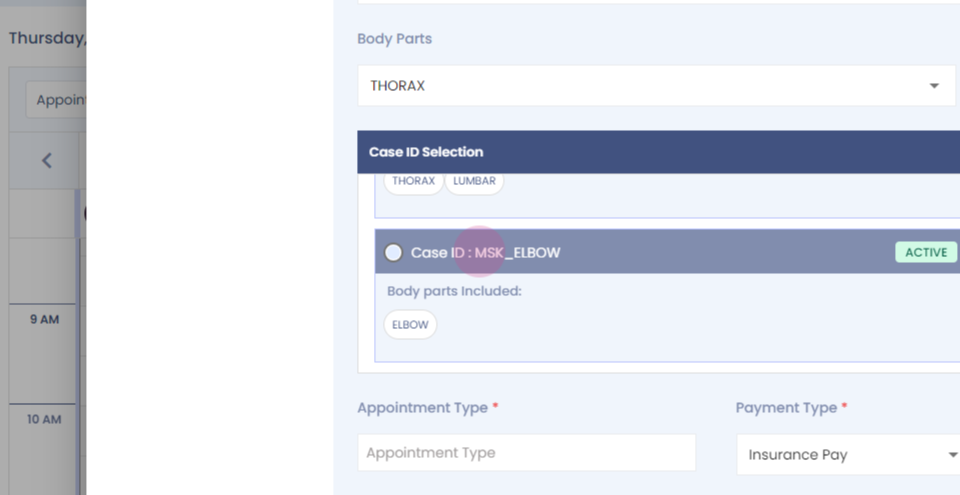
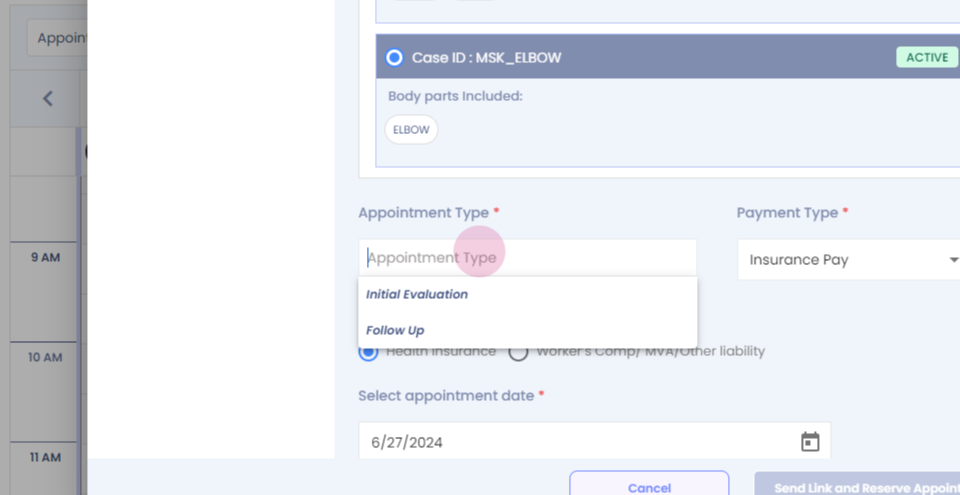
Step 21: Select the appointment type.
Step 22:
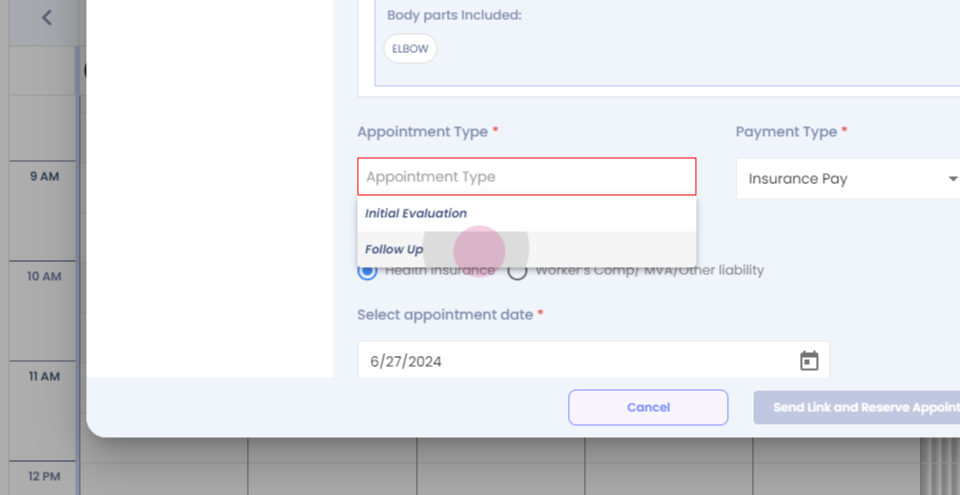
Step 23: Verify the other details. Click on send link and reserve appointment, and the appointment will be booked successfully.