
Authorization Report Update
Stay on top of your patient authorizations with the newly enhanced Authorization Expiry Report. This update gives you clearer oversight—now you can spot both existing and missing authorizations in one unified view, helping your team prevent claim issues before they happen.
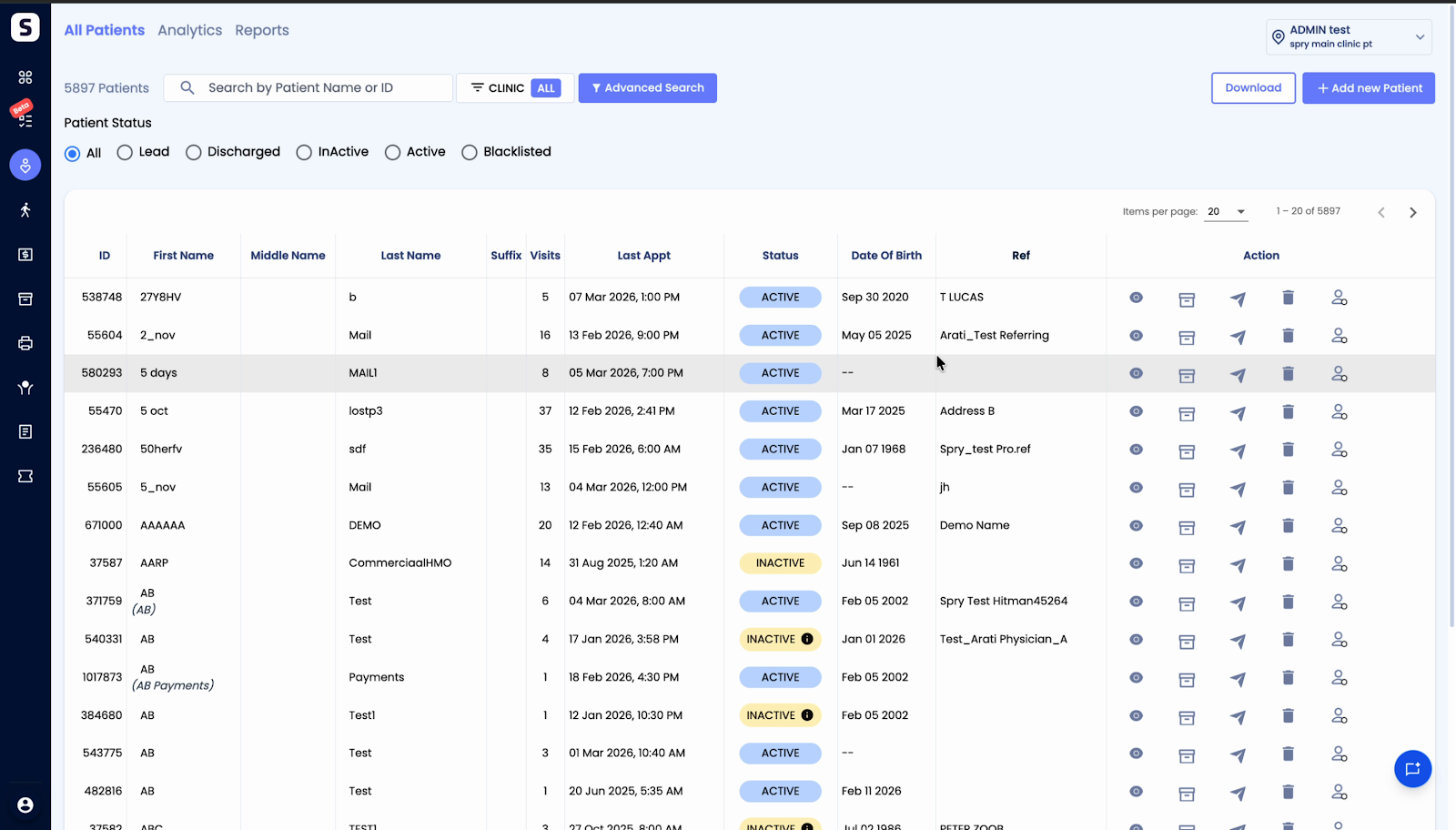
Step 1: Open the Authorization Expiry Report from your reports menu.
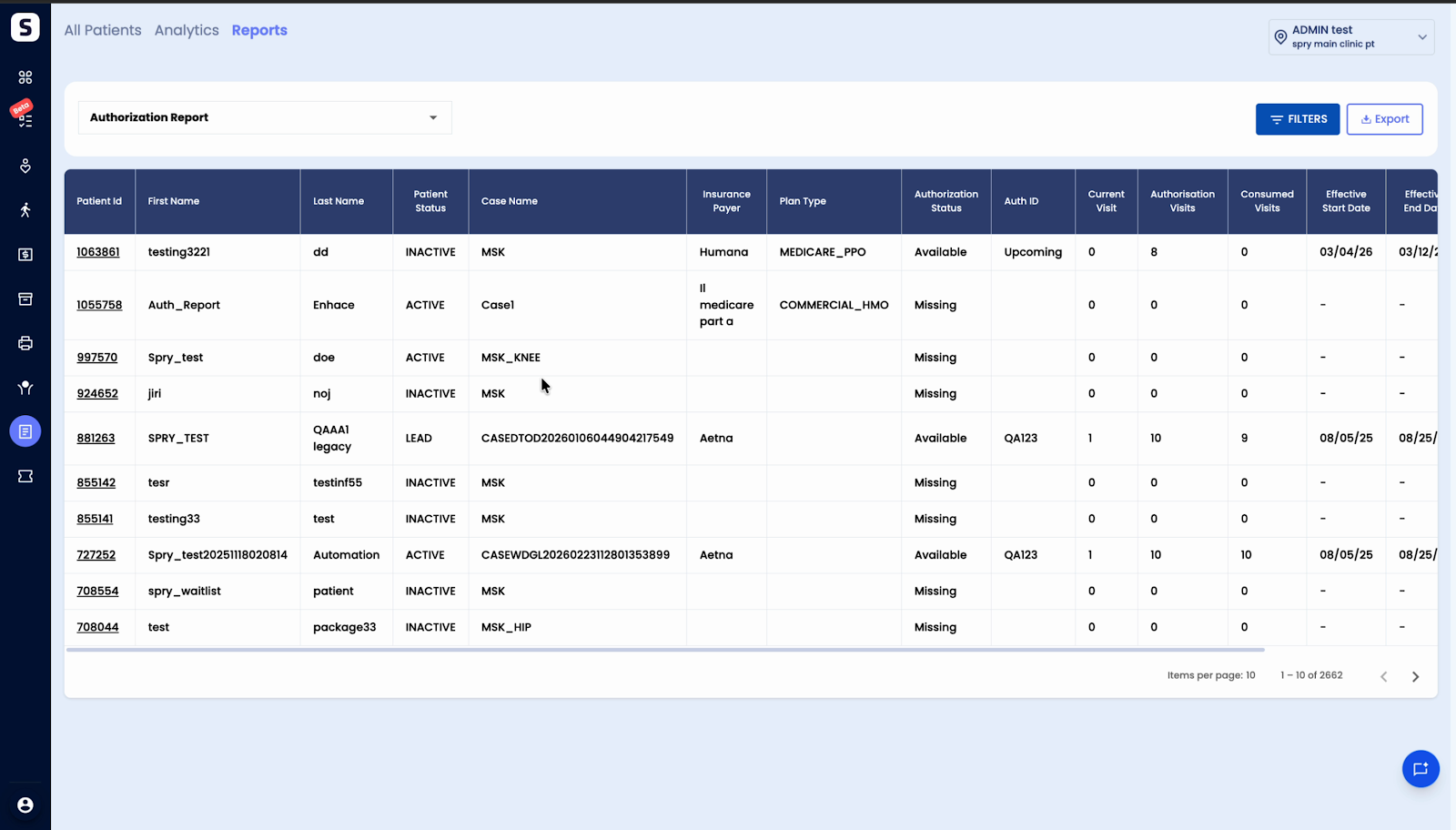
Step 2: Review cases with current or expiring authorizations. These still appear as before, showing key details like active status, remaining visits, and end dates.
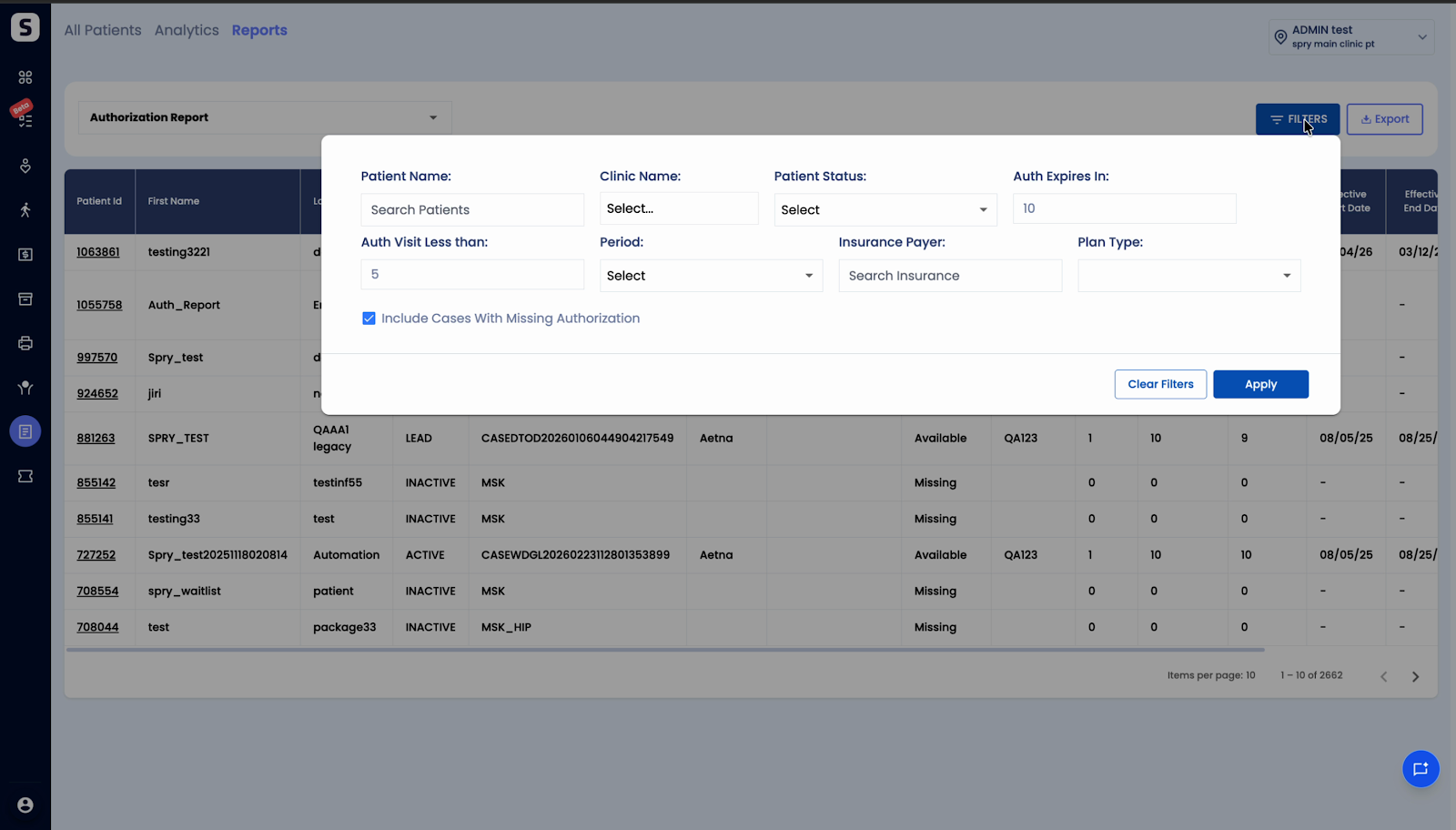
Step 3: To expand your view, enable the new option to Include cases with missing authorization.
Step 4: Now, the report lists cases where authorization is required but missing. Look for rows marked as Missing in the authorization status. This lets you quickly find and address any gaps.
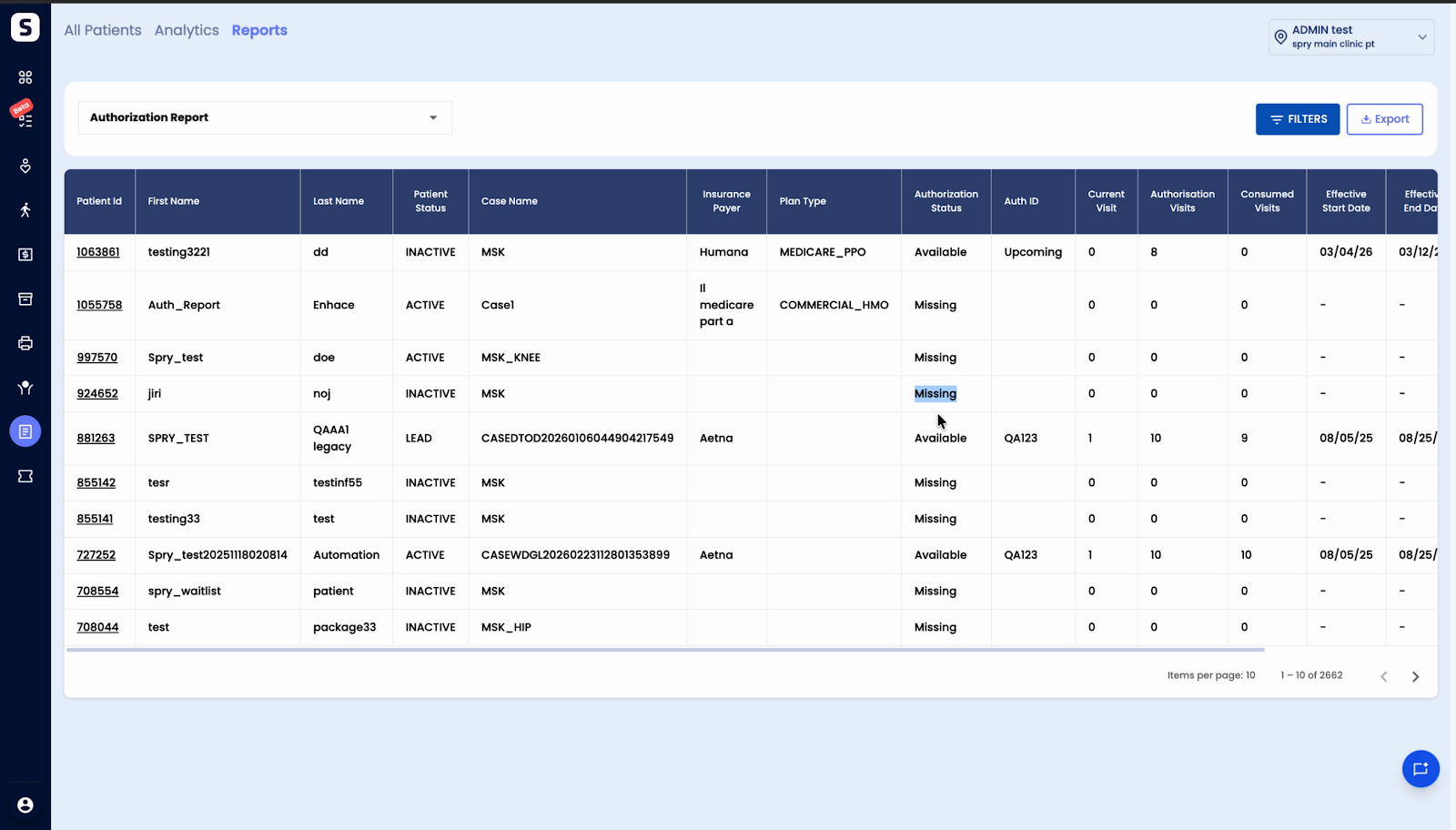
Step 5: Use this unified report to monitor both existing and missing authorizations. Take action on missing items to avoid delays or denials when submitting claims.
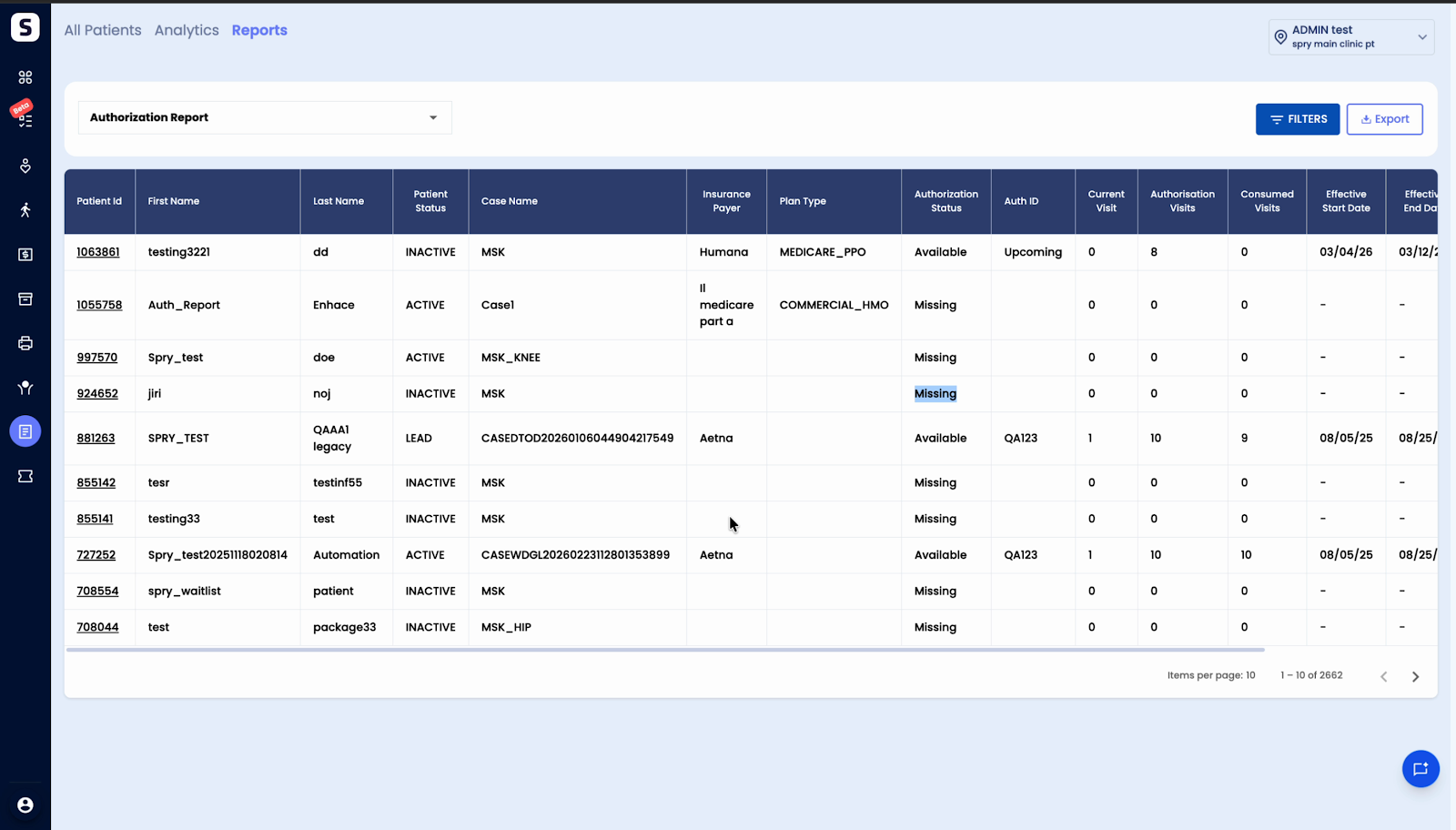
With these improvements, you have a proactive way to manage authorizations—reducing risk and ensuring smoother claims processing. Review the Authorization Expiry Report regularly to catch problems early and keep your billing workflow running smoothly.