
Adding a User to the Dashboard
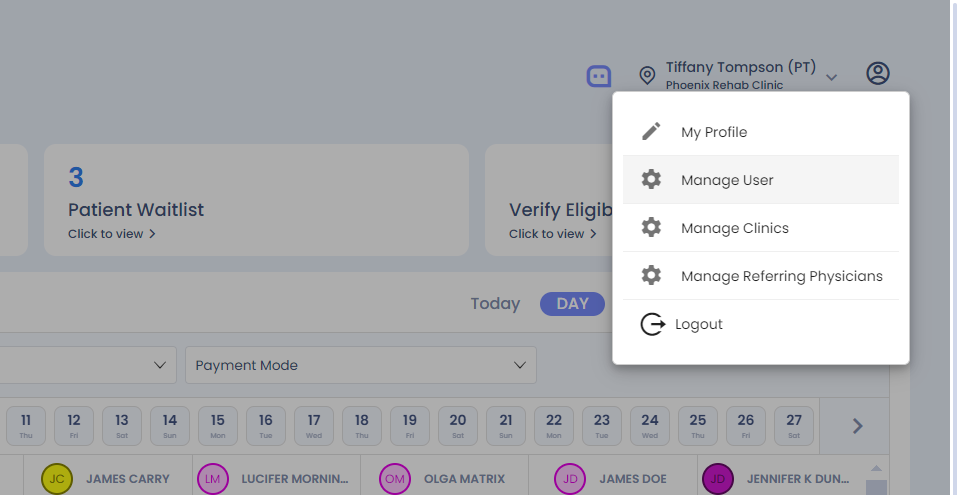
This guide explains how to add a new user to the dashboard.Start by clicking on the profile icon.
Step 1: Select manage users.
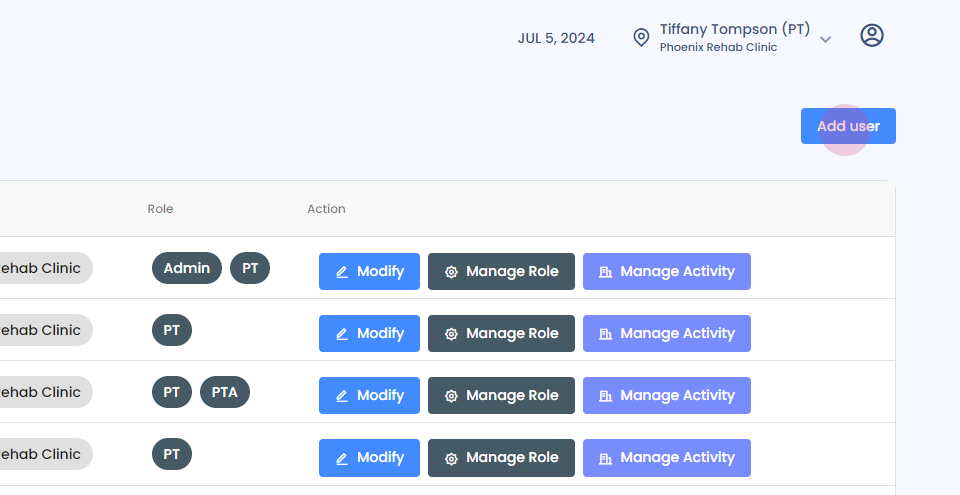
Step 2: Choose add user.
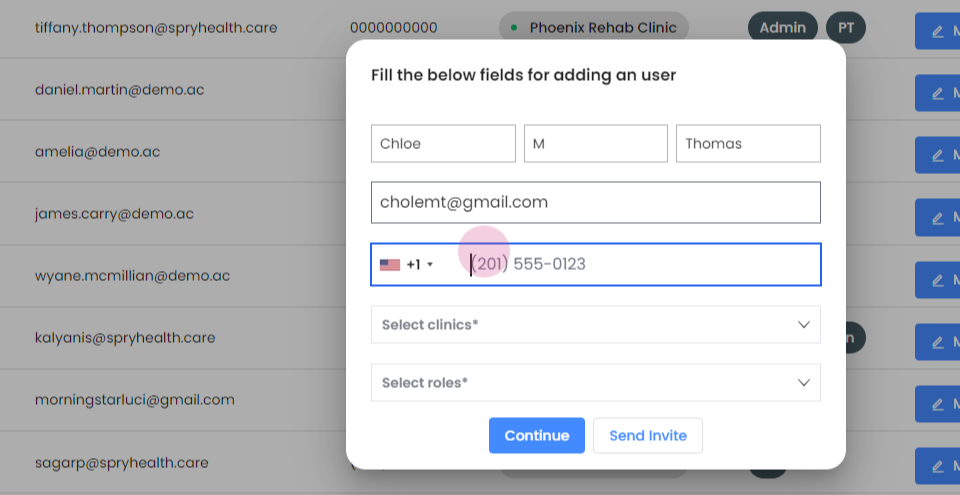
Step 3: Input the user's name and email address.
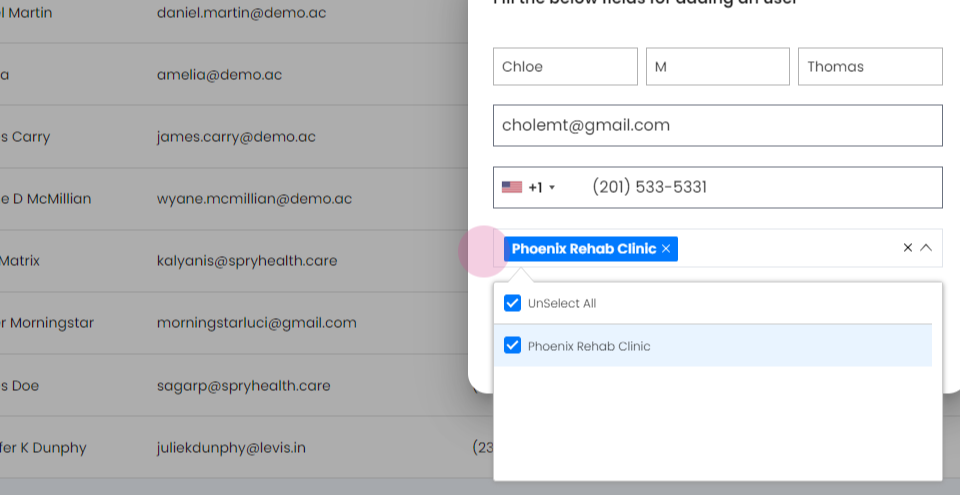
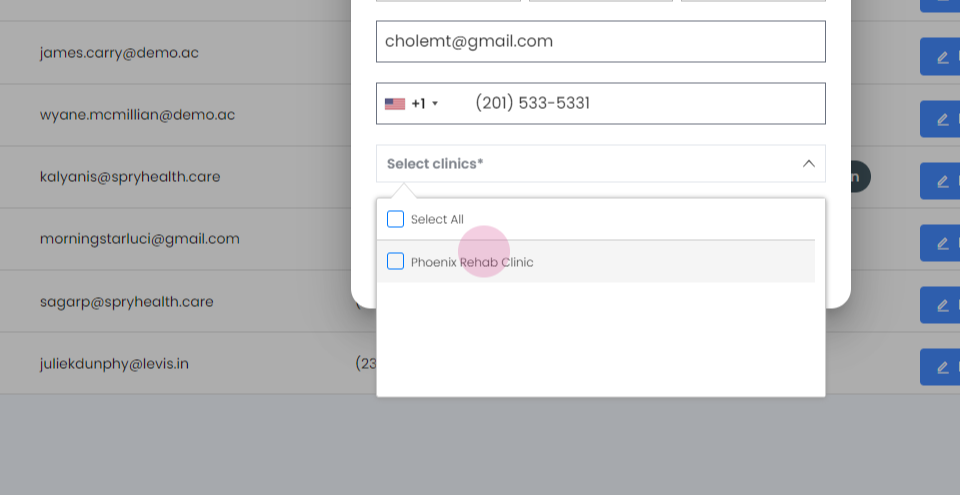
Step 4: Choose the clinics where the new user should be visible.

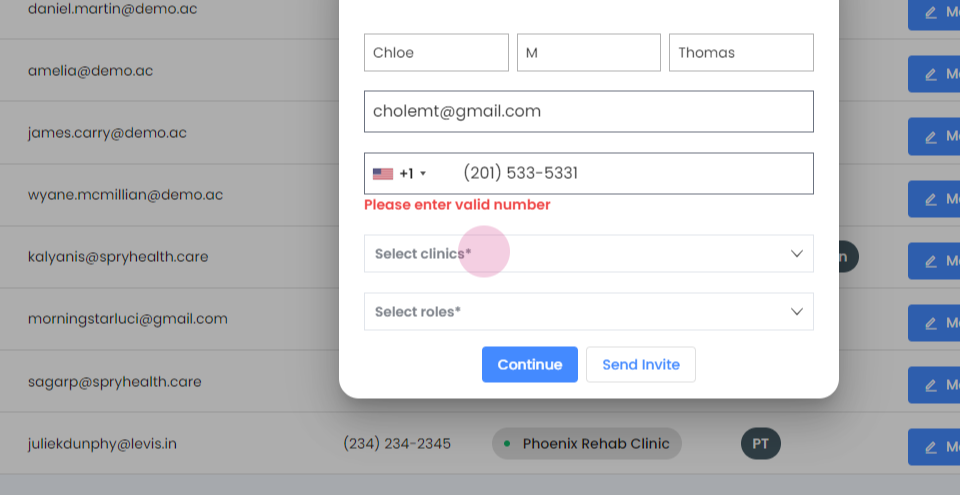
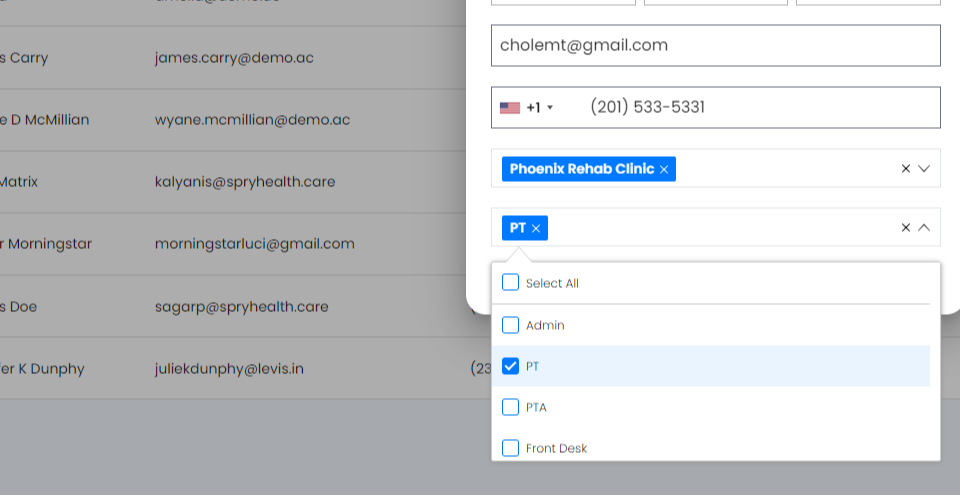
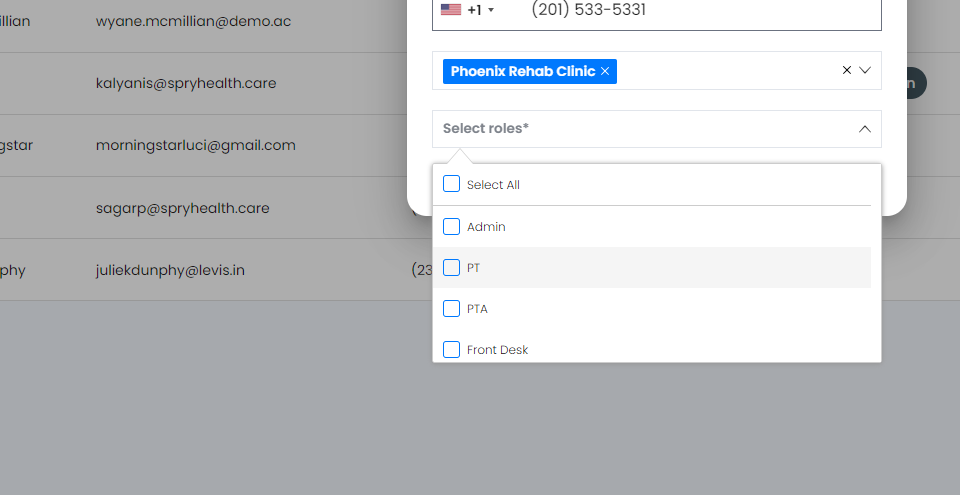
Step 5: Define the user's role.
Step 6: Decide between sending an invite or creating the profile yourself. If you select send invite, the user receives an email to create their own profile. If you choose continue, you'll create the user profile.
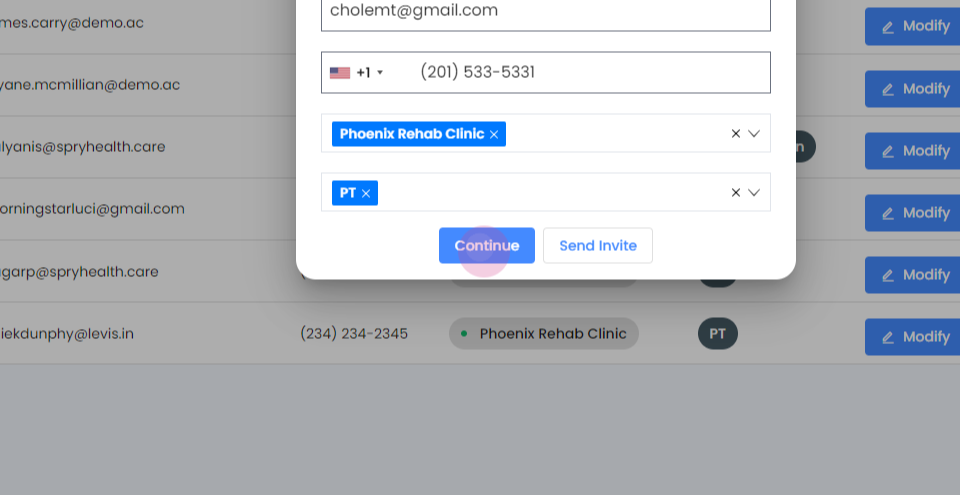
Step 7: Fill in the mandatory details.


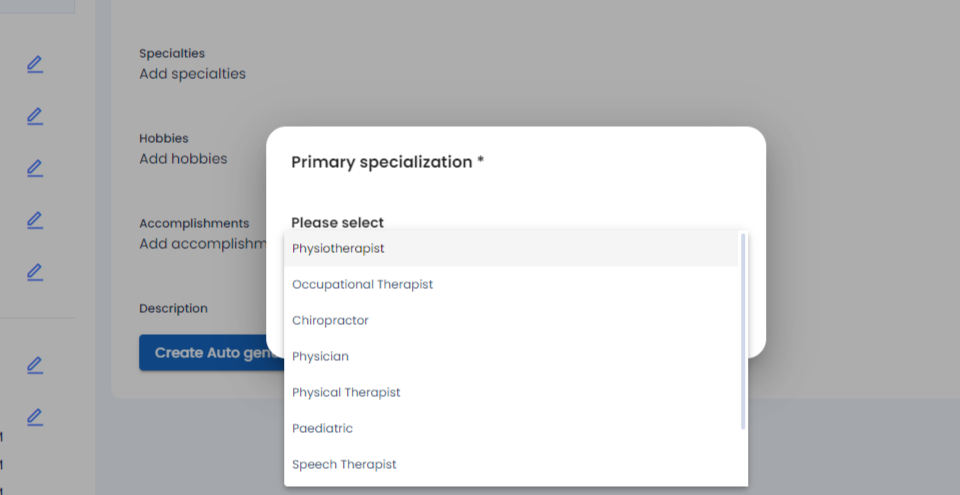
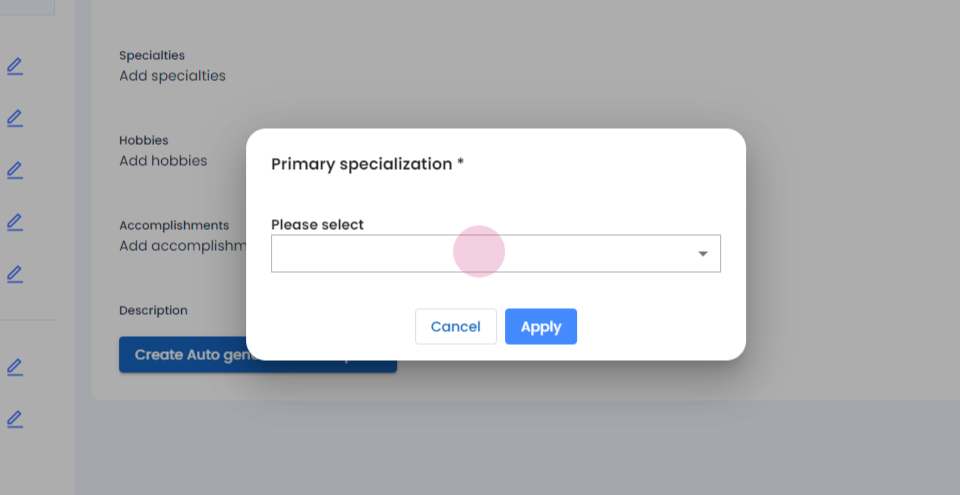

Step 8: Review all the details. Here, you're also able to upload a picture of the therapist. Click save when done.
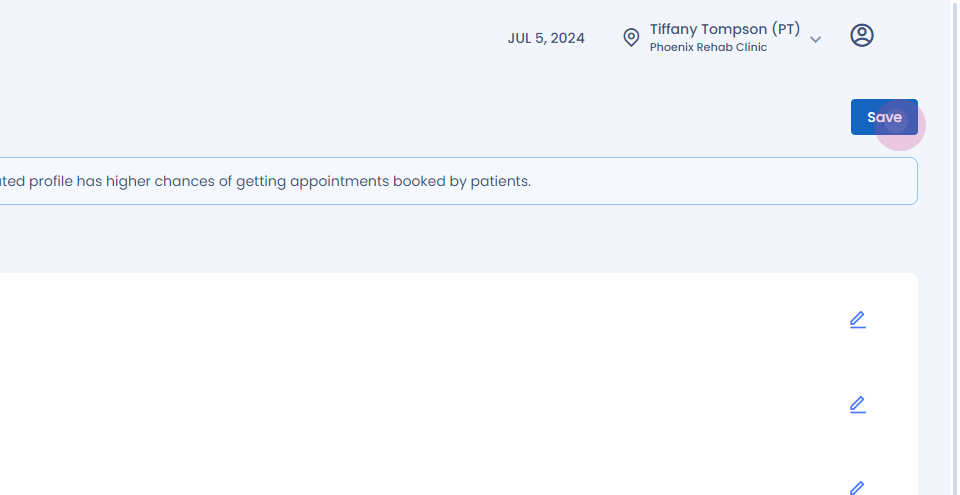
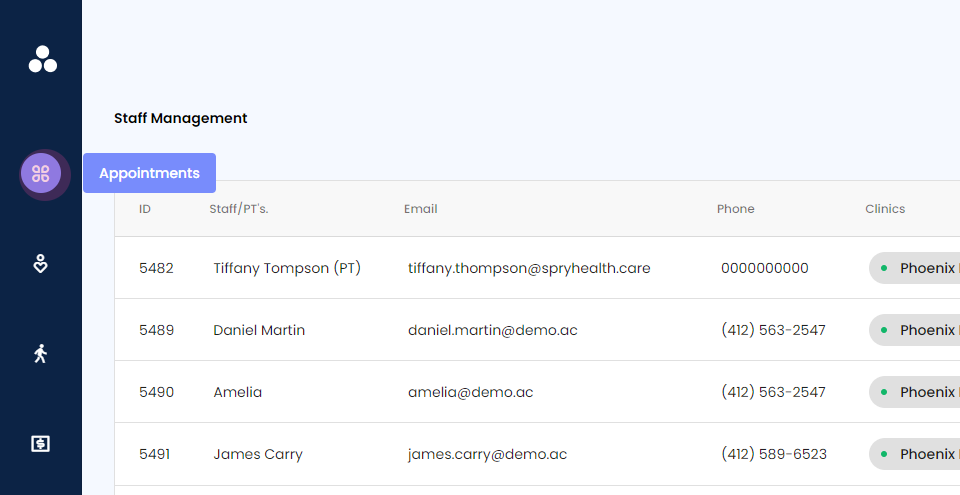
The new user now appears on the staff management dashboard. Return to your dashboard and refresh the screen.
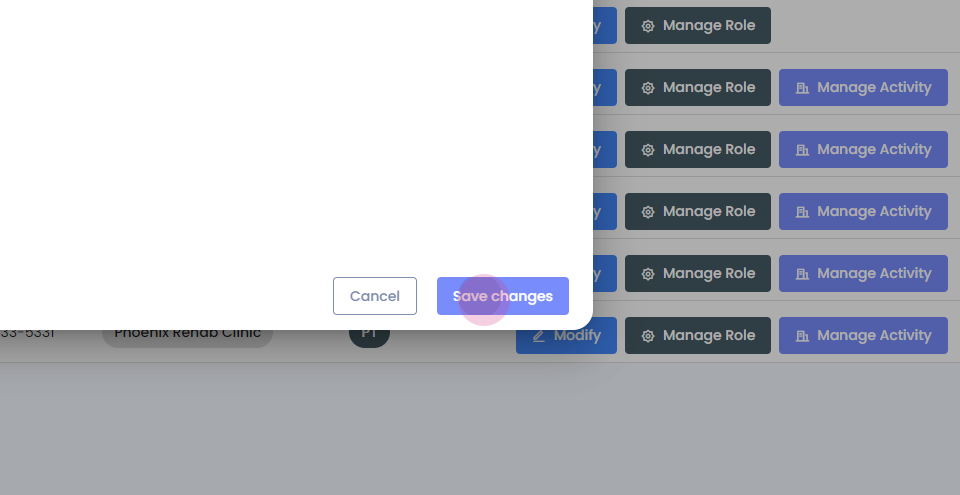
Step 9: Click manage activity. The new user is currently inactive.

Step 10: Click active and then save changes.

Finally, select the user to confirm they've been added to the dashboard.That's it! You've successfully added a new user to the dashboard.