
How To Use Agentic Scribe
Agentic Scribe helps you streamline documentation by integrating dictation, transcription, and AI feedback right into your workflow. Here’s how to start using it to speed up your SOAP note creation.
Step 1: Open your documentation.
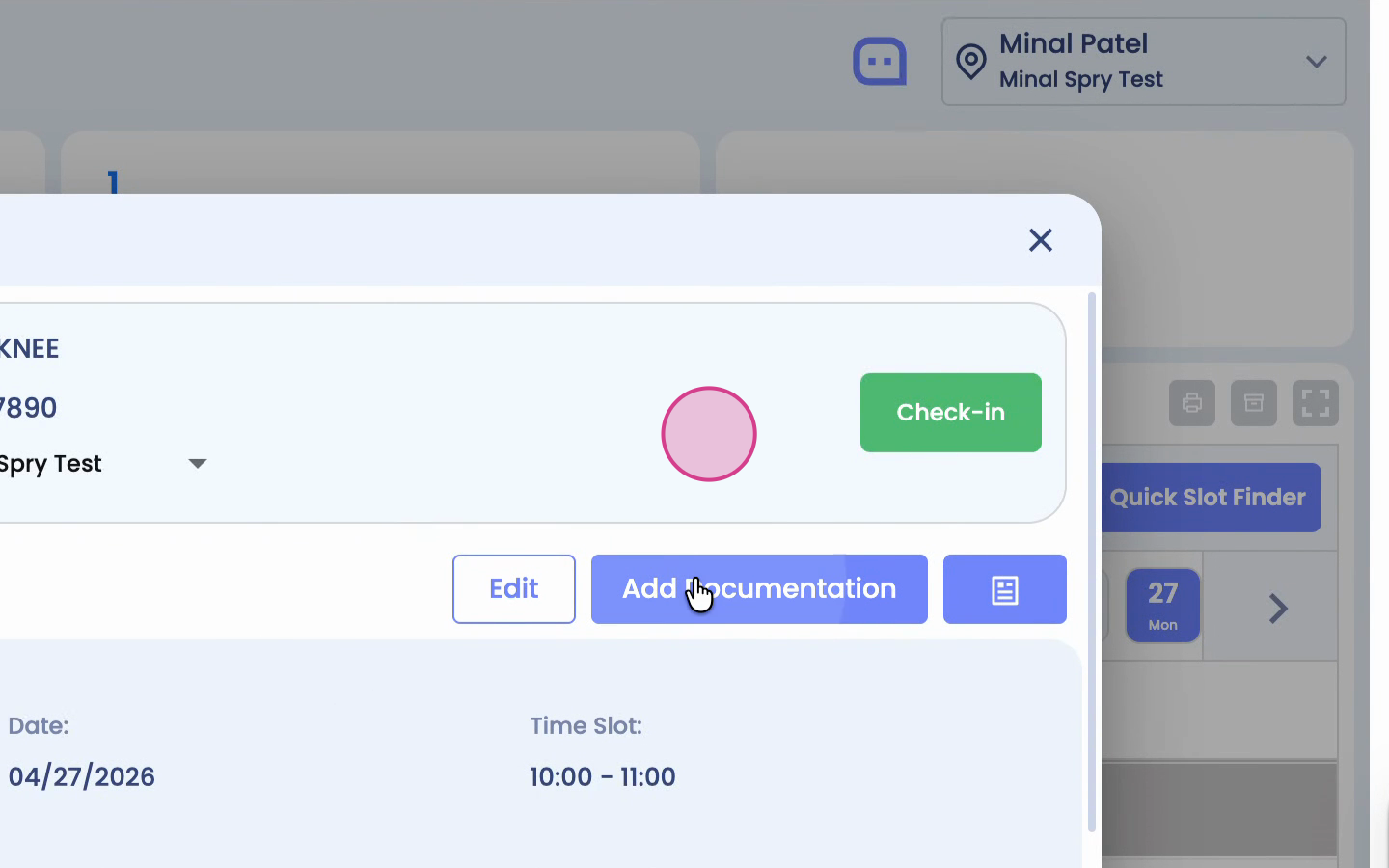
Step 2: Navigate to the SOAP view.
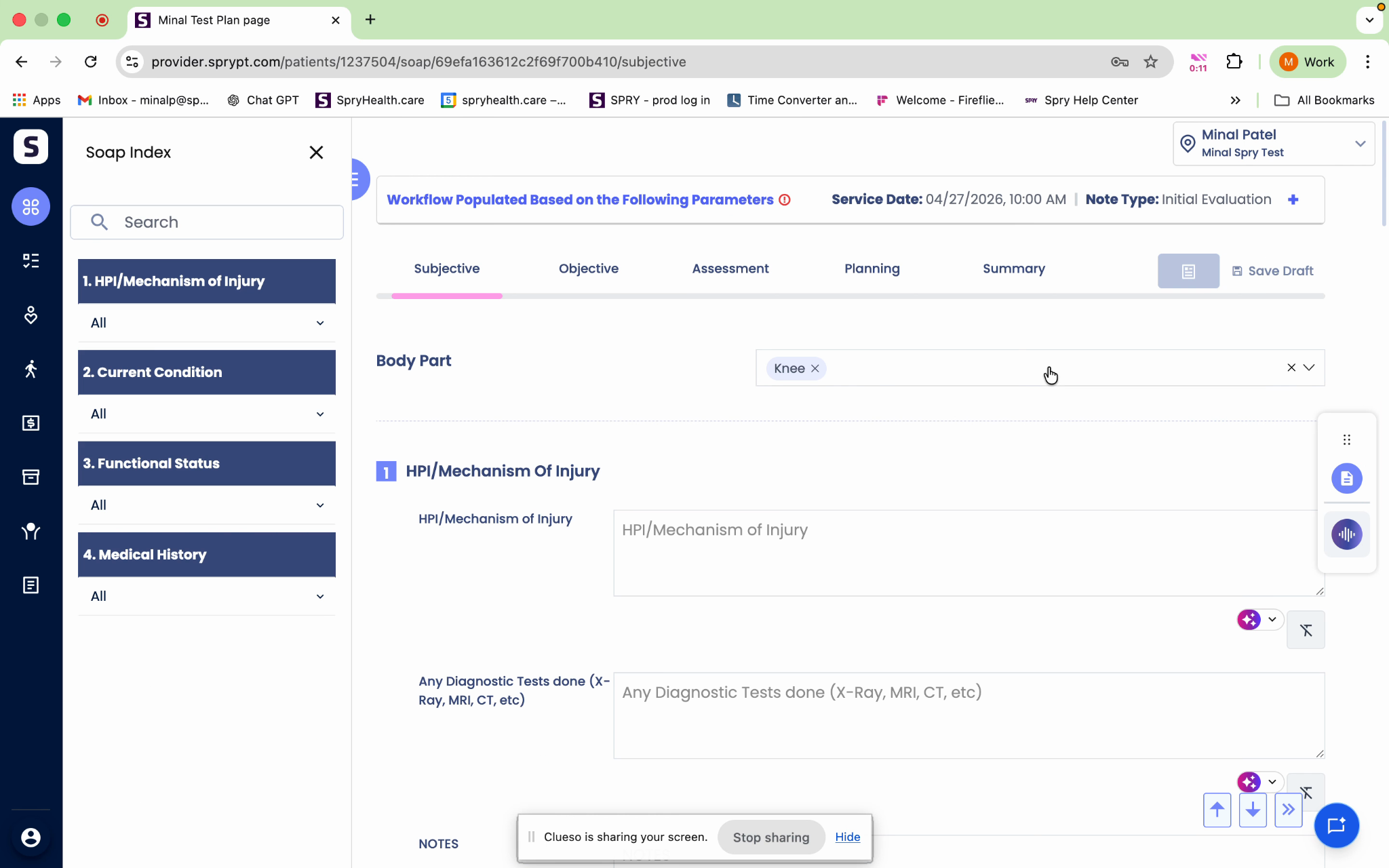
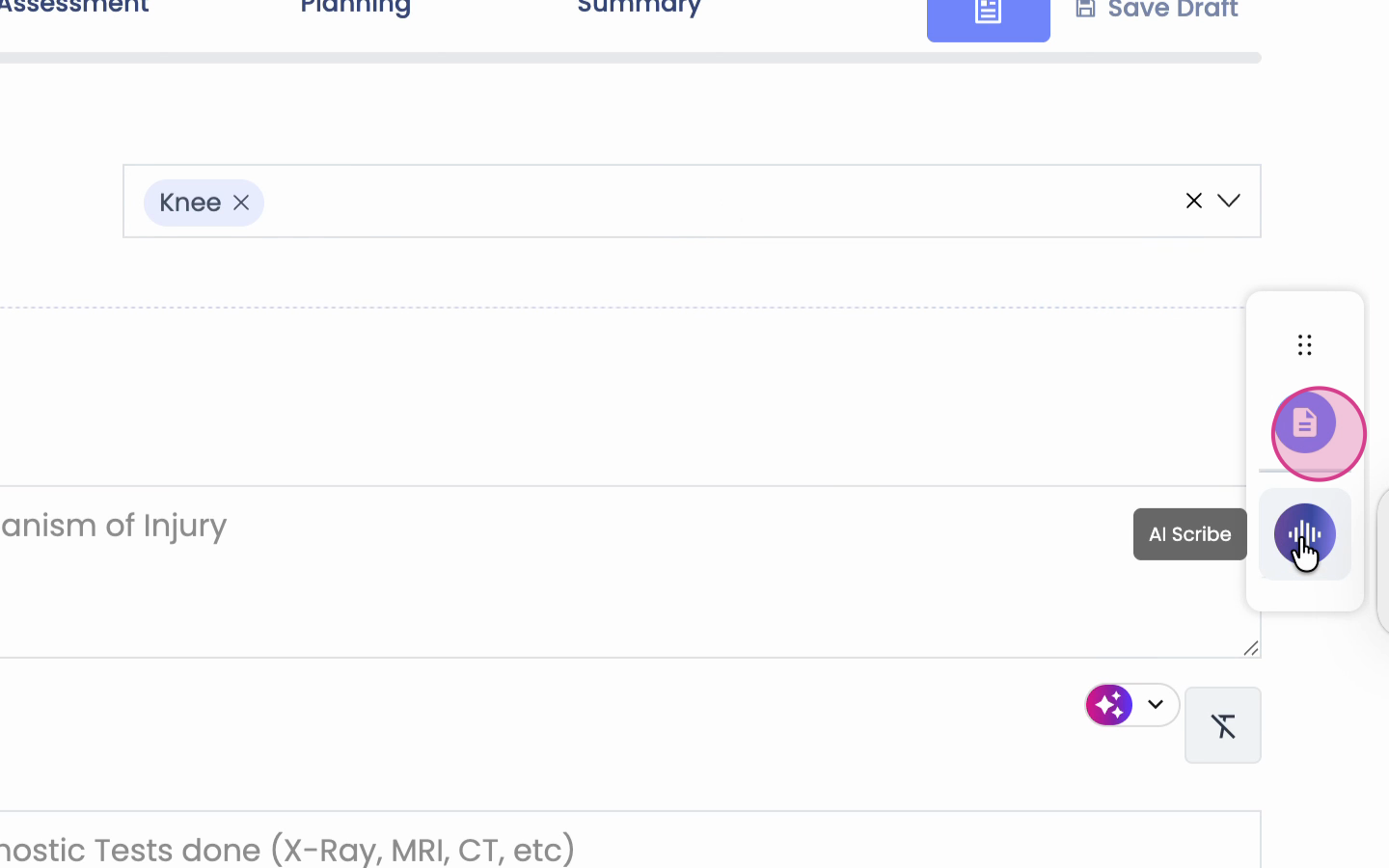
Step 3: Locate and click the scribe icon on the right side of the screen.
Step 4: In the scribe settings, find the Scribe Review Agent toggle. Switch it on if you want automatic reviews or feedback.
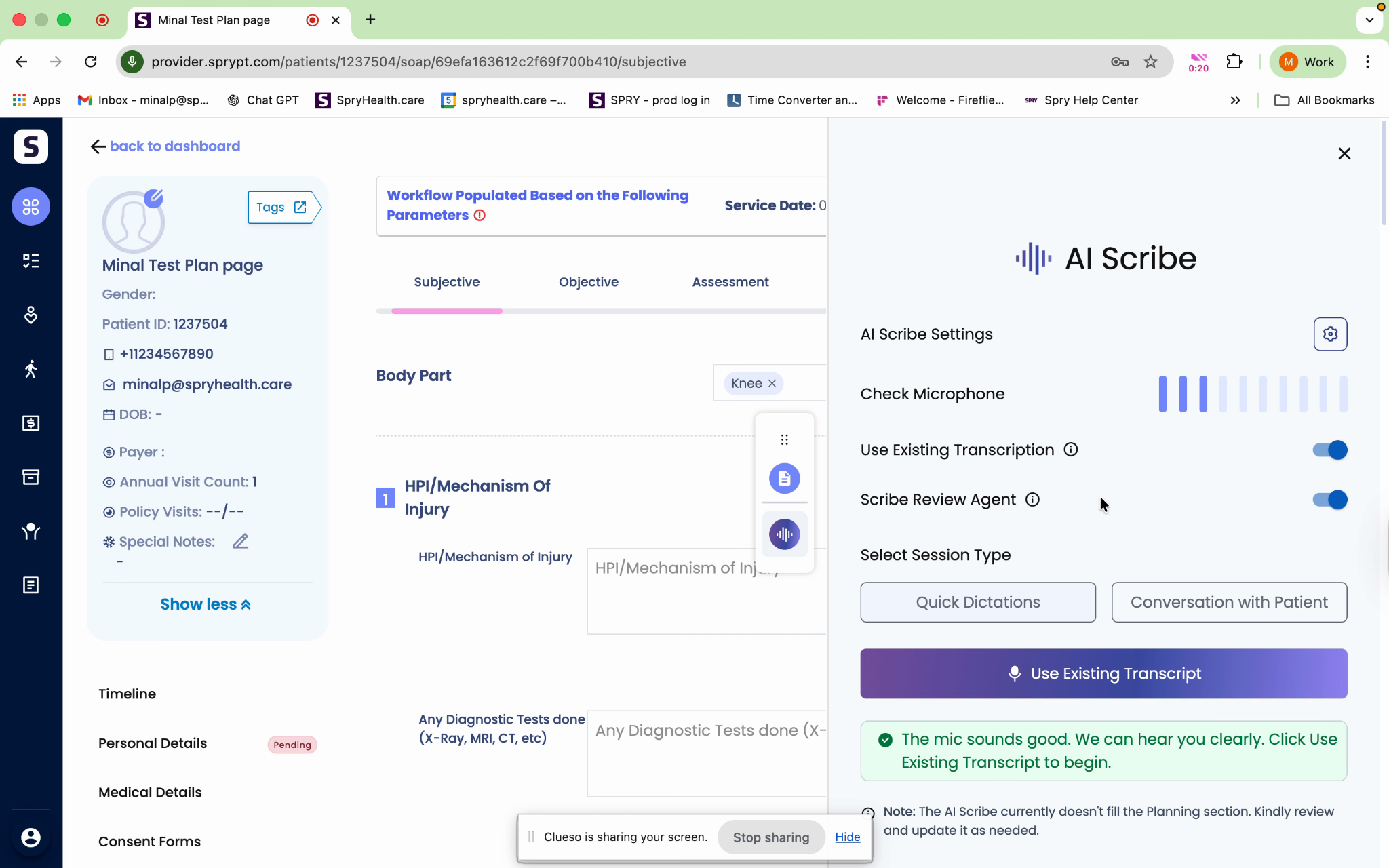
Step 5: Choose between Quick Dictation or Conversation with the Patient to start recording.
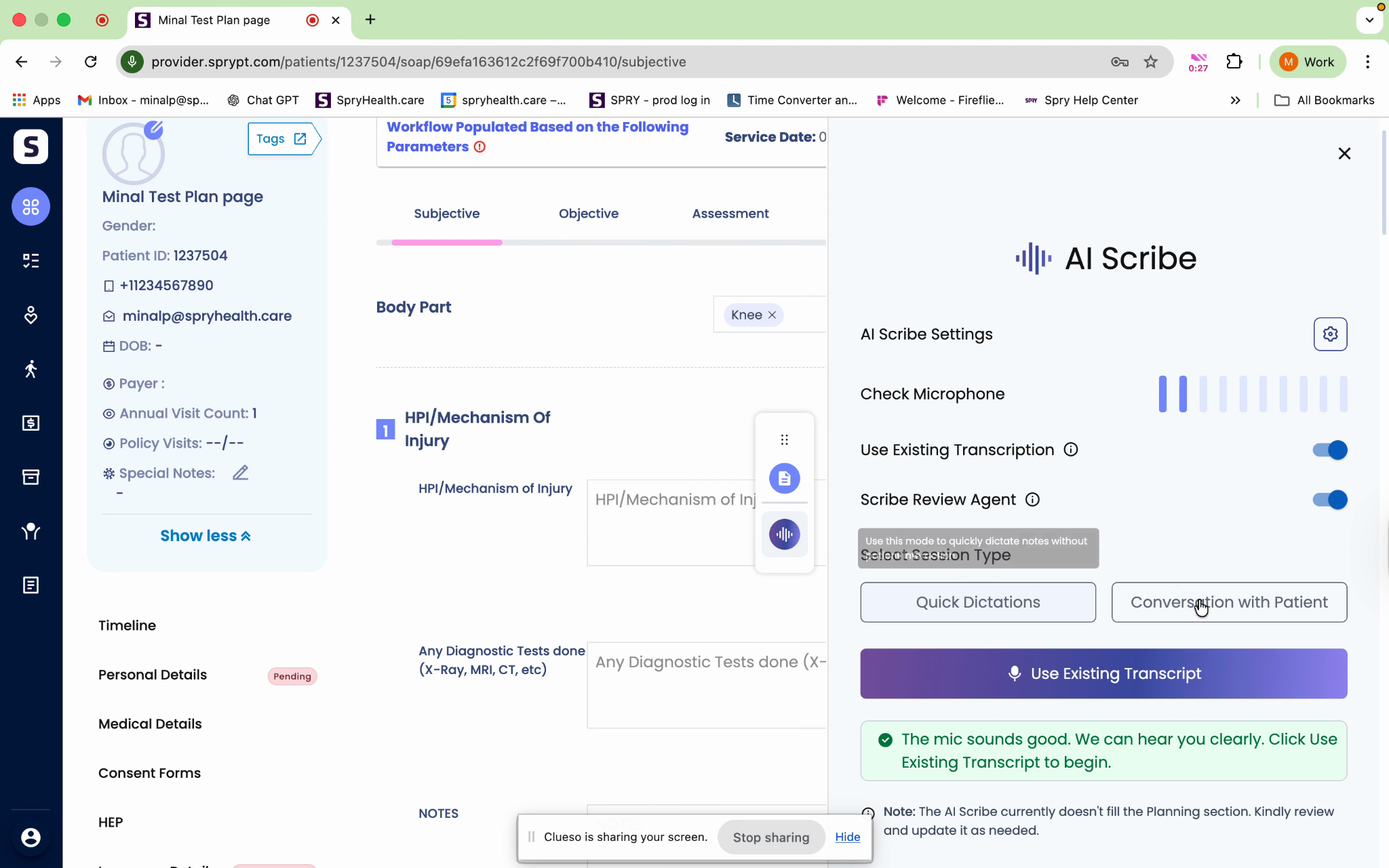
Step 6: For patient conversations, record while interacting as usual—the tool will capture everything said.
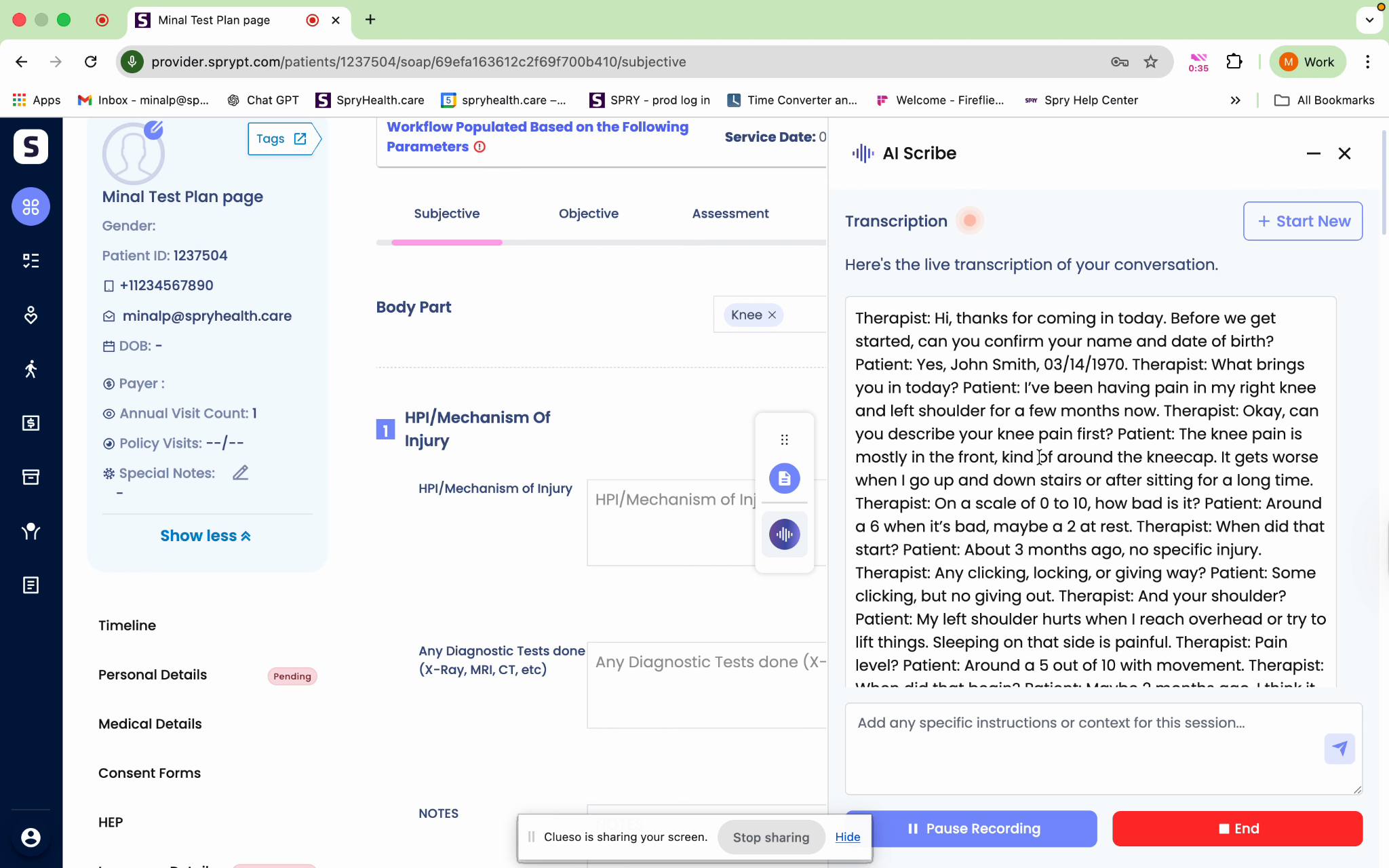
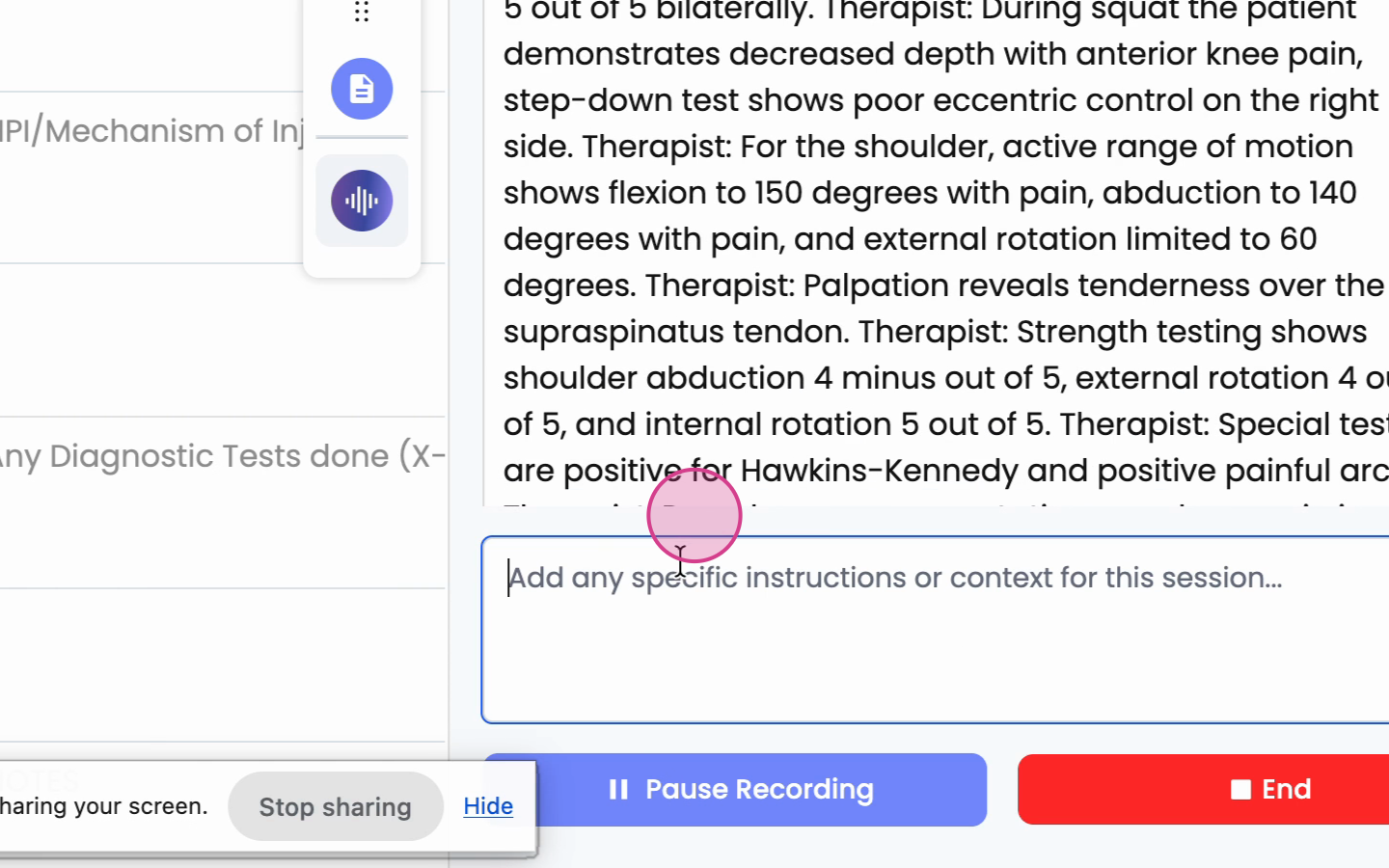
Step 7: Type in any additional details or clarifications as needed in the provided input area.
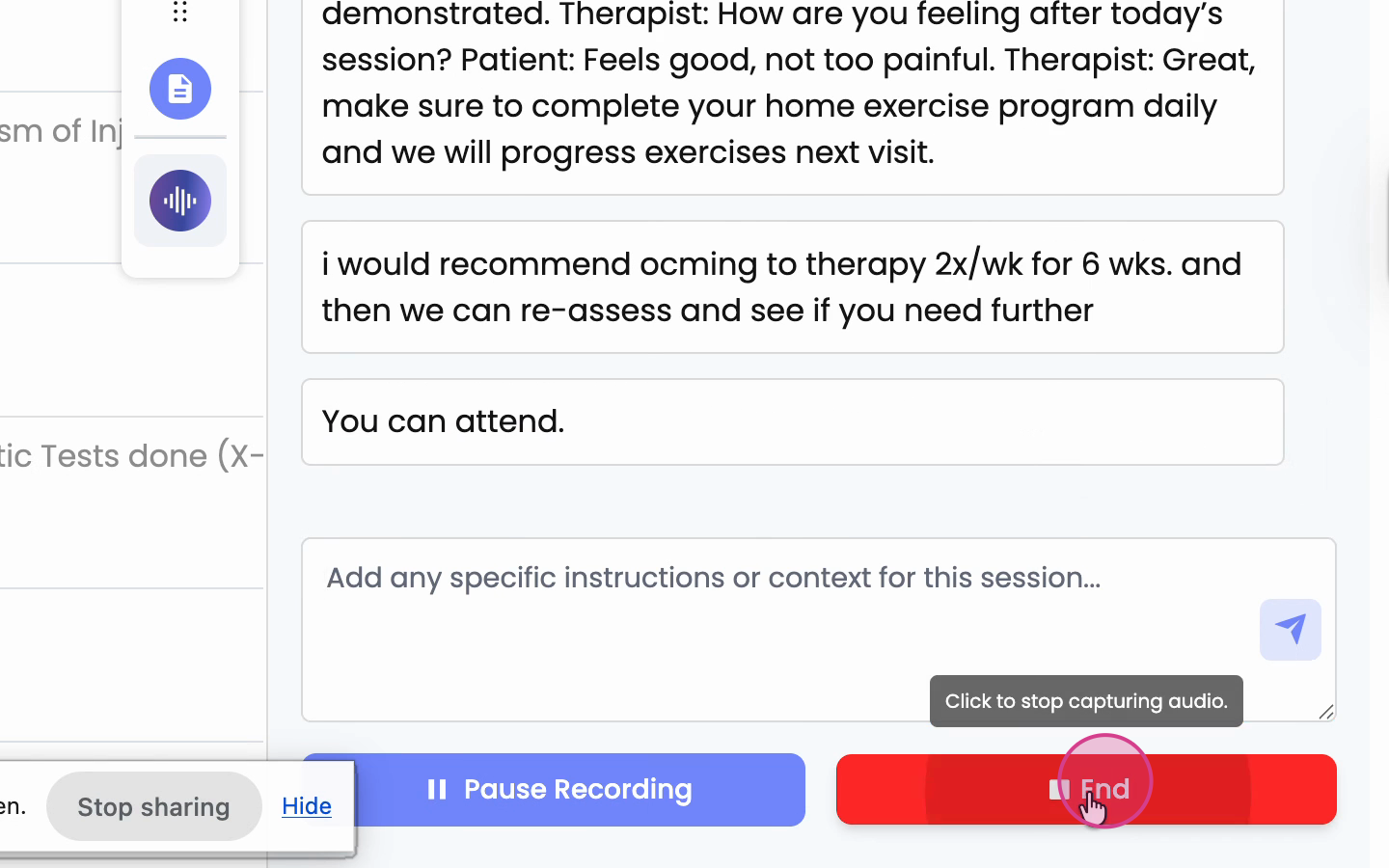
Step 8: When finished, click End to stop the recording.
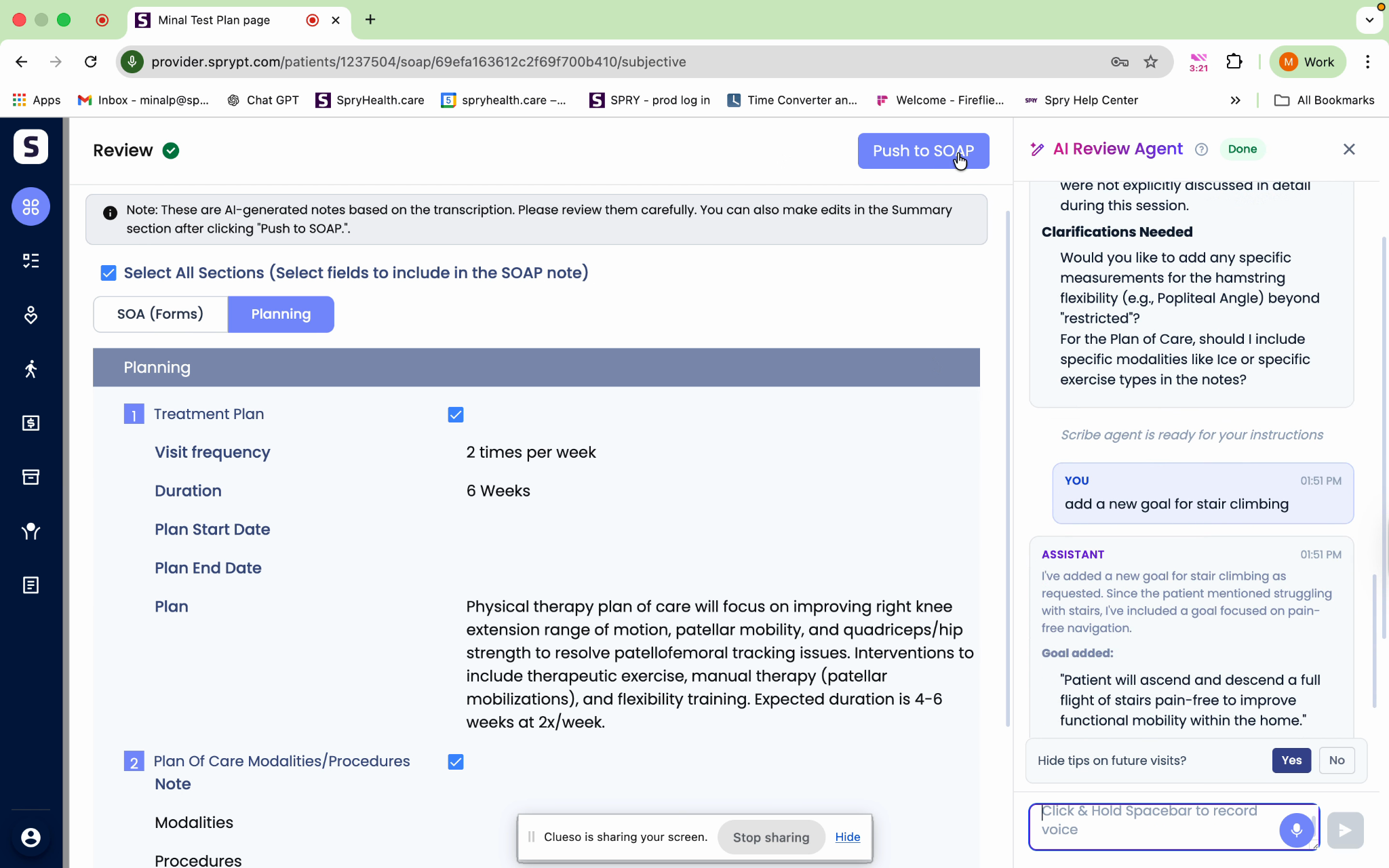
Step 9: Select Review with the Agent. Agent Express will transcribe your recording and generate draft sections for your SOAP note.
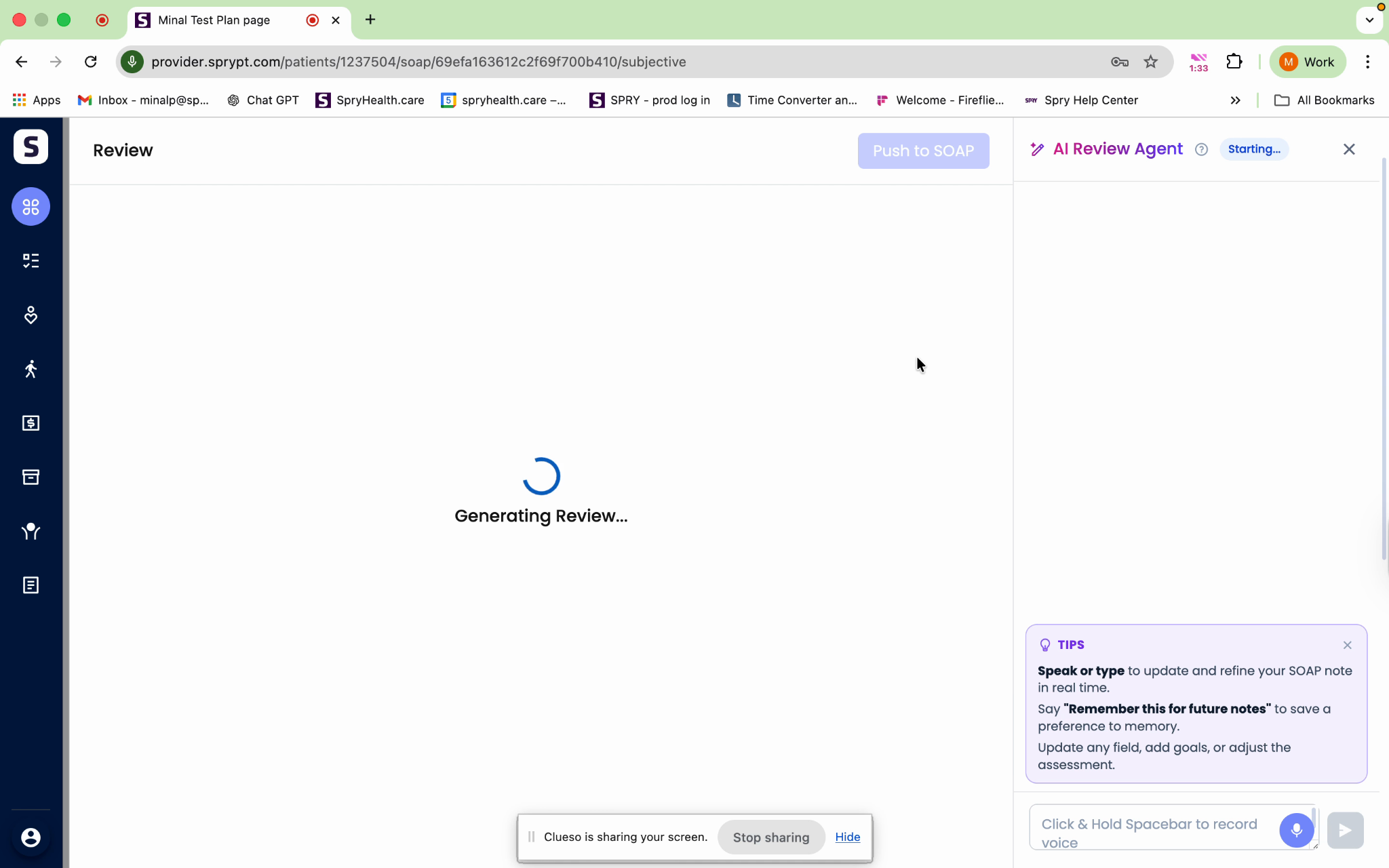
Step 10: Review the output. The Subjective, Objective, and Assessment sections are filled in automatically.
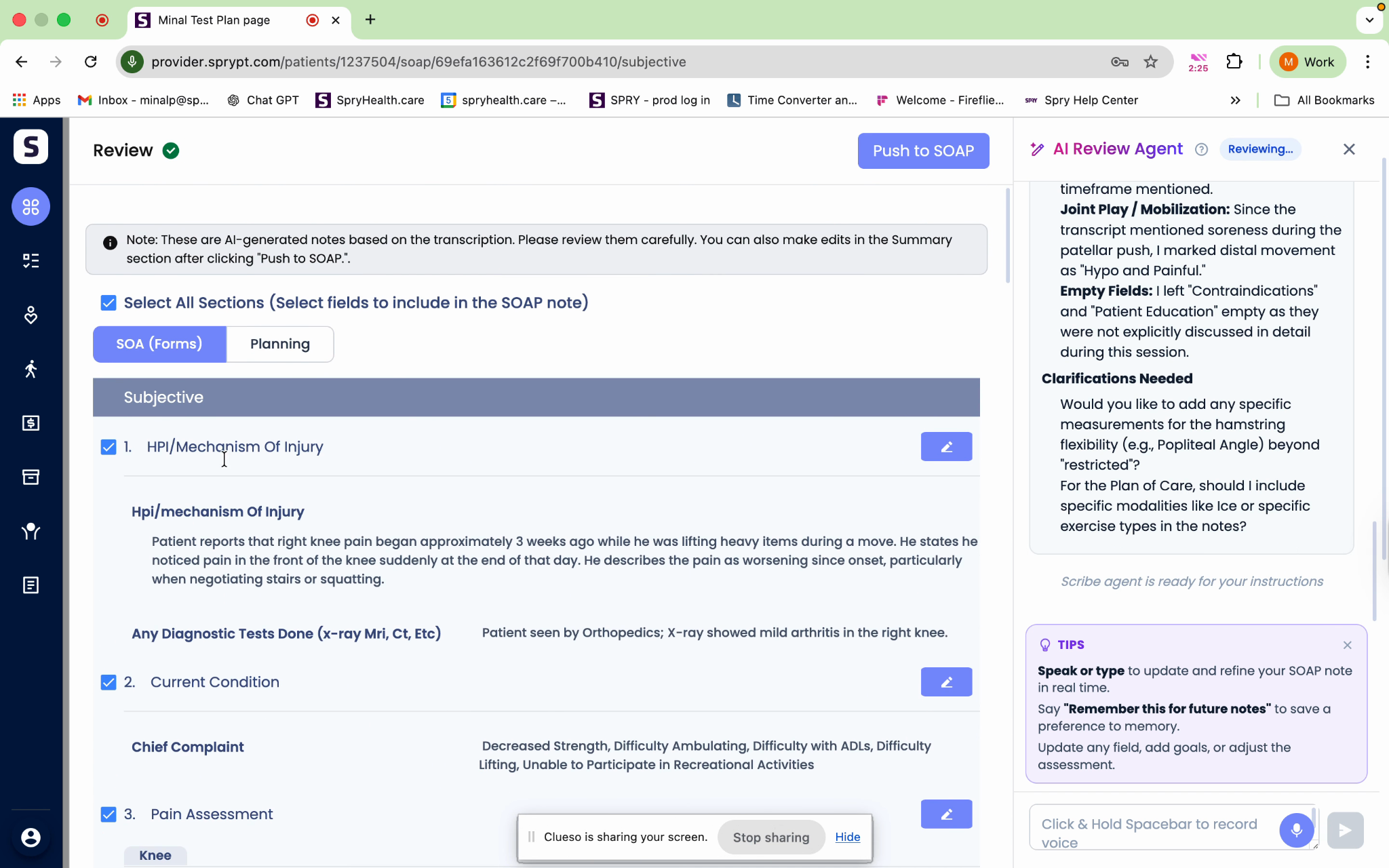
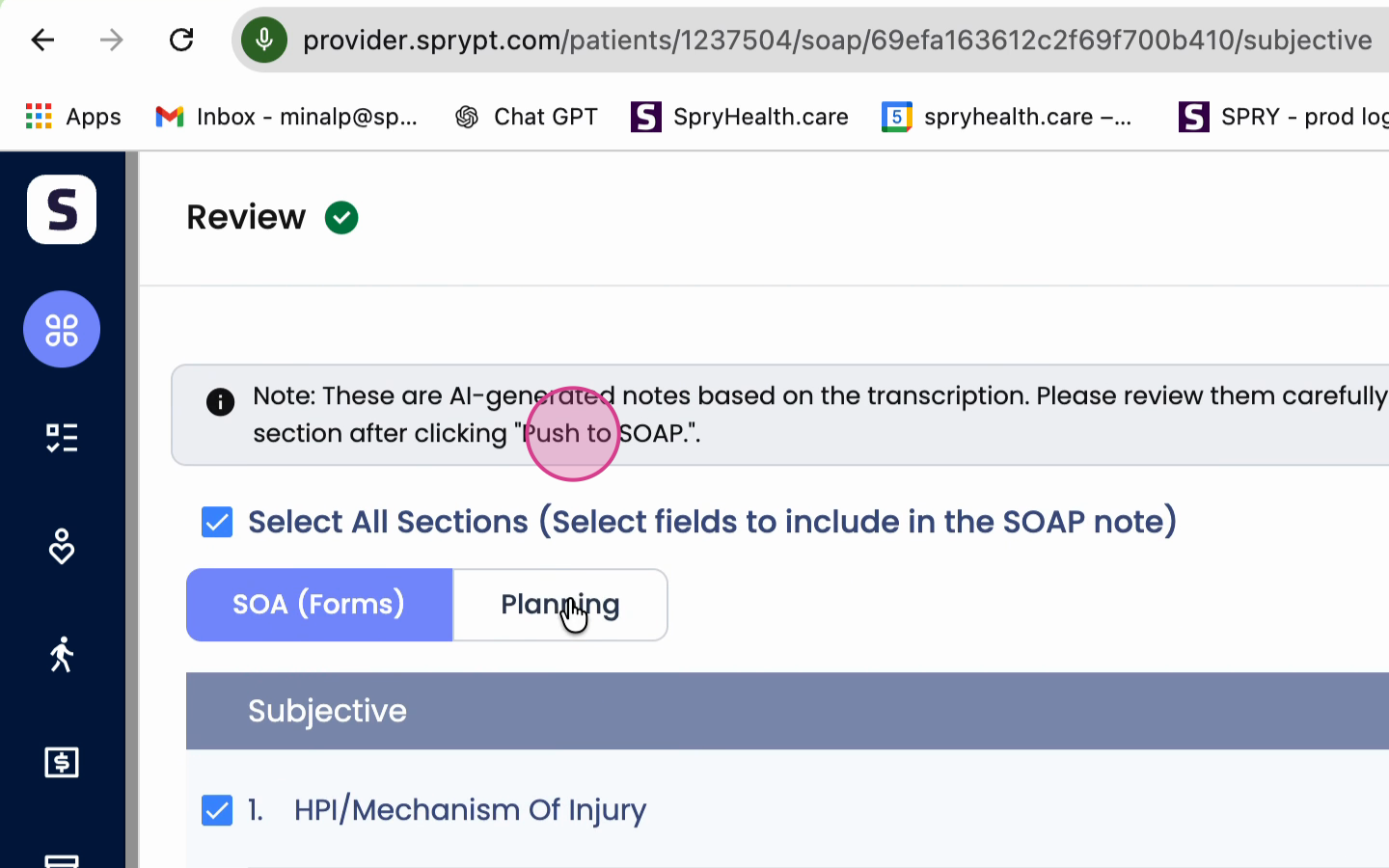
Step 11: Go to the Plan page to complete your treatment plan and plan of care as needed.
Step 12: On the right side, consult the Agentic Scribe window for AI-generated insights and suggestions.
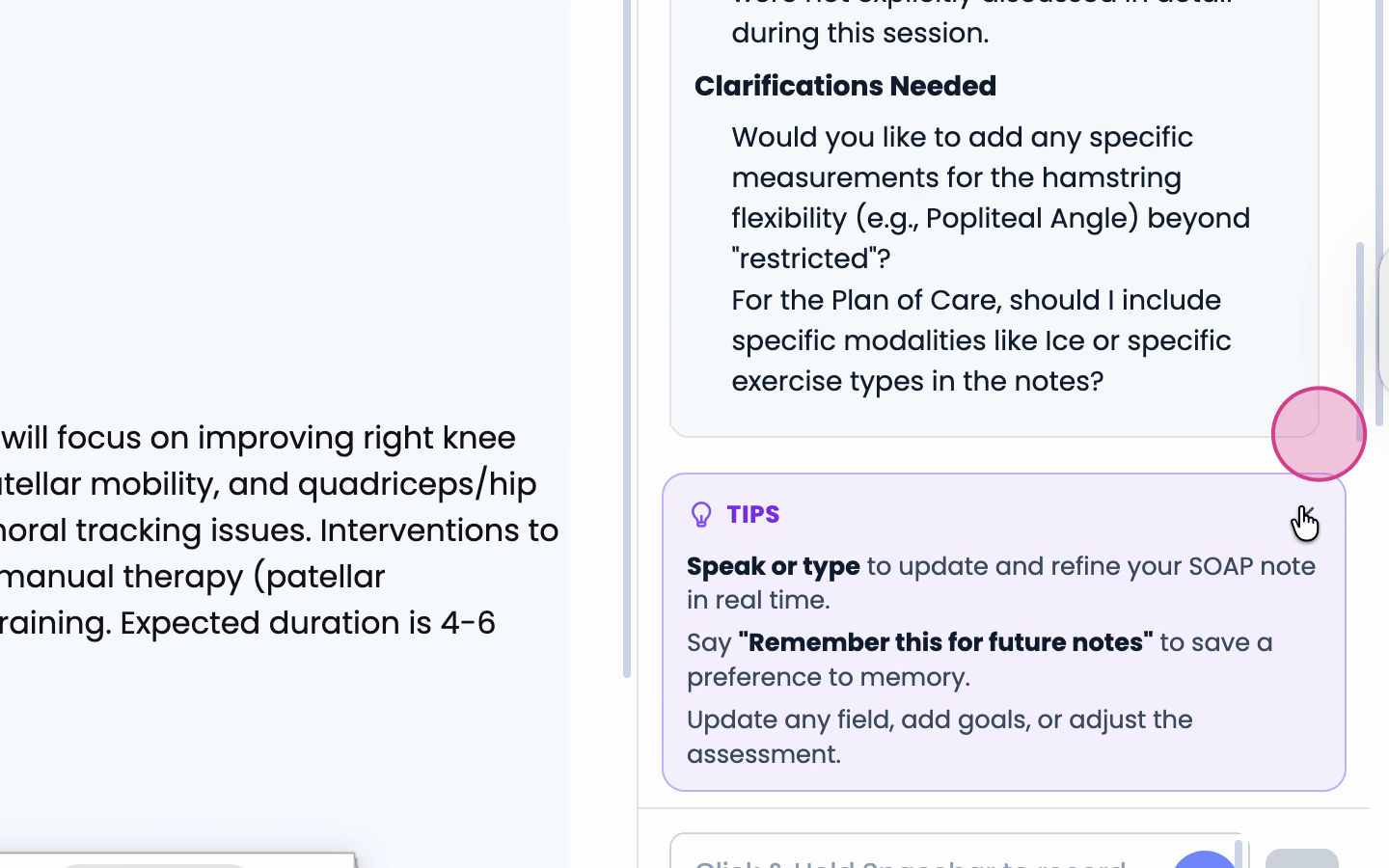
Step 13: Chat with your scribe for clarifications, edits, or further instructions. Push content directly to your SOAP note for instant updates.
Agentic Scribe makes documenting patient encounters faster and more accurate. By leveraging both voice and AI, you reduce manual entry and get smart, contextual support as you work. Let the assistant handle more of your documentation, so you can focus on patient care.