
Insurance Card Copay Feature
In this article, you'll learn how to use the new feature that allows you to add a copay on the insurance card and override it if necessary.
Step 1: Start by checking out the new feature on the insurance card. We've added a copay option to the usual eligibility check.

Step 2: Notice that the in-network copay amount for this patient, who is in-network with Aetna, is displayed under patient responsibility.

Step 3: If you need to change the copay amount, click on the Capture Eligibility button.
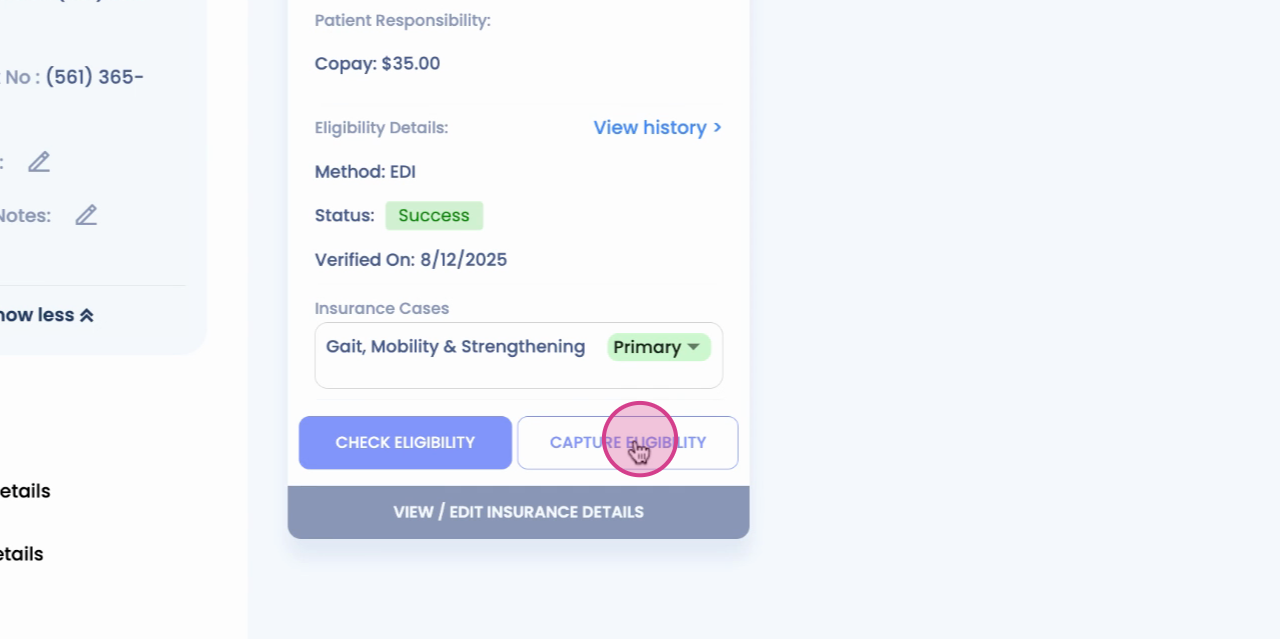
Step 4: The Capture Eligibility form will open. This form contains all the patient responsibility details, which you can manually add.
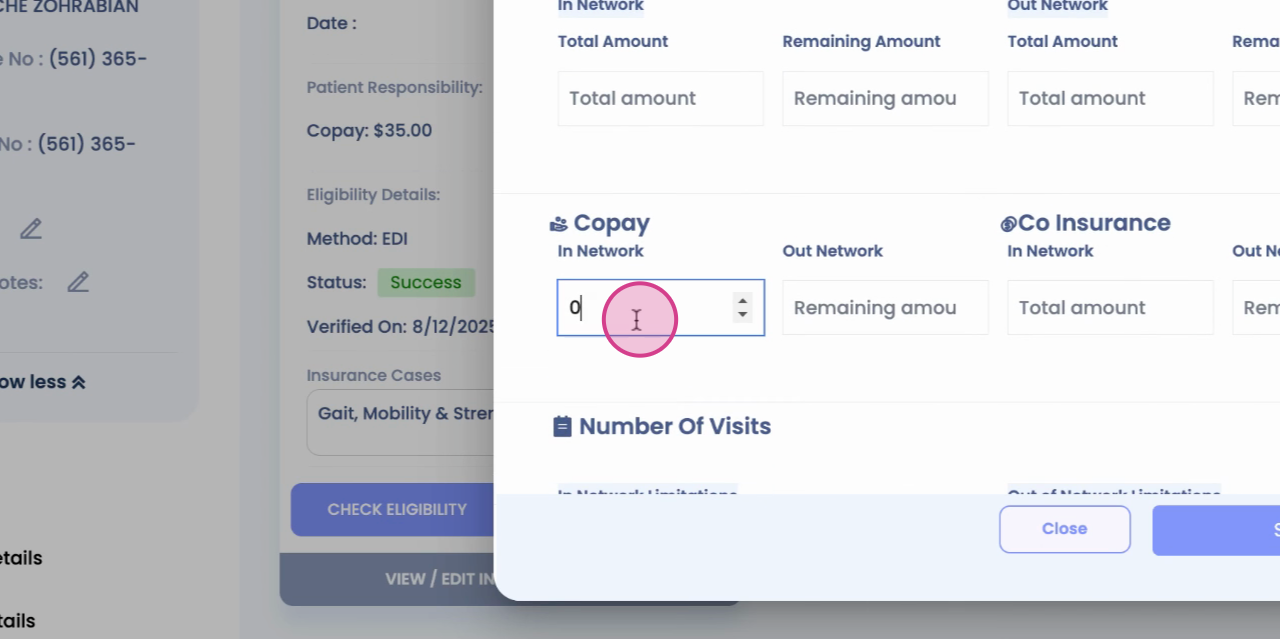
Step 5: In the "total in copay in network" field, update the amount. For example, you might change it to 40.
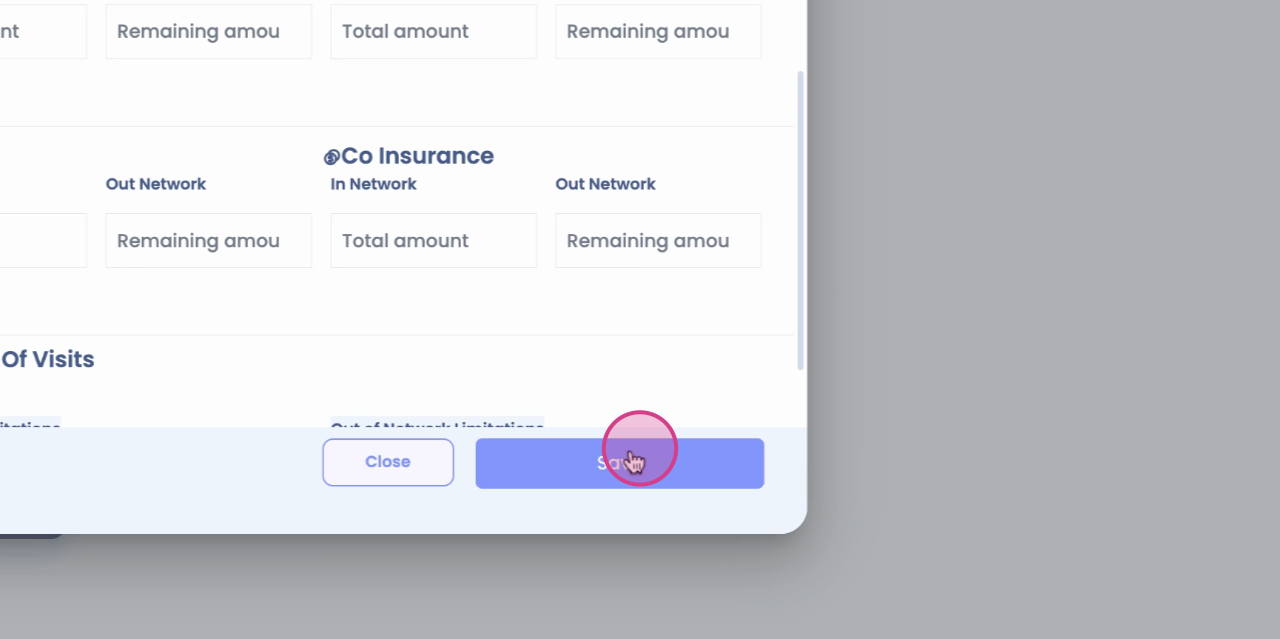
Step 6: Click Save. The copay and eligibility details will update. The method, status, and verification status will also update.
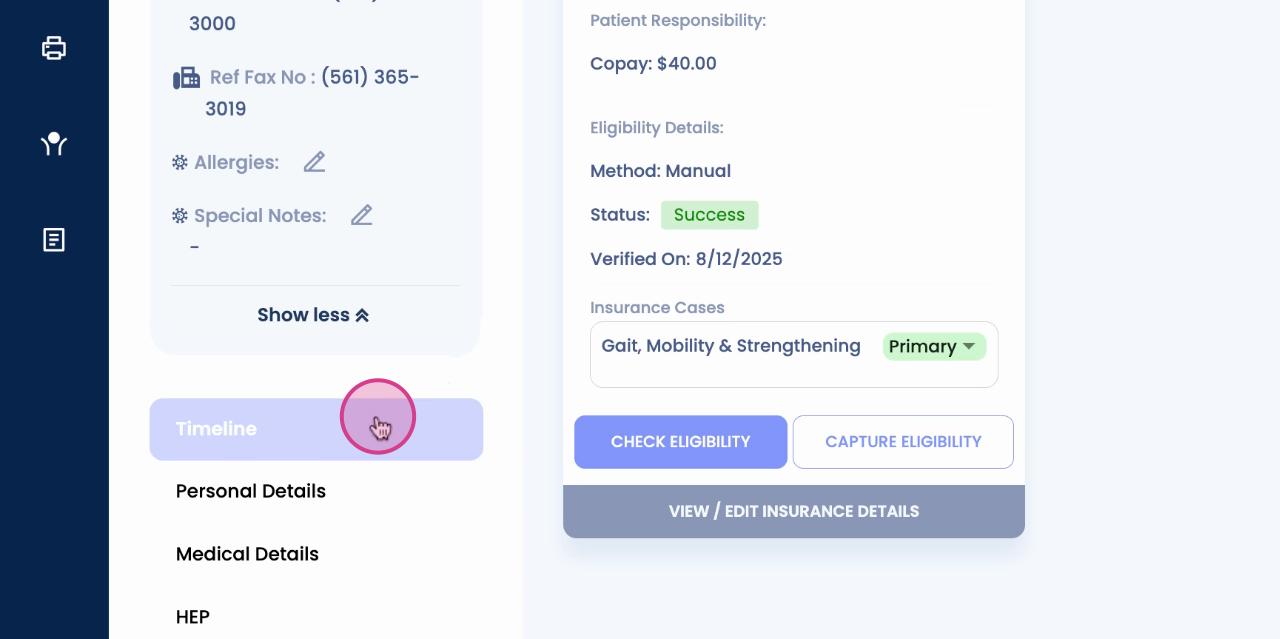
Step 7: The updated information will appear on the appointment card where the insurance information is mapped.

Step 8: Check the billing info under total copay. Note that the manual copay amount will always override the EDI information.
That's it! You've successfully navigated the new copay feature on the insurance card. Thanks for reading!