
Add a SOAP Note Without an Appointment
Add SOAP Notes Without an Appointment
Sometimes you need to document important patient information that doesn't relate to a specific appointment. Here's how to add SOAP notes directly to the patient timeline, without linking them to a scheduled visit.
Step 1: Go to the patient's Timeline.
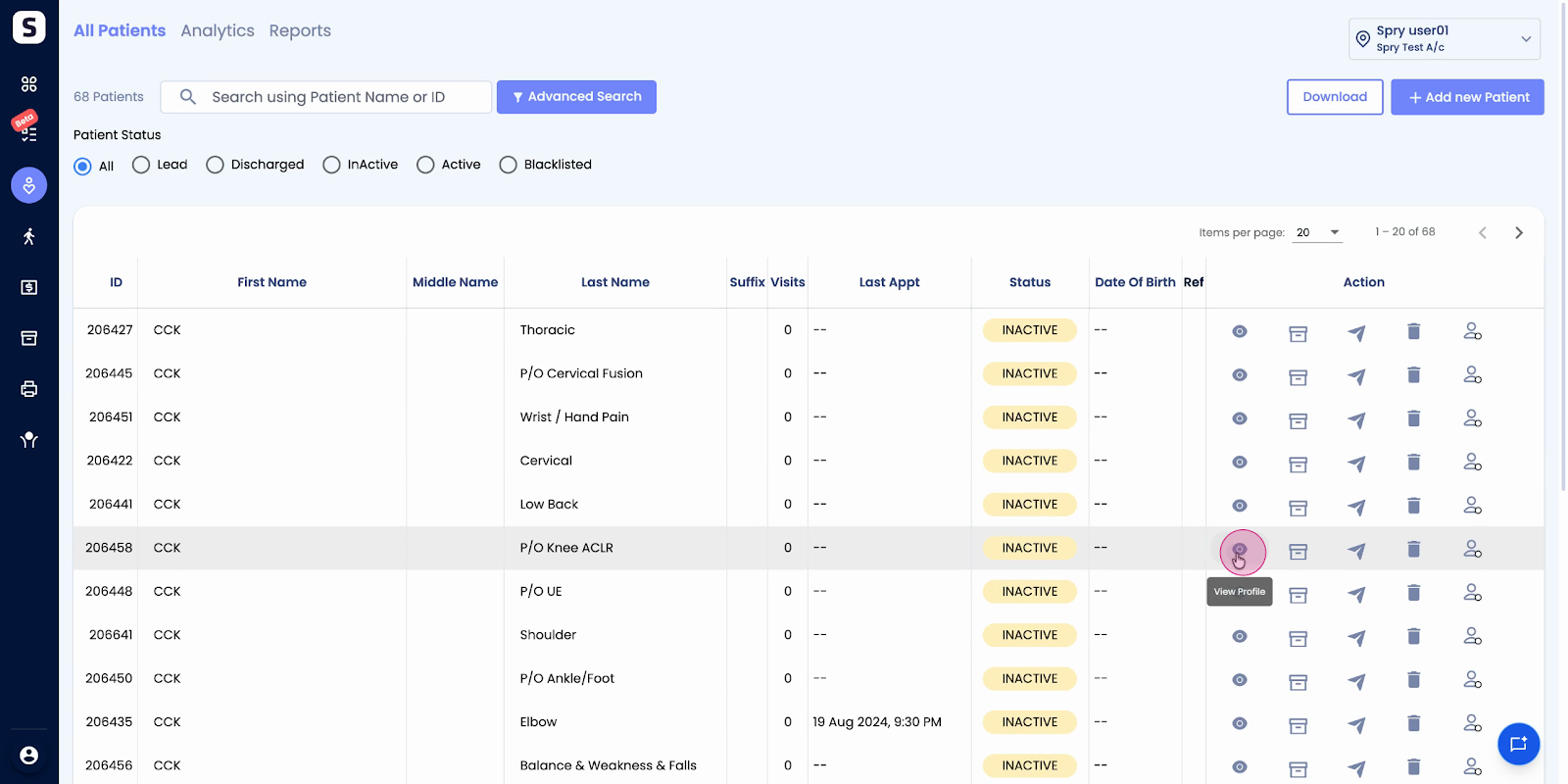
Step 2: Click the Plus (+) button.
Step 3: From the notes menu, select Follow-up Notes.
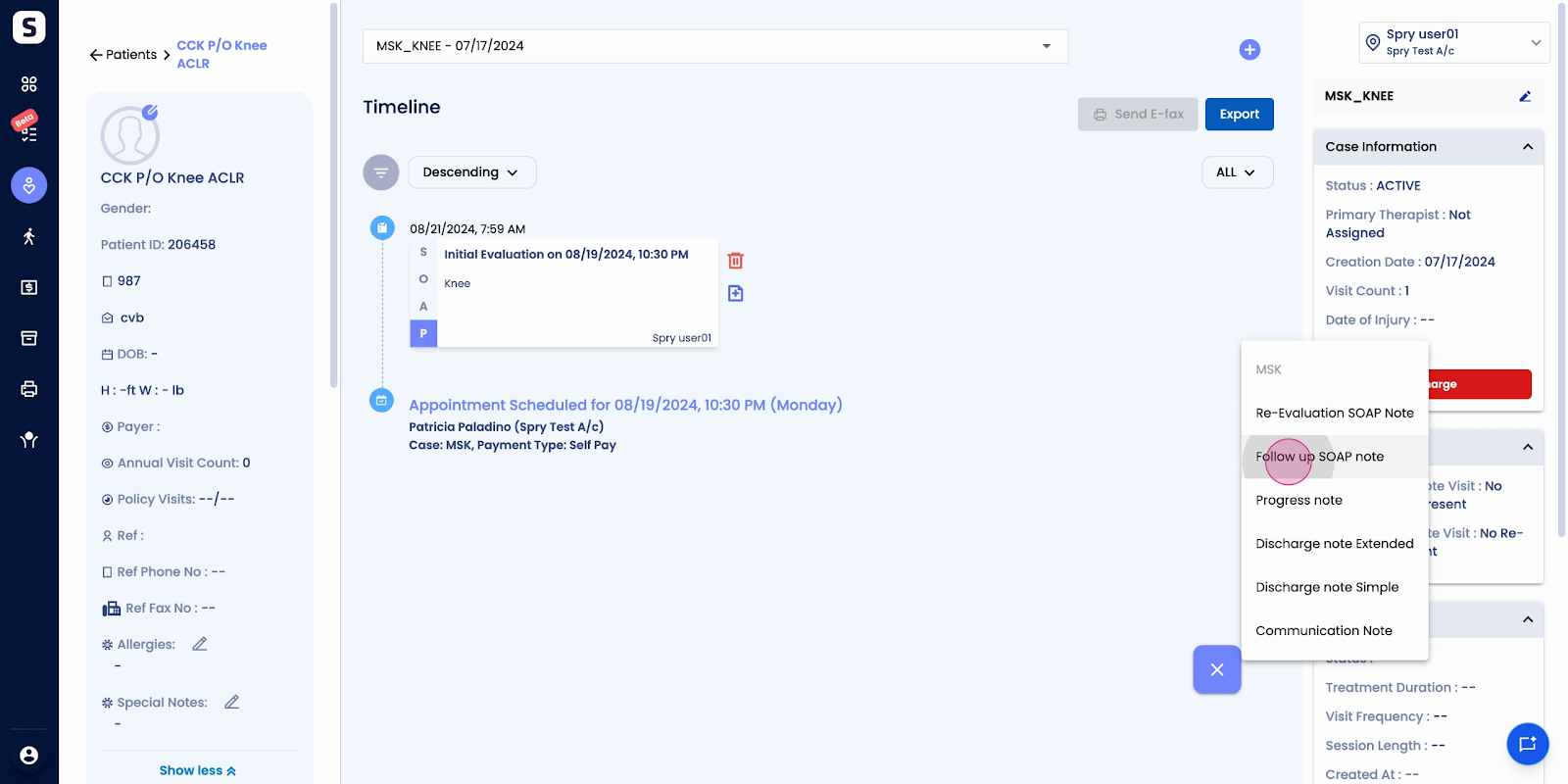
Step 4: Choose the Note Type you want.
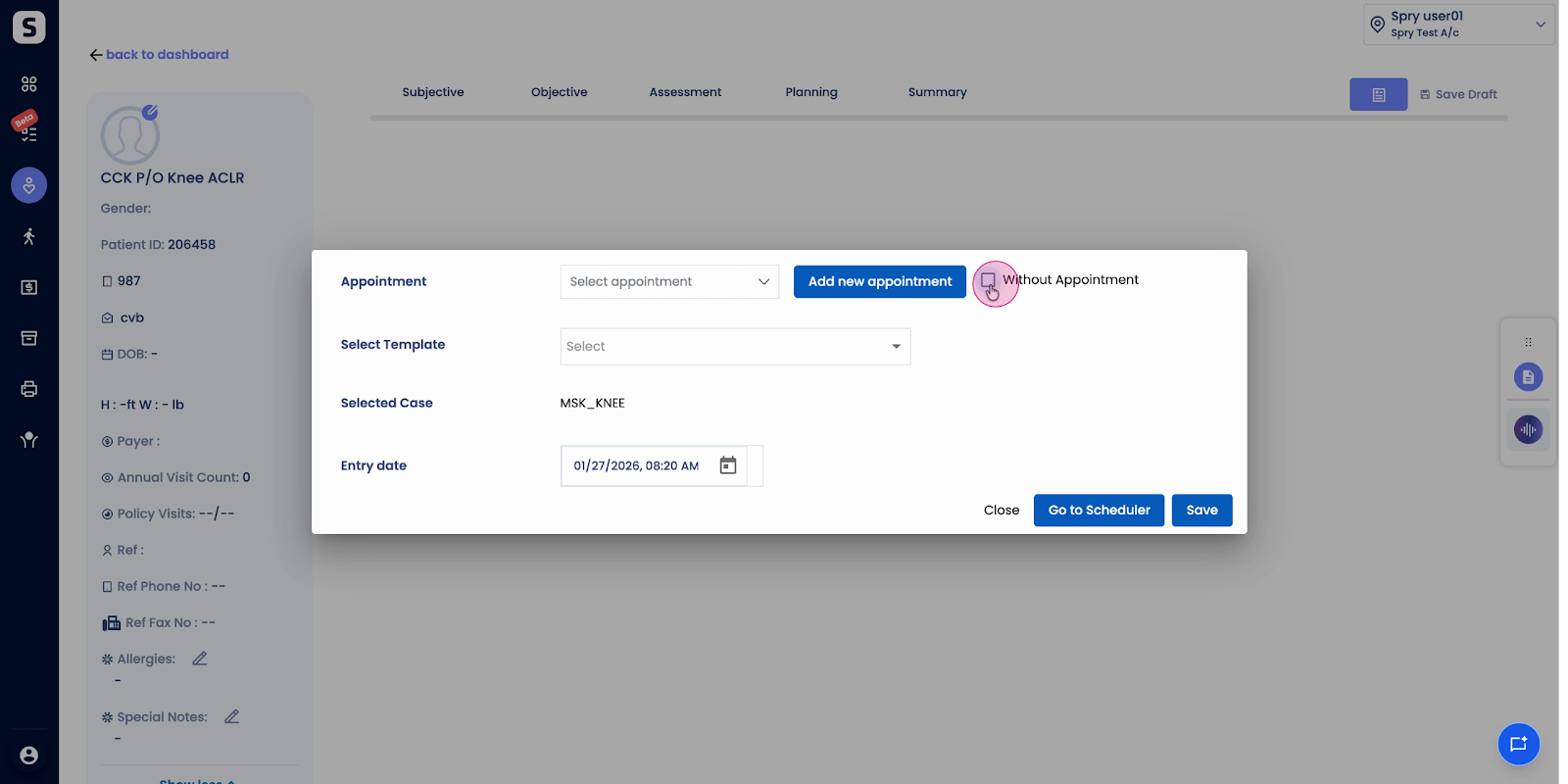
Step 5: Look for the option Without Appointment and click it.
Step 6: Enter your SOAP note details as needed.
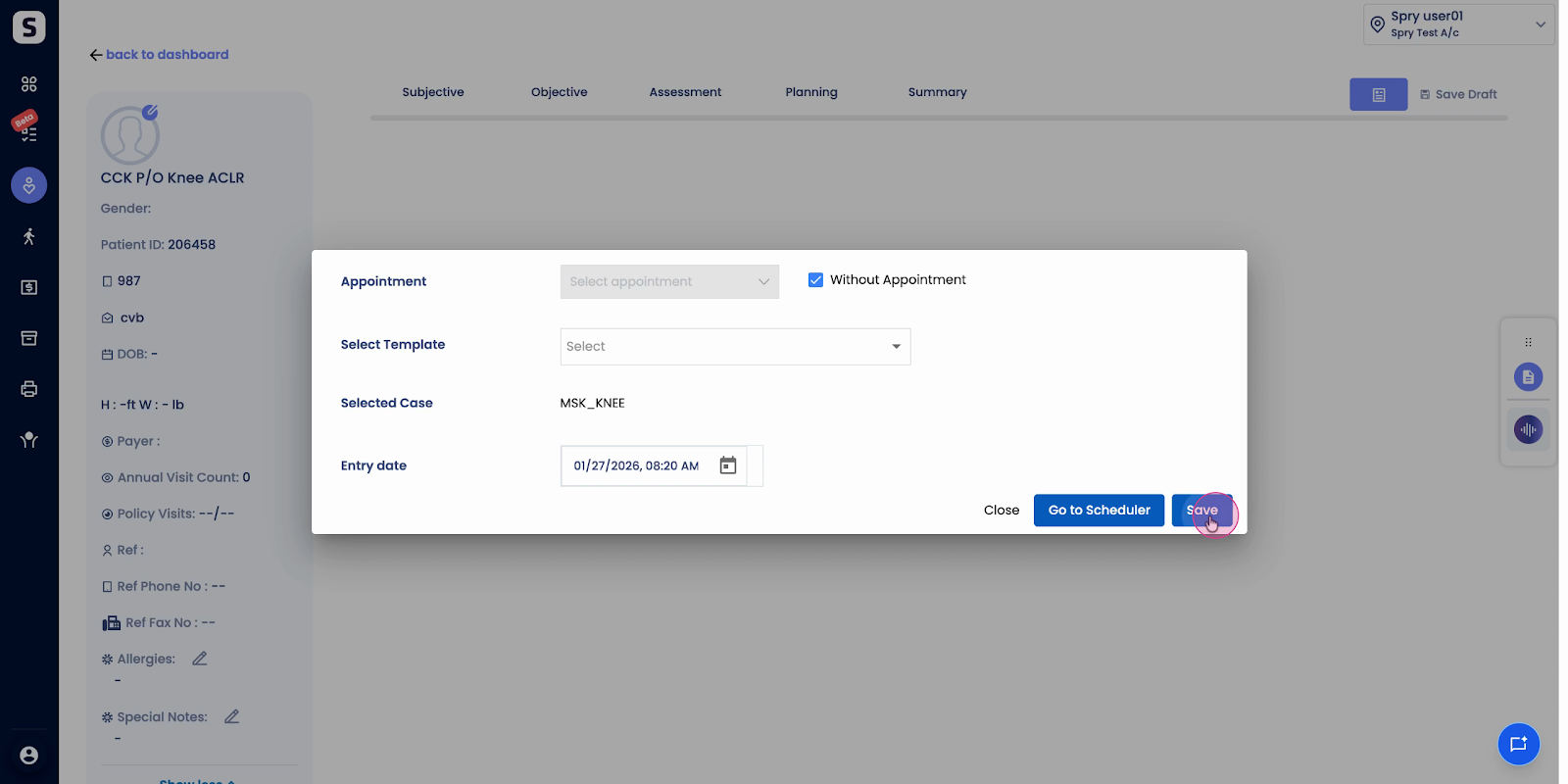
Adding SOAP notes this way makes sure all important patient updates are stored, even if they're not tied to a specific appointment. This helps keep patient records complete and up-to-date.