
SOAP Notes Dashboard Overview
This guide provides a detailed walkthrough of the SOAP notes tab, a staging area for all dates of services. It's a comprehensive tool for tracking SOAP completion status, accessing and editing notes, and monitoring billing and claim submission errors.Start by exploring the SOAP notes tab:
Step 1: Look at the SOAP completion status, indicated by the status check mark, and the details about each section of the note.
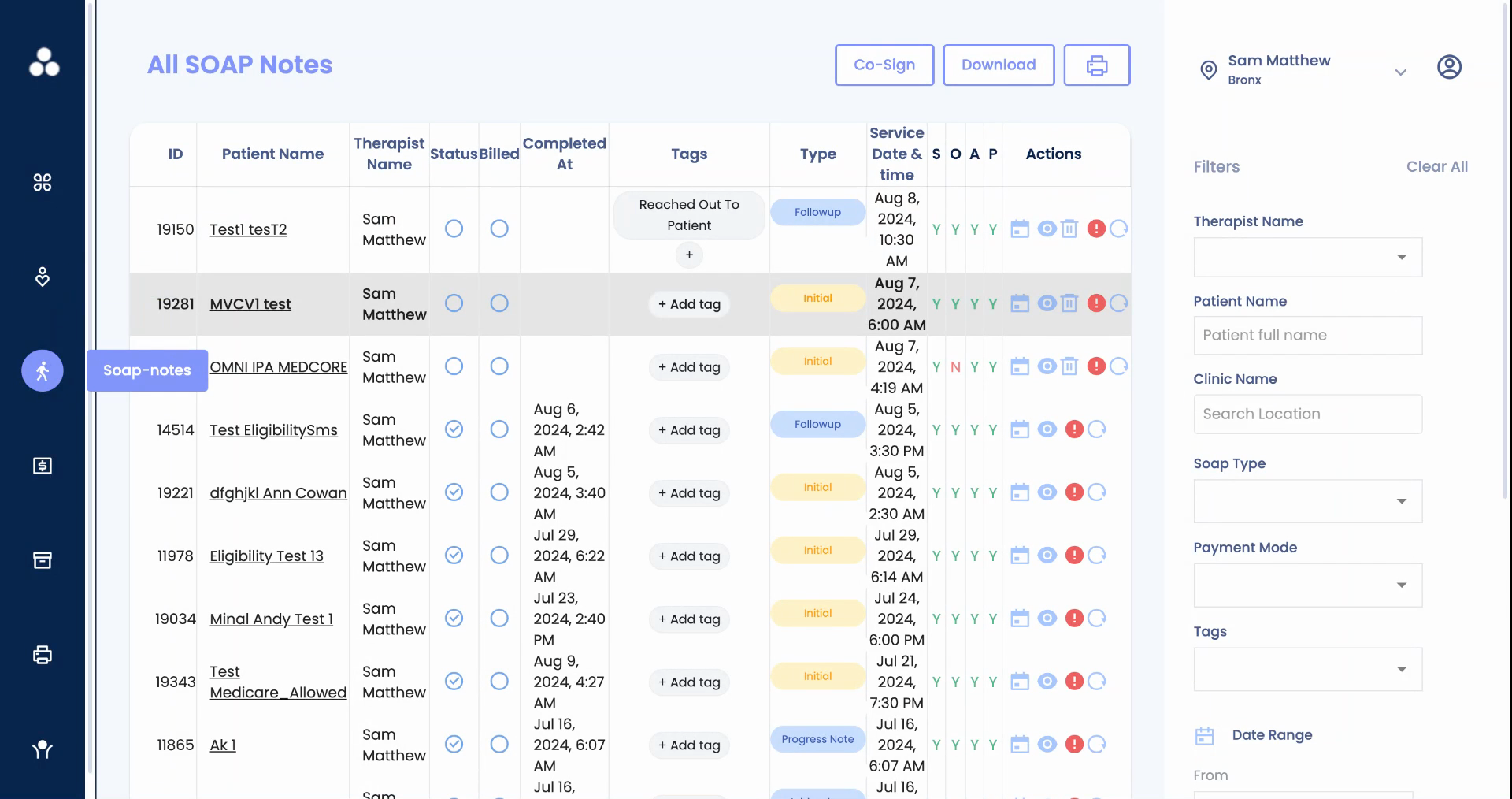
Step 2: Access the note by clicking on the eye icon.
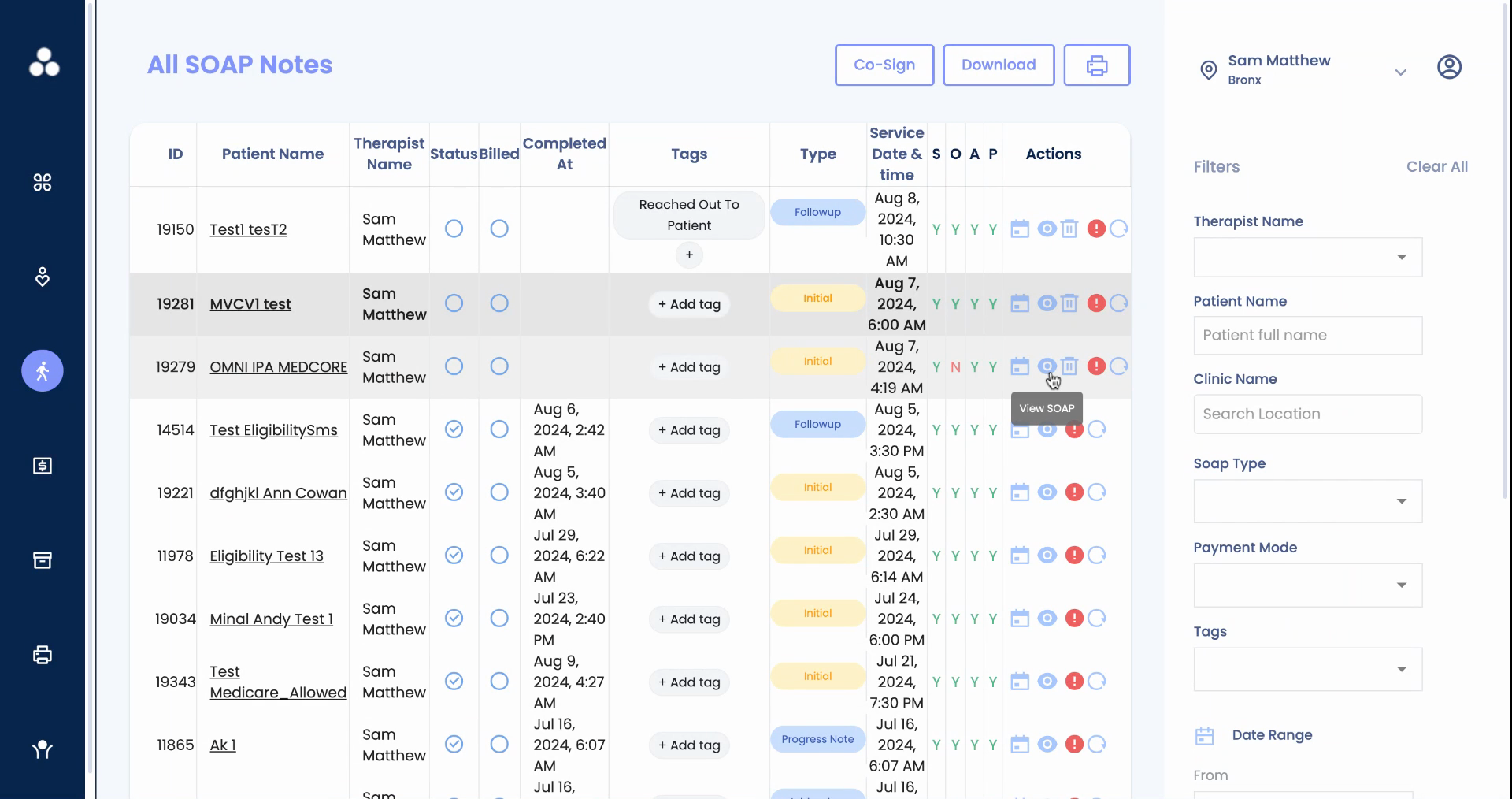
Alternatively, access the note from the patient chart:
Step 1: Click on the patient name.
Filters are available on the right hand side for easy viewing.Next, learn how to keep track of unbilled notes:
Step 1: Click on "not initiated" to track any notes that haven't been started yet.The SOAP note tab also helps improve your clean claim pass rate:
Step 1: Click on the error to view errors that can be edited prior to claim submission.
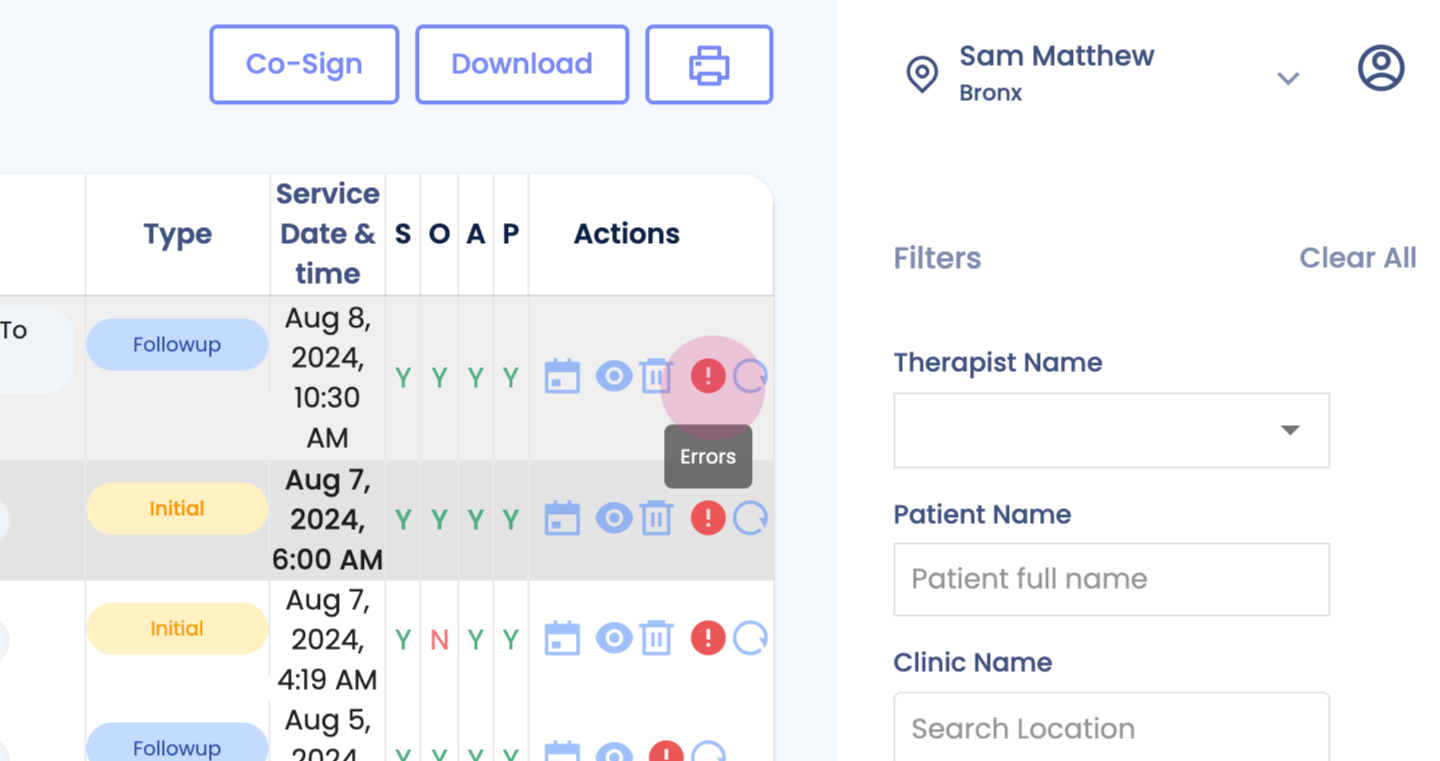
Step 2: Monitor these errors with your team.
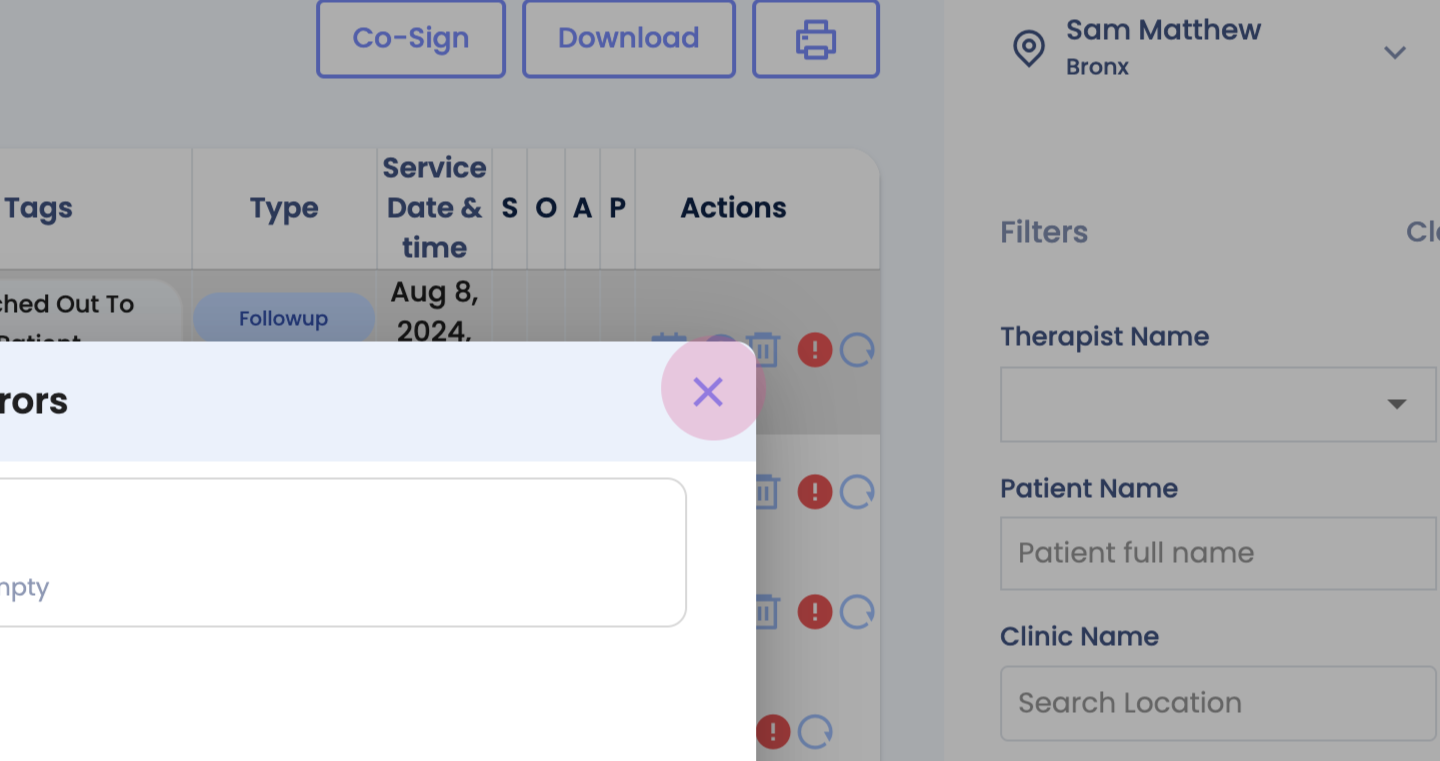
Step 3: Add tags for appropriate follow-up.
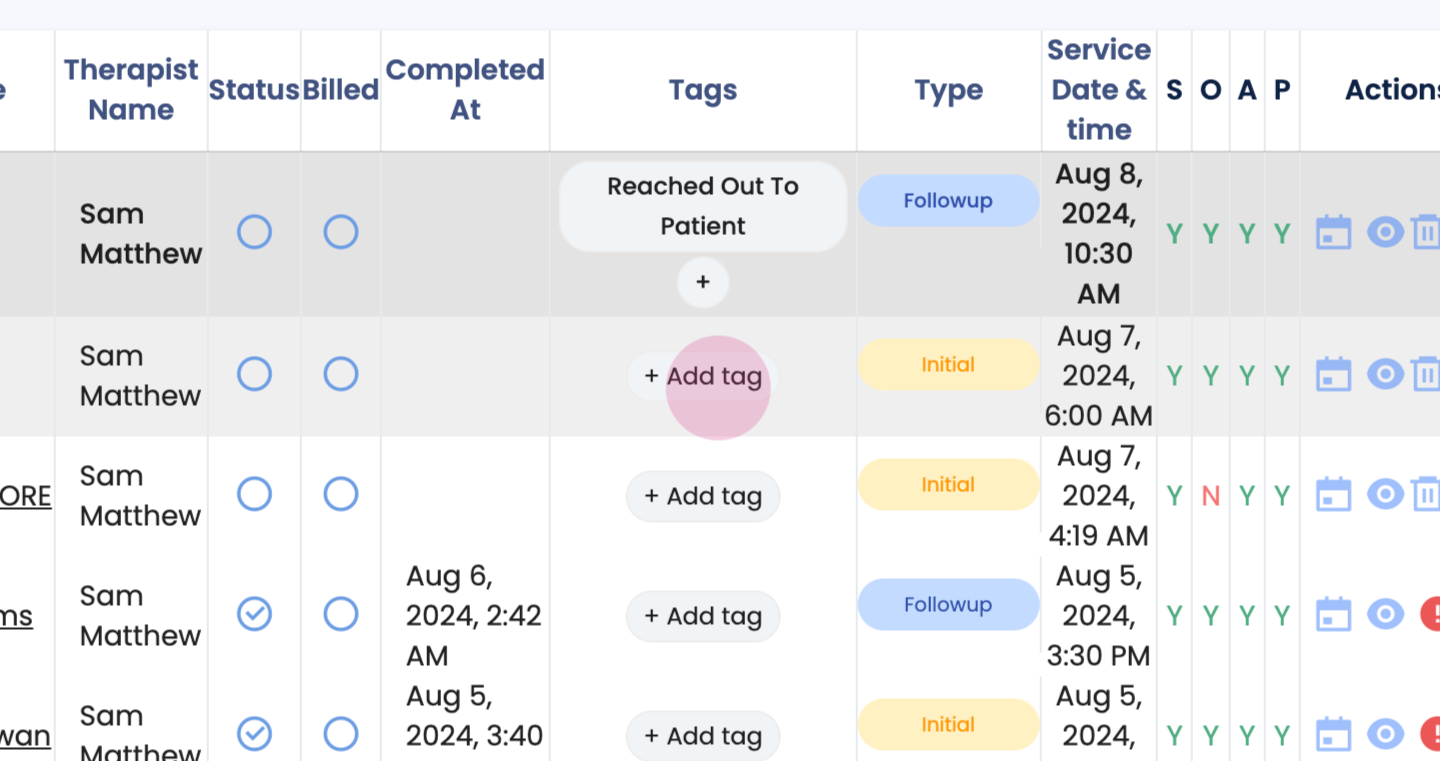
Step 4: Edit errors from this section.
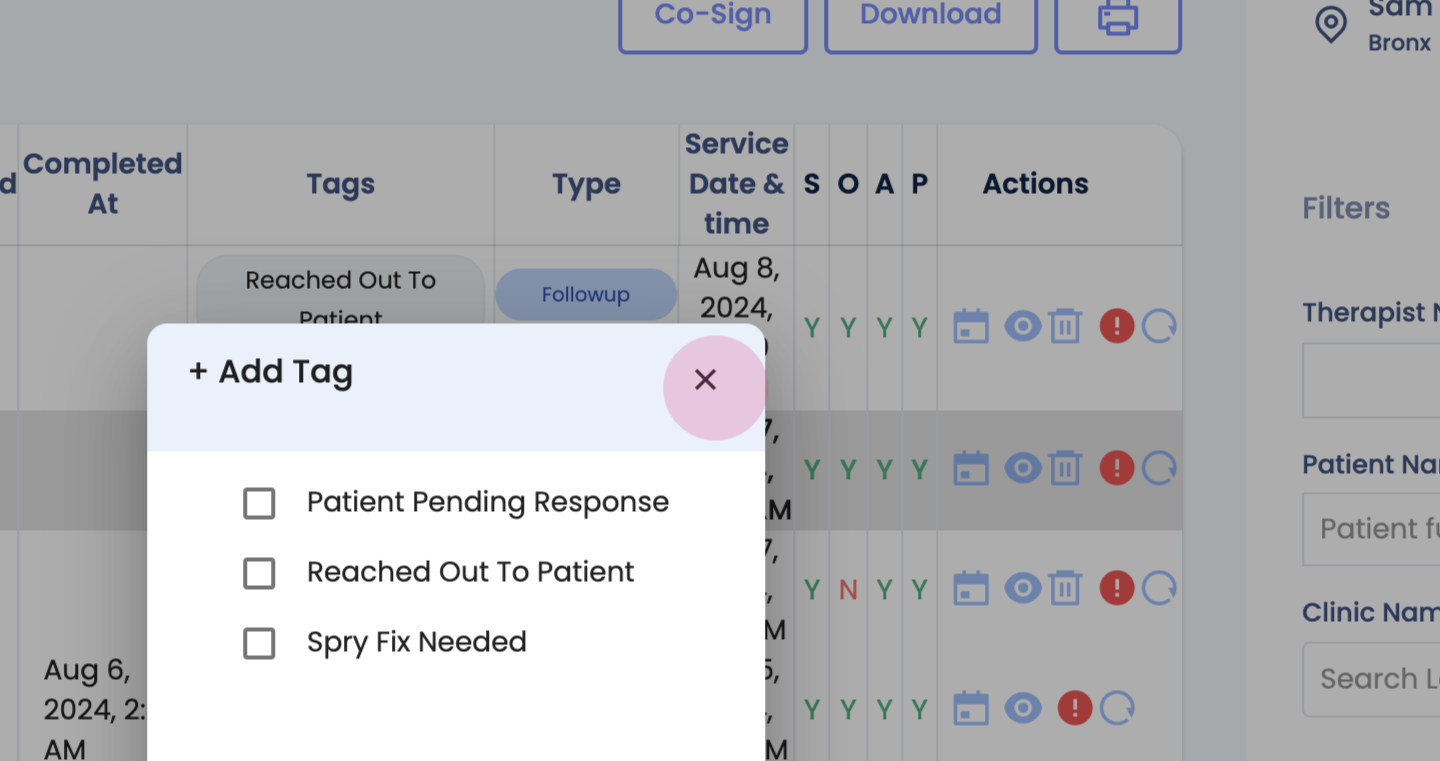
Finally, explore other features of the SOAP notes tab: