
Adjust Balance Amount
In this article, you'll learn how to adjust a patient's paid amount to any other date of service.
Step 1: Select the patient whose balance you want to adjust. To do this, go to Patients and select the desired patient.
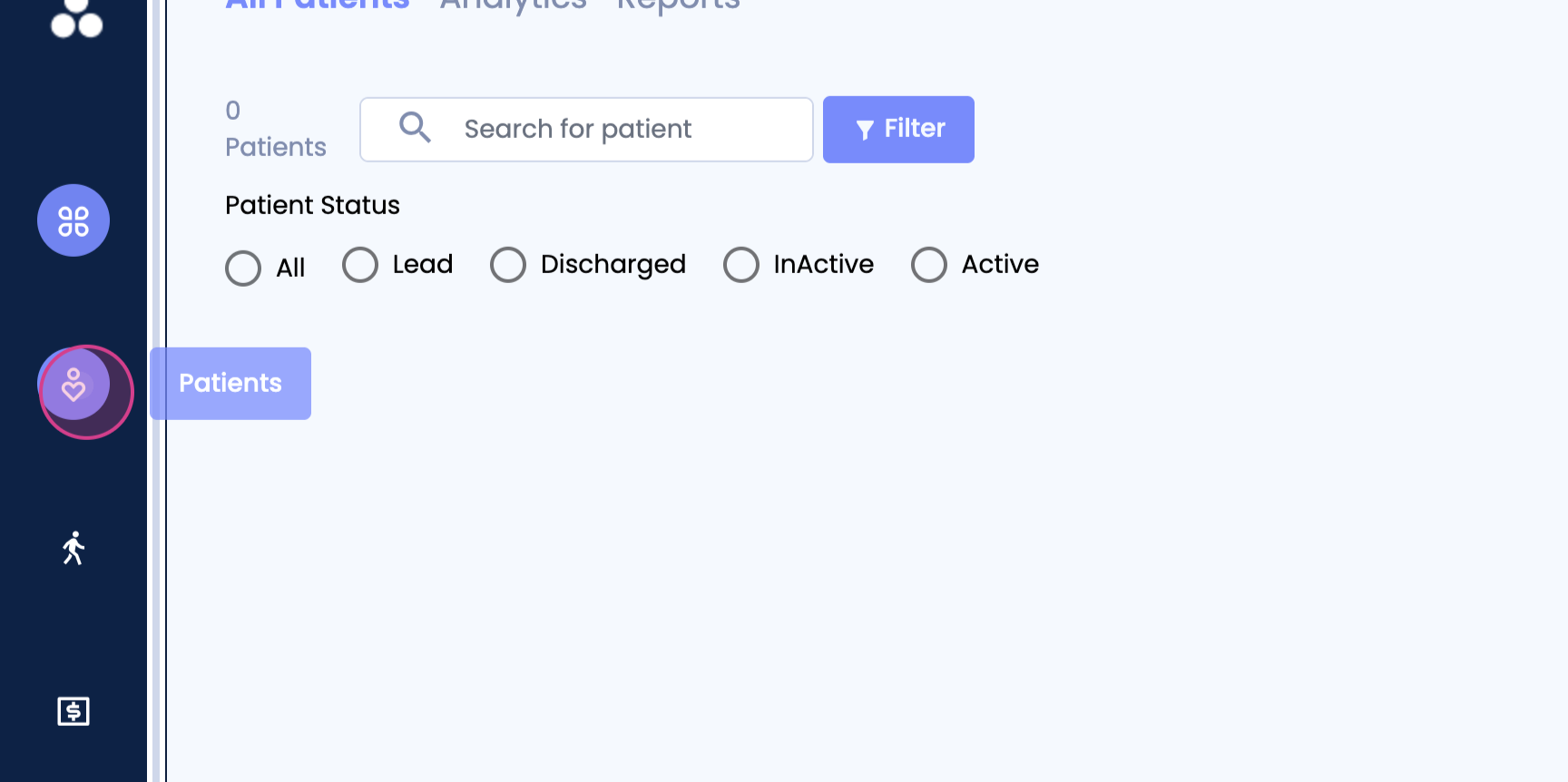
Step 2: View the patient's profile.

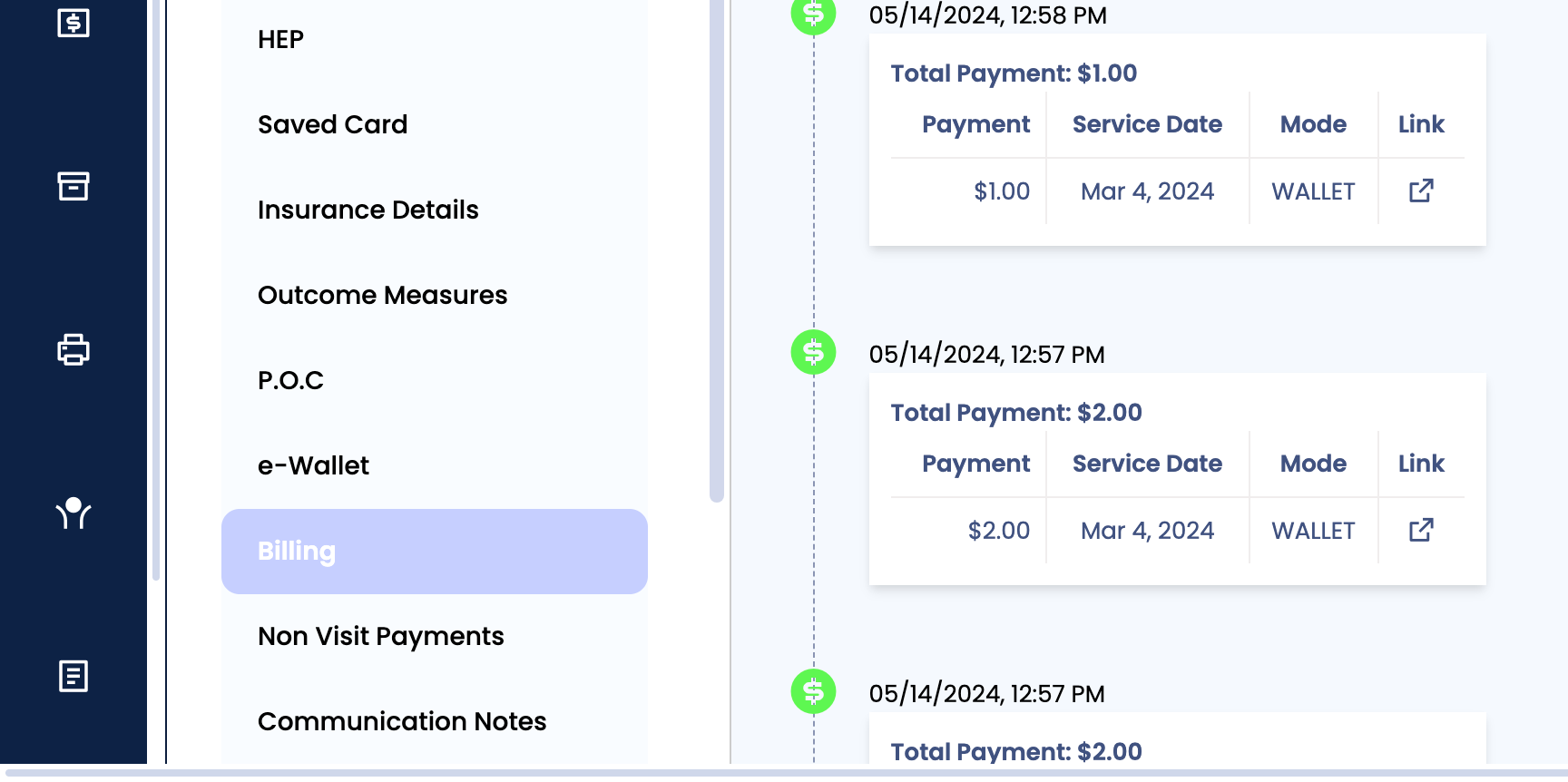
Step 3: Navigate to the Billing tab on the left scroll.
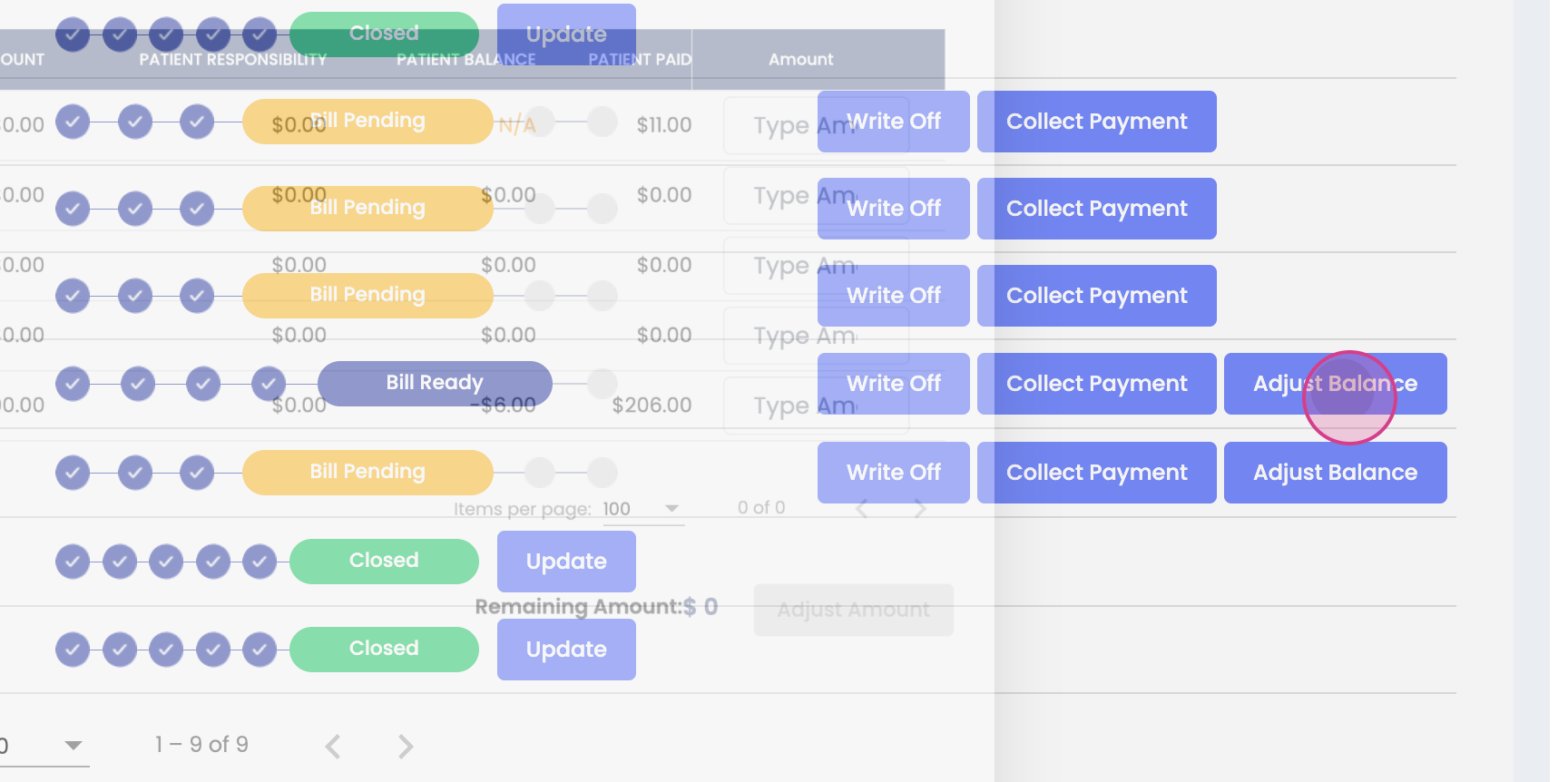
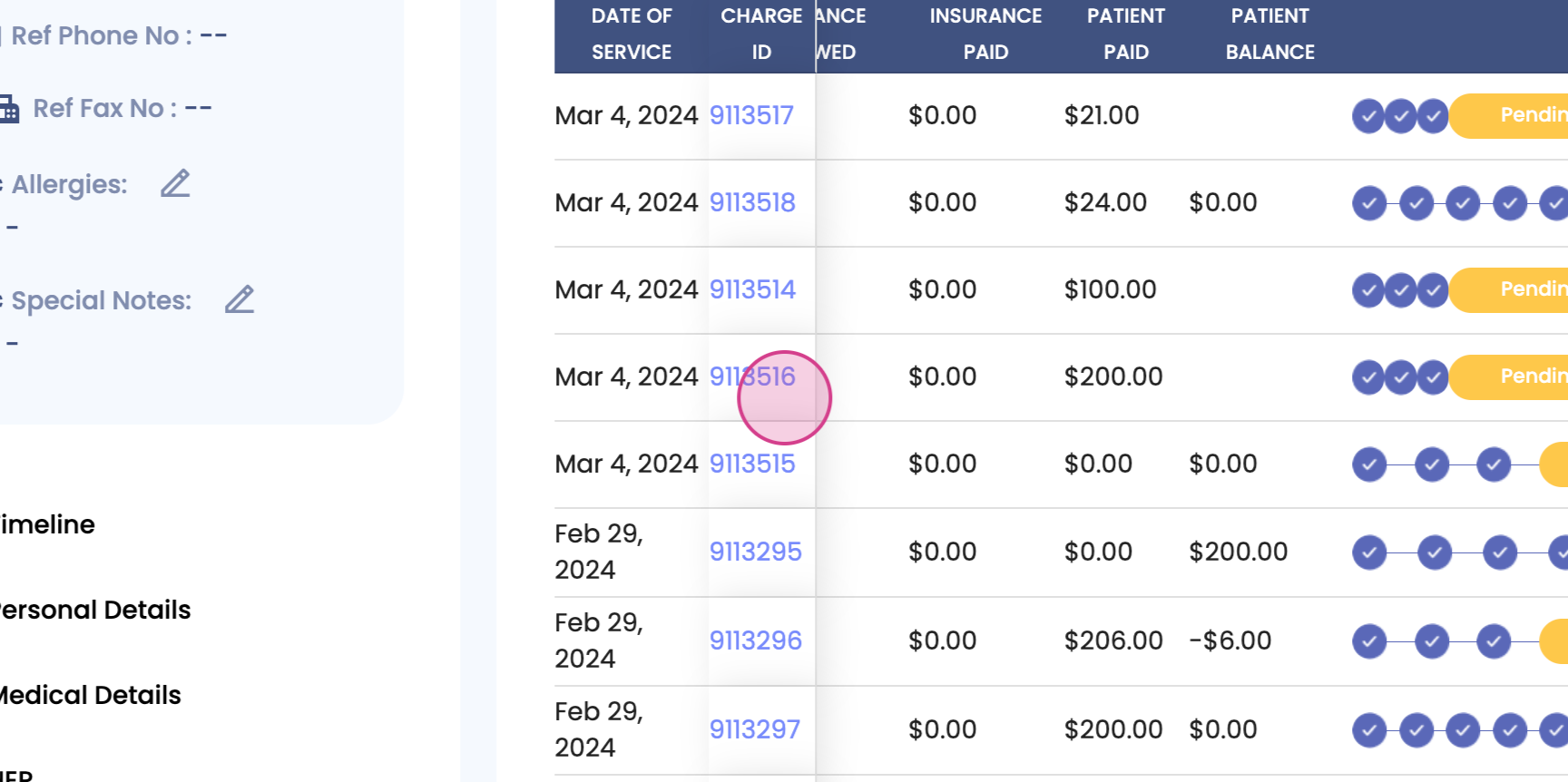
Step 4: Here, you'll see all the charge IDs for that patient. If a patient payment is available or the patient has paid any amount, the Adjust Balance button will be available. However, if the charge ID is in closed status, you won't be able to move or adjust that balance to any other date of service. To adjust the balance, click on the Add this balance button.
Step 5: You'll now see all dates of services for that patient. You can adjust the balance with these dates of service.
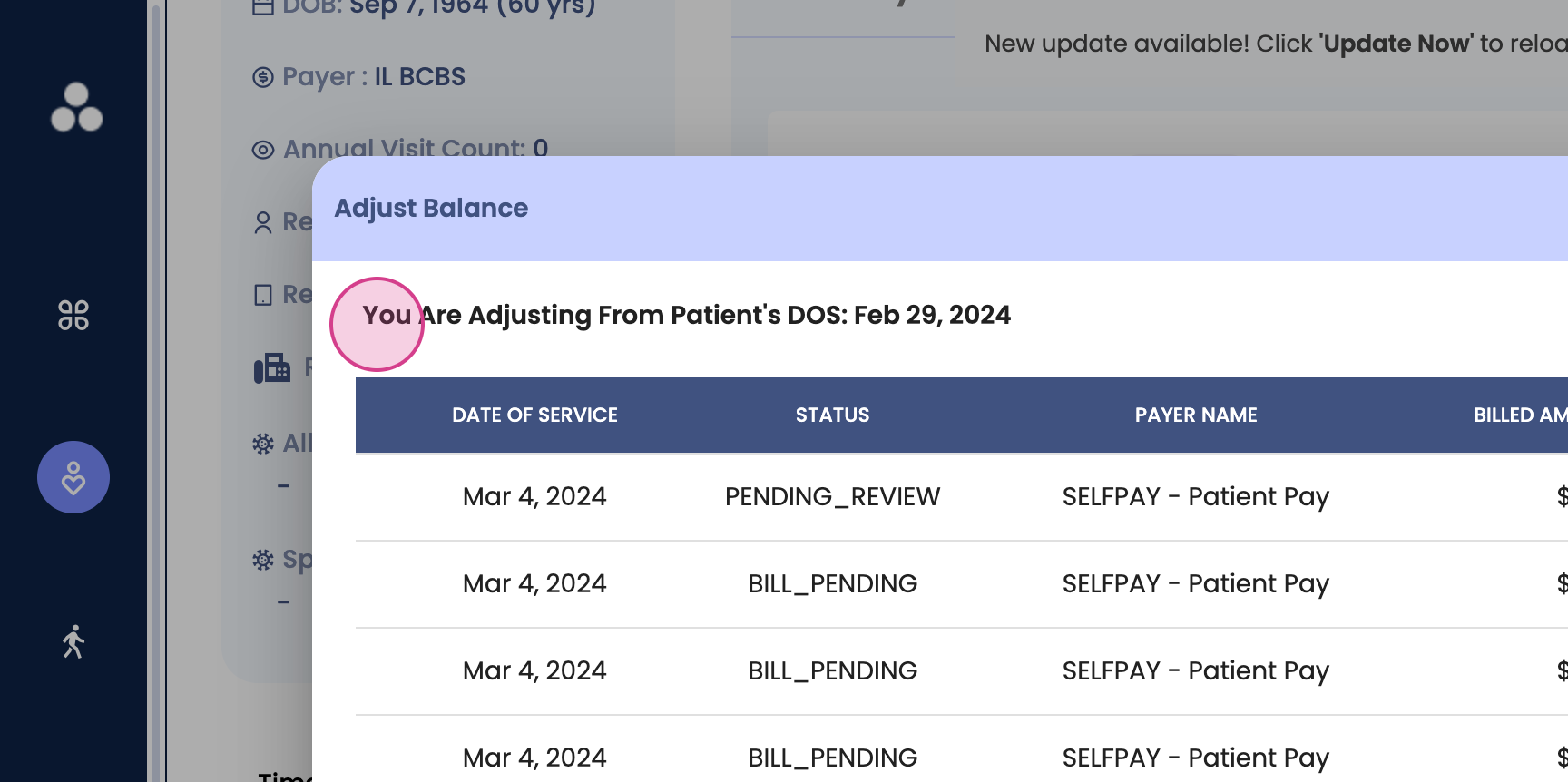
Step 6: For instance, let's say you're adjusting from the patient's date of service on the 29th of February 2024, and for that particular charge ID, the patient has paid $310. You can adjust a partial or full amount to any date of service listed in the table.
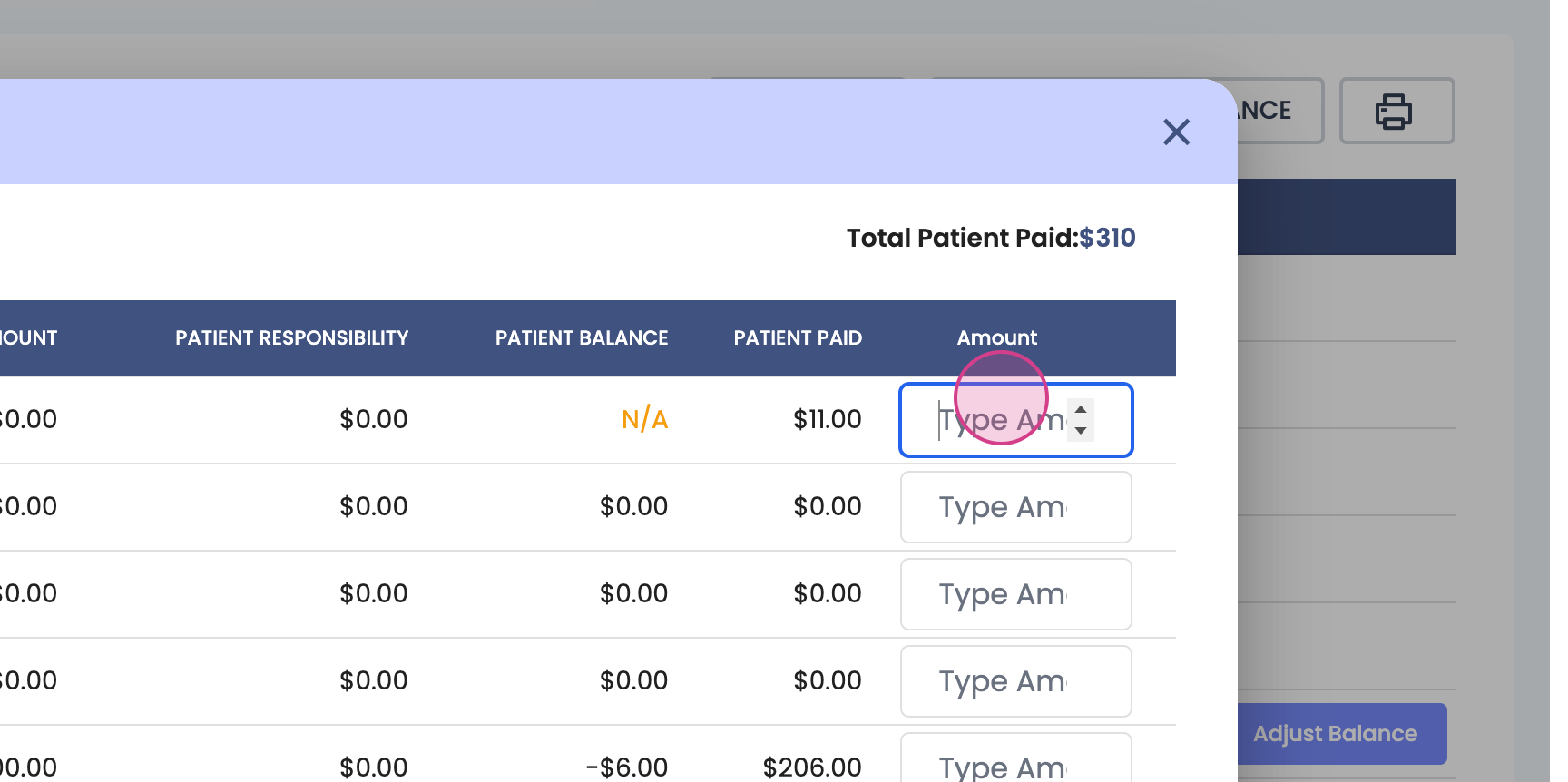
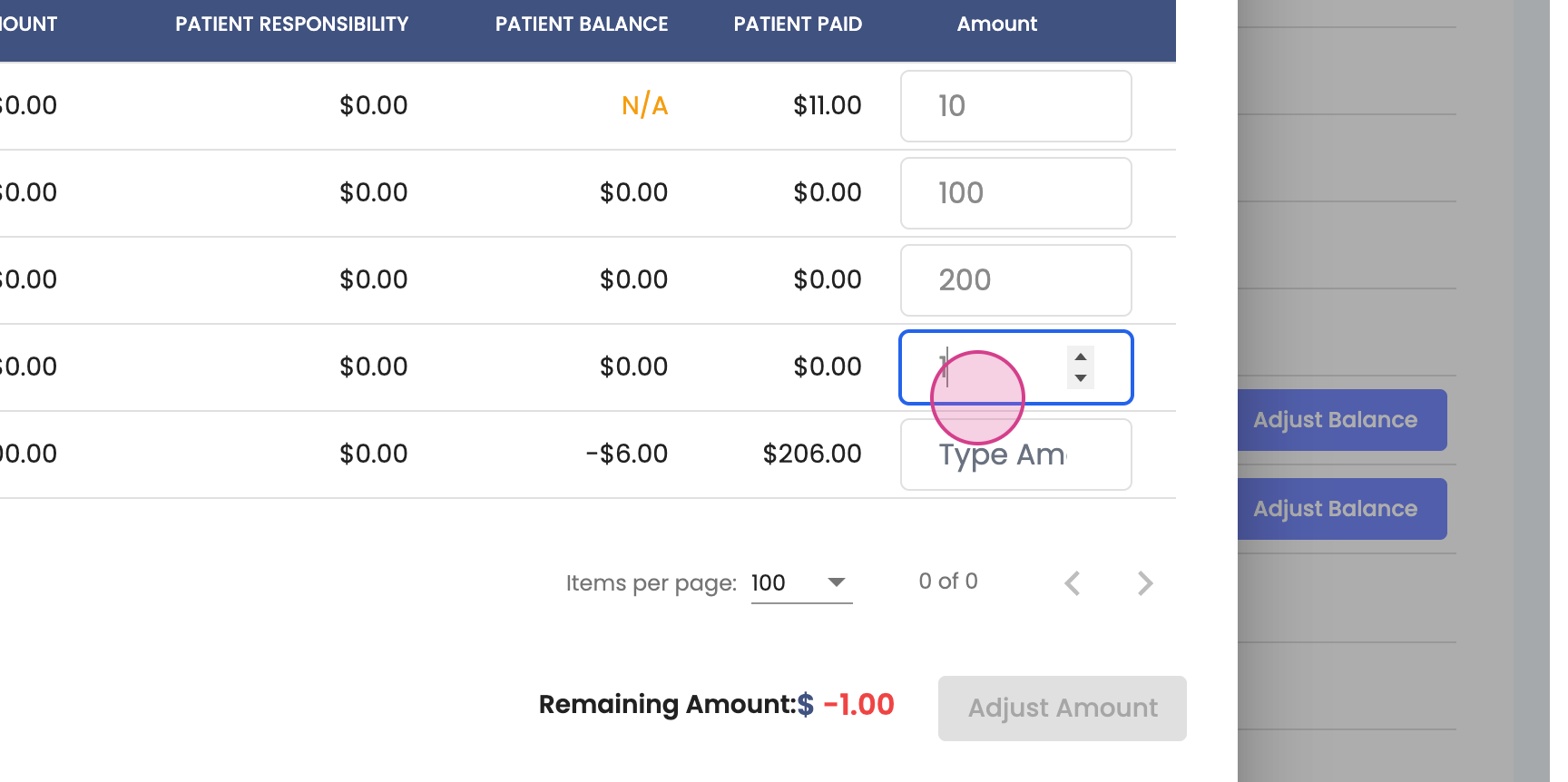
Step 7: As an example, let's adjust $10 to this charge ID for a $100 tourist charge ID.
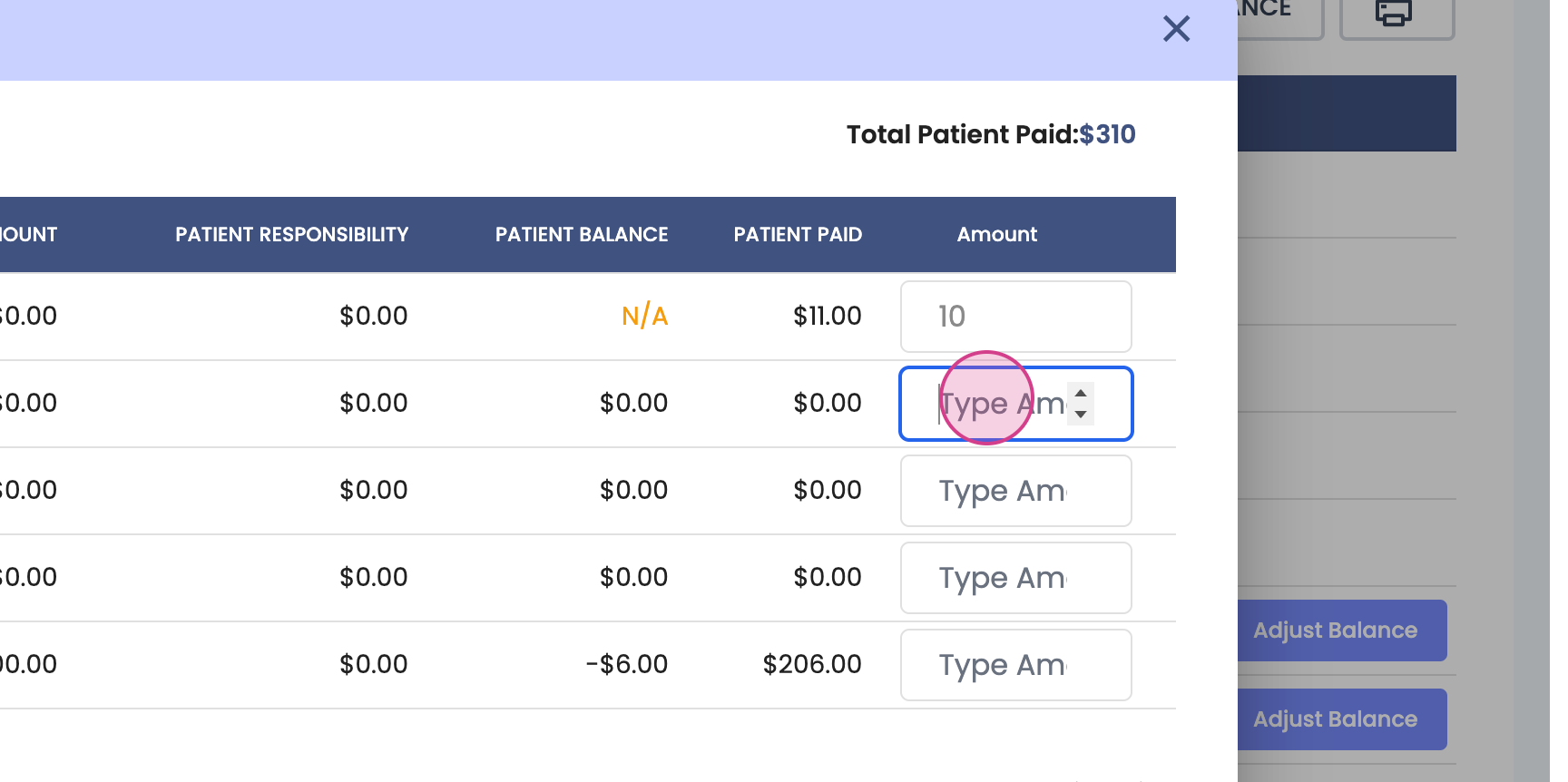
Step 8: Once you click out of the box, you'll see the total remaining balance, which you can adjust to any other date of services.
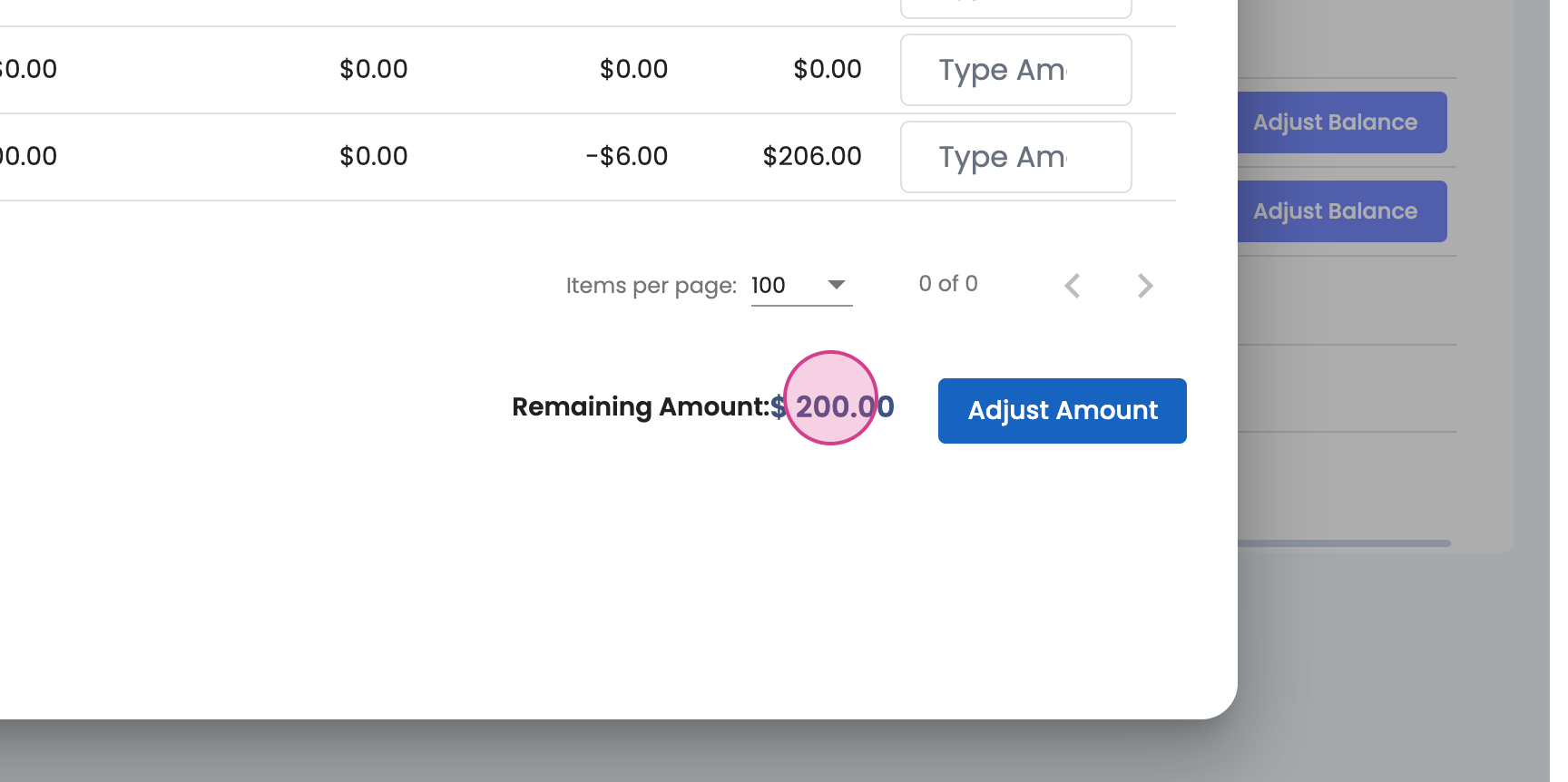
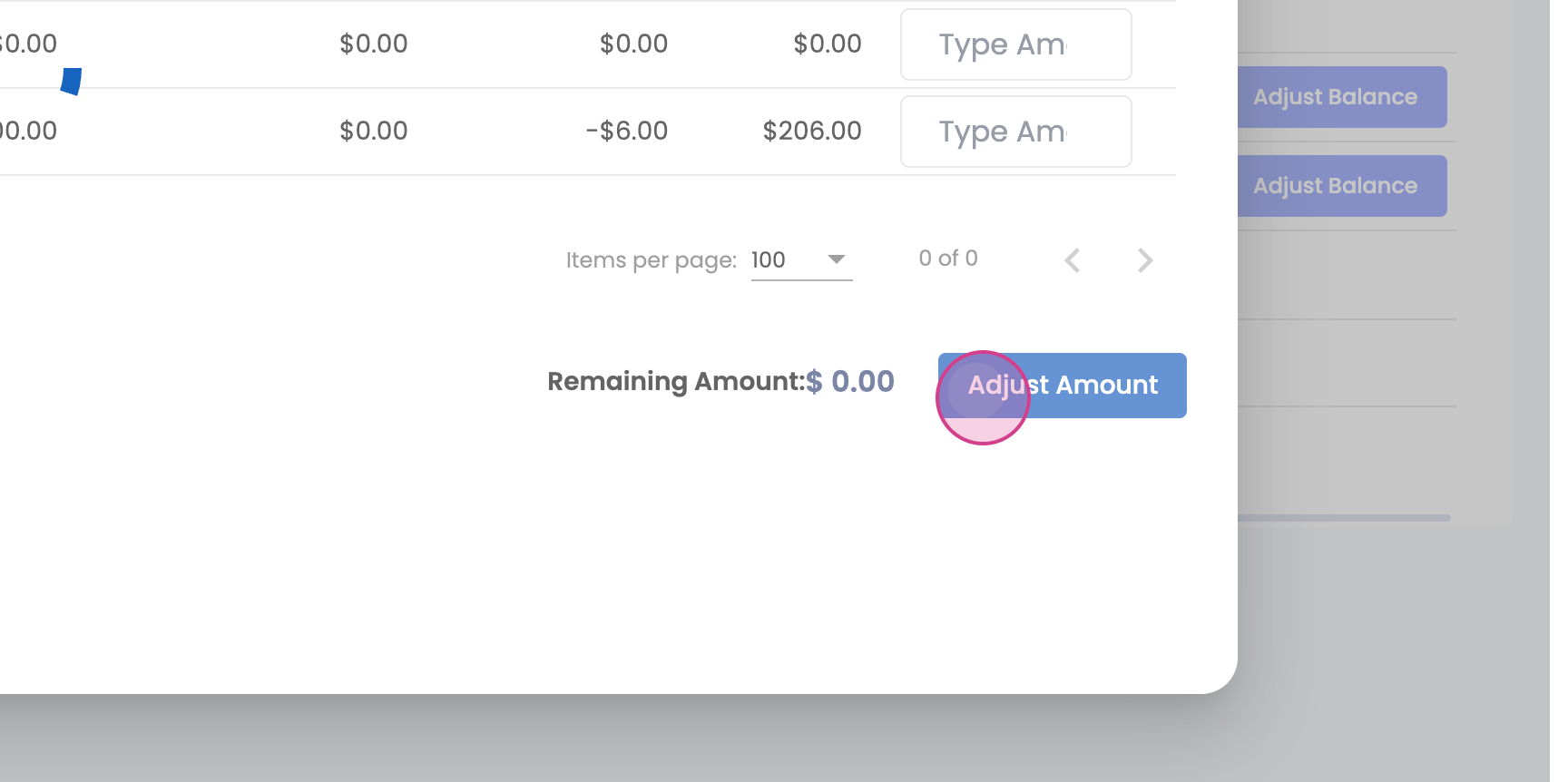
Step 9: Once the total amount is adjusted, you won't be able to adjust any more balances. The button will be disabled and you'll see that the remaining amount is going to credit balance.
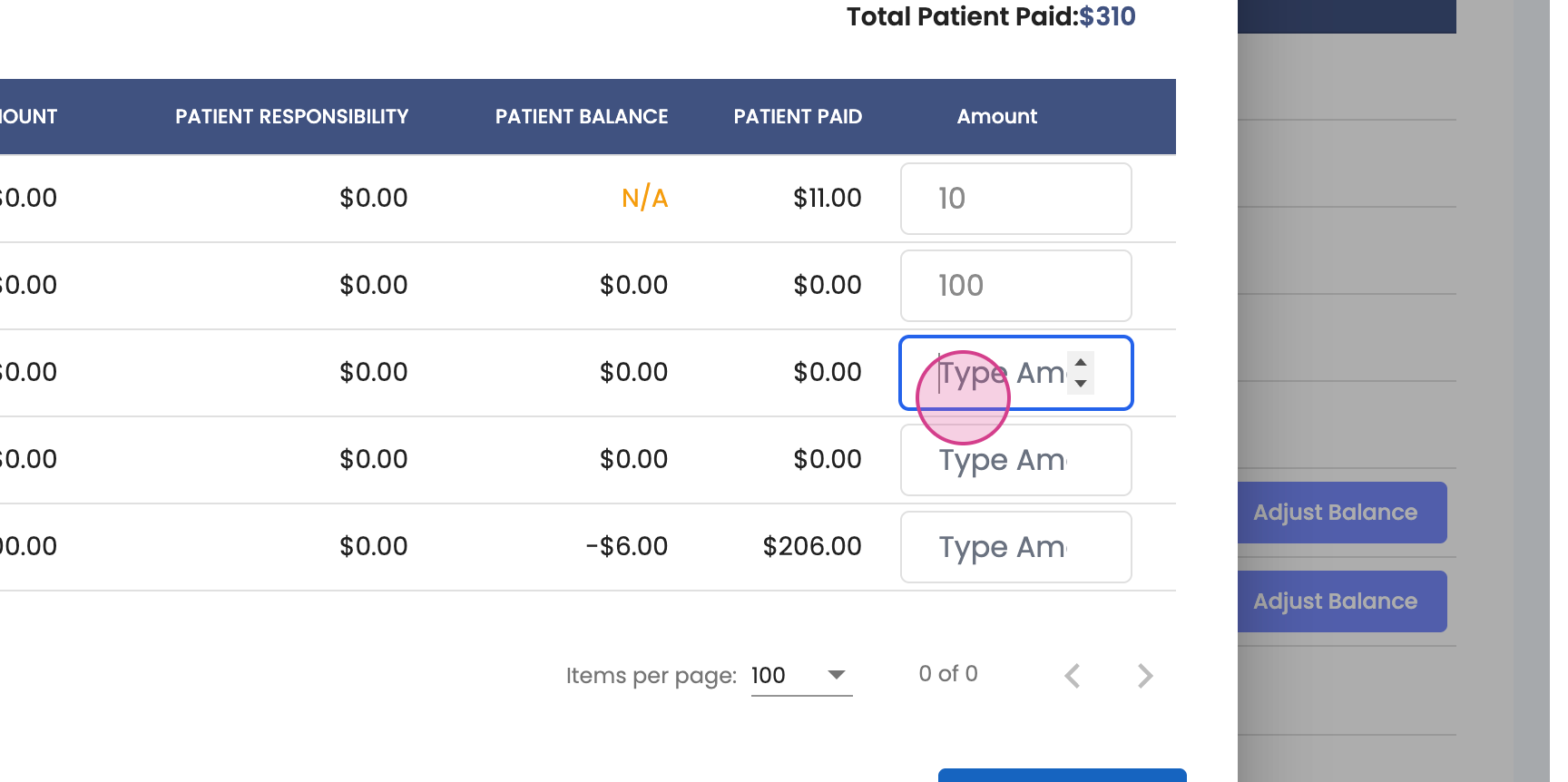
Step 10: When you're done, click on the Adjust Balance button. The system will automatically adjust these balances to all the charge IDs for which you were adjusting the balances.
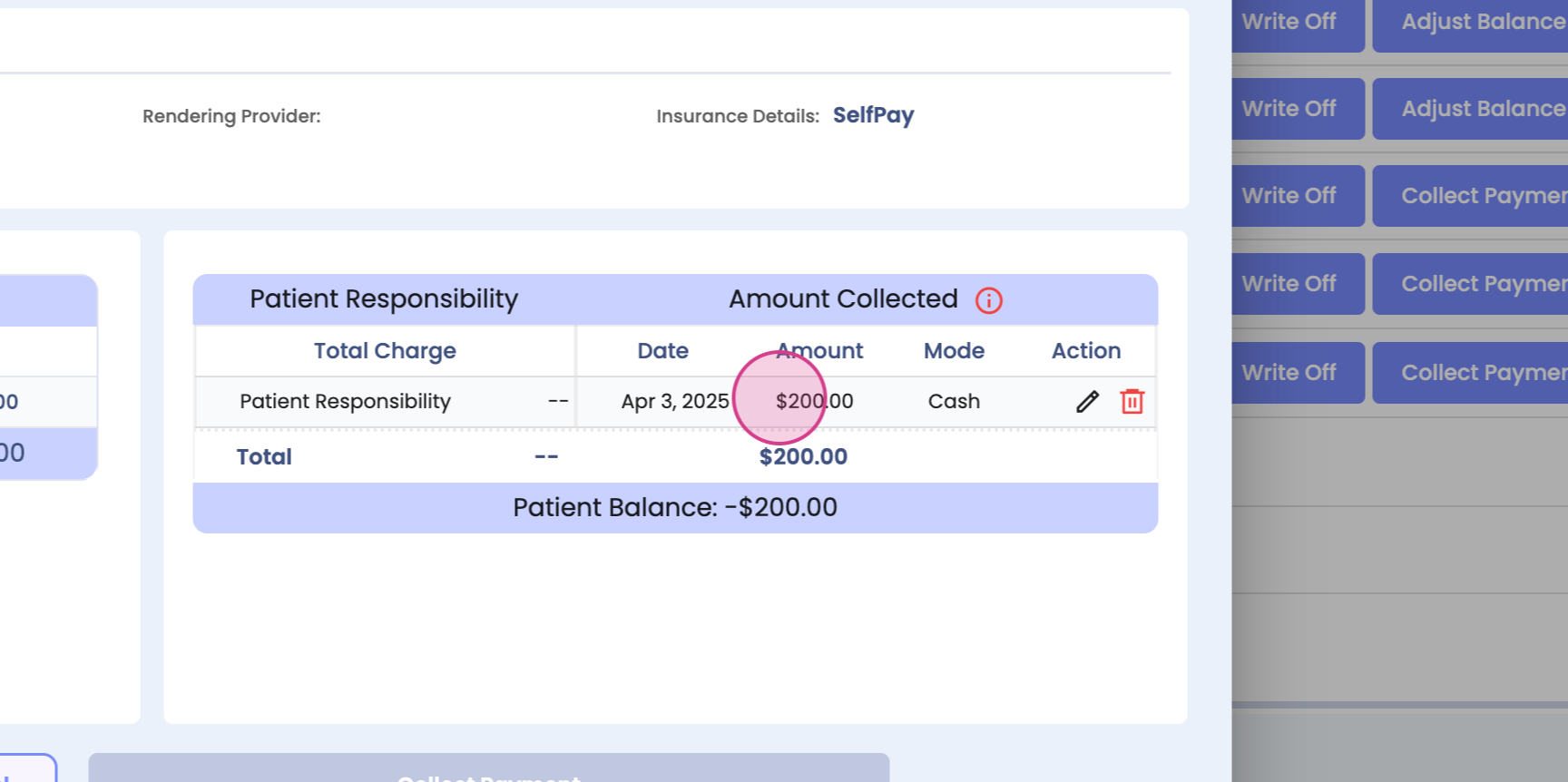
Step 11: You can track the payment details under the charge ID that you just set this balance for.
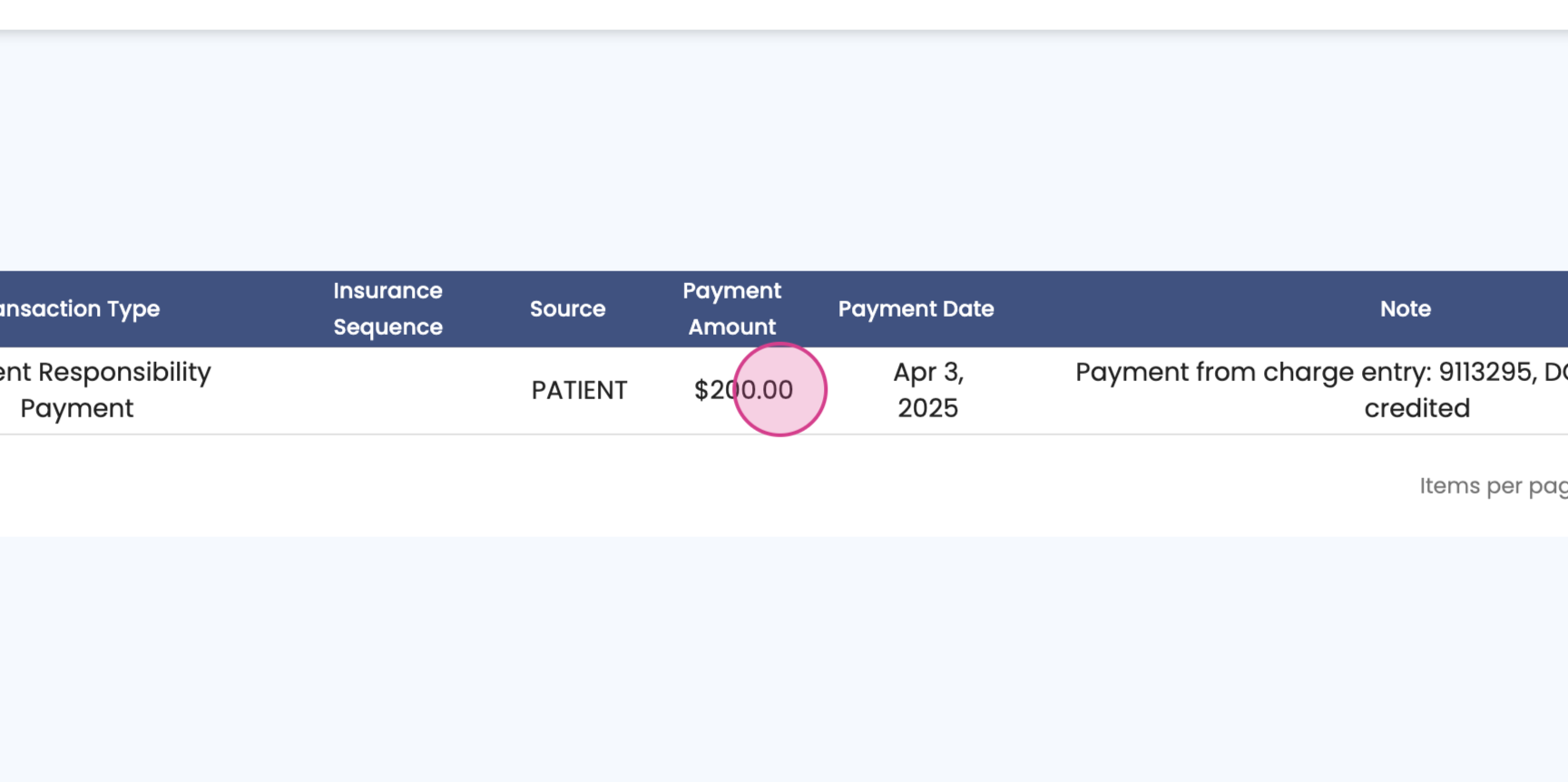
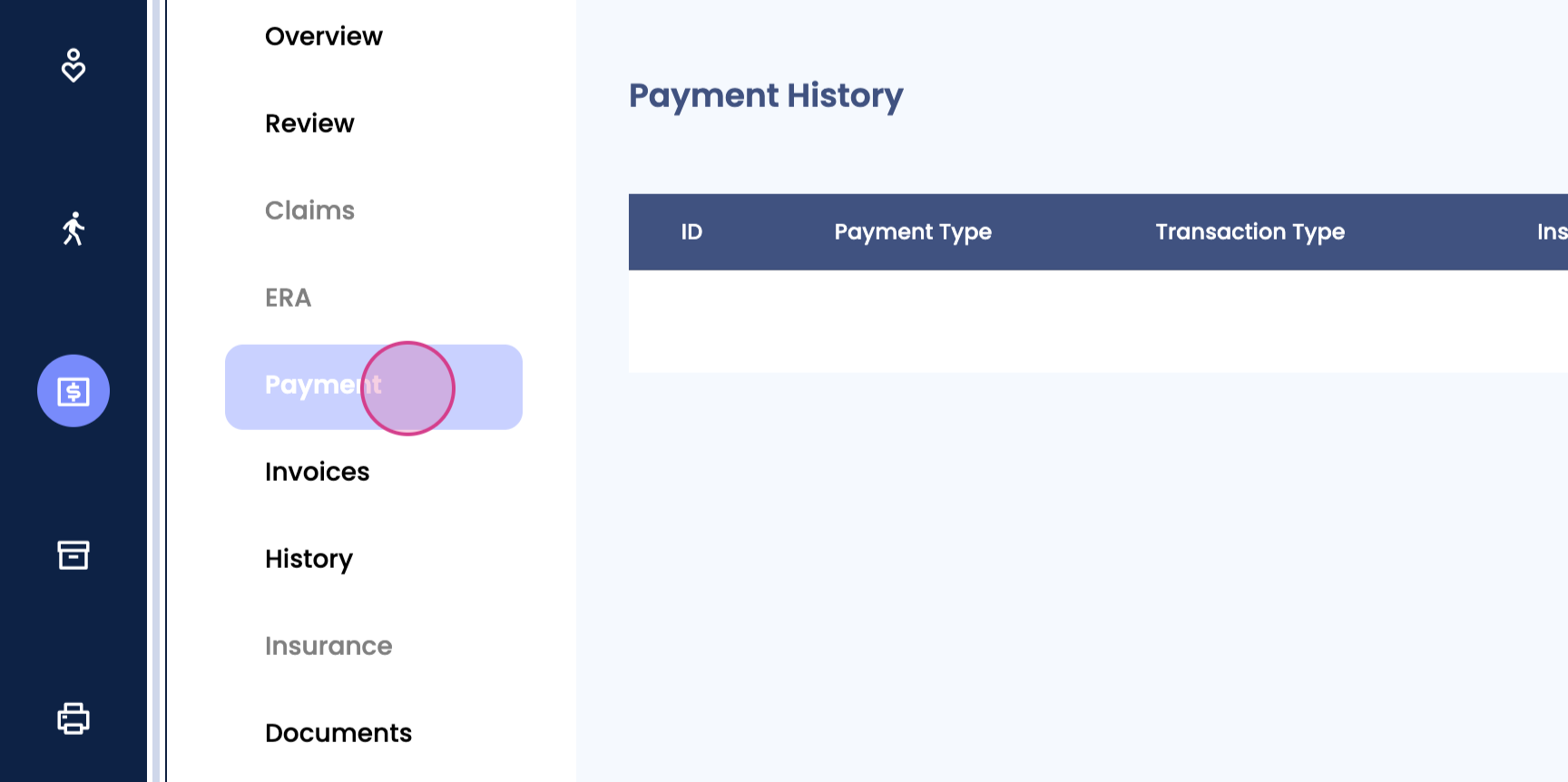
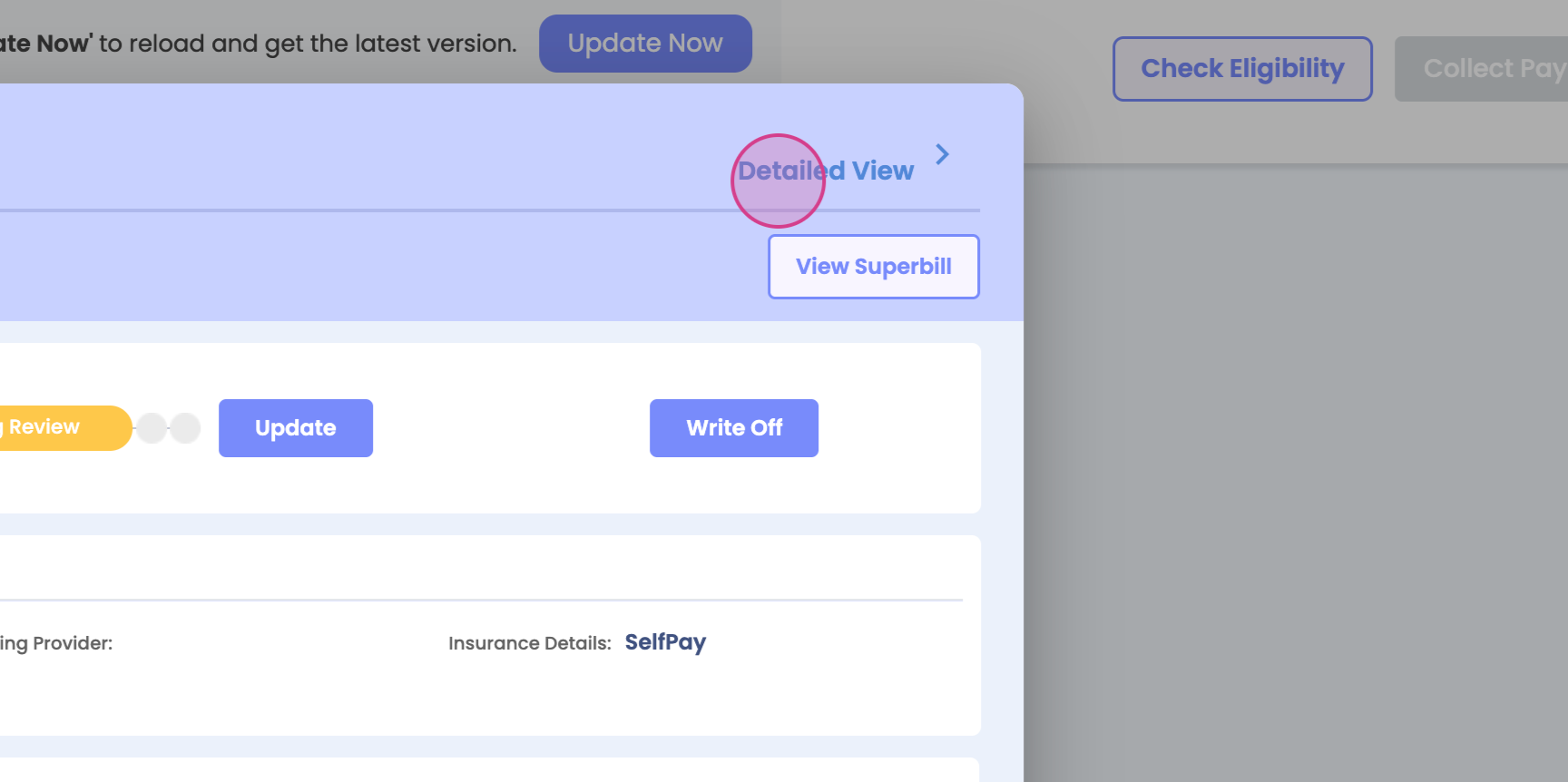
Step 12: To see the payment details, go to Detail View and move to the Payments tab.
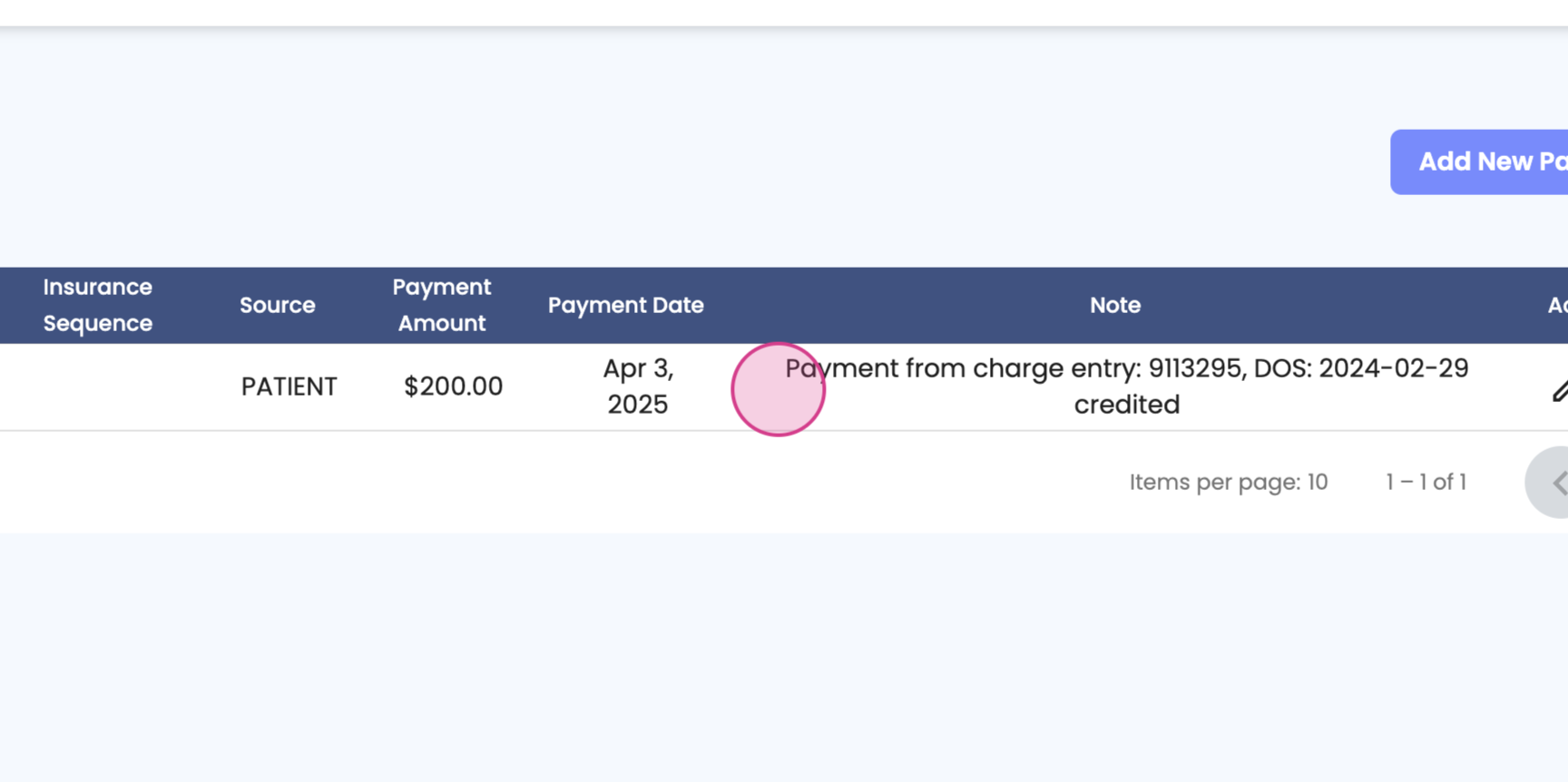
Step 13: Here, you'll see the payment from charge ID 911-3295 and the date of service using which we have adjusted a $200 in discharge ID.
Thank you for following this tutorial.