
Bulk Download and Print Patient Documents and SOAP Notes Guide
In this article, you'll learn how to use the new feature for bulk downloading and printing of patient documents, SOAP notes, previous EMR notes, and POCs.
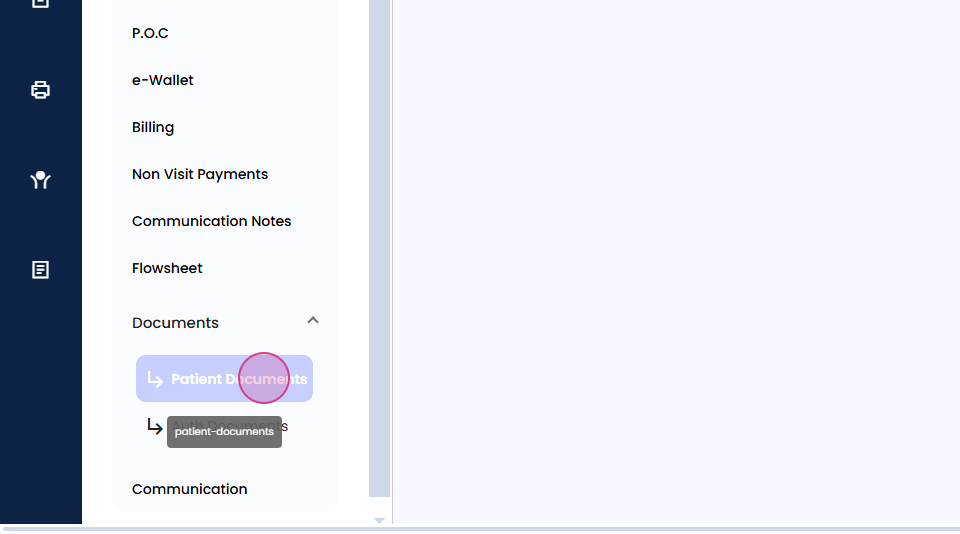
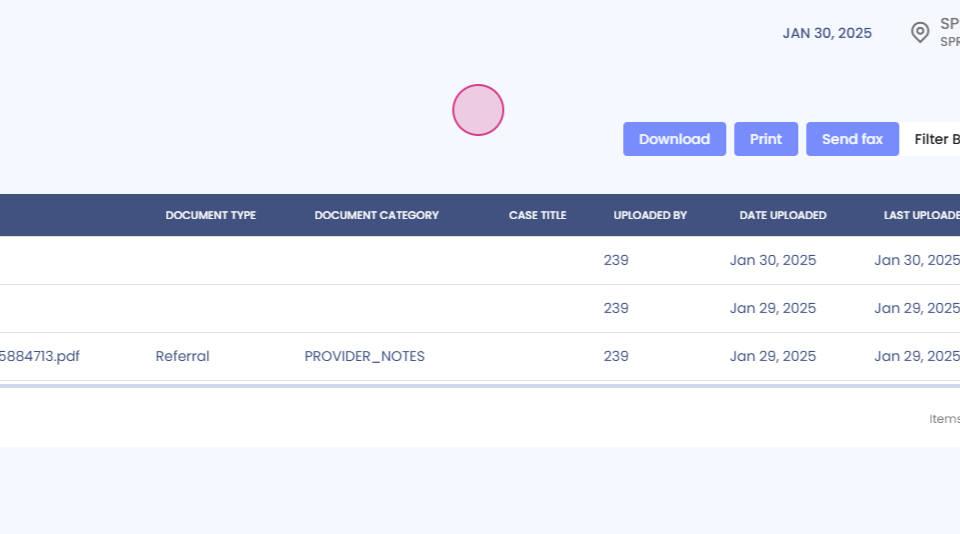
Step 1: Navigate to the patient's timeline and select Patient Documents. These are the documents attached for the patient.
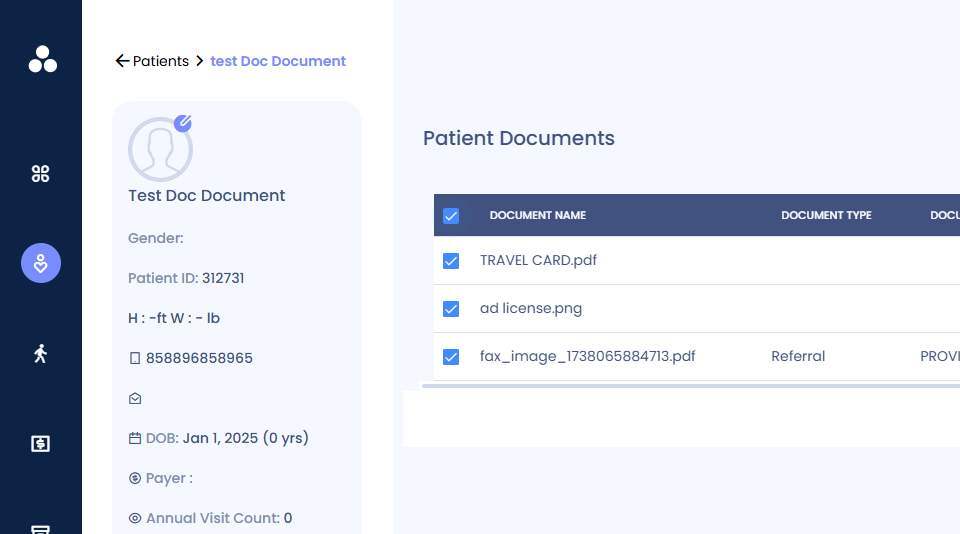
Step 2: To download or print all documents at once, click on the Checkbox. This action selects all documents.
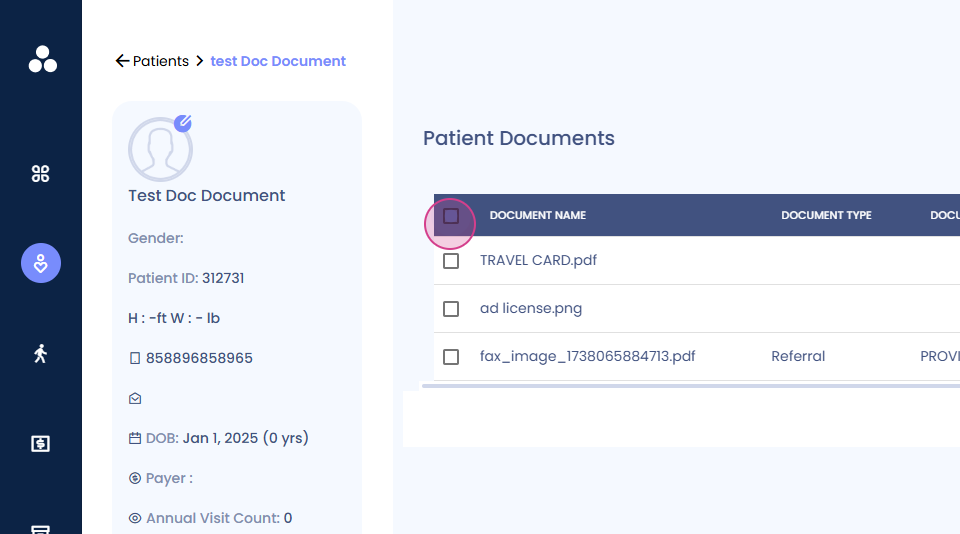
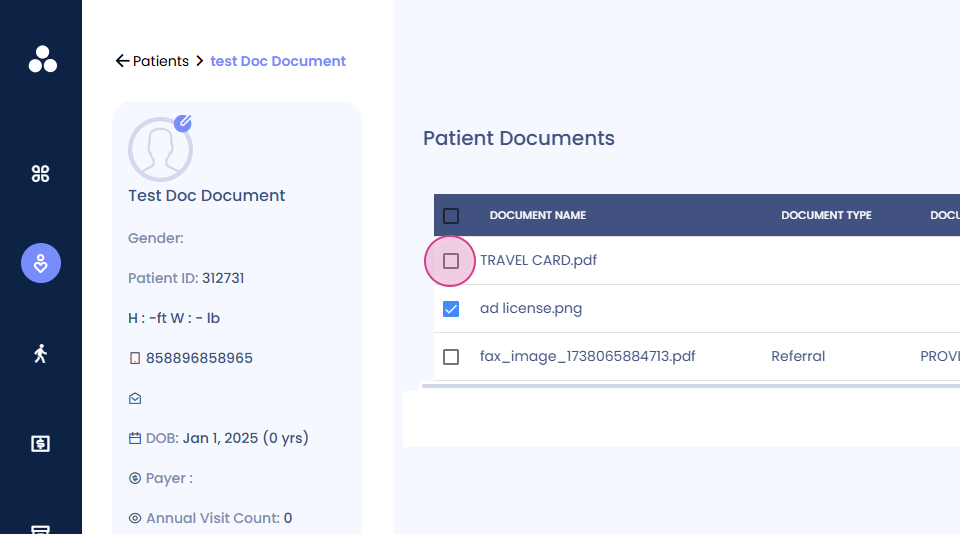
Step 3: If you only want to select a few documents, click on the Checkbox next to each document you want to include.
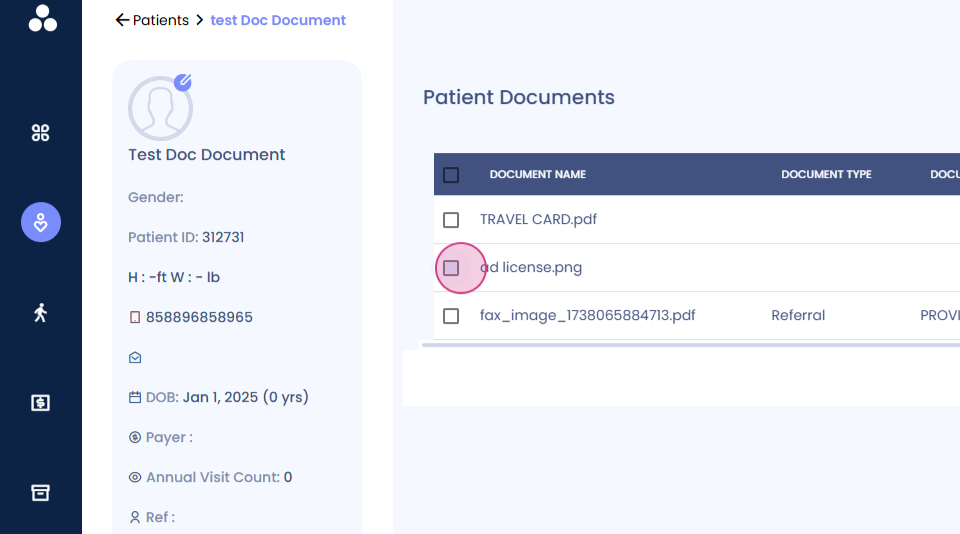
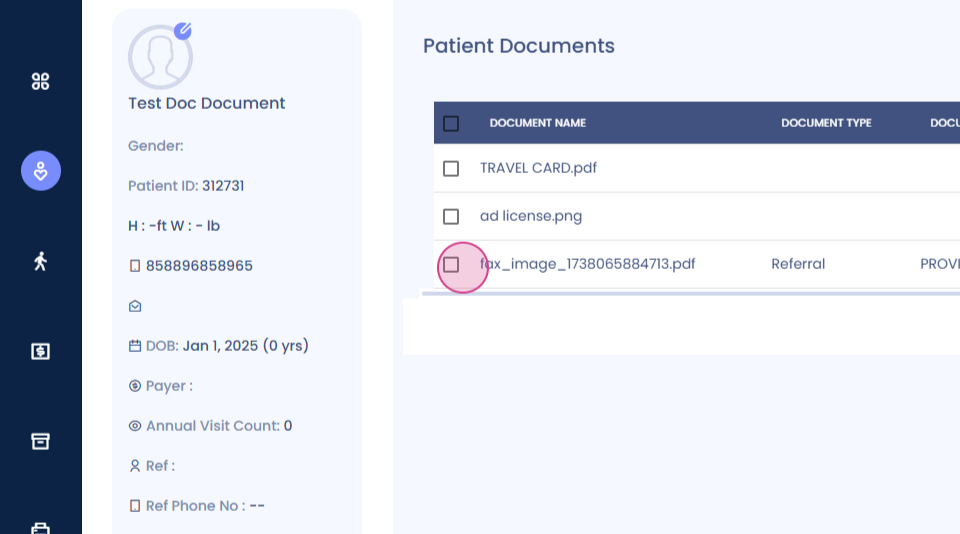
Step 4: After selecting the documents, click on Download. The selected files will download as a zip file on your system.
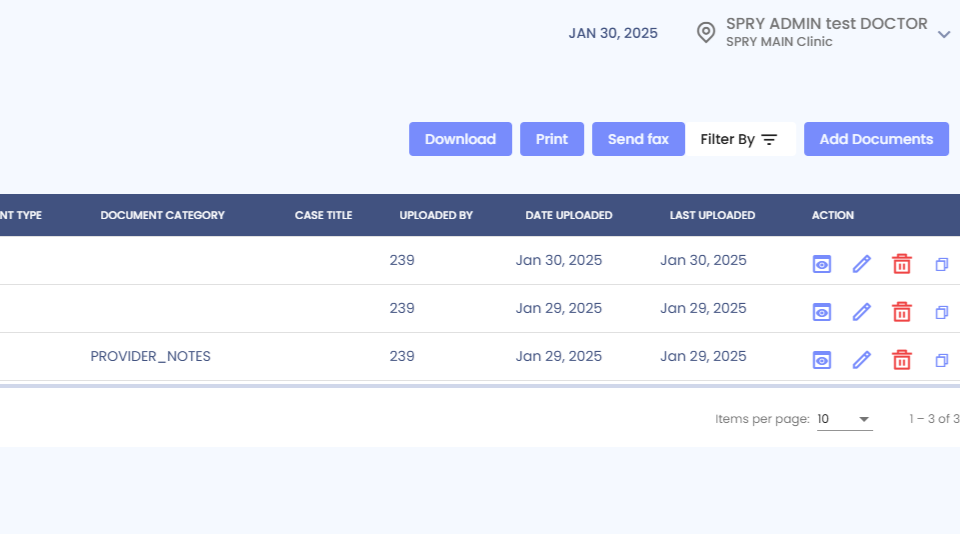
Step 5: To print the selected documents, click on Print. The selected documents will print out.
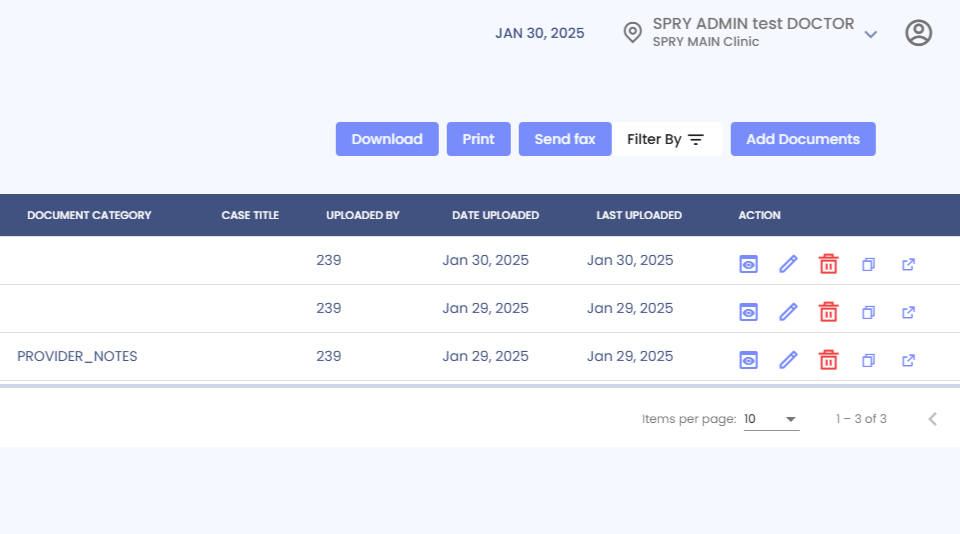
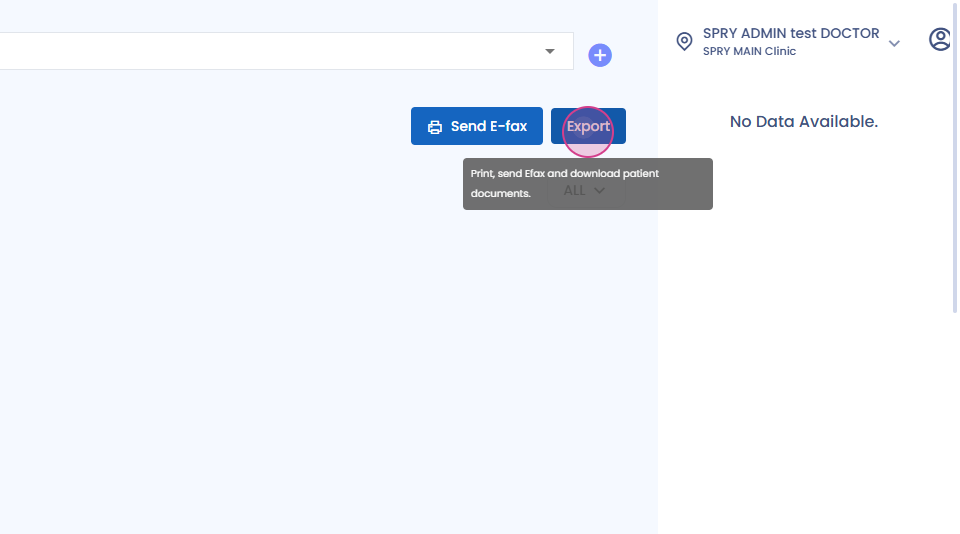
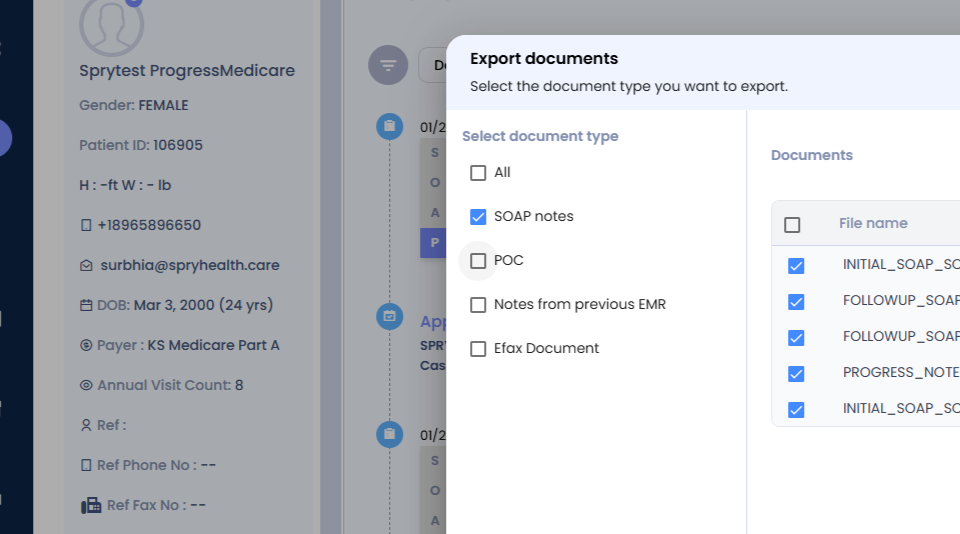
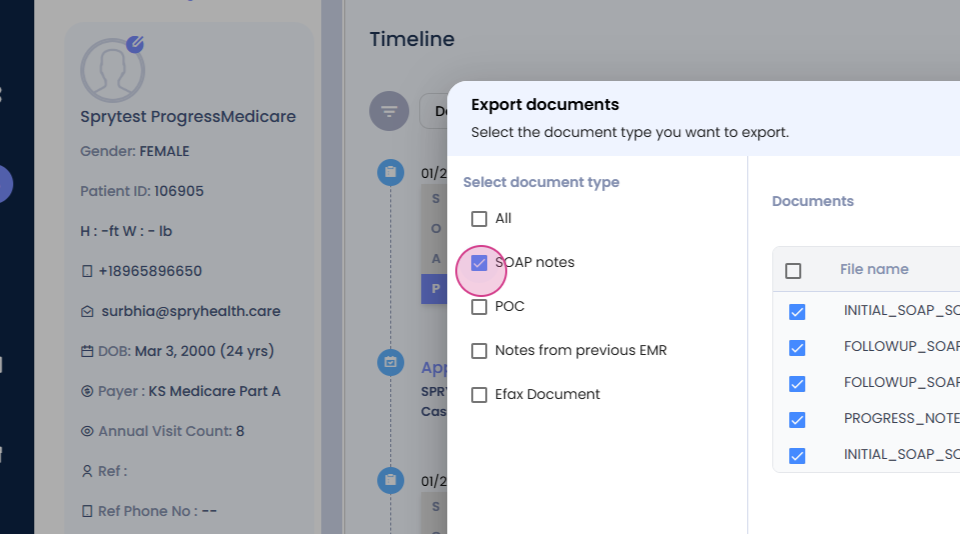
Step 6: To download SOAP notes or legacy notes in bulk, navigate to the patient's timeline and click on Export at the top.
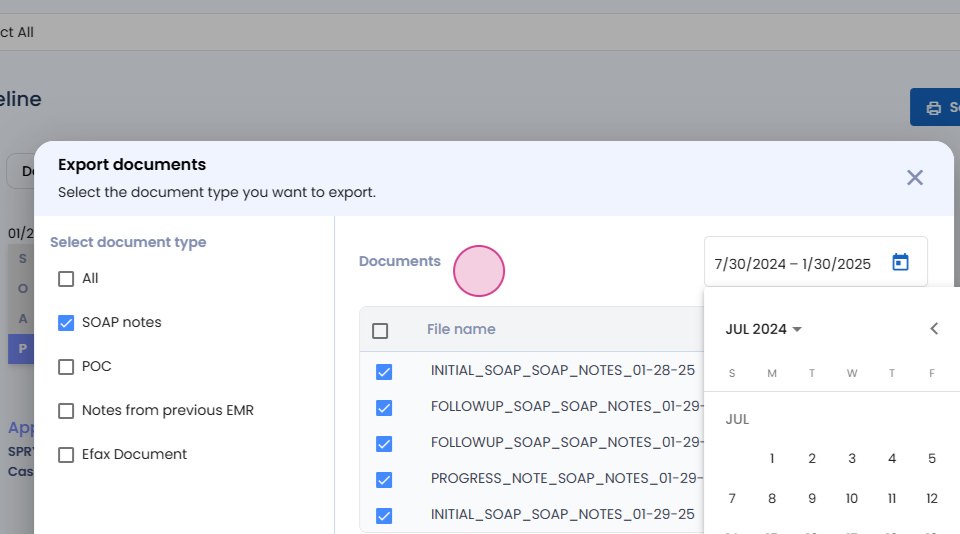
Step 7: On the left side, you'll see all the document types for the patient. To download all the SOAP notes, click on SOAP Notes. The SOAP notes for the last six months will display.
Step 8: If you want to extend the date range, adjust it in the Date Range Filter.
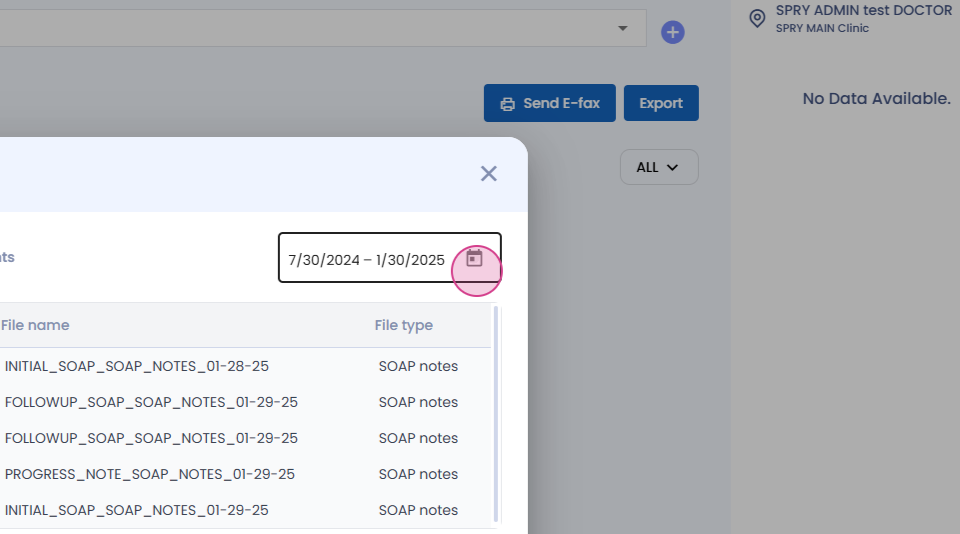
Step 9: With all documents selected, you have the option to download, print, or send Effects directly to the MD from this screen.
Step 10: To download the POC for the patient, click on POC. The SOAP notes and plan of care will download together.
And that's it! You've successfully learned how to bulk download and print patient documents, SOAP notes, previous EMR notes, and POCs.