
How To Use Macros in SPRY
Easily document your SOAP notes in SPRY with the macro function. Macros let you store and quickly reuse standard phrases or templates, so you don’t have to retype common documentation. Here’s how to create, use, and manage macros in your workflow.
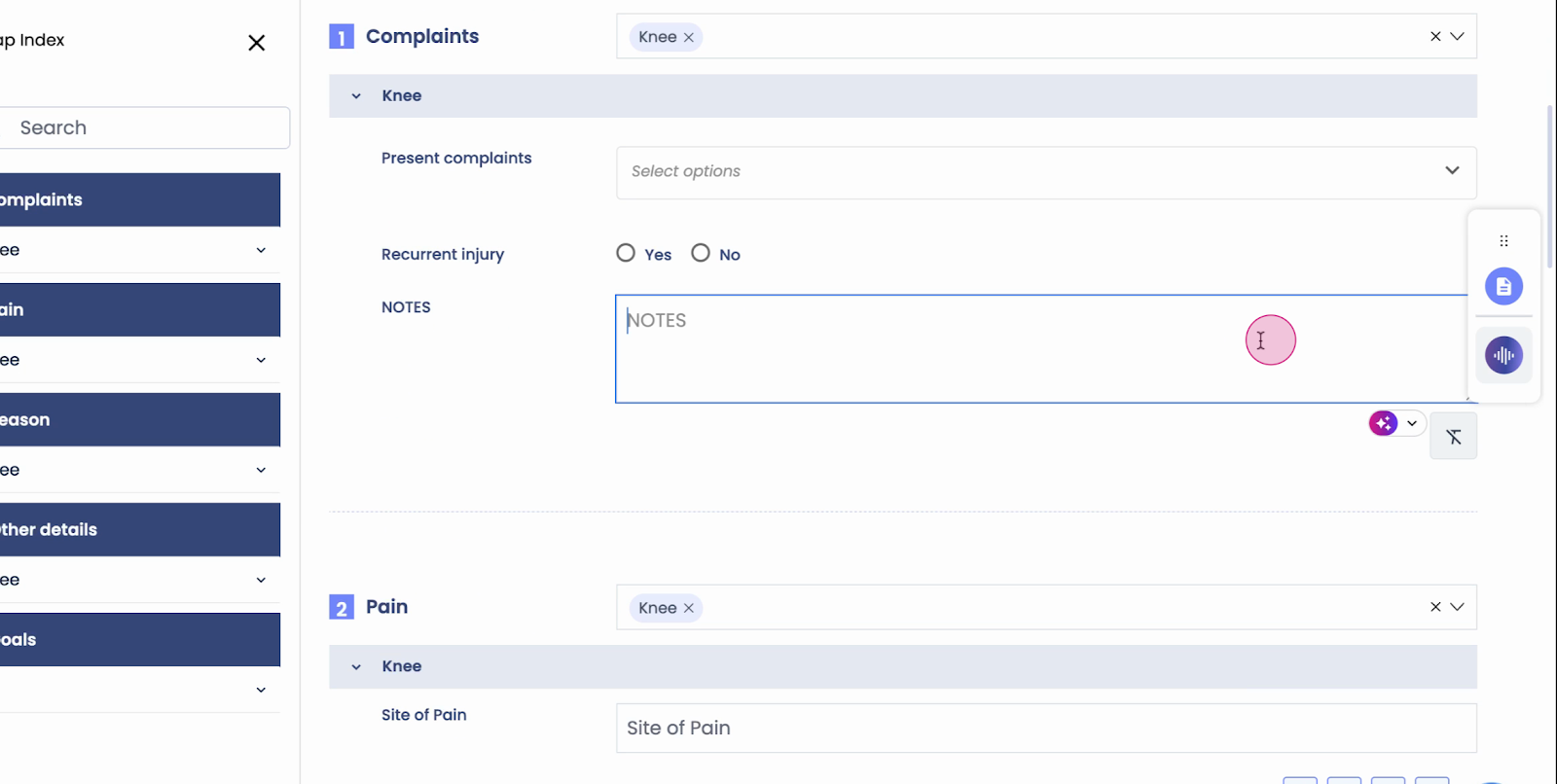
Step 1: Navigate to your SOAP note and look for the macro icon in any open text box section.
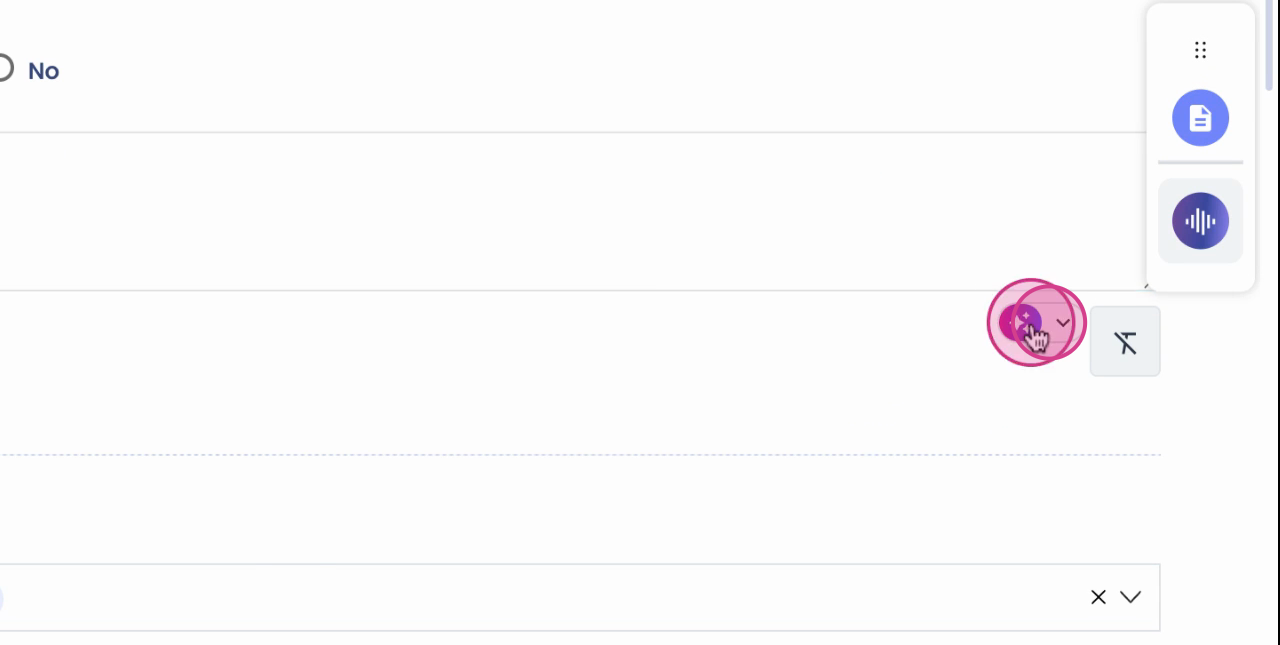
Step 2: Click the macro icon to open macro options.
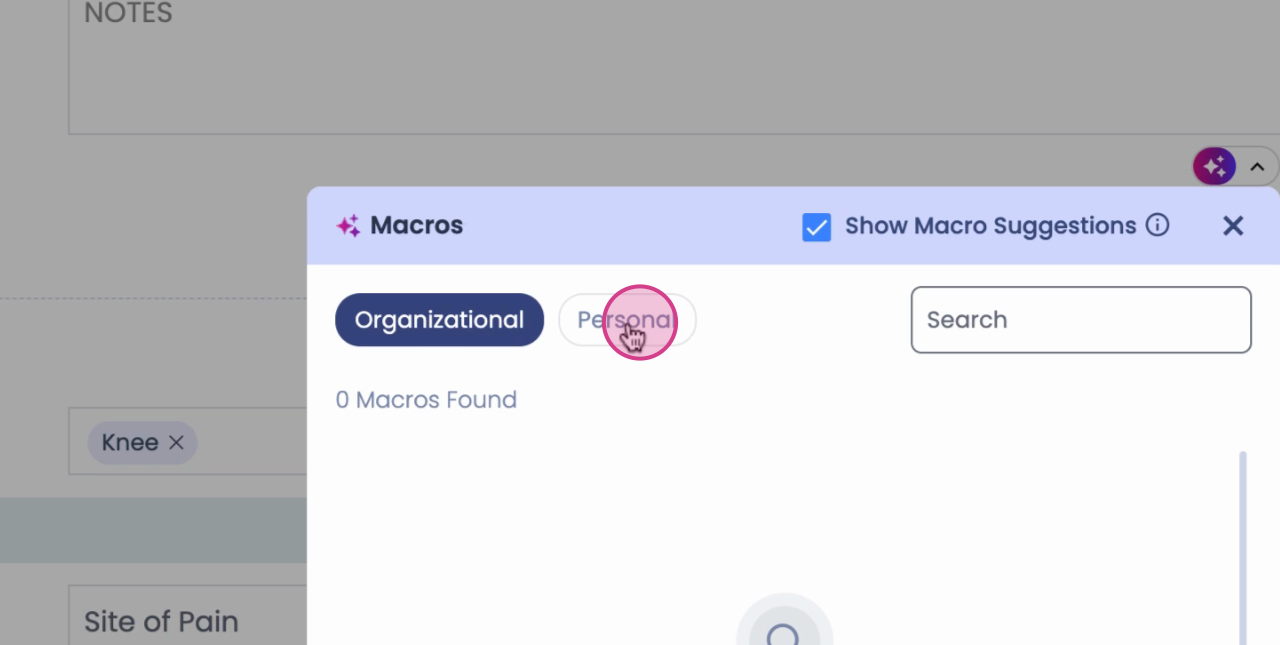
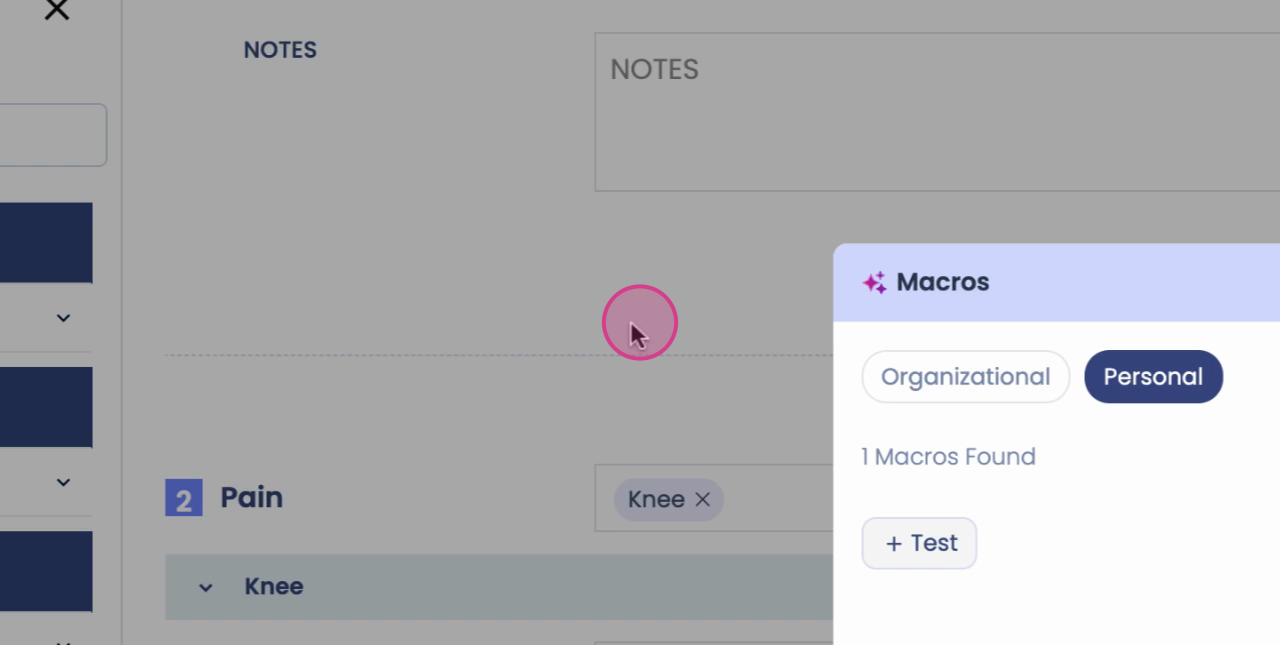
Step 3: Choose to add an organization-wide macro or a personal (user-specific) macro.
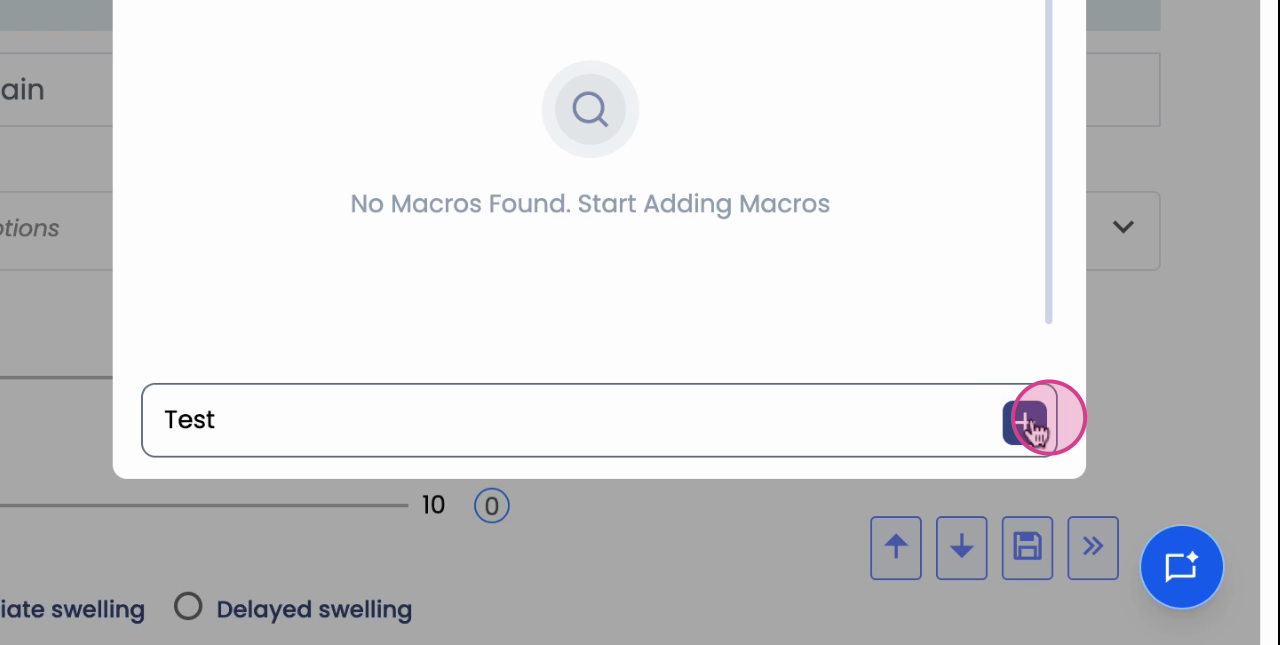
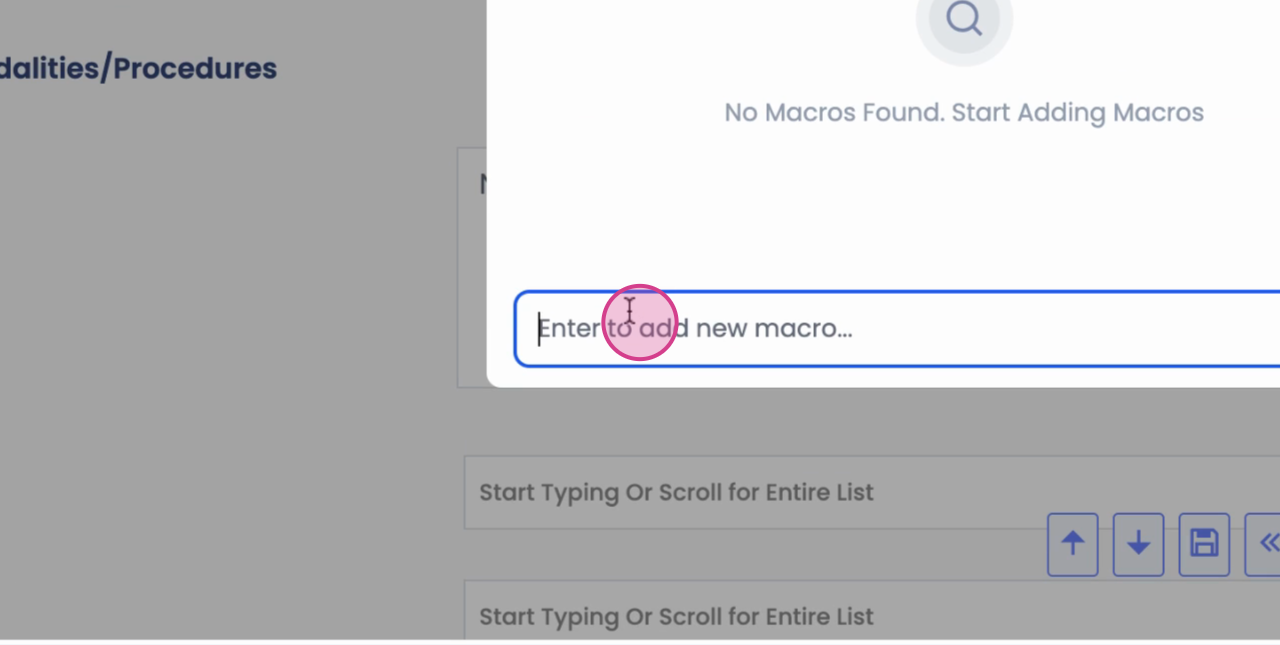
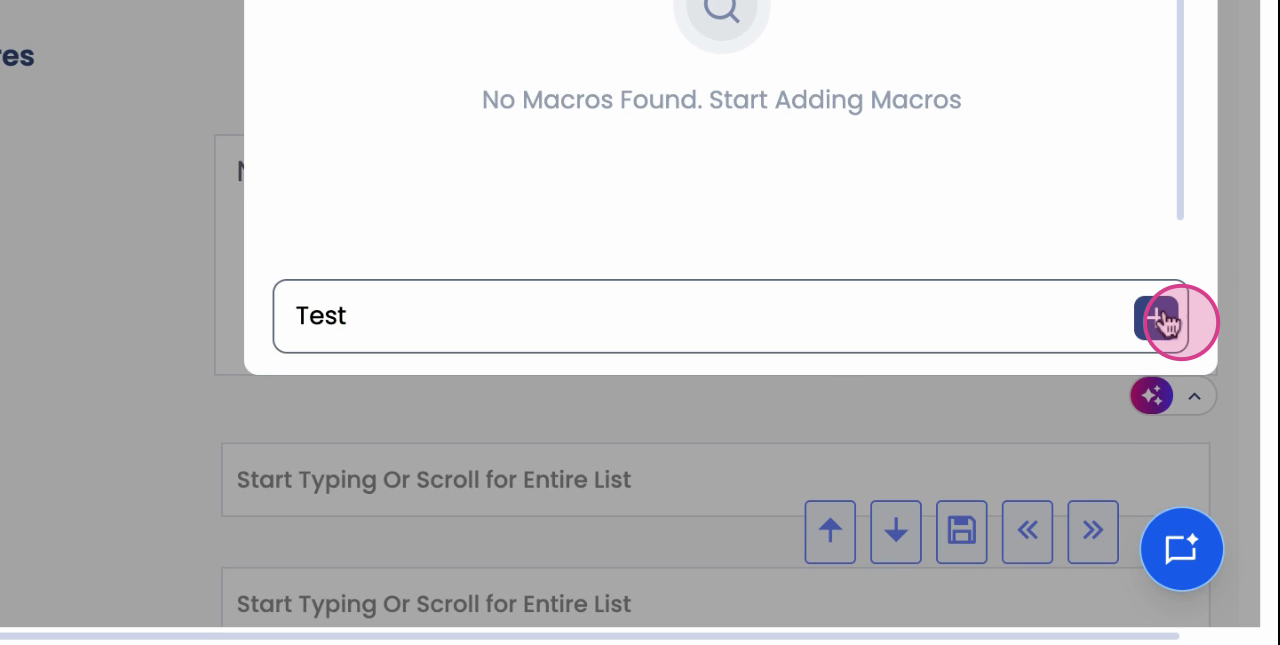
Step 4: Enter the text you want to save as a macro.
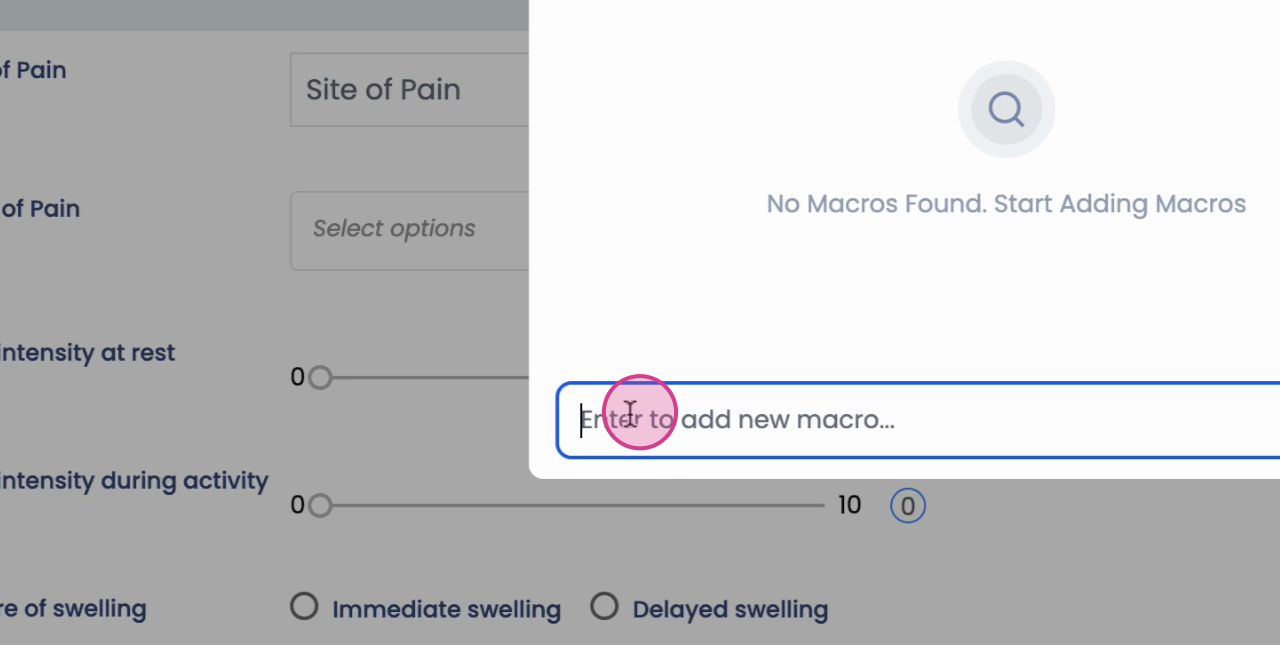
Step 5: Click the plus sign to save your macro.
Step 6: Enable macro suggestions to automatically see saved macros as you start typing keywords in an open note box.
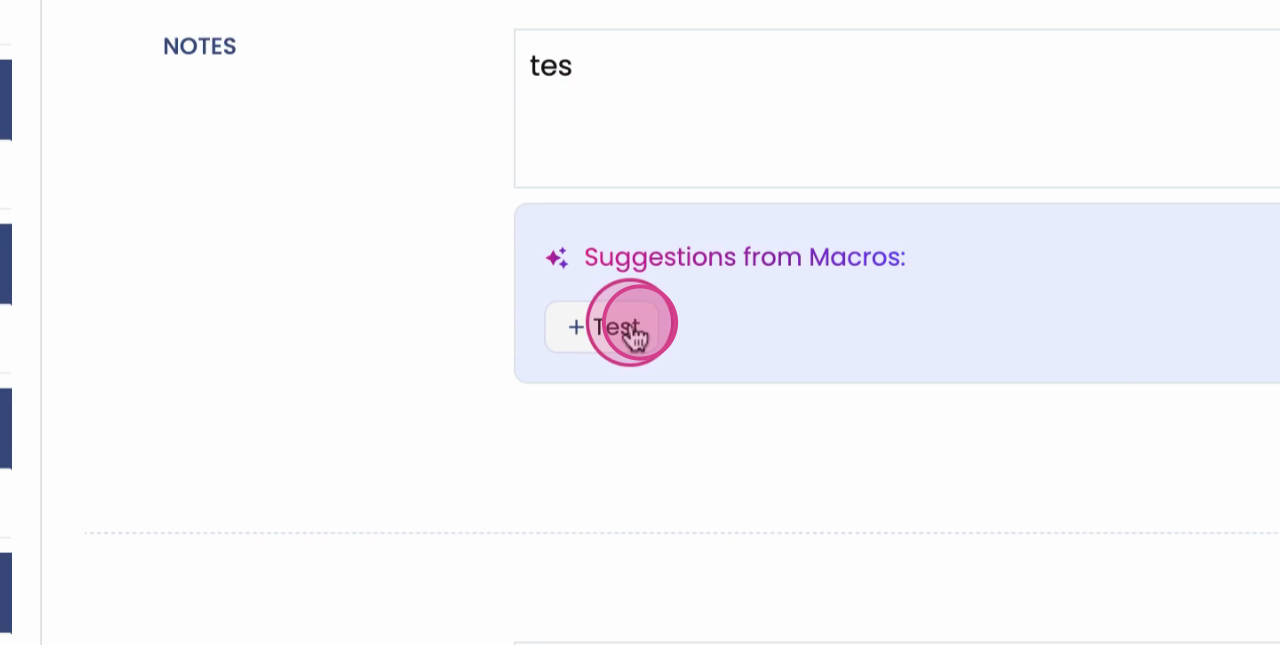
Step 7: When typing, look for suggested macros to appear. Click a suggestion to instantly add it to the text box.
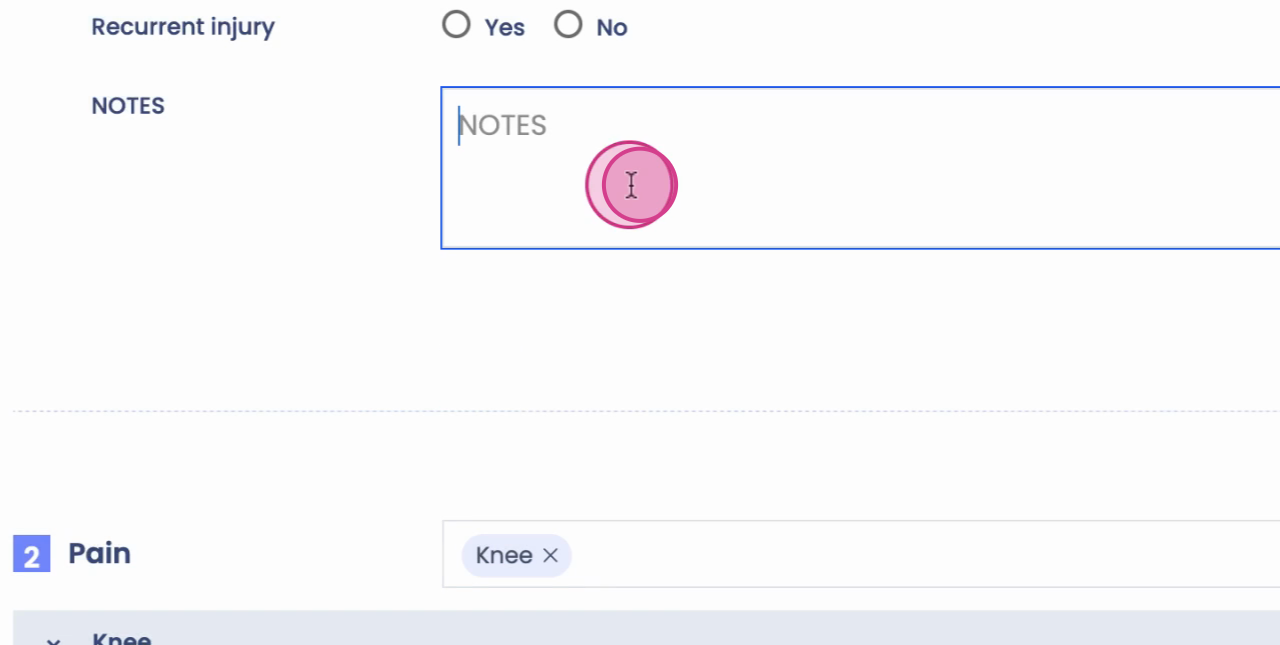
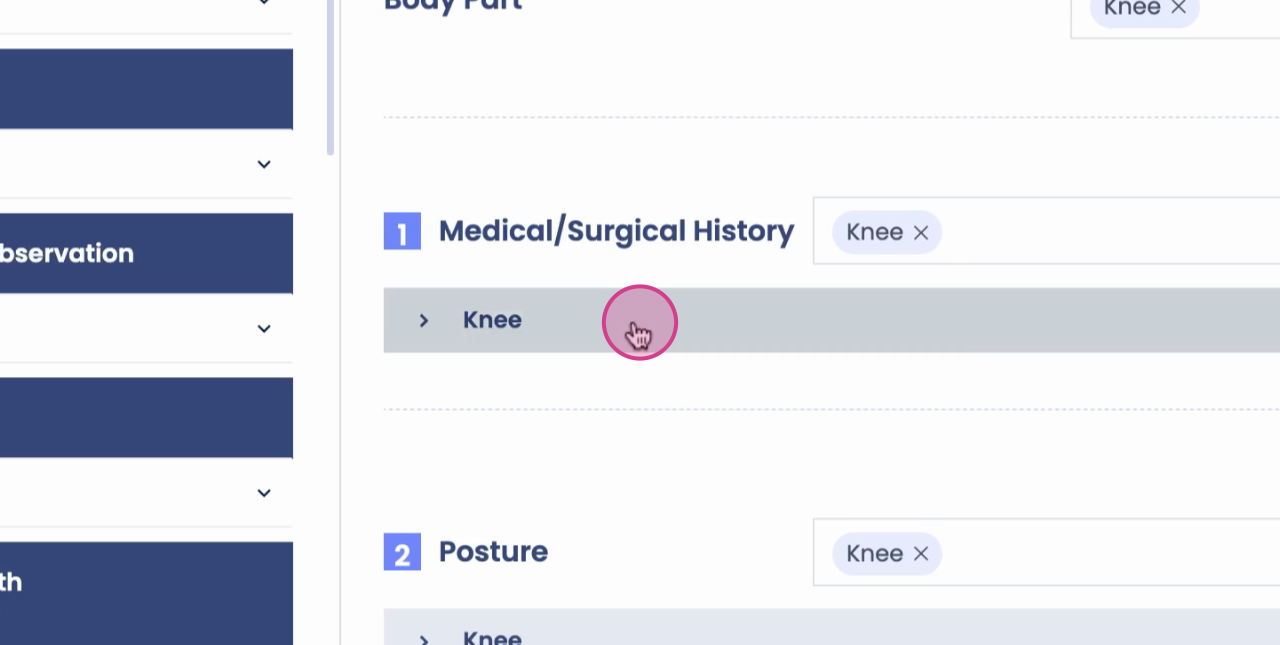
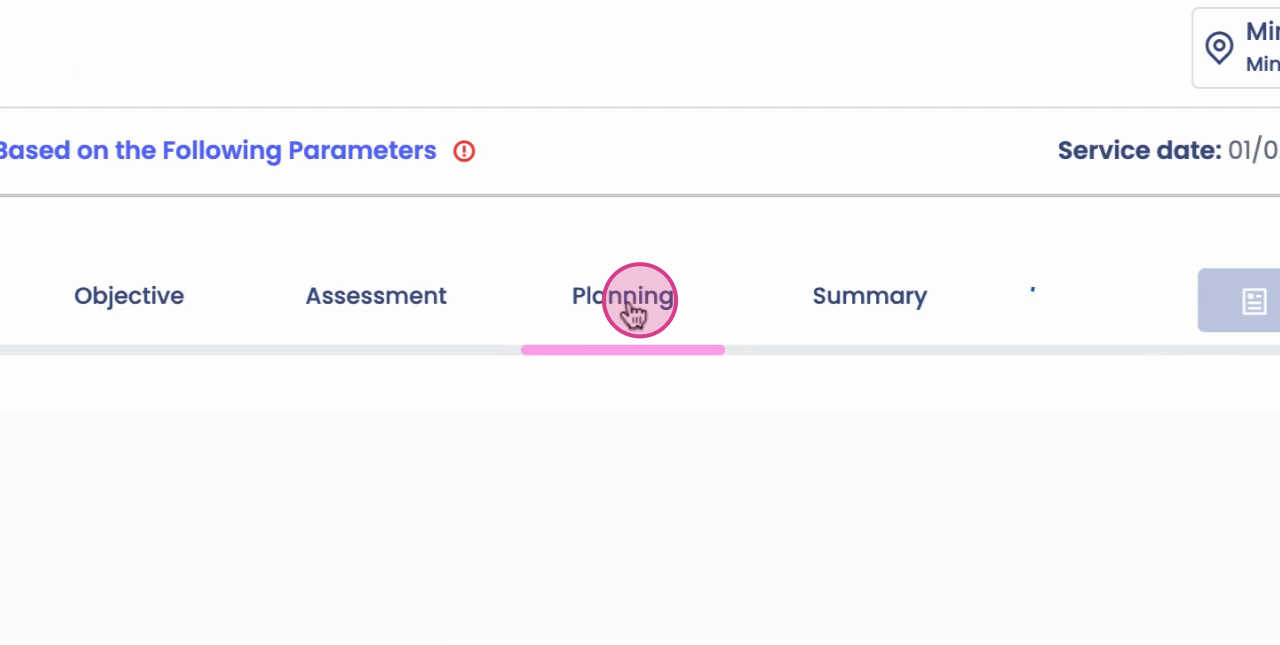
Step 8: Macros are available across all sections, including Subjective, Objective, Assessment, and Plan. Each area supports using or adding custom macros.
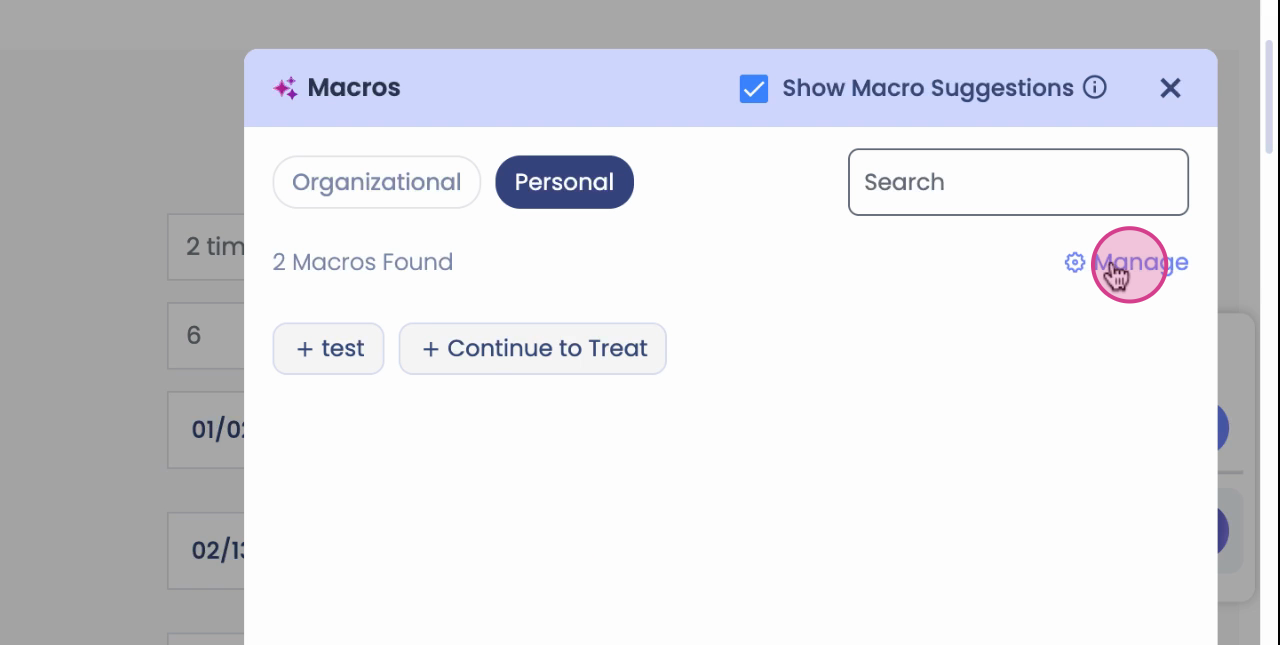
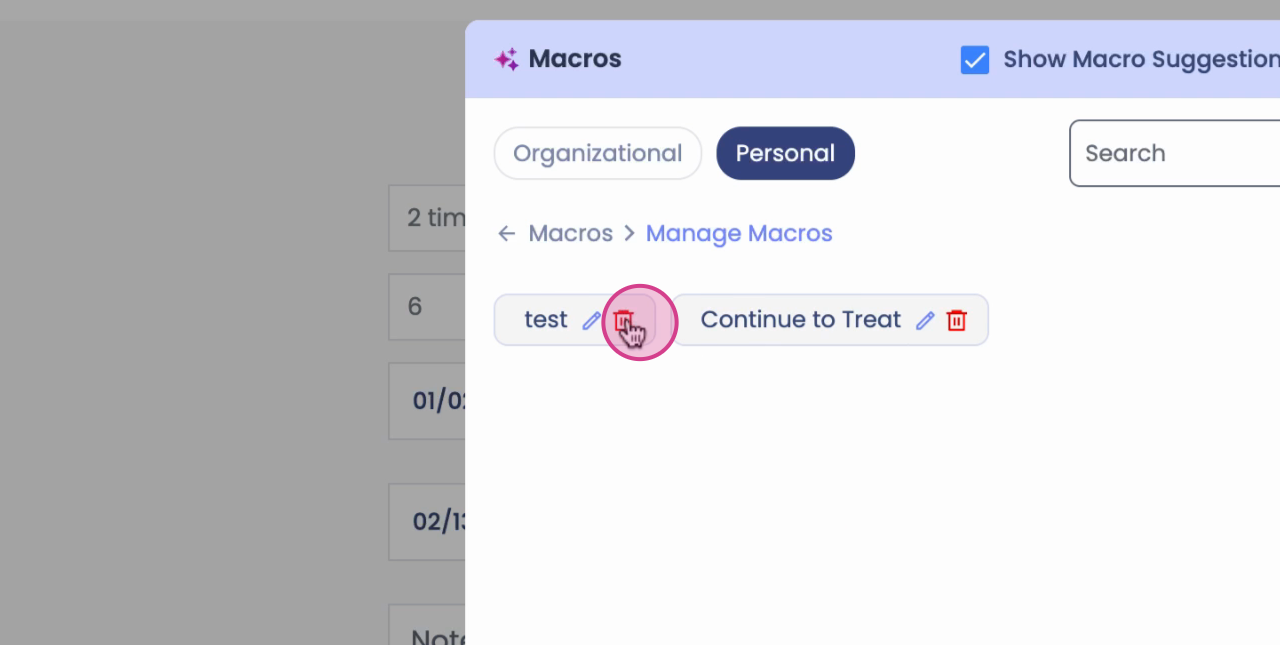
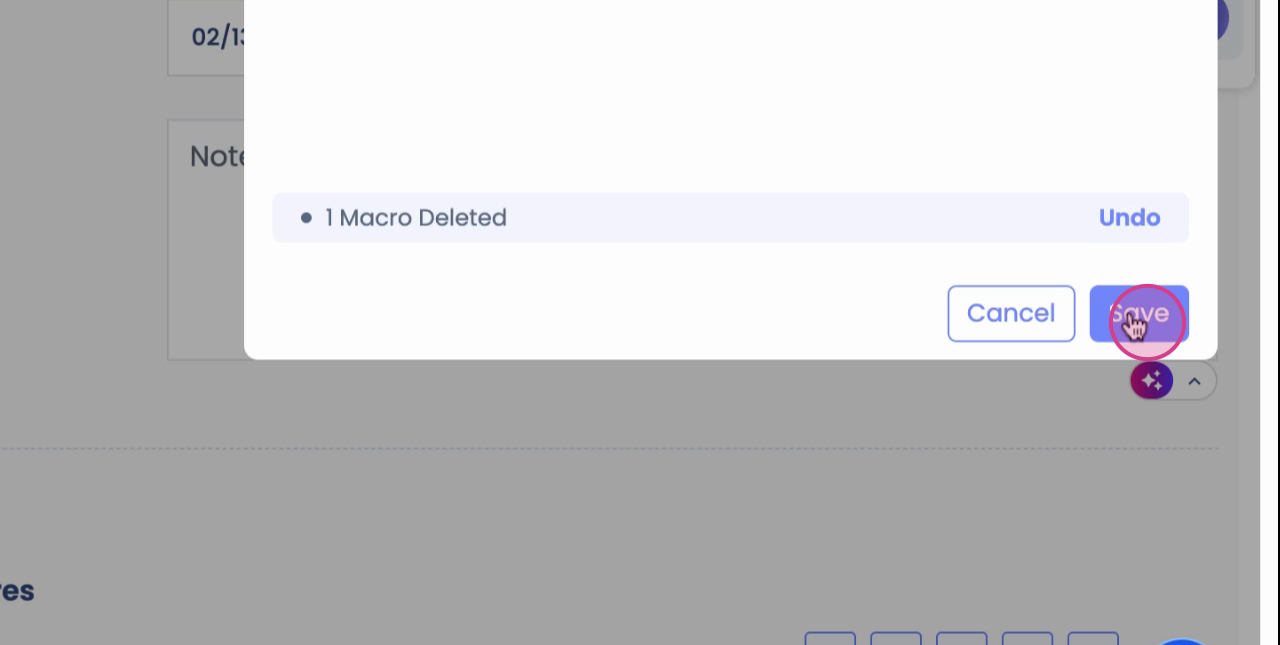
Step 9: To manage your macros, click the manage icon. Delete macros as needed and click save.
Step 1: Admin users can add text or phrases to organization-wide macros, making them available to everyone in the system.
Macros streamline your documentation process. Use personal and organization-wide macros to save time and ensure consistent, accurate SOAP notes for every patient.