
How to Create and Manage Templates for Appointments
Templates help streamline your documentation workflow by letting you reuse detailed notes for similar appointments. Here’s how to create, save, and manage templates, so you can focus more on care and less on paperwork.
Creating a Template from Scratch
Step 1: Go to your profile and start a new appointment.
Step 2: Select the body part for which you want to create a template.
Step 3: Complete the appointment setup as usual.
Step 4: Click on the appointment card, then select add documentation.
Step 5: Fill in all relevant sections—Subjective, Objective, Assessment, and Planning.
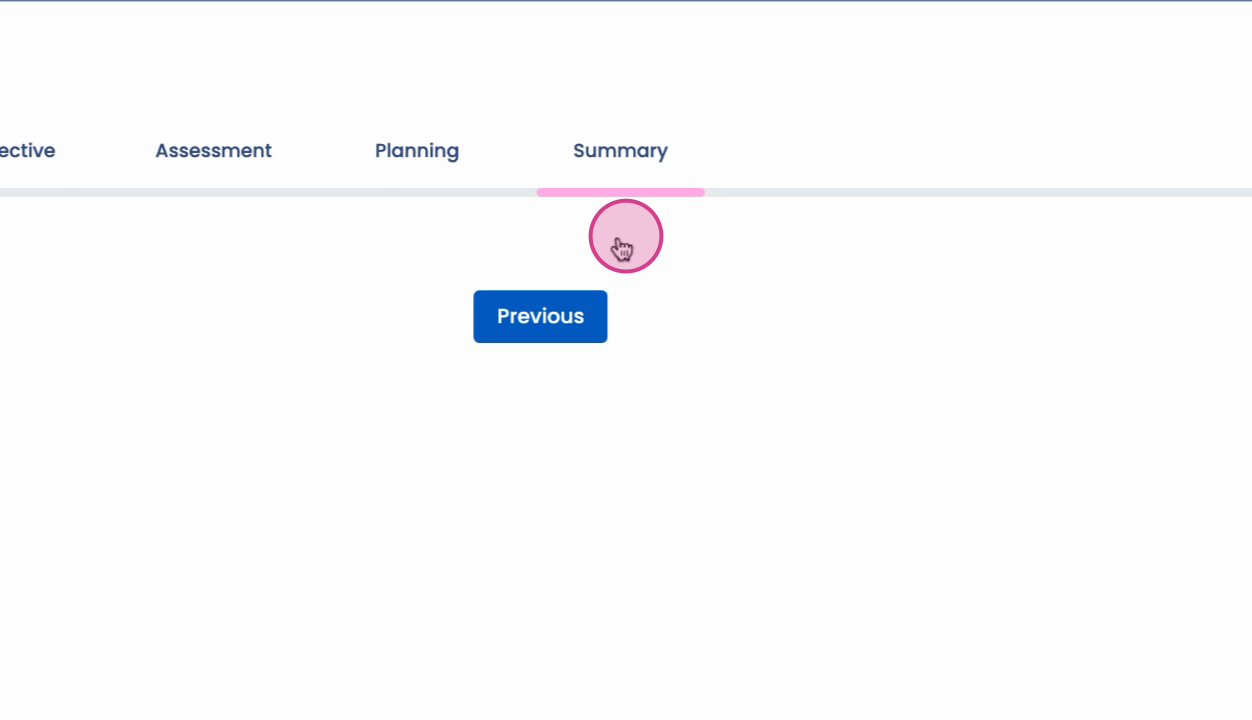
Include goal-setting and add any necessary ICD or CPT codes within the plan.
Step 6: If needed, make additional changes to any section.
Step 7: Once all information is entered, go back to the patient timeline.
Step 8: Click on create template. Check all the details you’ve added.
Step 9: Add any extra details if necessary.
Step 10: Give your template a name.
Step 11: Click save template to finish.
Creating a Template from an Existing Patient Note
Step 1: Find the patient whose note you want to use (search by patient number or name).
Step 2: Click view profile.
Step 3: Go to the patient's timeline.
Step 4: Click the plus (+) button or create template option.
Step 5: Review and verify details in the Subjective, Objective, and Assessment sections.
Step 6: Add or edit ICD codes and CPT codes as needed.
Step 7: Click on the template name field.
Step 8: Click save template.
Viewing, Searching, and Managing Templates
Step 1: Go to the SOAP dashboard.
Step 2: Click on SOAP template to see all your templates.
Step 3: Search for templates by the name you gave them.
Step 4: Edit or delete templates from this view:
- To edit, select the template, make changes, and resave.
- To delete, click the three dots (⋮) next to a template, choose delete, and confirm.
Templates speed up your workflow by making documentation easier and more consistent. Regularly review and update your templates to ensure they match your current processes.