
Delete SOAP Notes
This article will guide you through the process of deleting both open and completed SOAP notes from a patient's timeline.
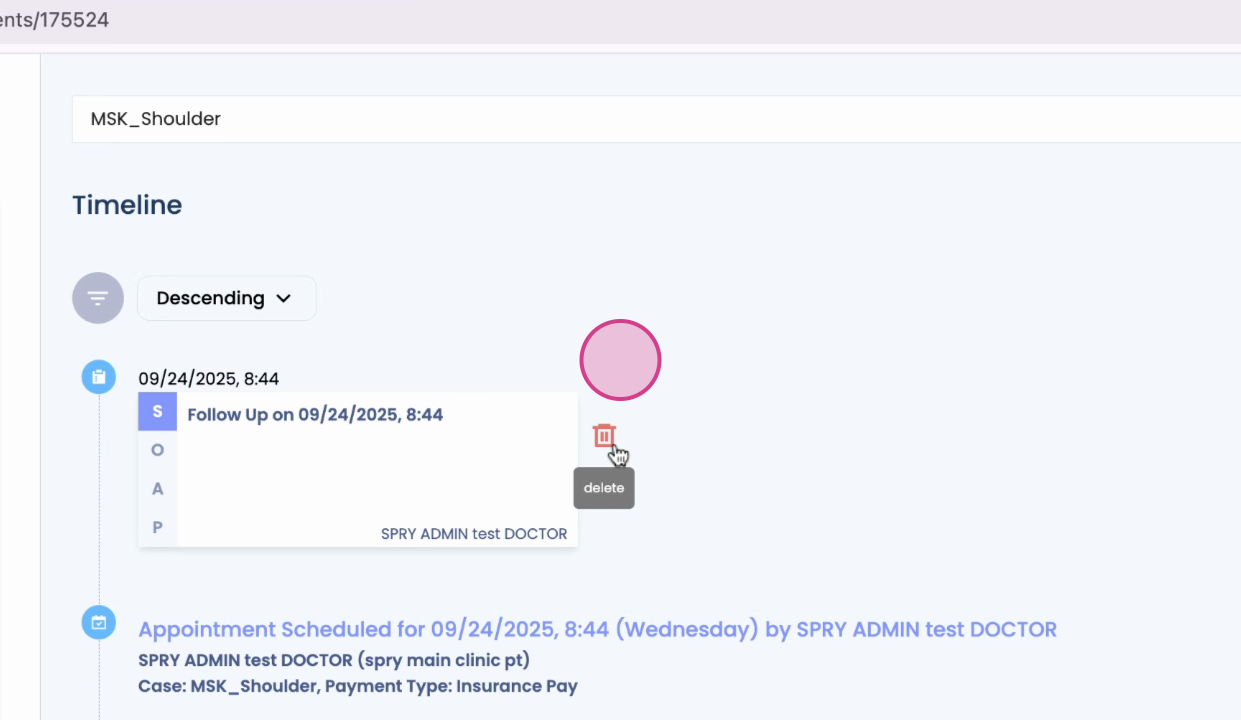
Step 1: Navigate to the patient's timeline. Here, you'll find open SOAP notes, which are identifiable by a trash can icon next to them. To delete an open SOAP note, click on the trash can icon next to the note you wish to delete.
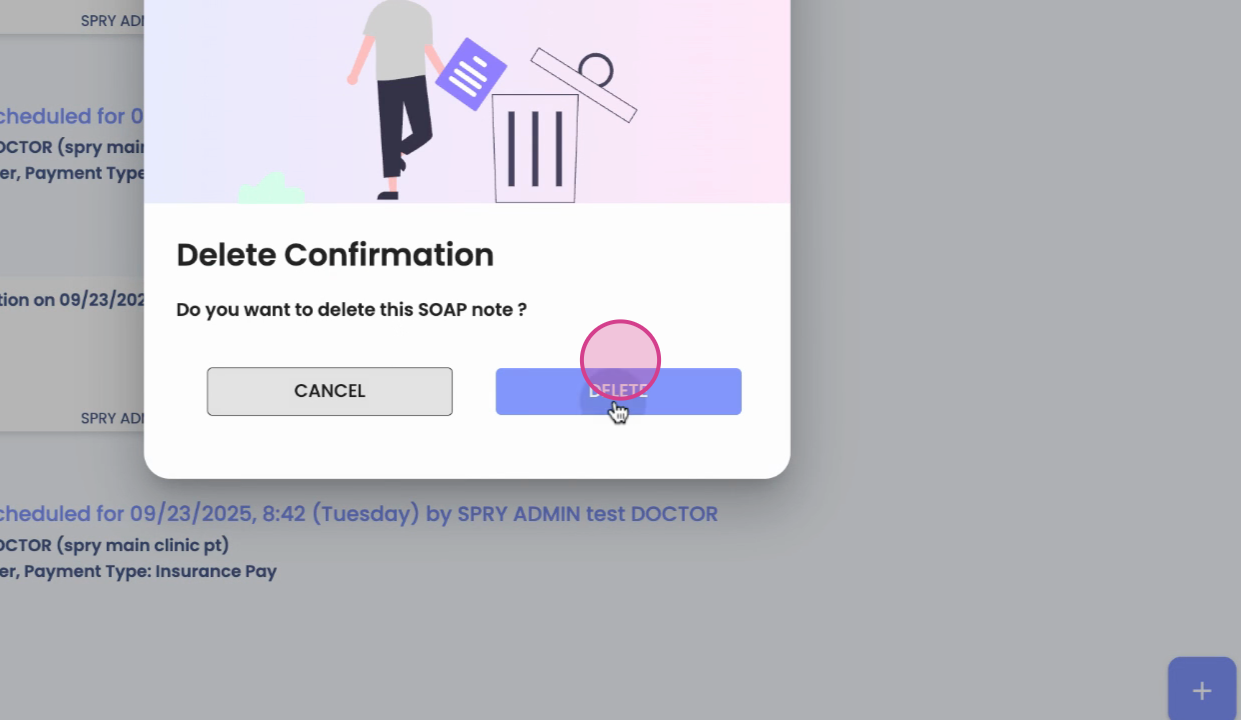
Step 2: After clicking on the trash can icon, you'll be asked to confirm your decision. Click on delete to remove the SOAP note from the patient's chart.
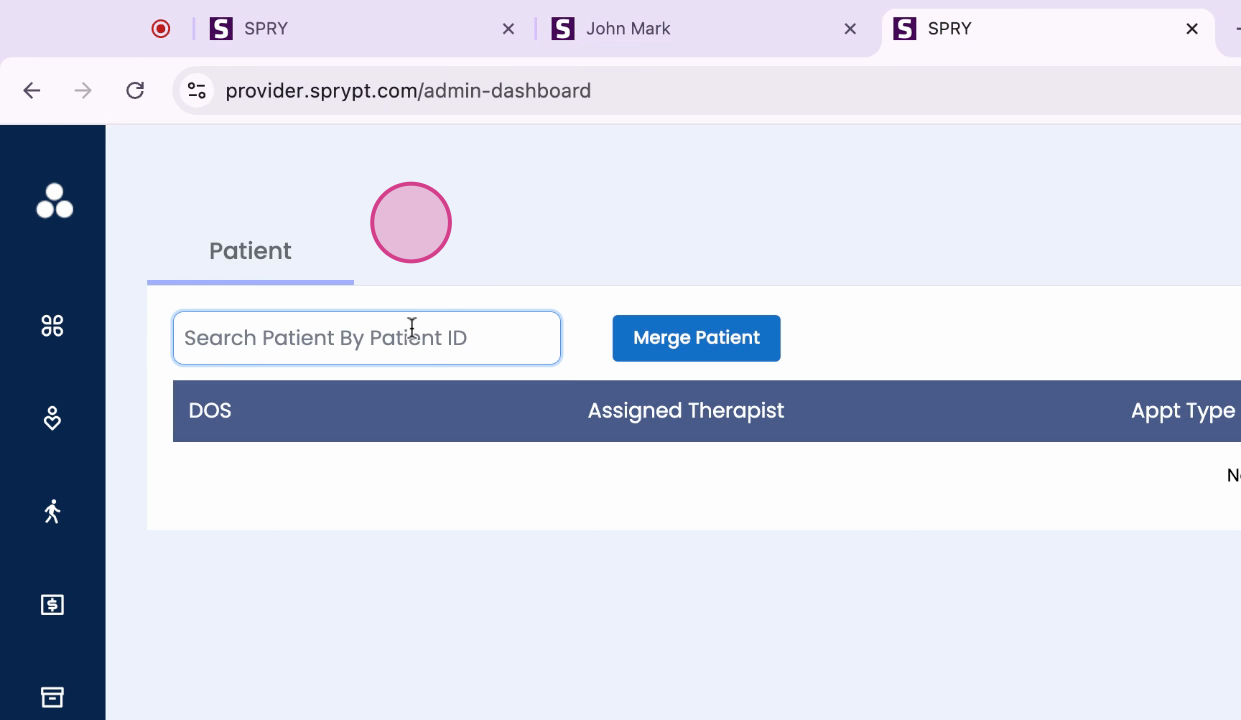
Step 3: If you need to delete a completed SOAP note due to an issue in the documentation, you'll need to do this from the admin dashboard. Access the admin dashboard by visiting privacy.com/admin-dashboard.
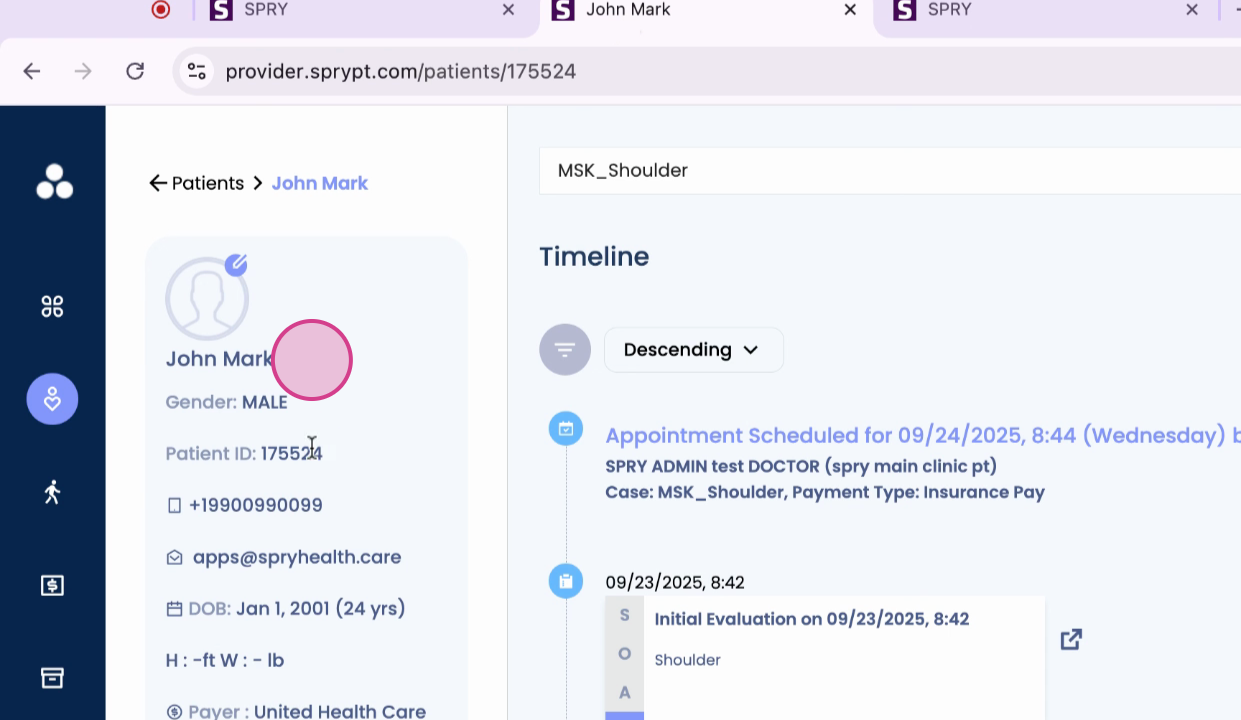
Step 4: Copy the patient ID.
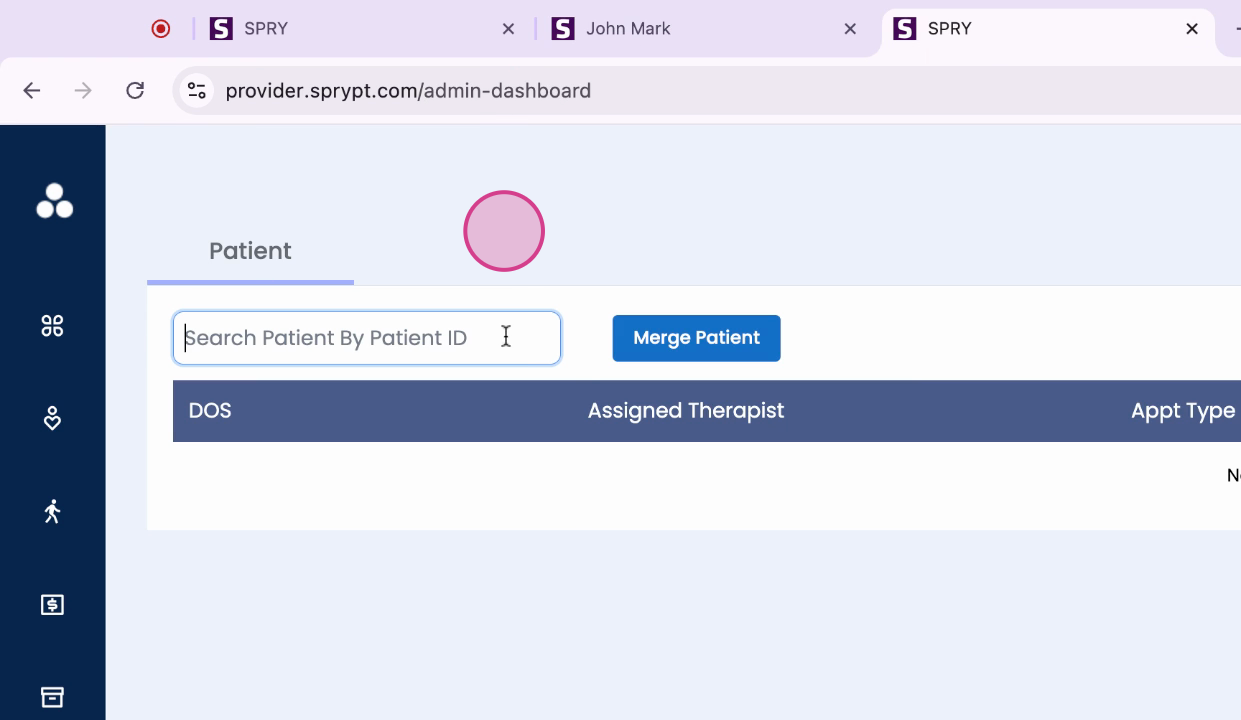
Step 5: Once you're in the admin dashboard, you'll see all the date of services and scheduled appointments for the patient. Locate the appointment that needs to be deleted.
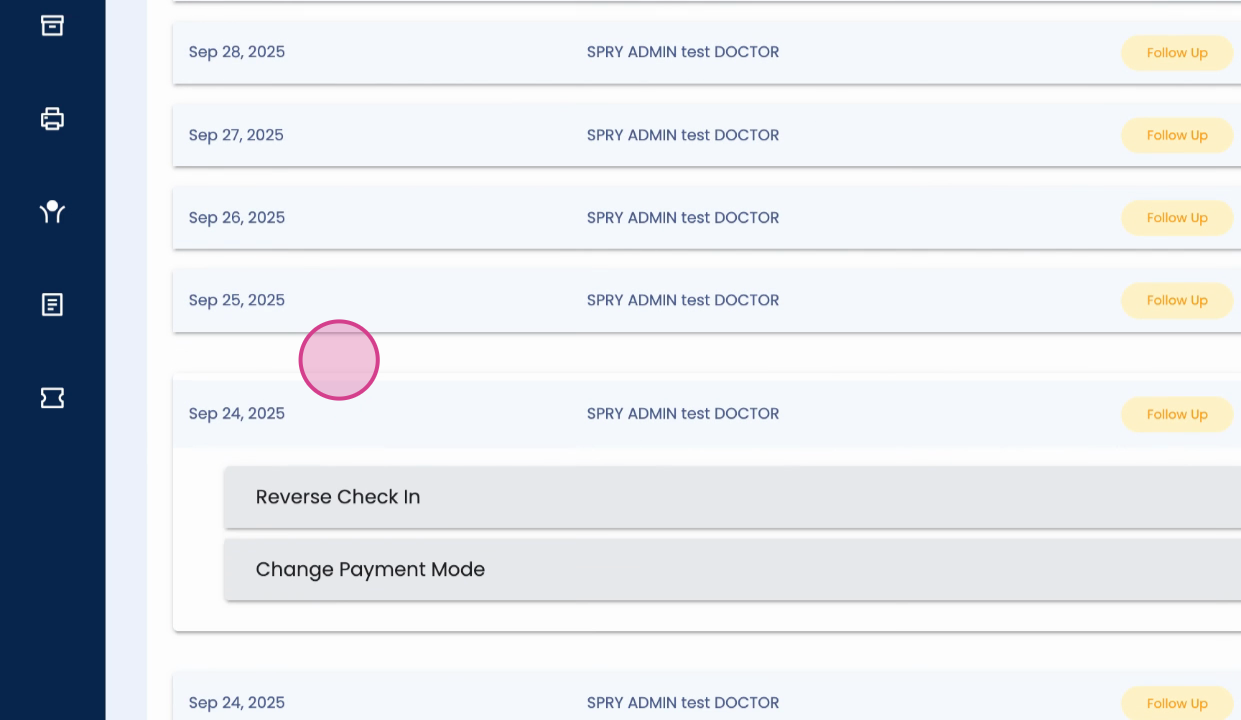
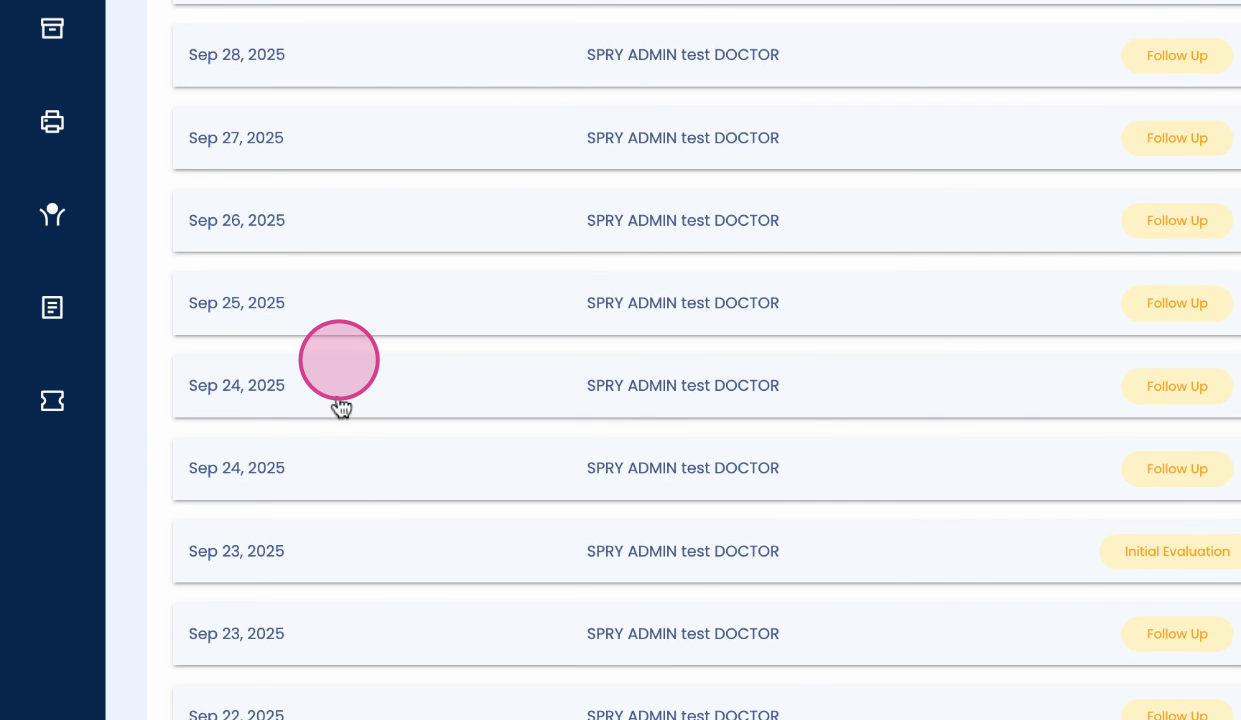
Step 6: Click on the date of service for the appointment you wish to delete.
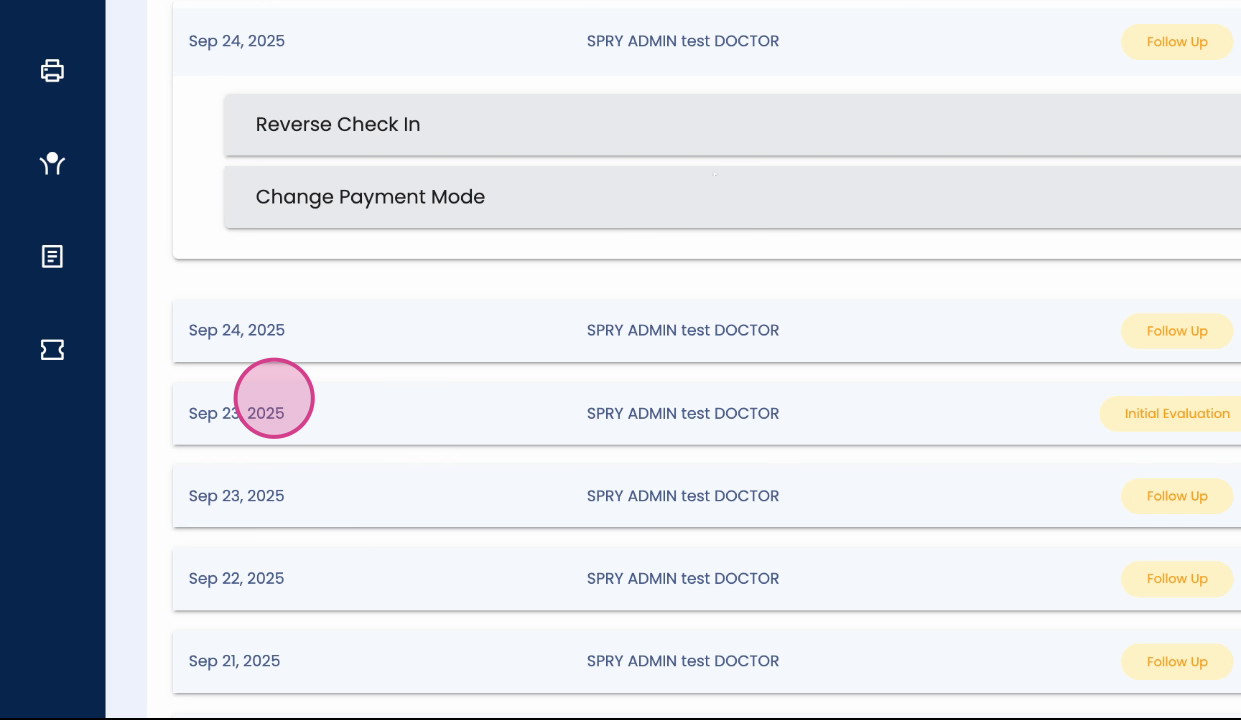
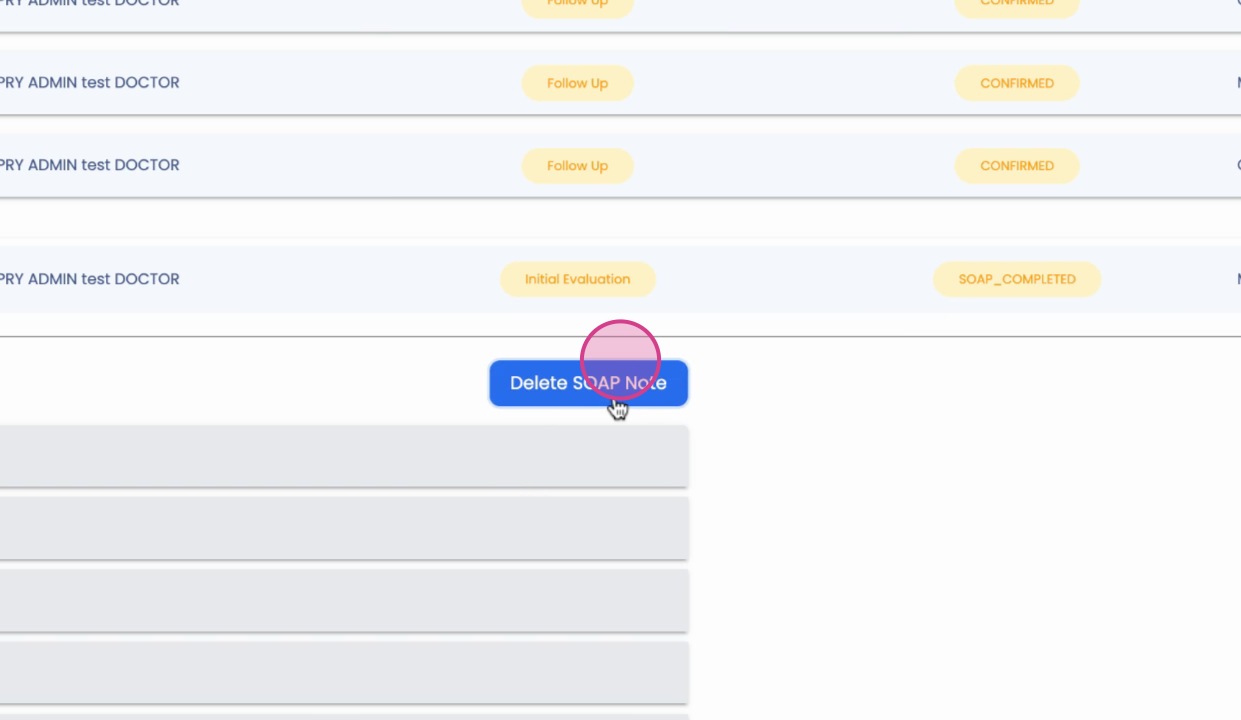
Step 7: After clicking on the date of service, you'll be given the option to delete the SOAP note. Click on delete.
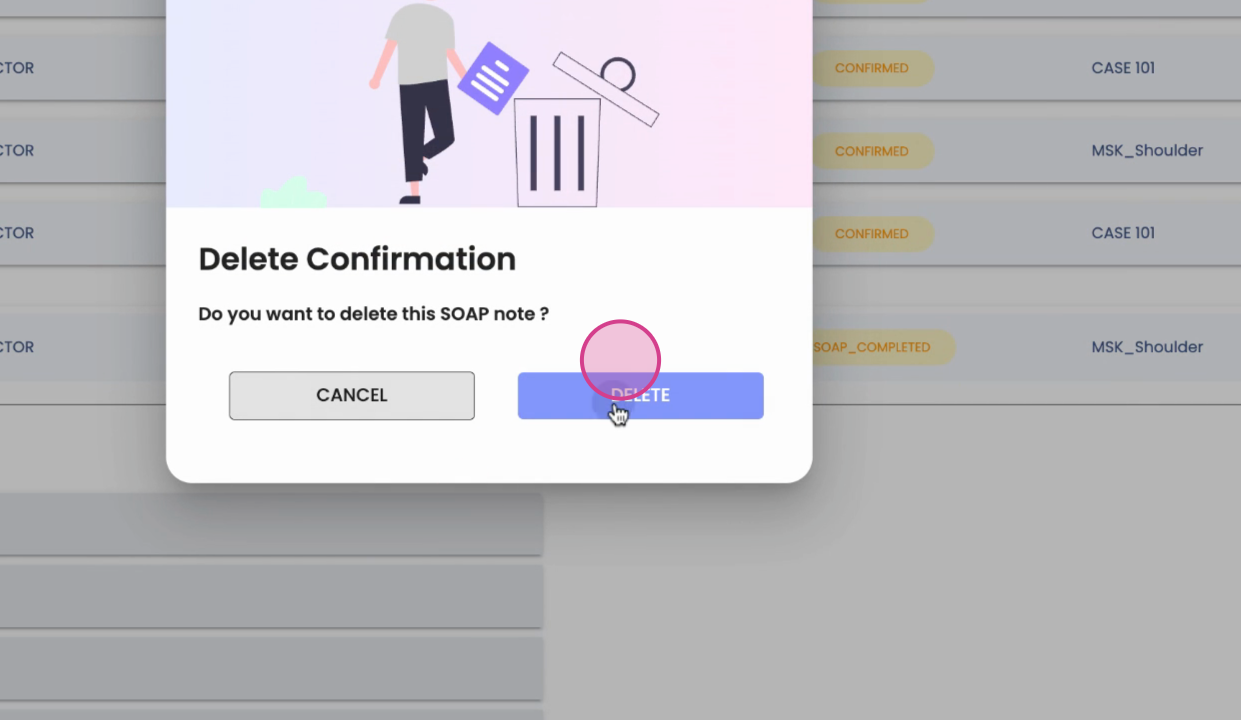
Step 8: You'll be asked to confirm your decision. Click on delete again, and the SOAP note will be removed from the patient's chart.
By following these steps, you'll be able to successfully delete both open and completed SOAP notes from a patient's timeline.