
OON Workflow – Percentage Rate Adjustment
Patient Rate Adjustment: Simplify Out-of-Network and Financial Hardship Billing
The Patient Rate Adjustment feature streamlines the calculation of patient responsibility for out-of-network providers and practices offering financial hardship support. This enhancement reduces manual billing, automates calculations based on payer remittance info, and ensures a consistent workflow for different billing scenarios.
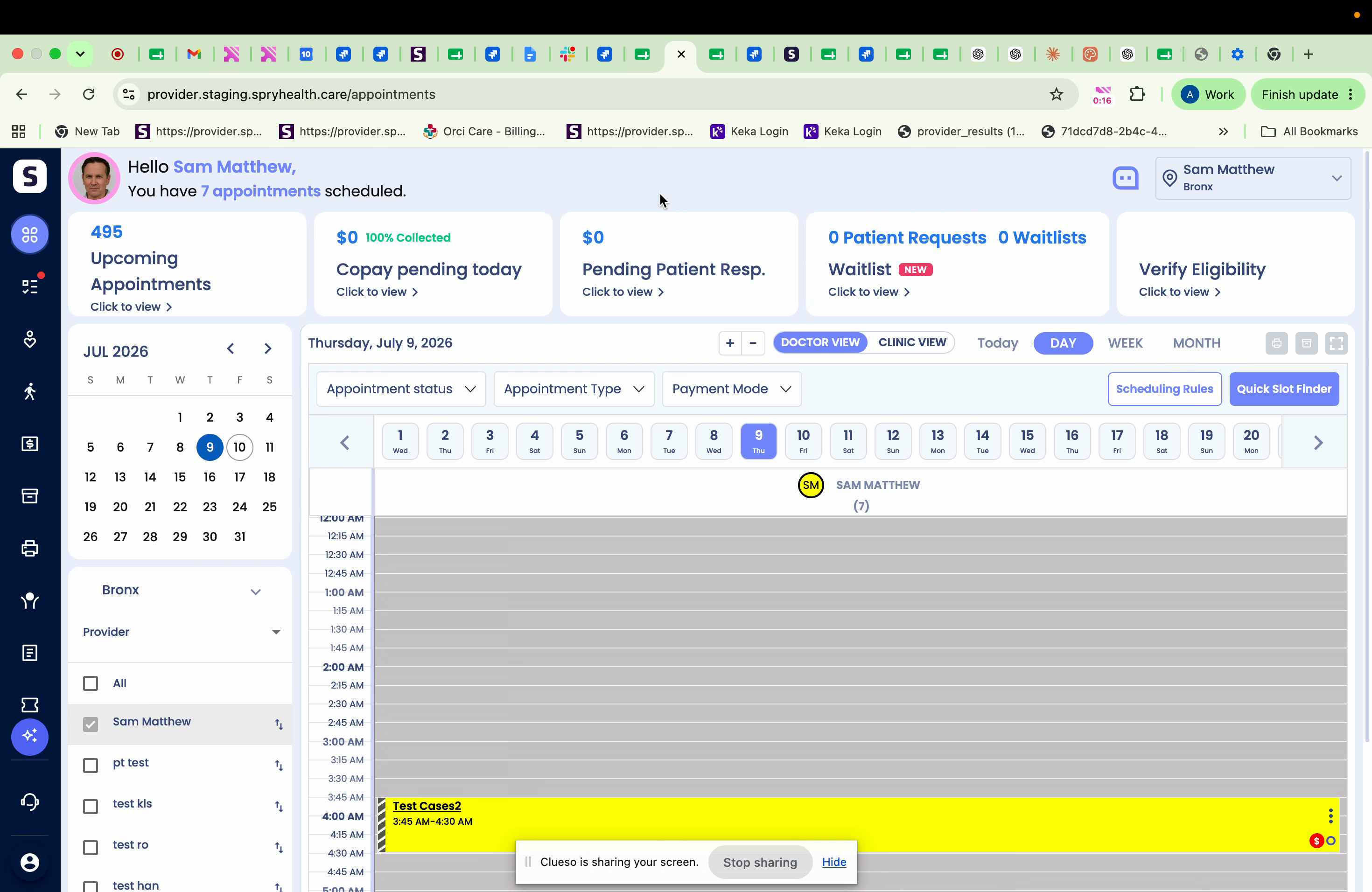
Step 1: Go to the Patients section.
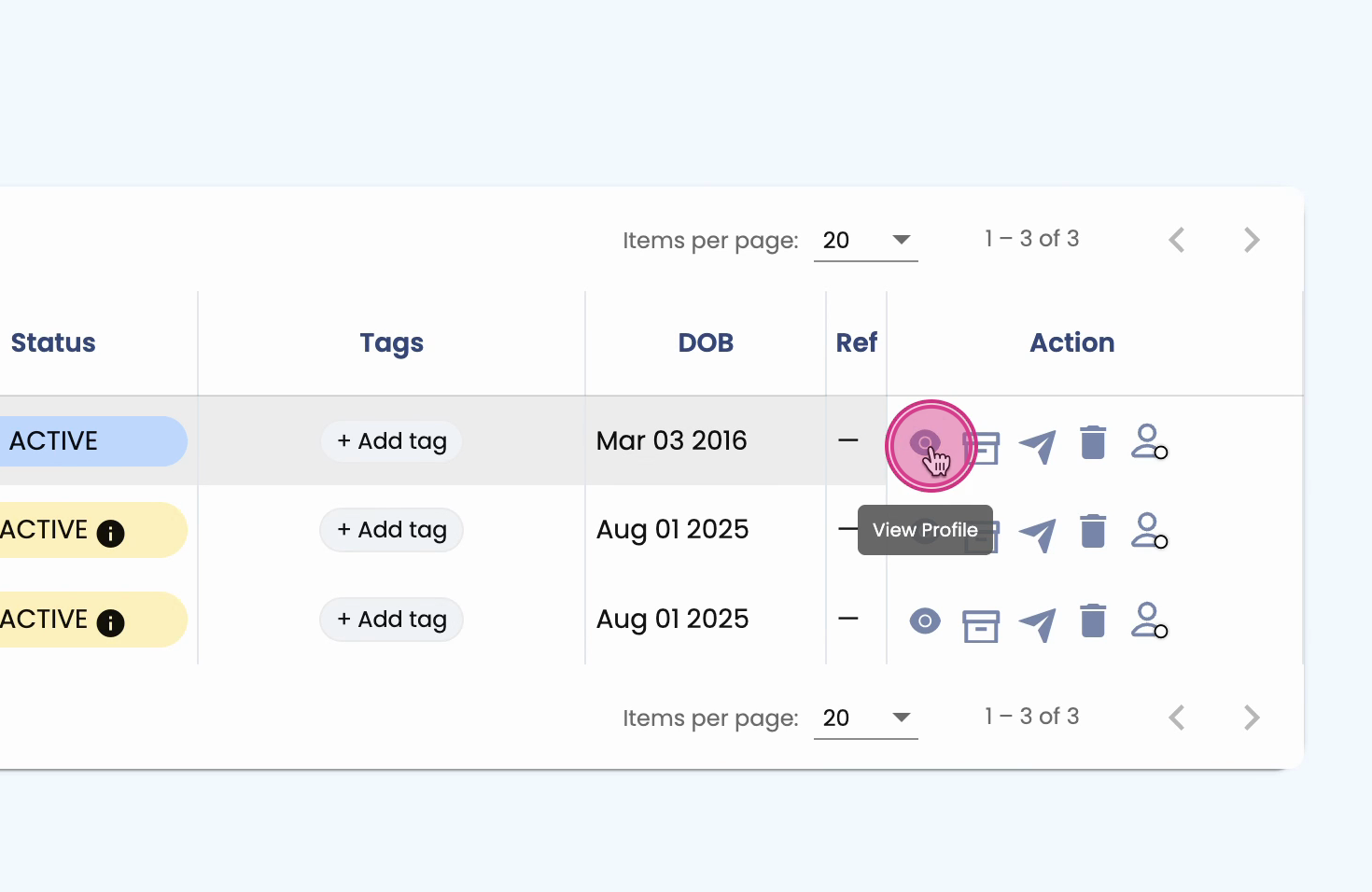
Step 2: Select the patient's profile.
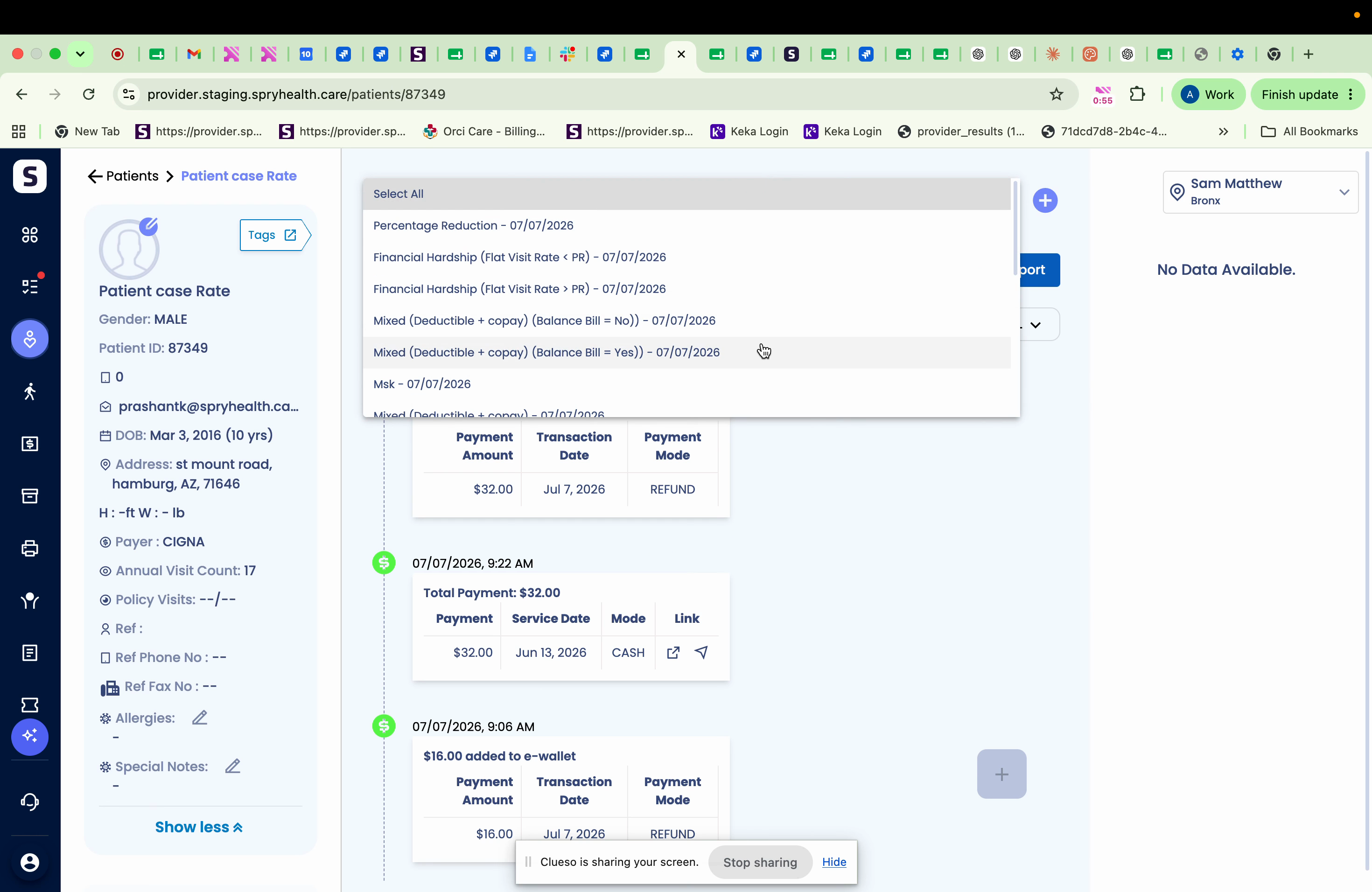
Step 3: Choose the relevant case.
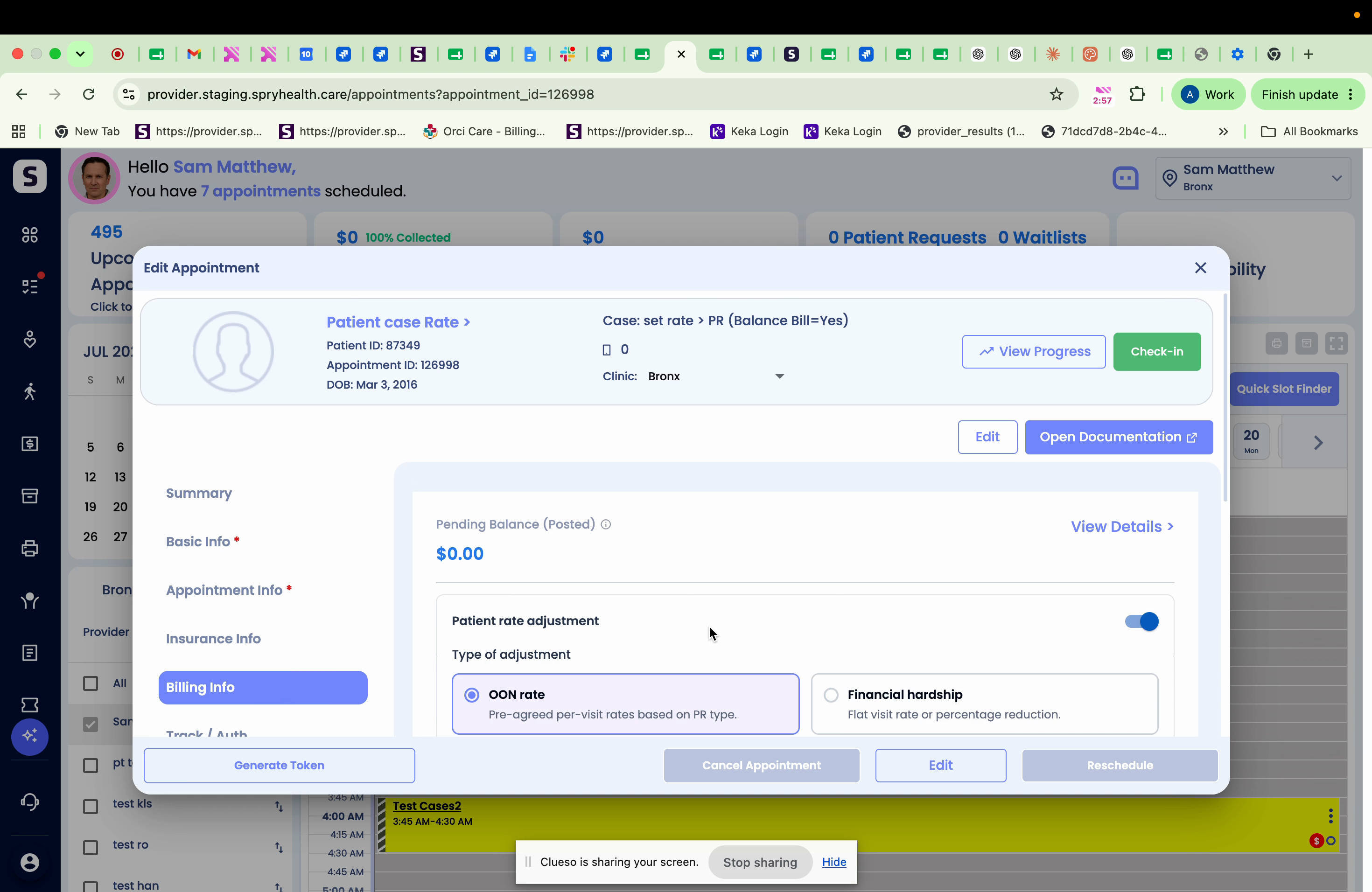
Step 4: Click Edit and scroll down to Patient Rate Adjustment.
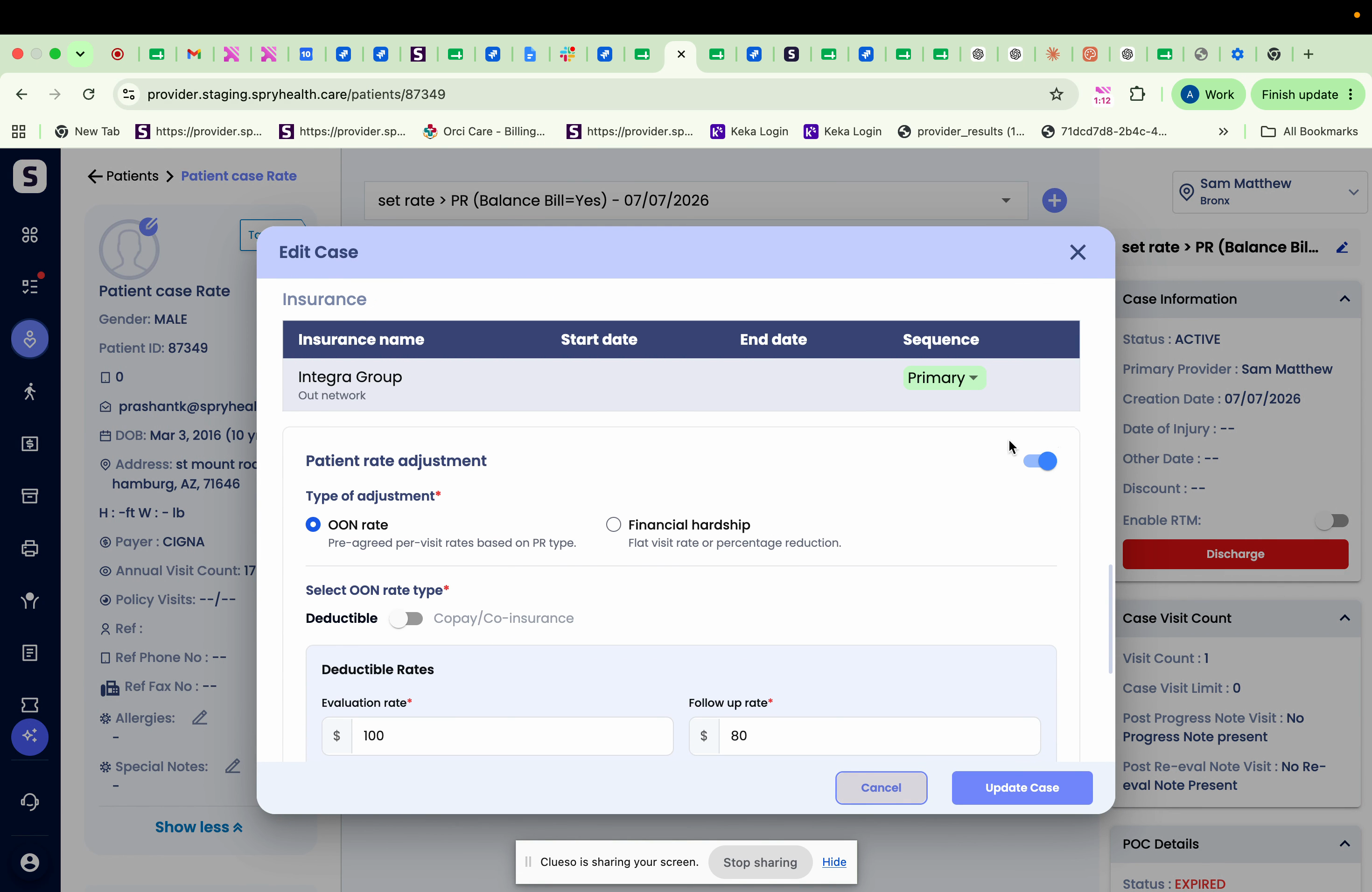
Step 5: Toggle the Patient Rate Adjustment on. Select either Out of Network Rate or Financial Hardship. We'll focus on the Out of Network Rate option.
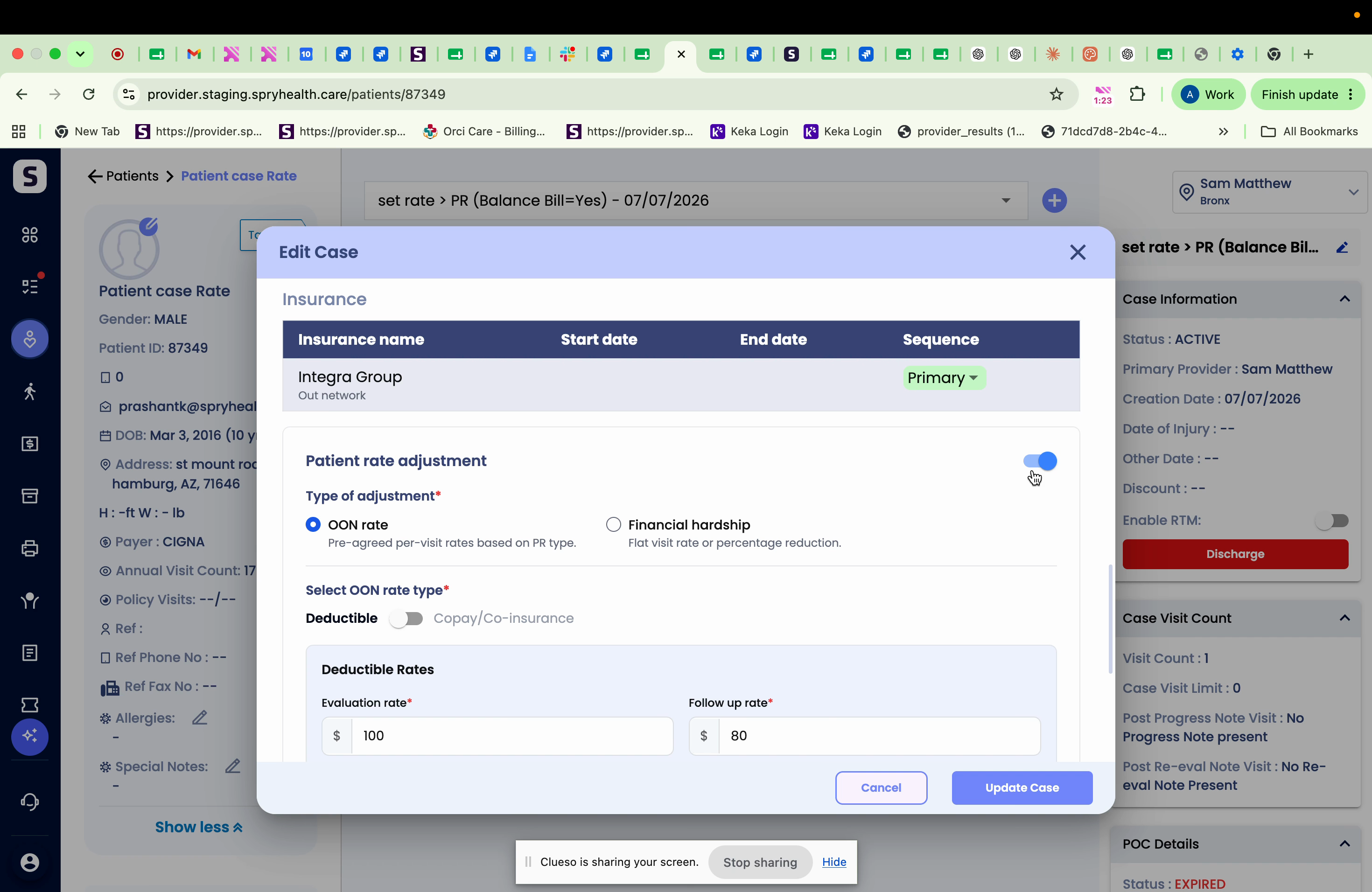
Step 6: Fill in the deductible, evaluation rate, follow-up rates, and copay/coinsurance details.
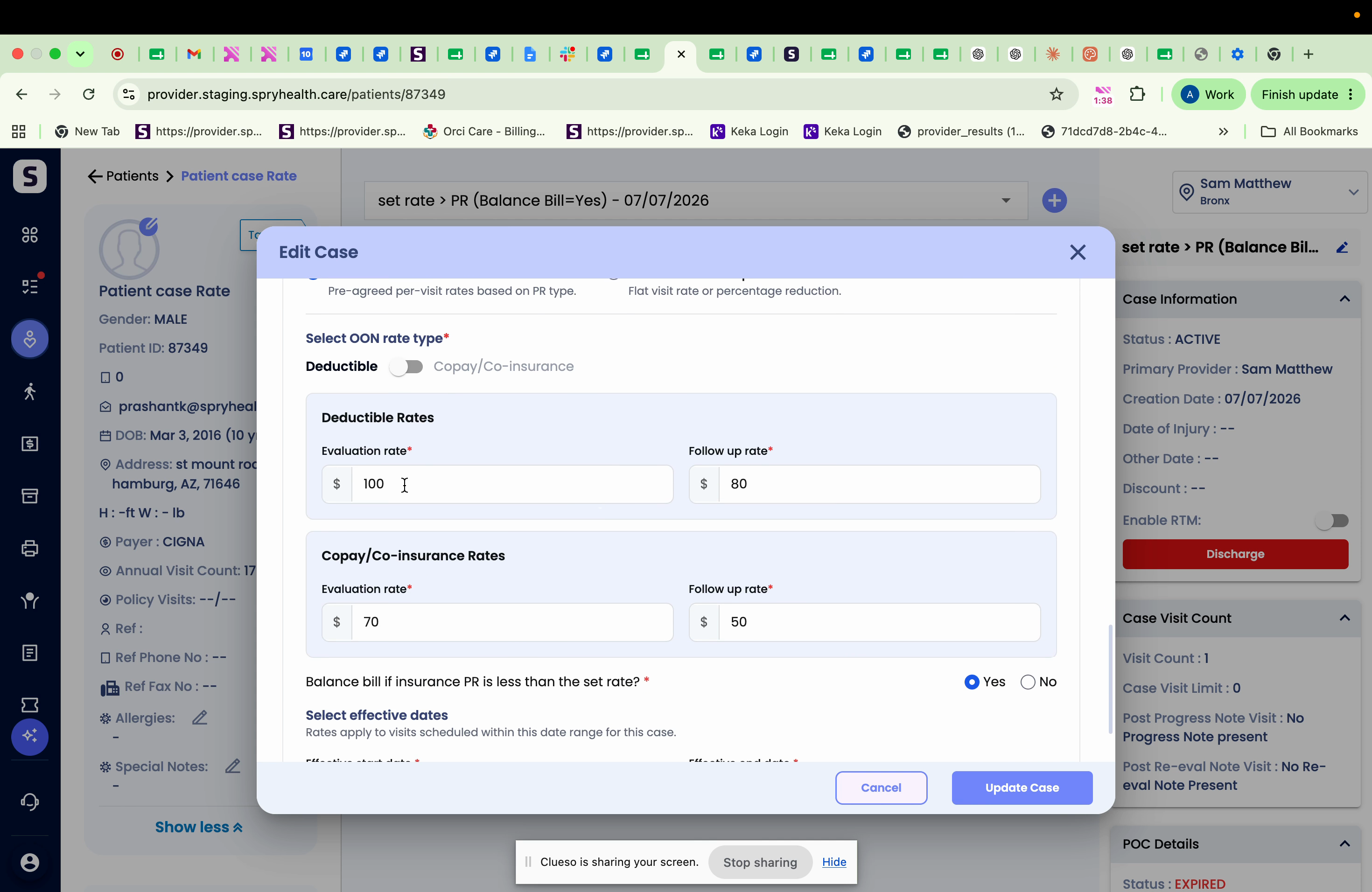
Step 7: Set the Balance Bill Indicator.
- If set to Yes, the system uses your set rate as the final patient responsibility, even if the insurance PR is lower.
- If set to No, the system uses the insurance PR if it’s less than your set rate.
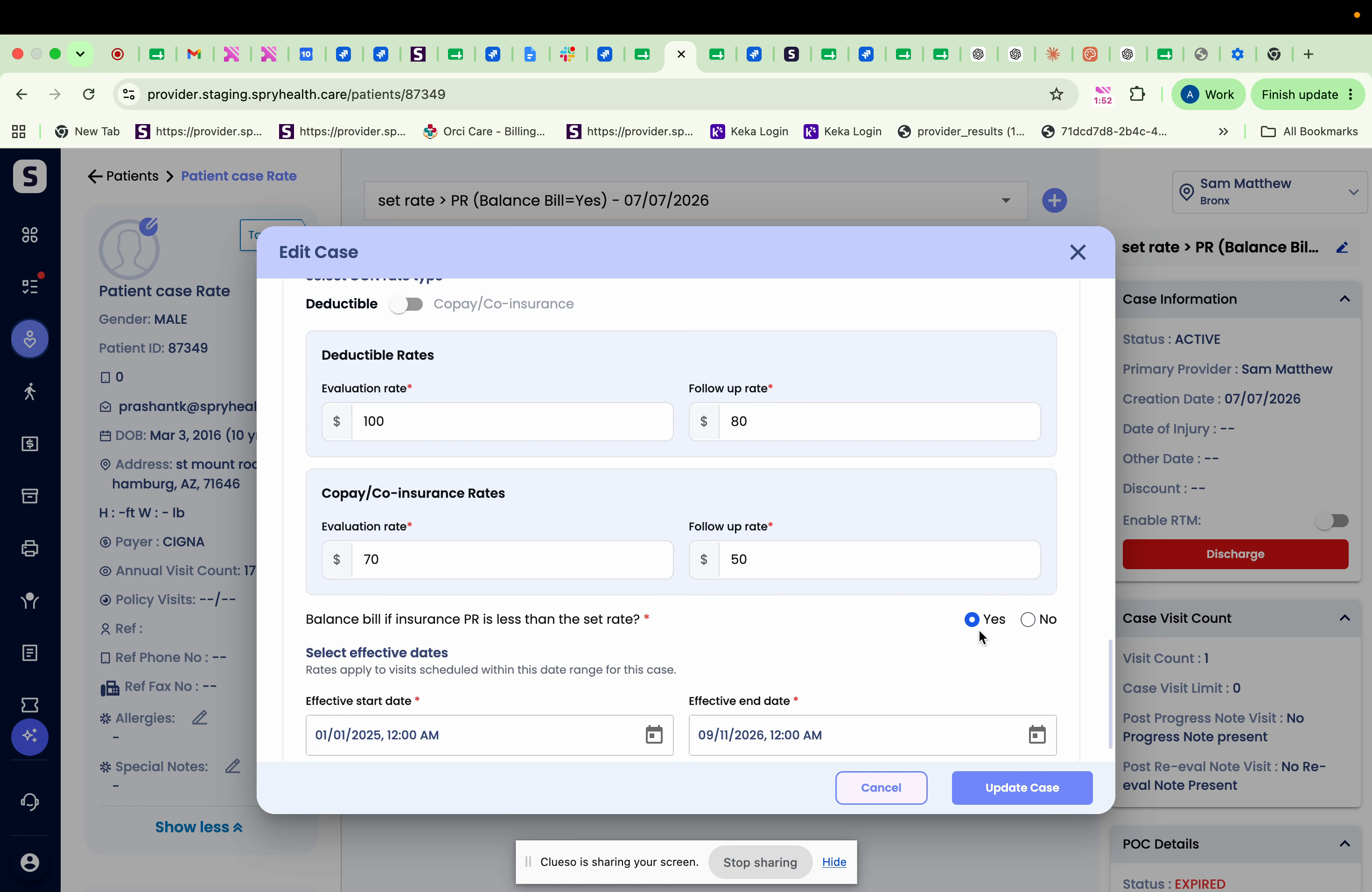
Scenario 1: Balance Bill Indicator Set to Yes
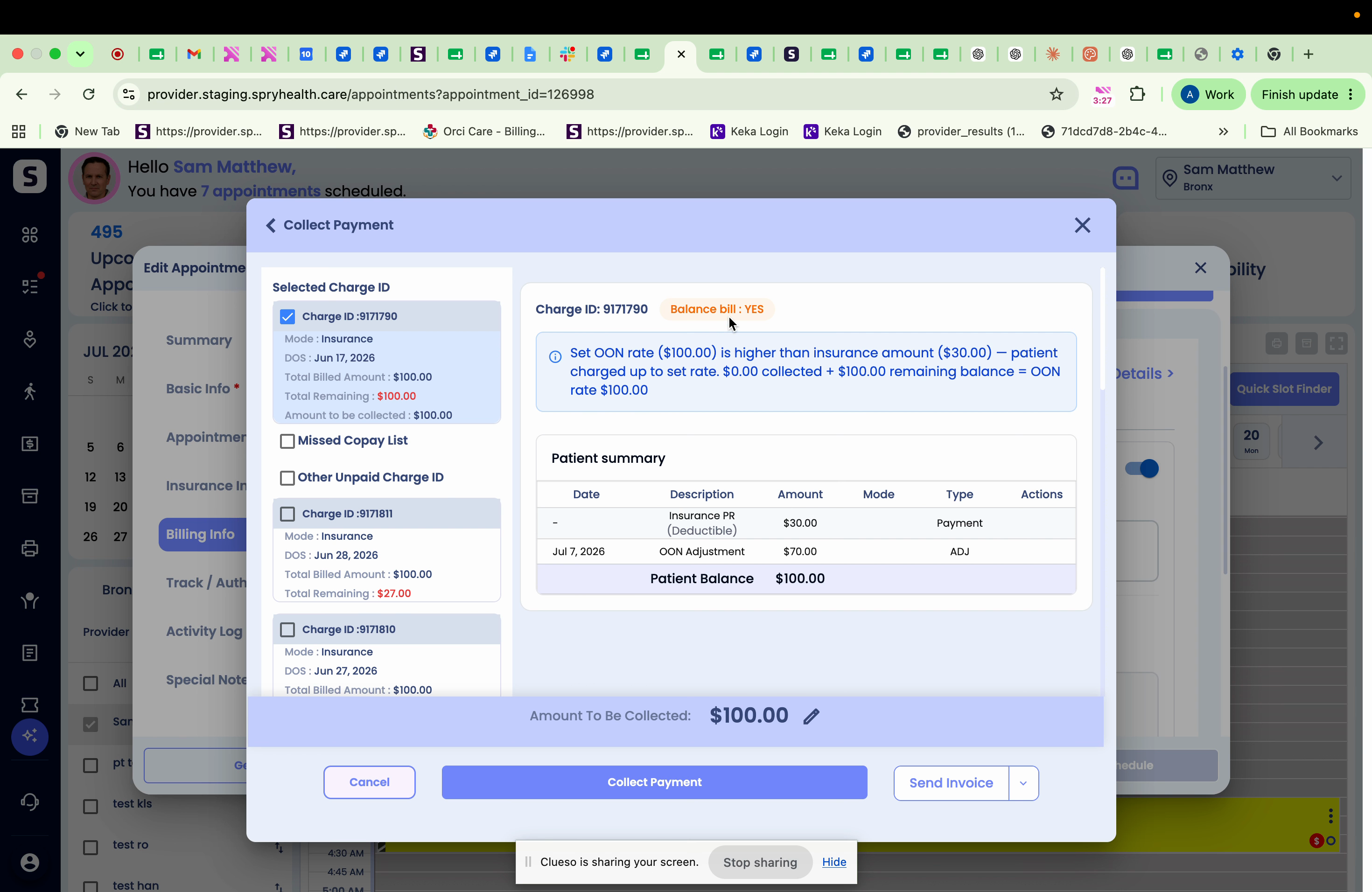
Step 1: Review the case where your set rate is higher than the insurance PR. With the balance bill indicator set to Yes, the set rate becomes the final responsibility.
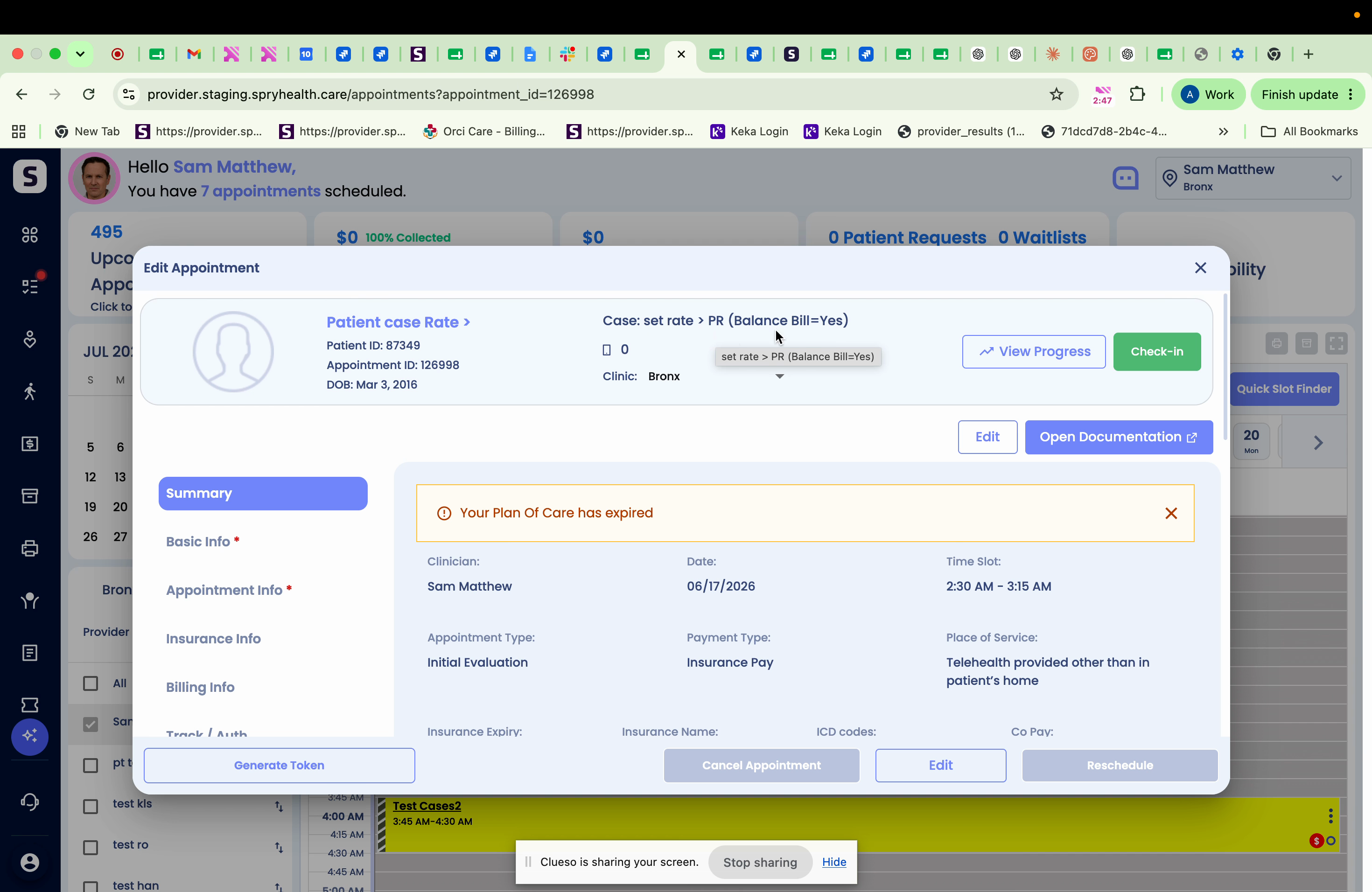
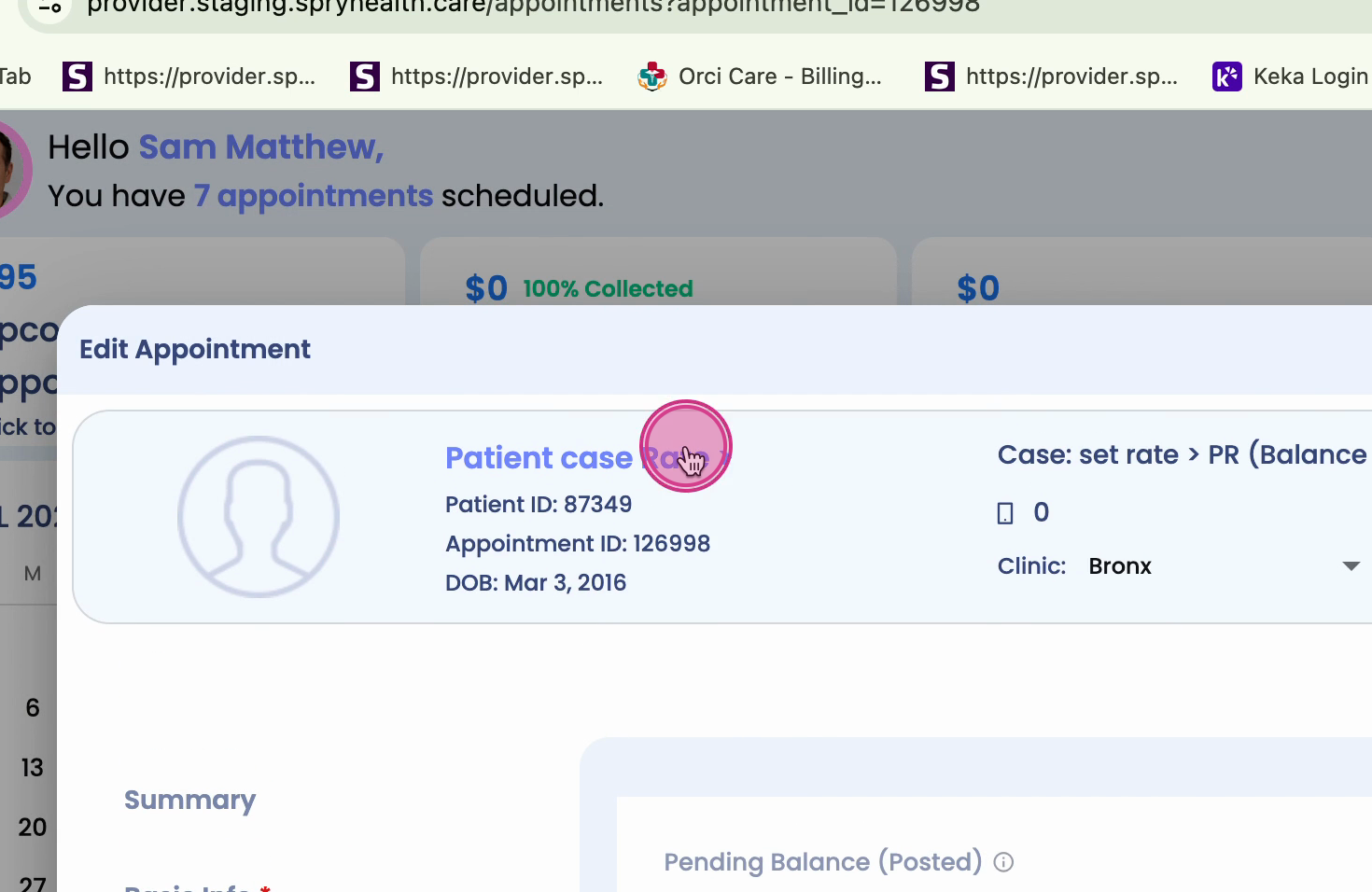
Step 2: Navigate to the Billing Info screen. The system picks up your entered values automatically.
Step 3: Go to the Details View to confirm results. The set rate is used as the final PR.
Scenario 2: Balance Bill Indicator Set to No
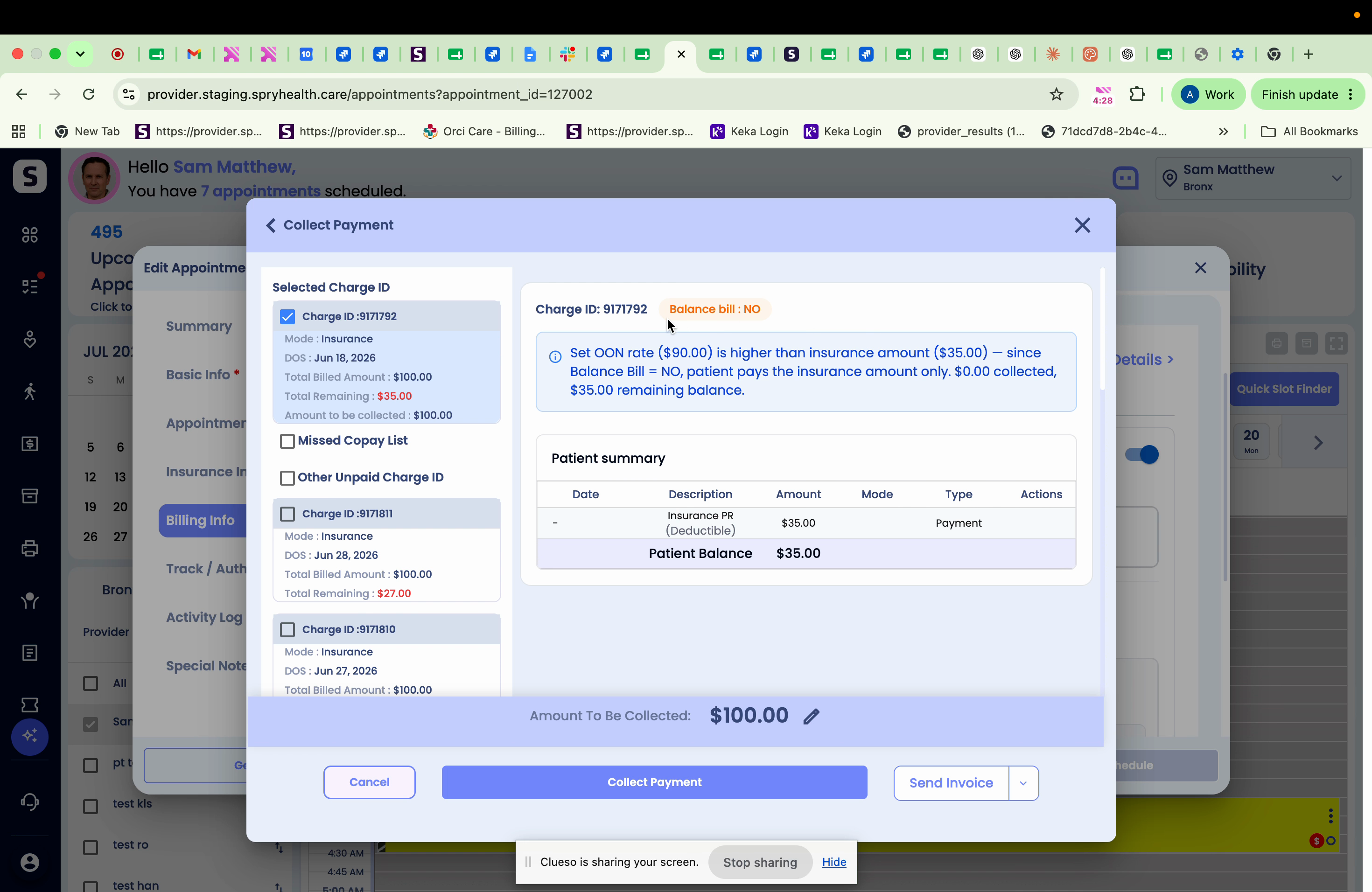
Step 1: Check another case with the balance bill indicator set to No. Here, the insurance PR is less than your set rate.
Step 2: Go to Billing Info and View Details. The insurance PR becomes the final responsibility.
Scenario 3: Insurance PR Exceeds Set Rate
Step 1: When the insurance PR is higher than your set rate, the system automatically writes off the difference.
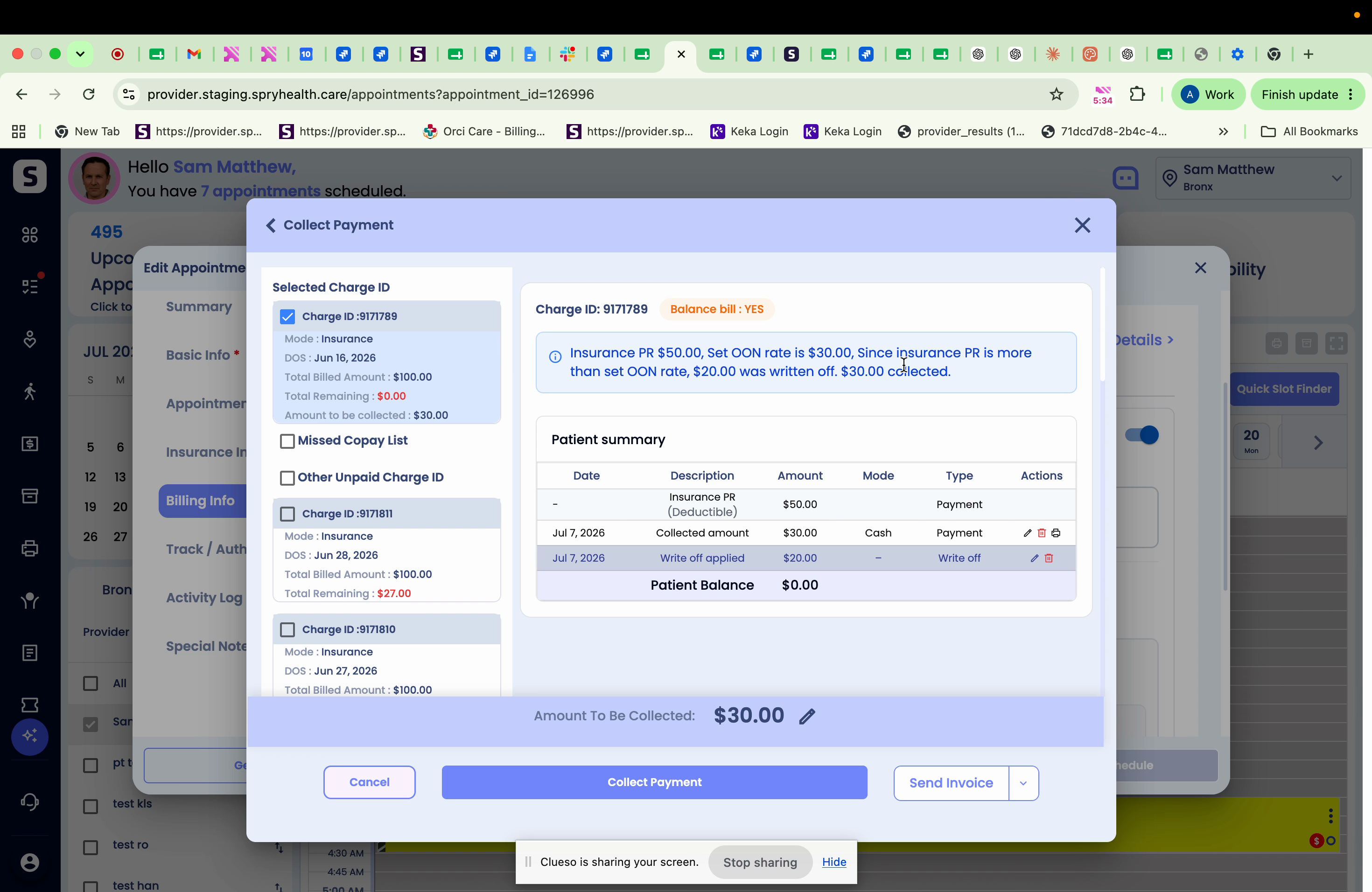
Step 2: The balance bill indicator only matters if the insurance PR is less than your set rate. If it's more, the difference is written off.
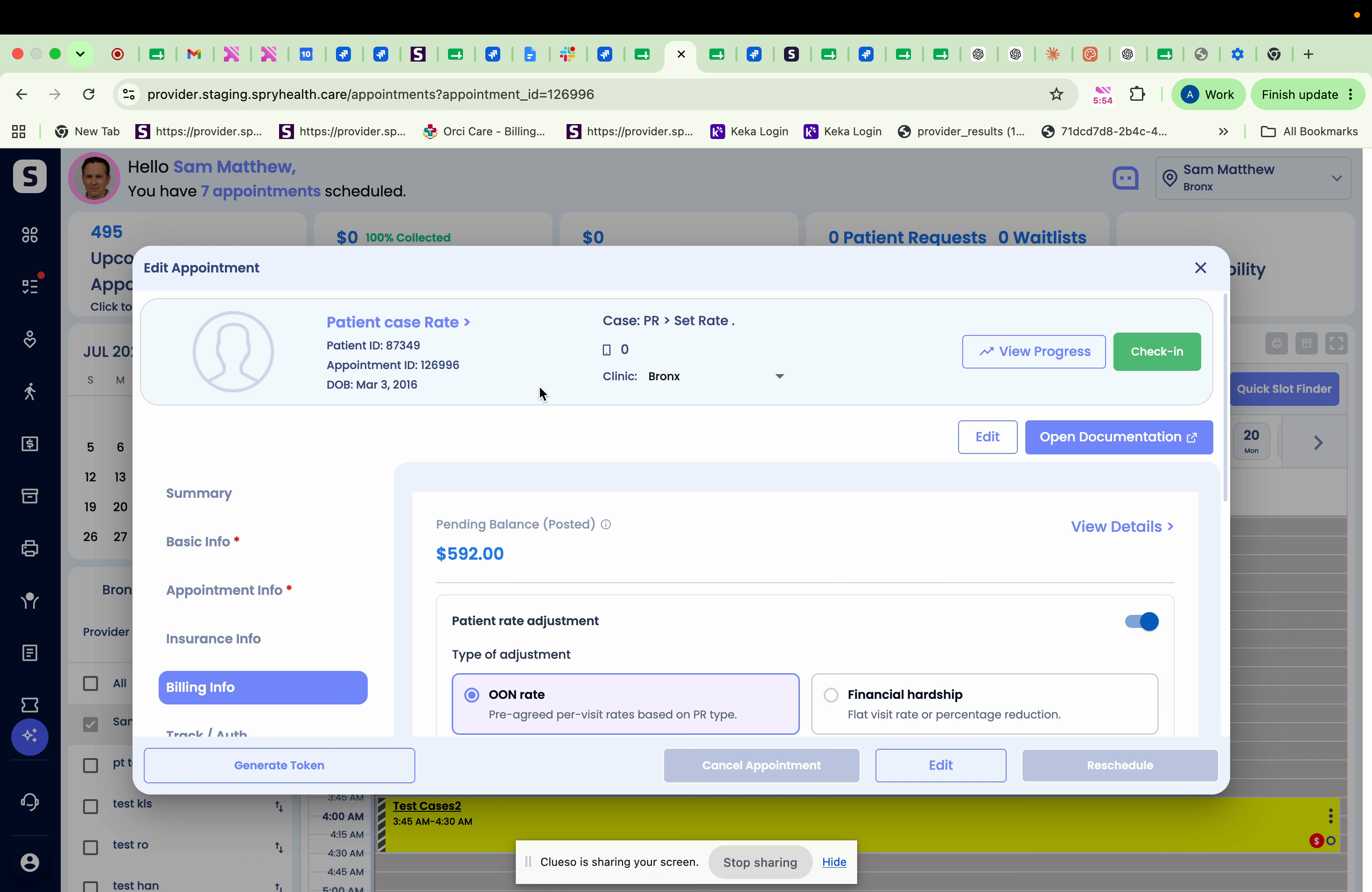
Scenario 4: Mixed PR (Copay + Coinsurance)
Step 1: Examine cases where payer remittance includes both copay and coinsurance.
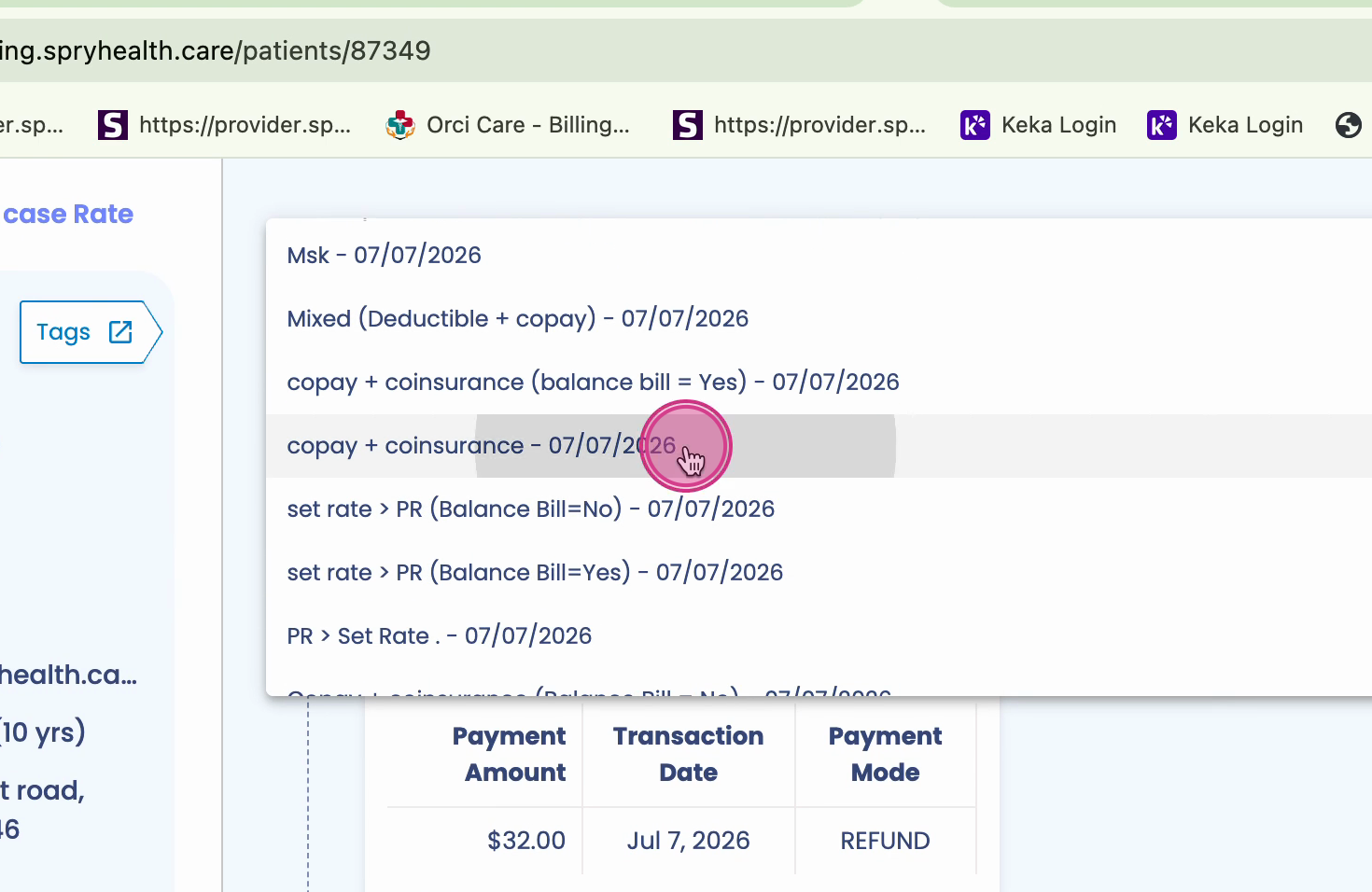
Step 2: If the insurance PR (combined) exceeds the set rate, the system writes off the excess.
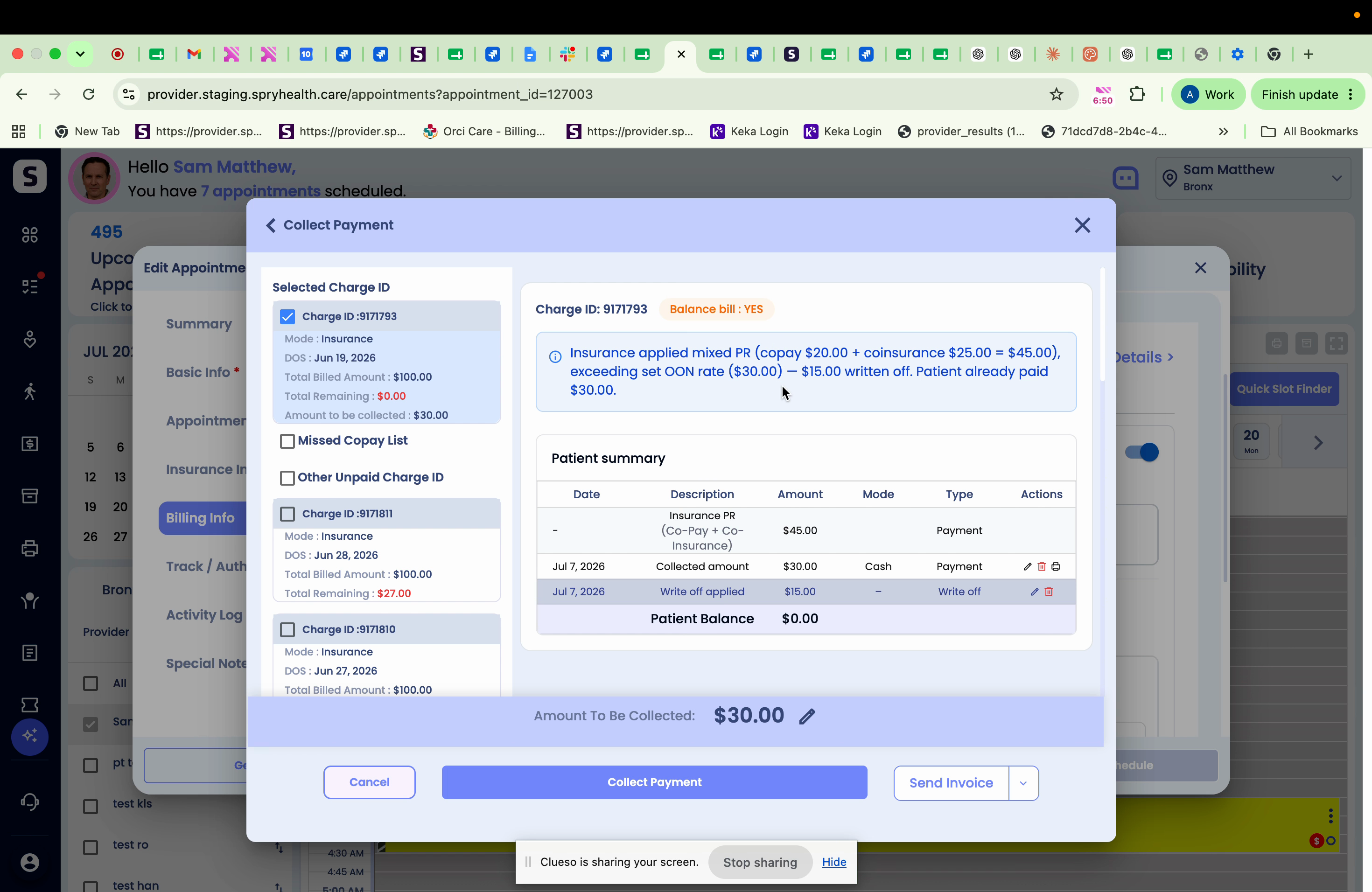
Scenario 5: Deductible and Other Mixed PR
Step 1: In cases combining deductible and copay/coinsurance, the system applies the correct logic based on the set rates and payer info.
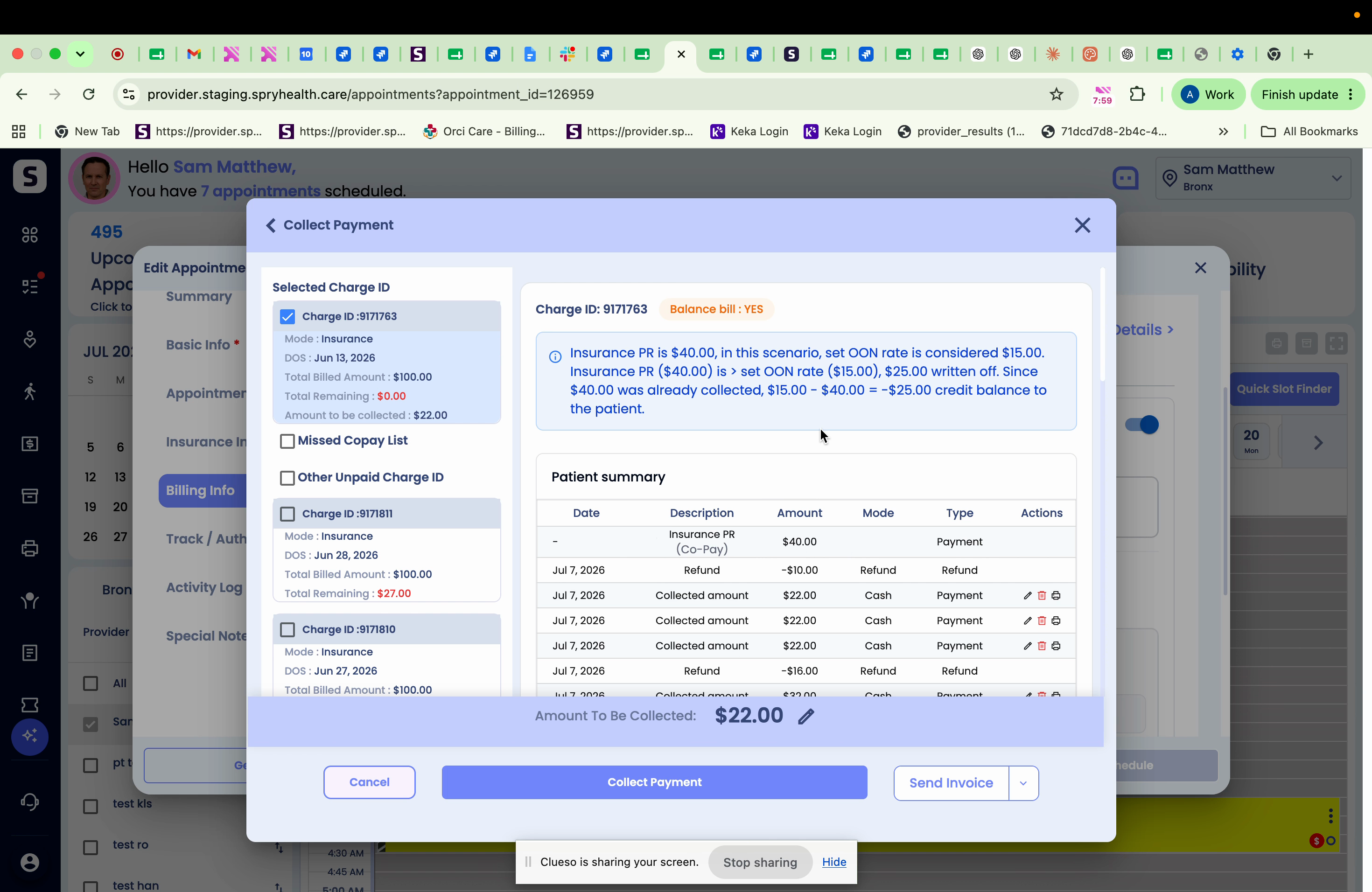
Step 2: Again, if insurance PR is more than the set rate, the extra amount is written off.
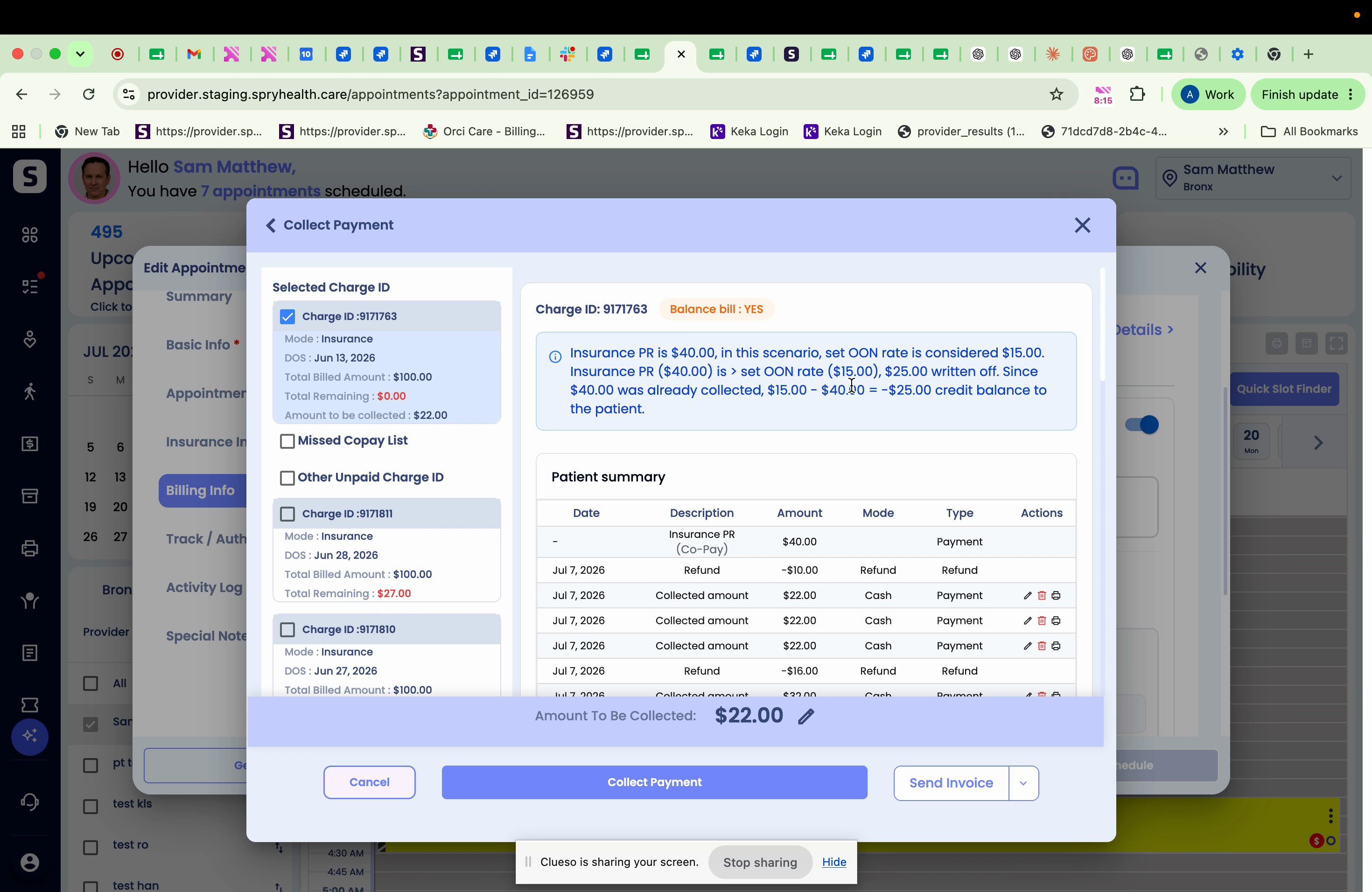
Patient Rate Adjustment helps you automate out-of-network and financial hardship billing, ensuring accuracy and saving time. Pay close attention to the balance bill indicator and how it affects final calculations. Let us know your feedback, and thank you for improving the workflow with us!