
How to Reschedule a Patient Appointment
Easily change an existing appointment using two different methods: selecting a new slot or using drag-and-drop. This guide shows you both options so you can pick what’s easiest for you.
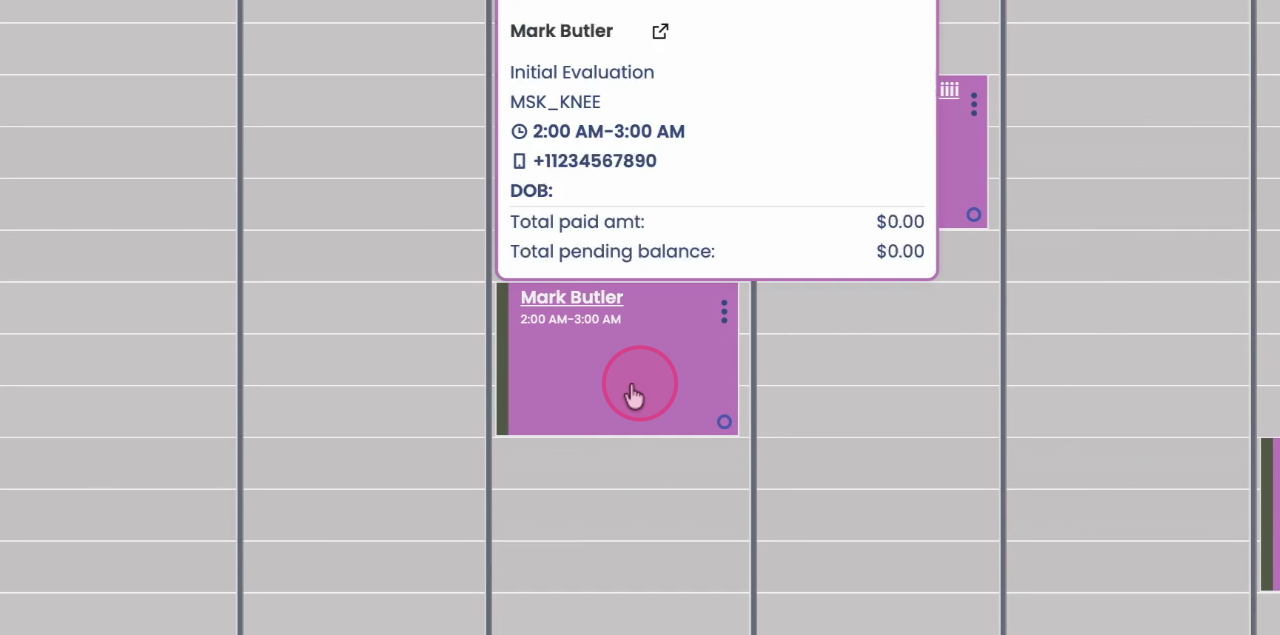
Step 1: Click the appointment card for the patient whose appointment you want to reschedule.
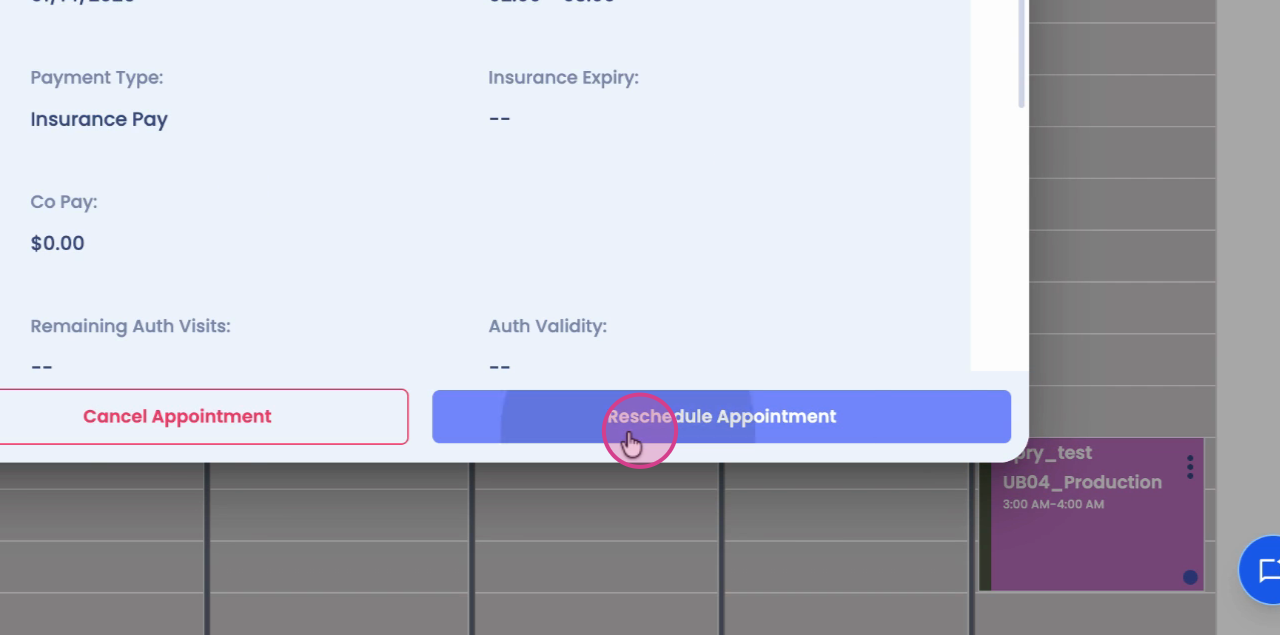
Step 2: Click Reschedule Appointment.
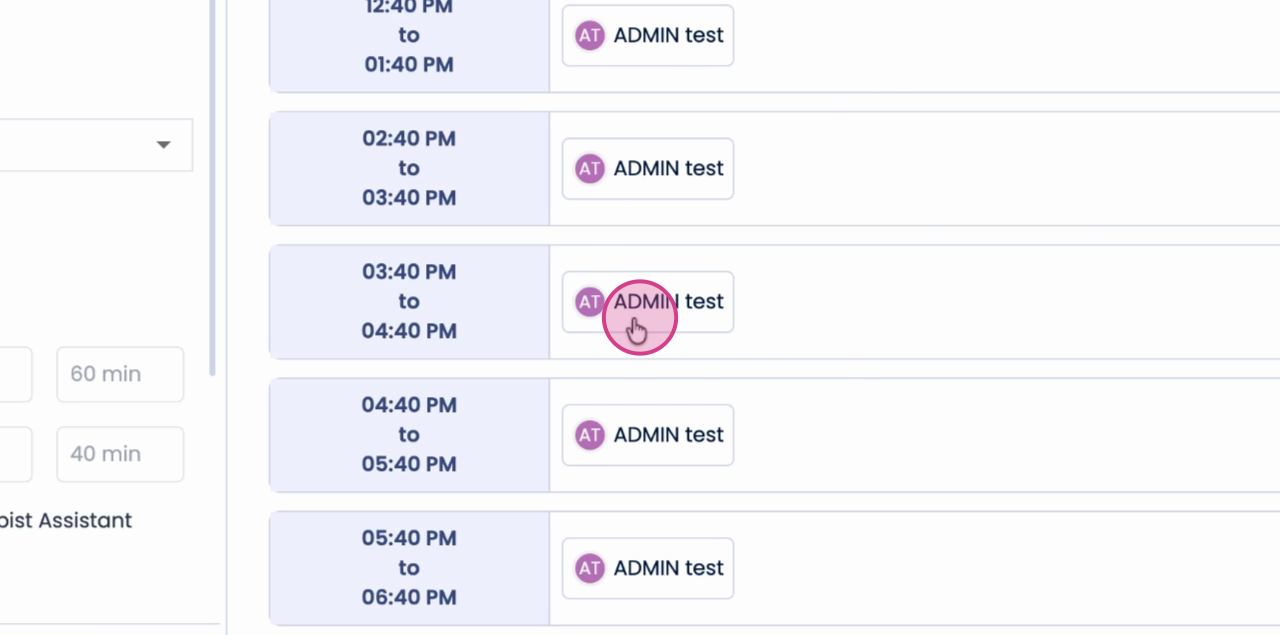
Step 3: View the available slots for the therapist.
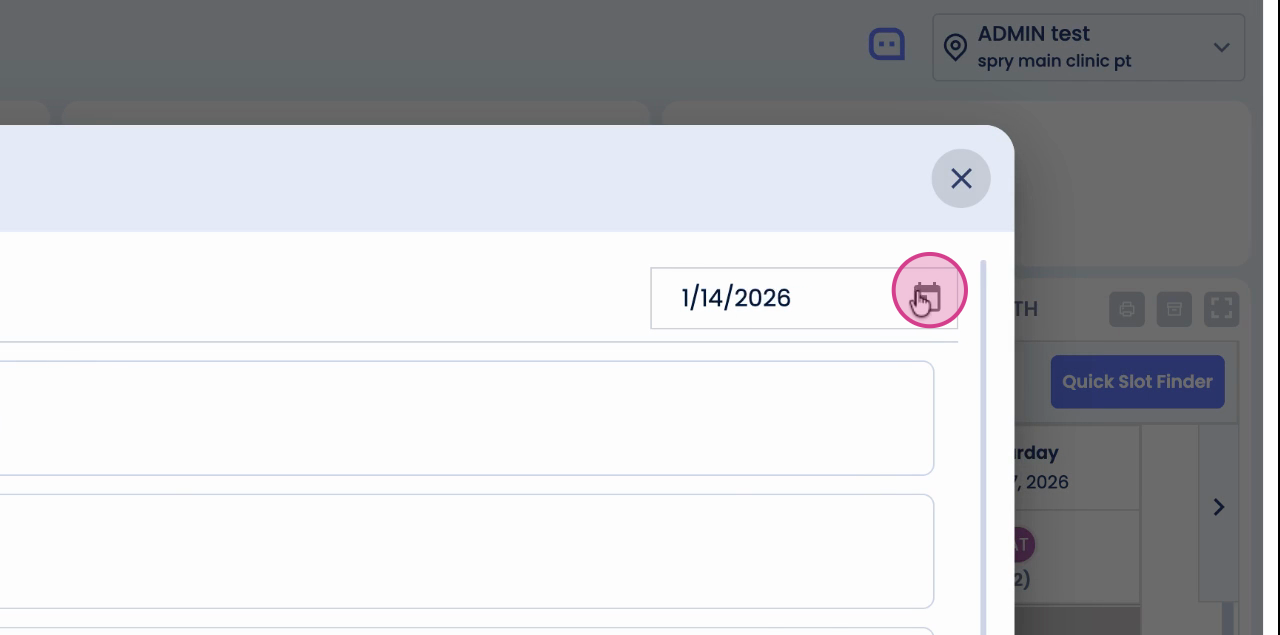
Step 4: Change the date if needed to see more available slots.

Step 5: Select your preferred time slot from the list.
Step 6: Click Confirm Reschedule.
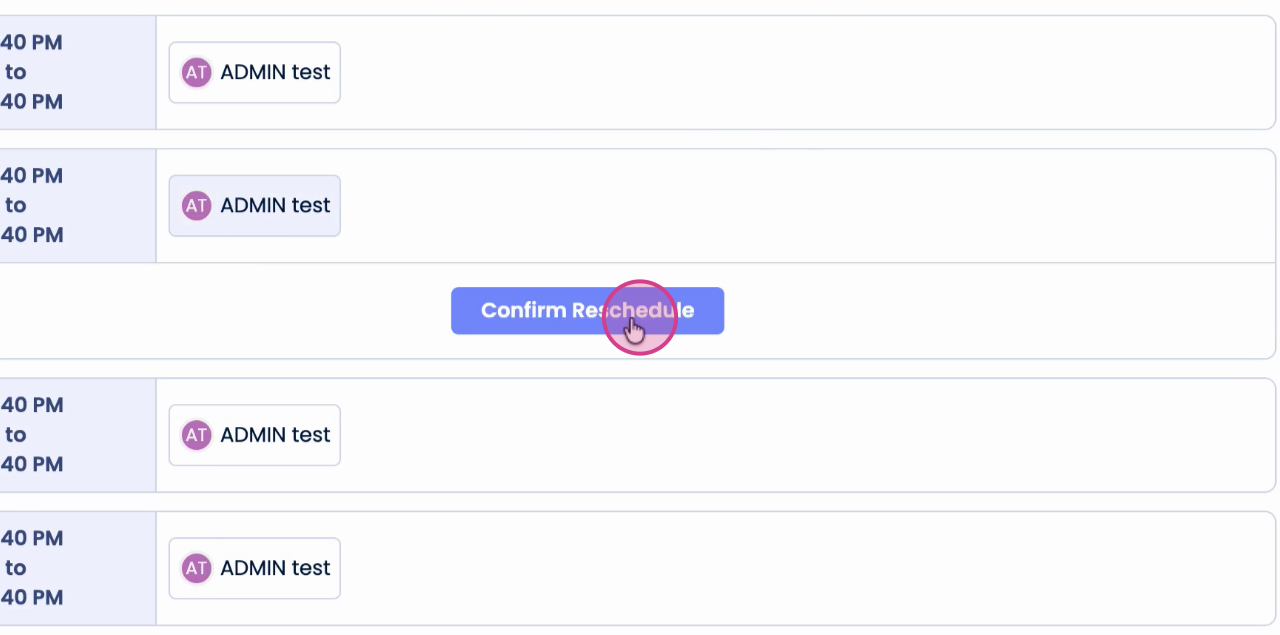
The appointment is now rescheduled to your selected date and time.
Reschedule Using Drag-and-Drop
Step 1: On the calendar, right-click the appointment card.
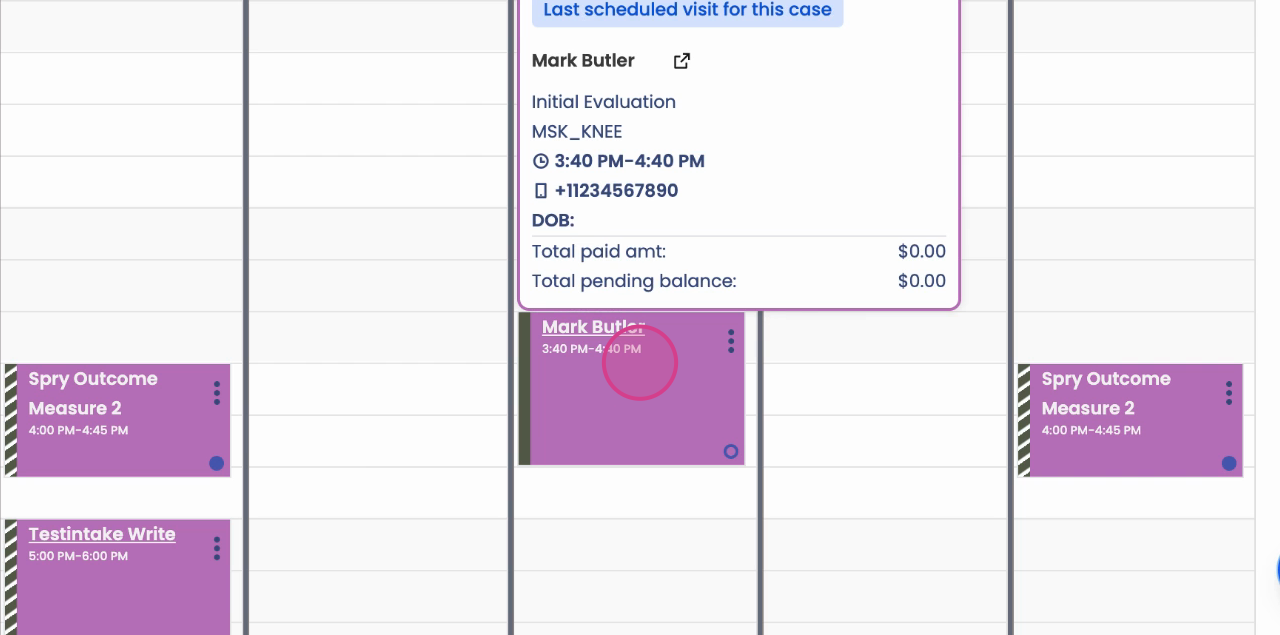
Step 2: Drag the appointment to your desired date and time.
Step 3: Drop the appointment in the new slot and confirm the change.
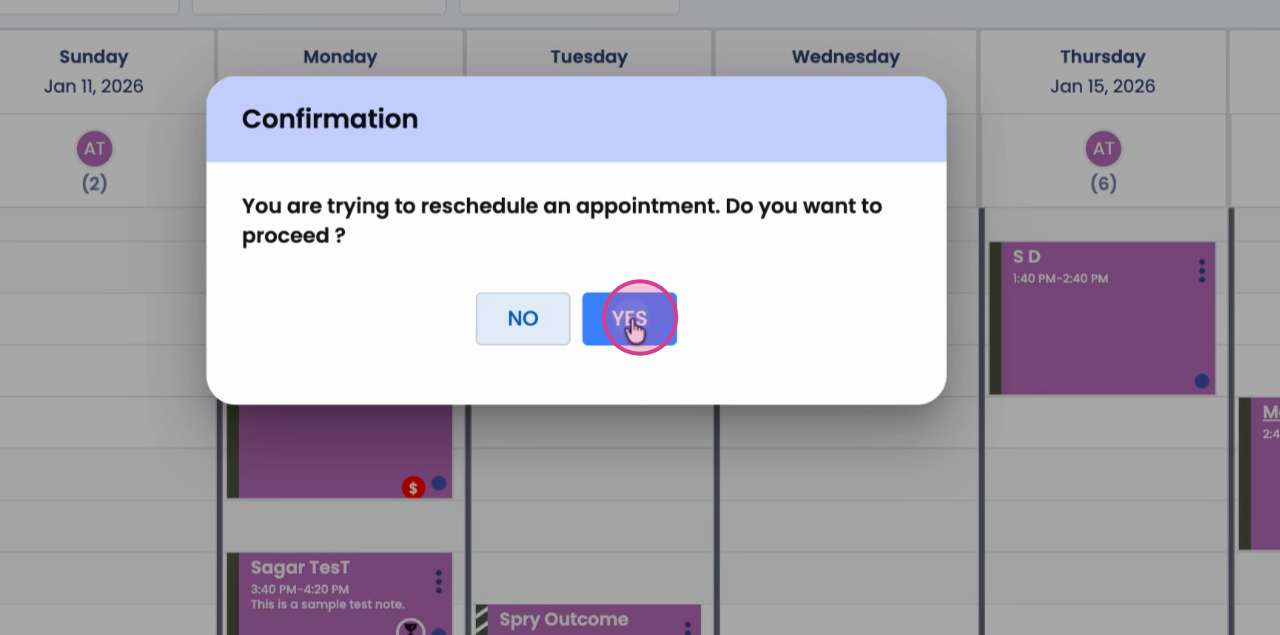
The appointment will move to the selected time slot.
Rescheduling appointments is quick and flexible—try both methods to see which fits your workflow best.