
Add Notes to Appointment Card
How to Add Notes and Special Notes to an Appointment Card
Keep your appointment details organized by adding notes and special comments directly to the appointment card. This guide walks you through adding both regular notes and special notes, ensuring everything important stays at your fingertips.
Add a Note to an Appointment
Step 1: Open the relevant appointment card.
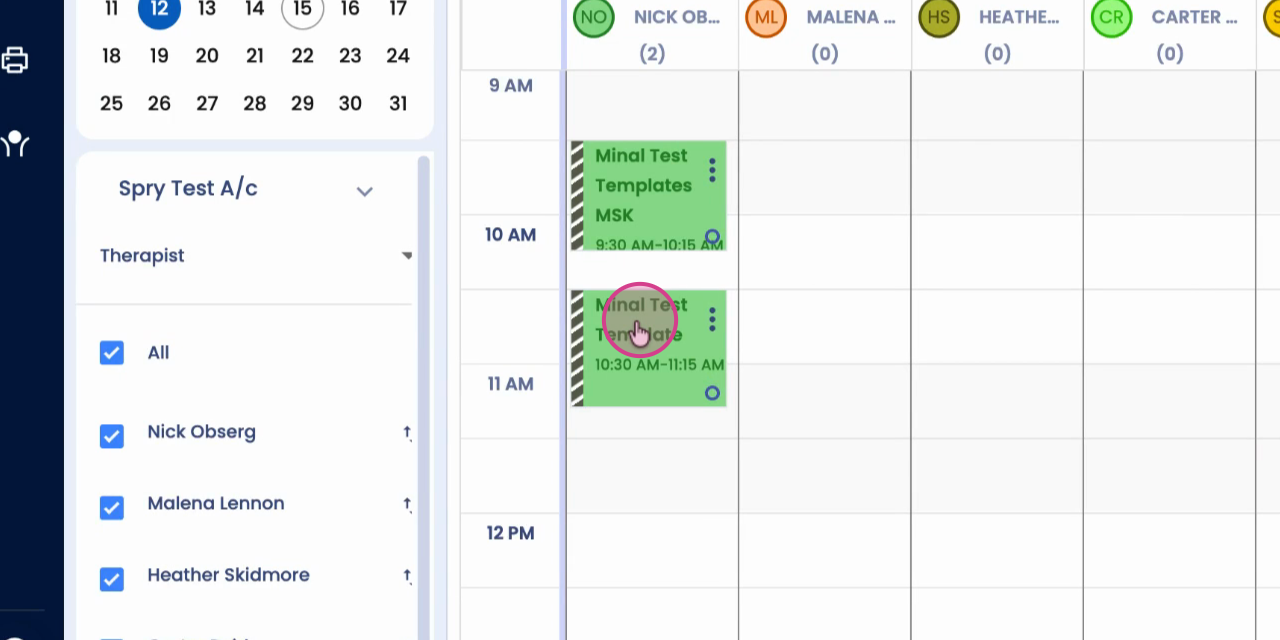
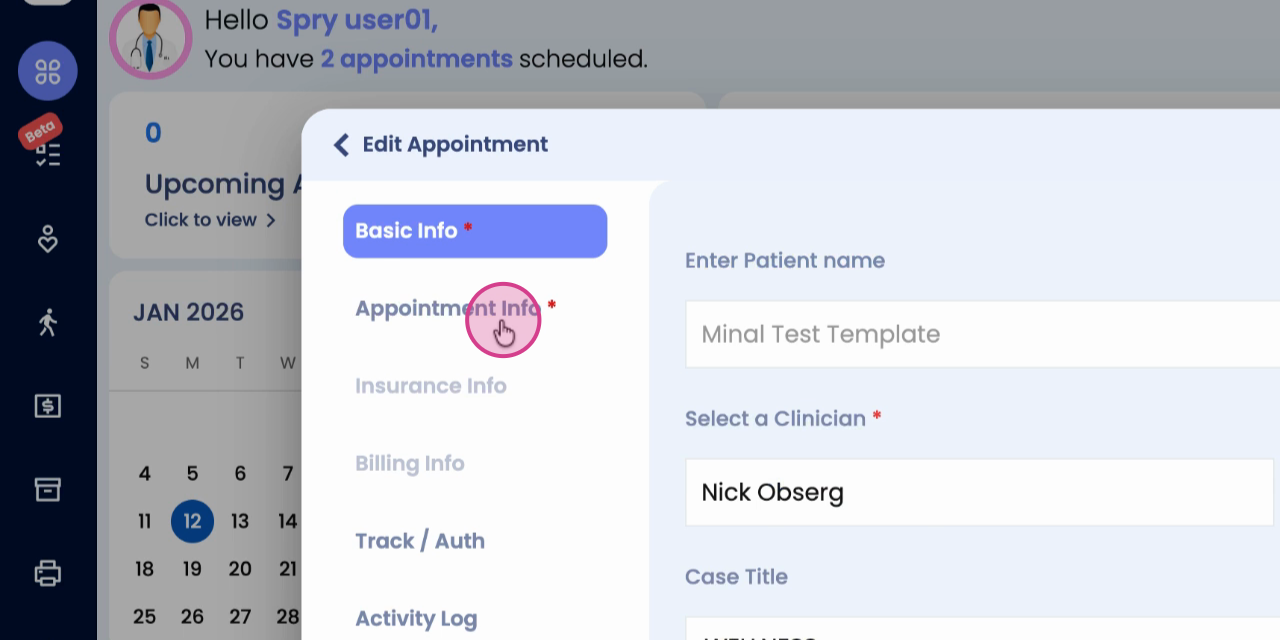
Step 2: Click on Appointment Info.
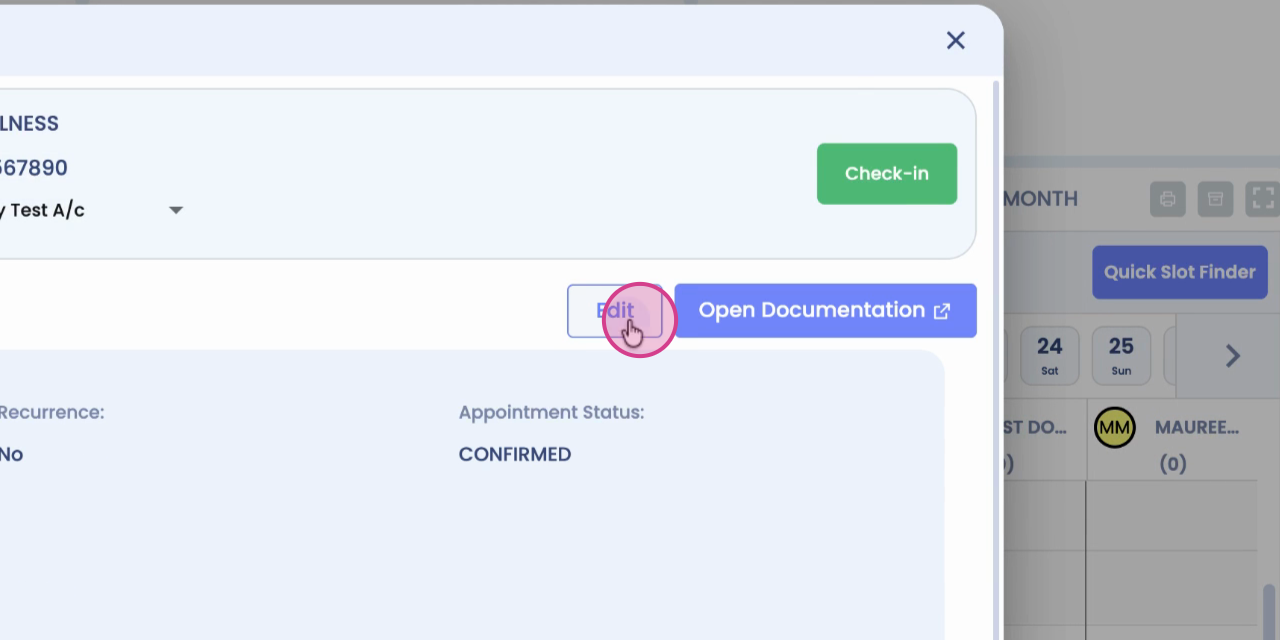
Step 3: Click on Edit to update appointment details.
Step 4: Locate the Comment section.
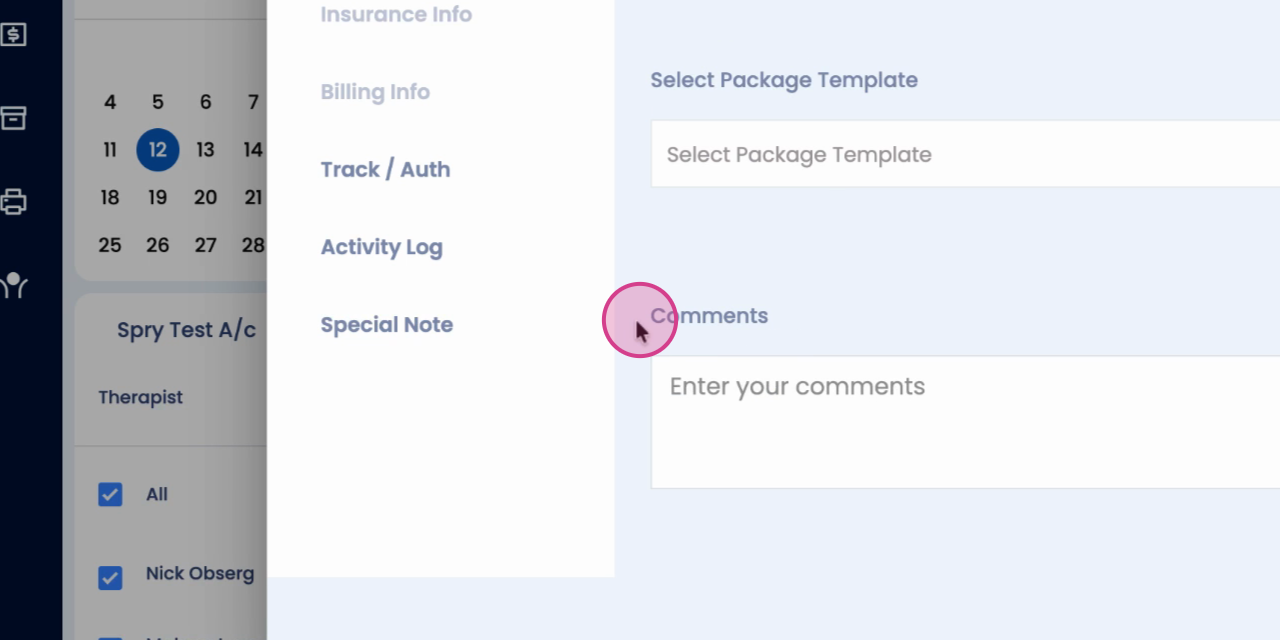
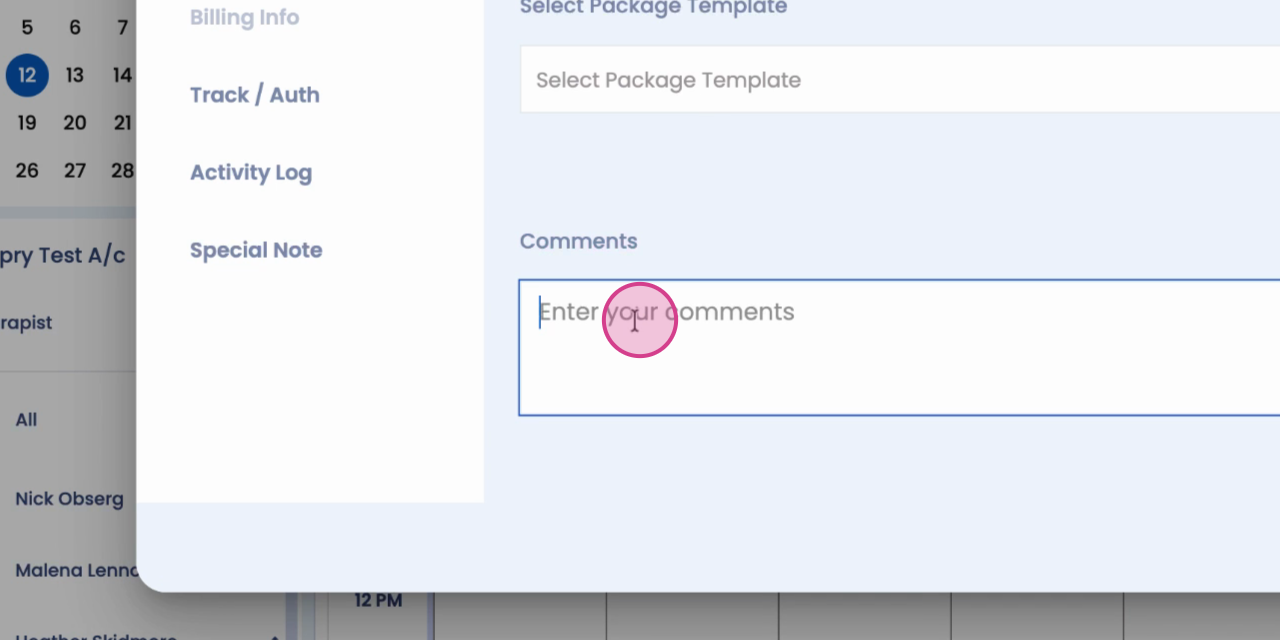
Step 5: Enter your note in the provided field.
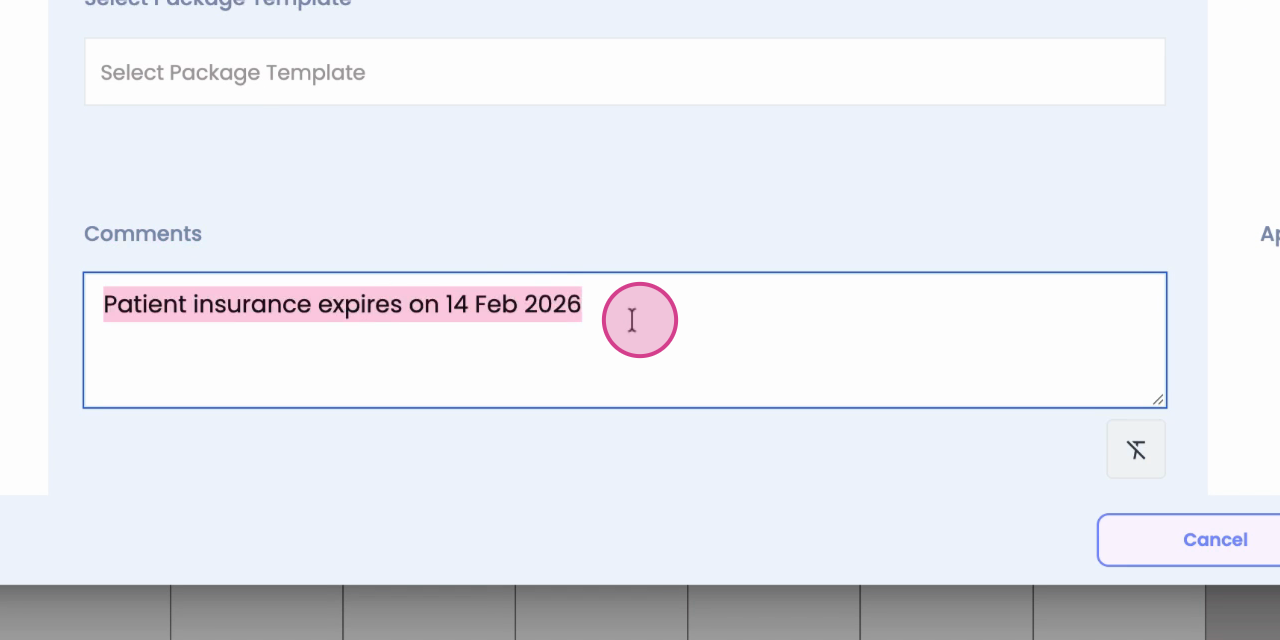
Step 6: Click Update to save your note.
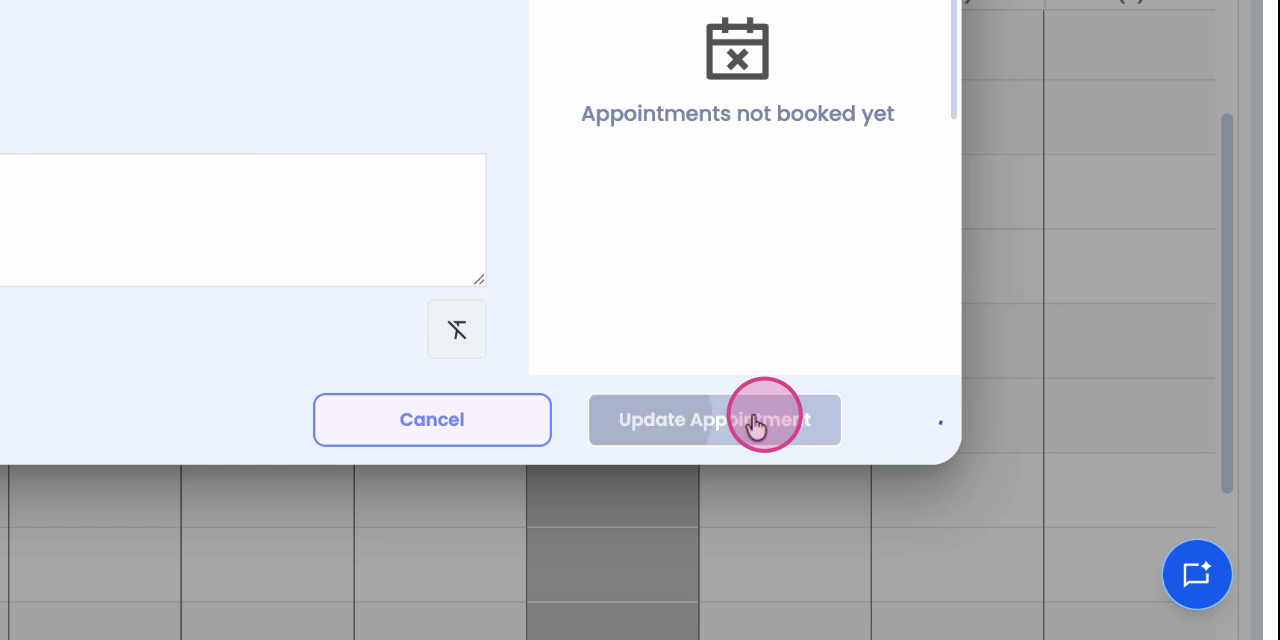
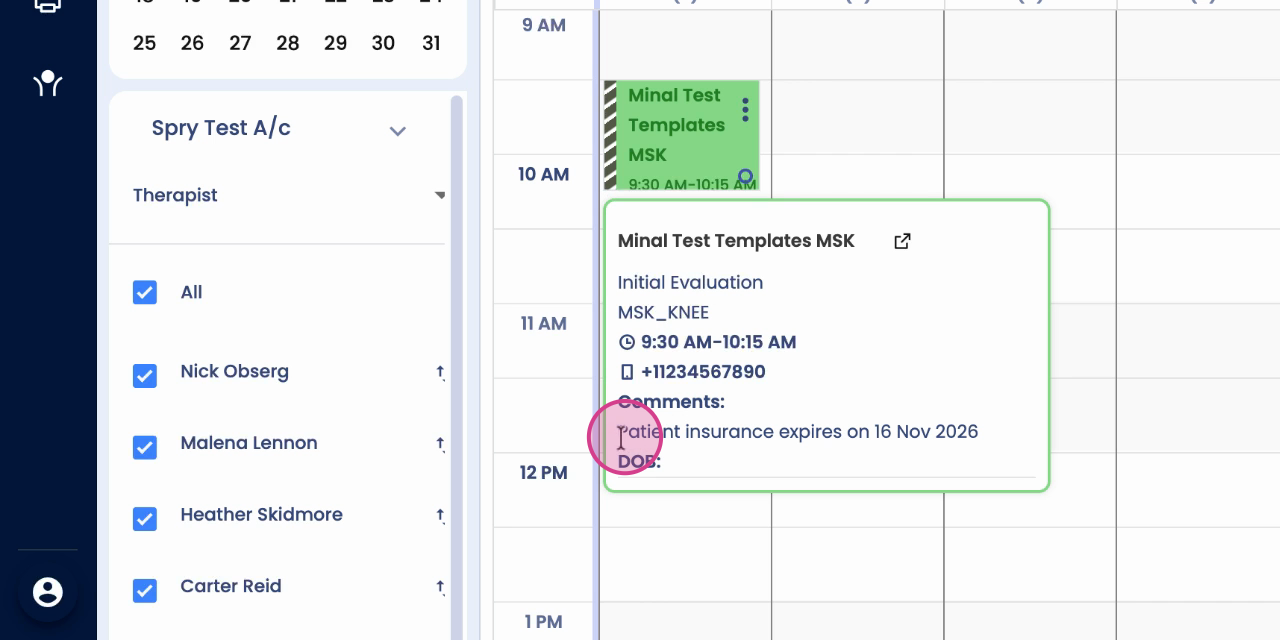
Your note is now attached to the appointment. You can also see your note by hovering over the appointment card.
Add a Special Note to an Appointment
Step 1: Open the appointment card.
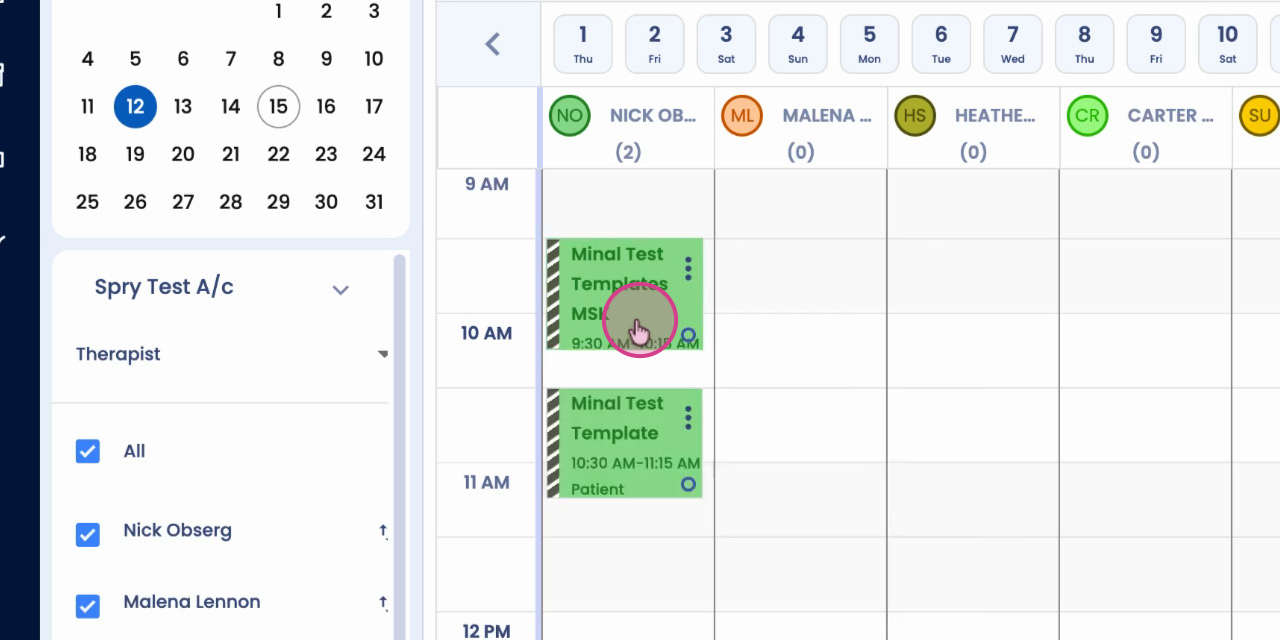
Step 2: Scroll down to find the Special Note option.
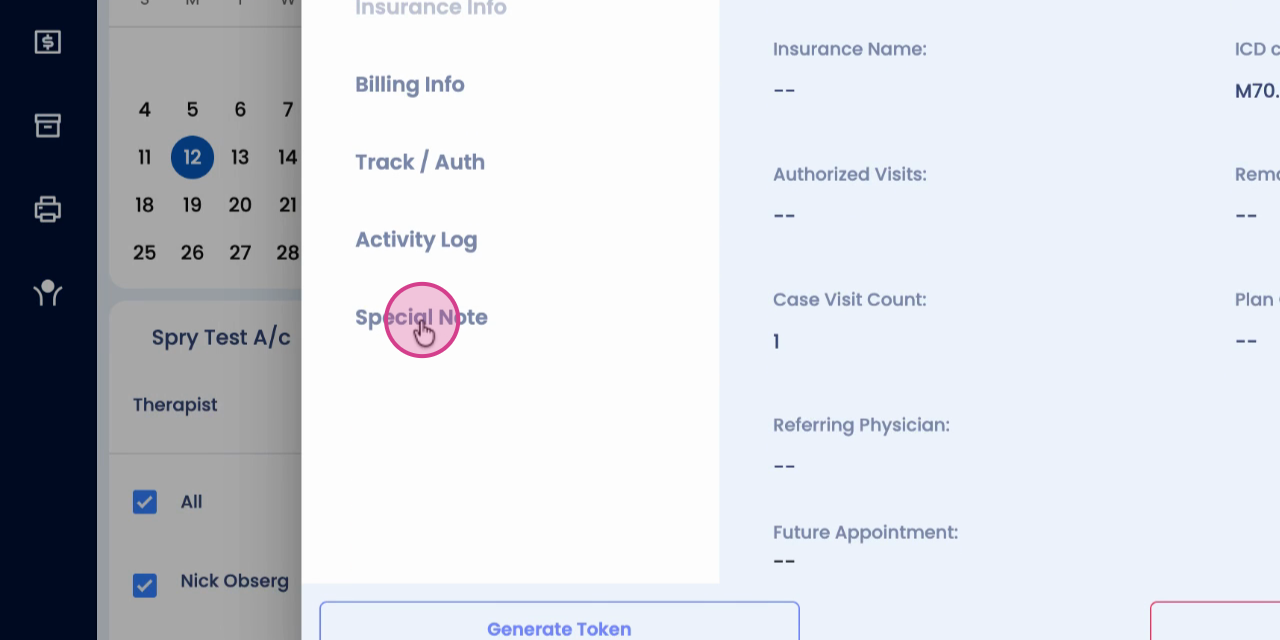
Step 3: Click the Special Note section.
Step 4: Enter your special note in the field provided.
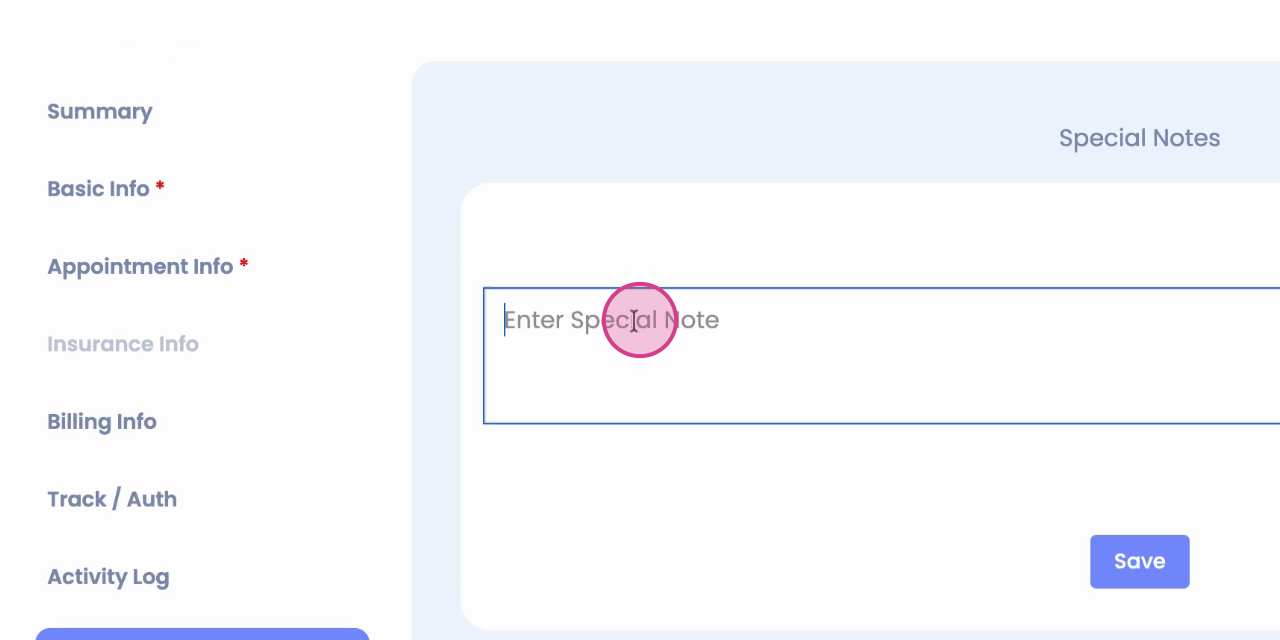
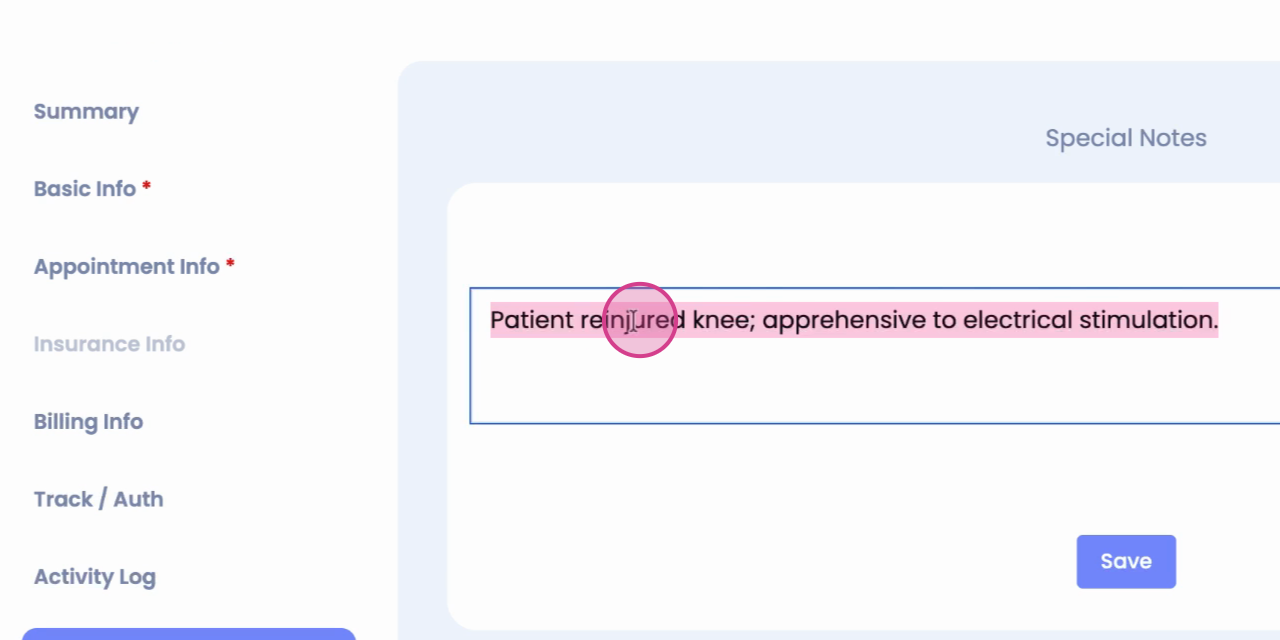
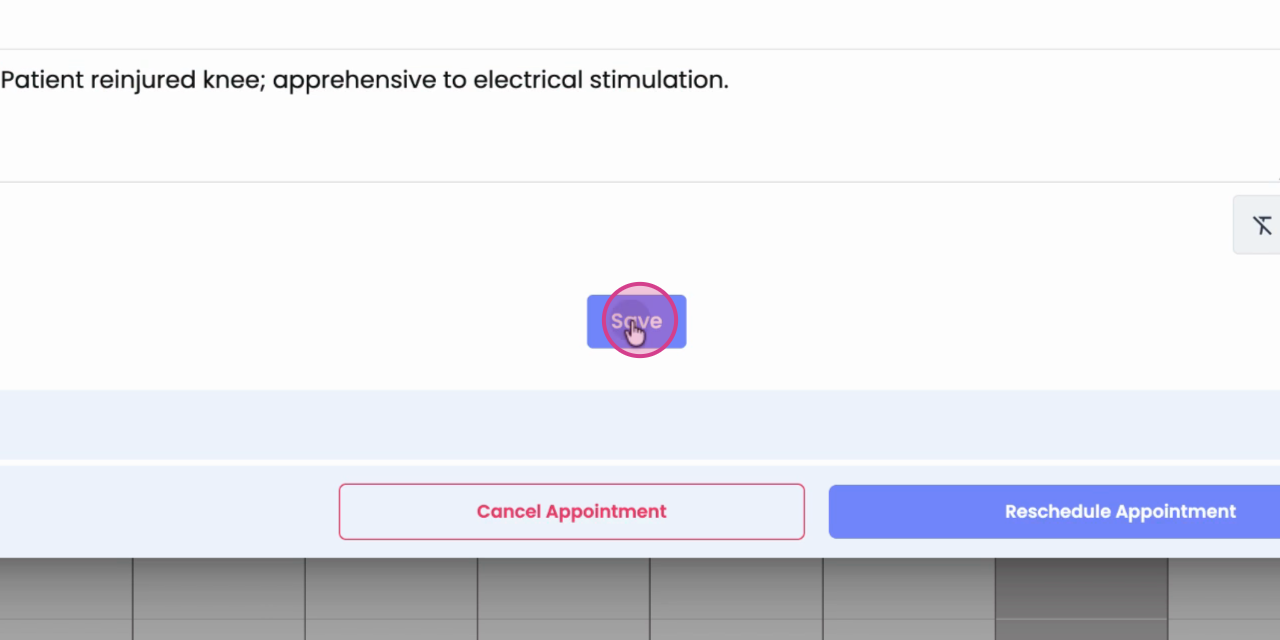
Step 5: Click Save to add your special note.
View Special Notes
Step 1: Go to the Patient Timeline for the appointment.
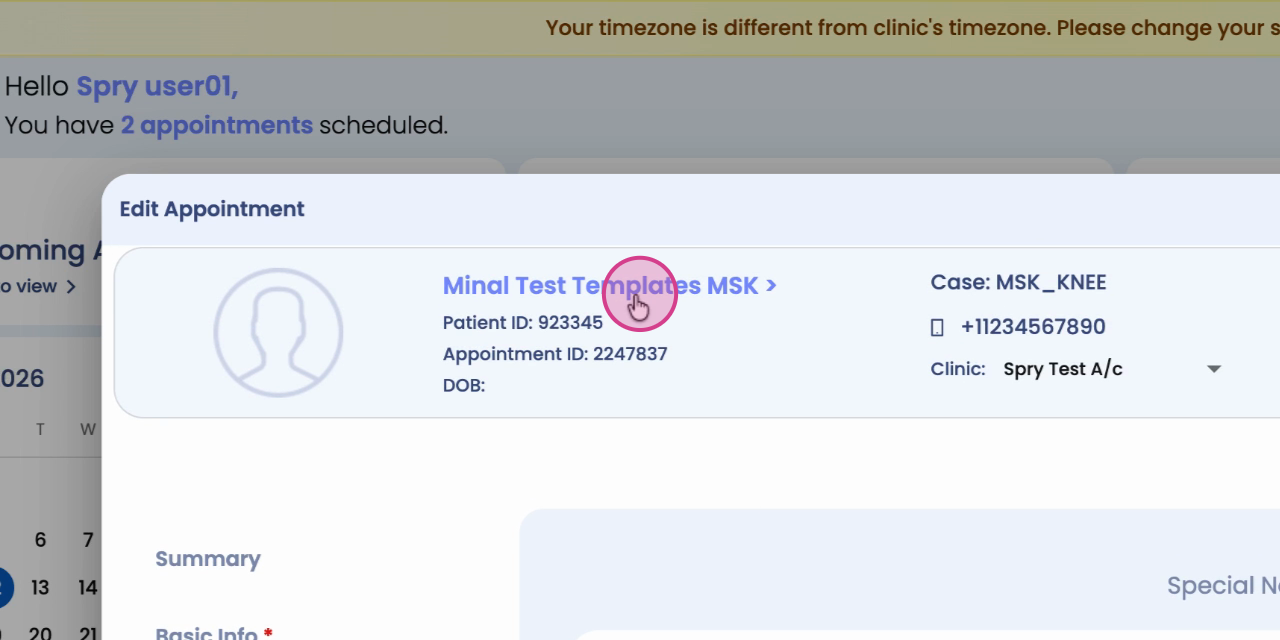
Step 2: Scroll down to view your special comment.
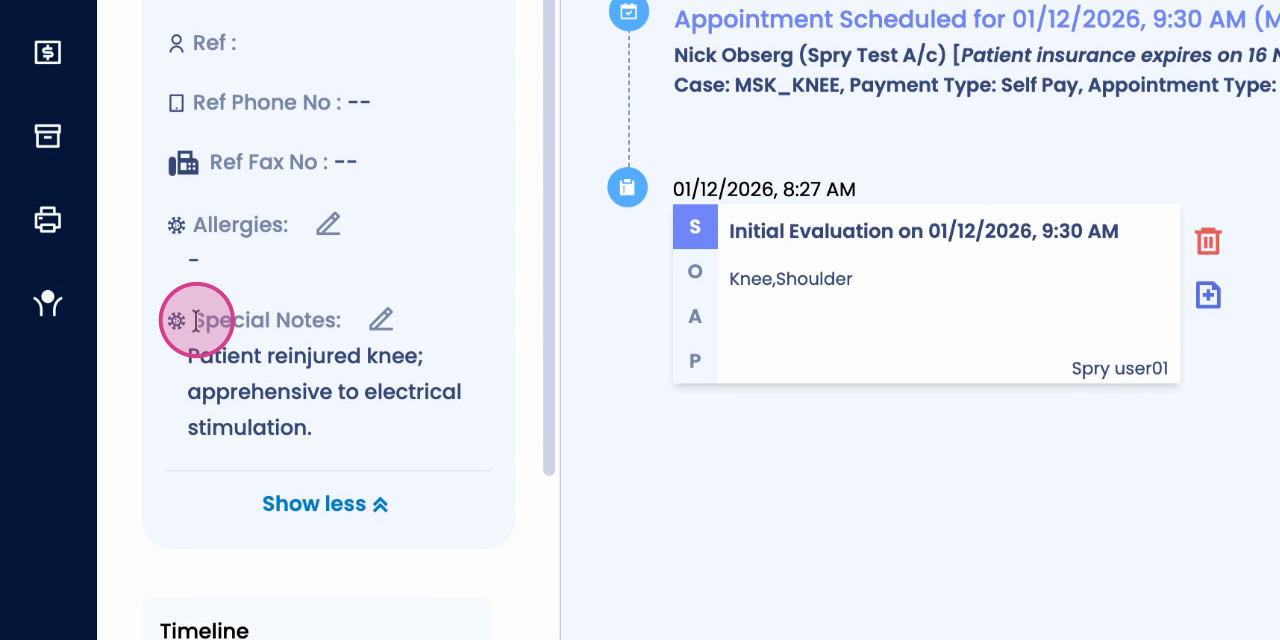
Now your important notes and comments are easy to find and displayed right where you need them.