
Send HEP in Wibbi Flow
This guide provides a step-by-step process to create and assign a new Home Exercise Program (HEP) for a patient in the Spry system.Start by selecting the patient's appointment.
Step 1: Click on the patient's appointment.

Next, navigate to the planning tab.
Step 2: Go to the planning tab.
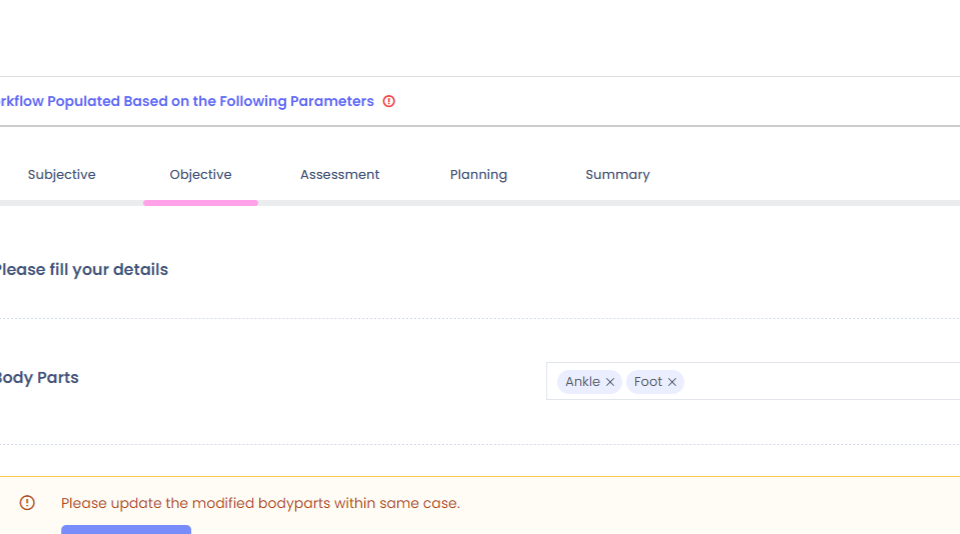
In the planning tab, scroll down to the HEP section to create a new program or assign a preselected one.
Step 3: Scroll down to the HEP section.
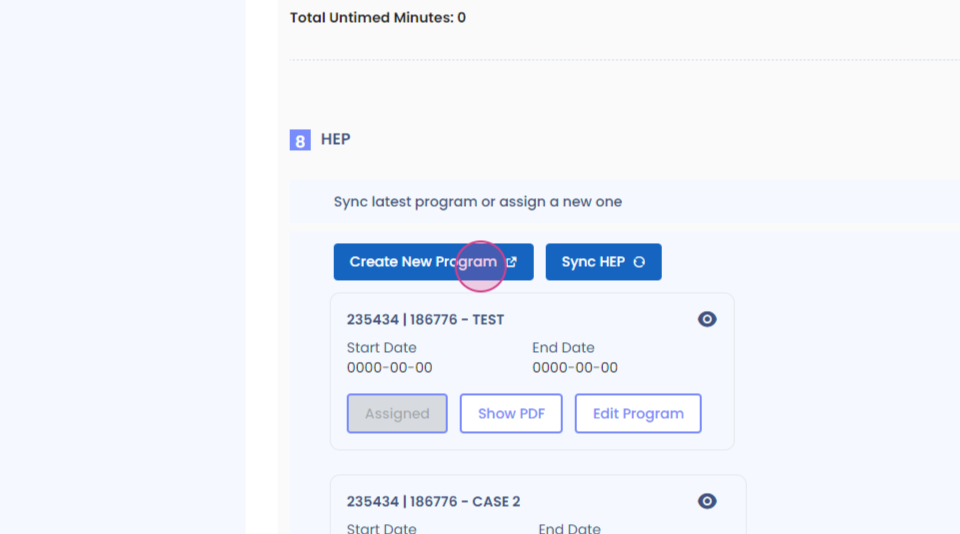
Step 4: Click on create new program to redirect to VB.
In VB, update the title of the program.
Step 5: Update the title of the program.

Step 6: Click on the title shown above.

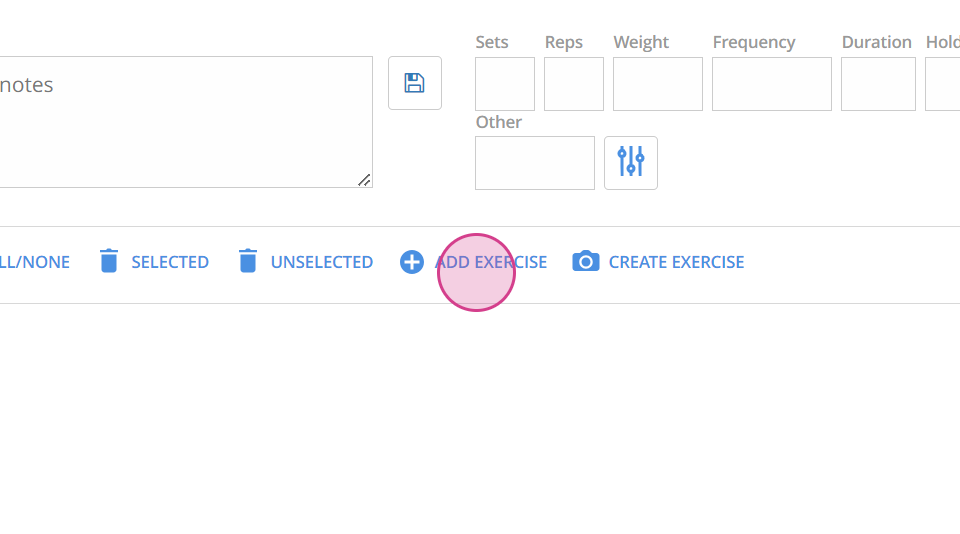
Set the start and end dates for the program and add an exercise.
Step 7: Enter the start date and end date for the program (optional).
Step 8: Click on add exercise.
Select the appropriate cohort.
Step 9: Select the cohort.

Search for the exercise.
Step 10: Click on search.

Step 11: Select the exercise.

View the program and assign the rep and set count.
Step 12: Click on view program.
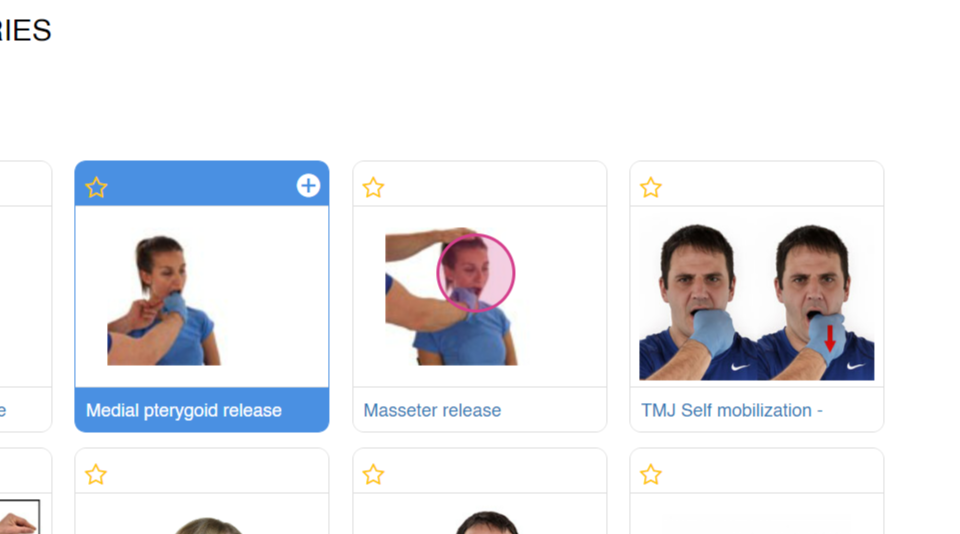
Step 13: Assign the rep and set count.

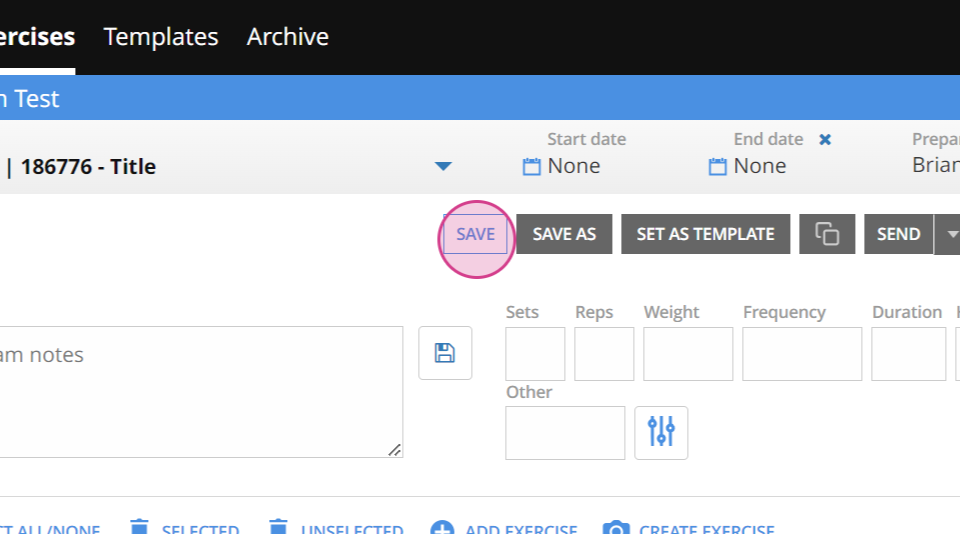
Save the program.
Step 14: Click on save.
Close the VB editor window and sync the HEP in Spry.
Step 15: Close the VB editor window and click on sync HEP in Spry.
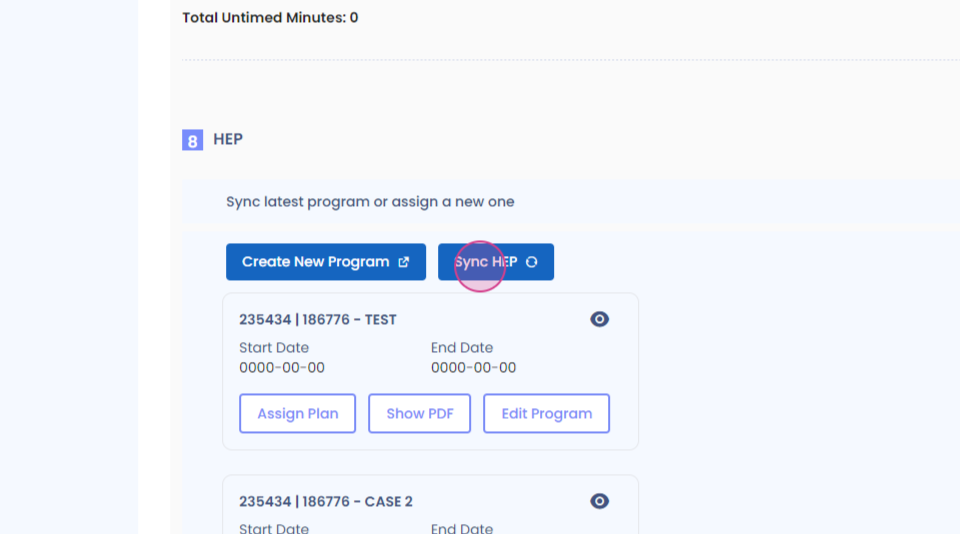
The created program will be automatically assigned. View the PDF of the program or the assigned exercises.
Step 16: Click on show PDF to view the program.

Step 17: Click on the I button to view the assigned exercises (optional).


That concludes the guide.