
Insurance Card Mapping Tutorial
This article guides you through the process of changing the insurance card mapping on a case-by-case basis.
Step 1: Begin by understanding the new section on the insurance card. This section indicates the type or status of the insurance card for each case. For instance, Aetna may be primary in case 2 and case 1, while Signal is secondary in both cases.
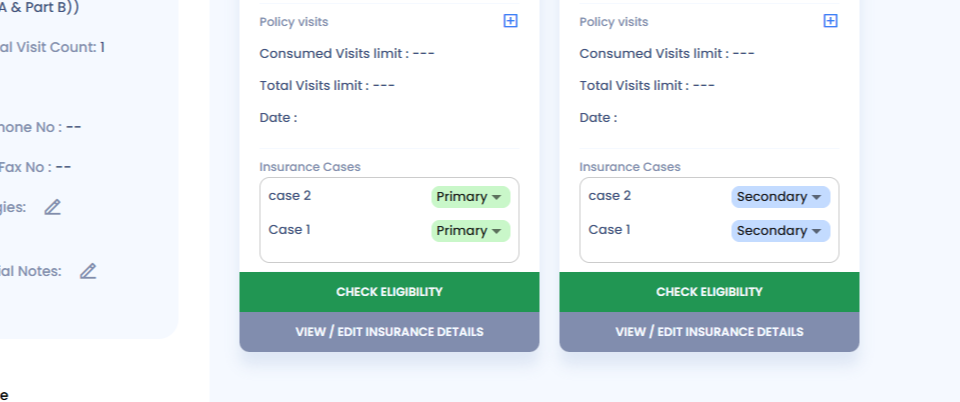
Step 2: To change the mapping, navigate to the appropriate section.
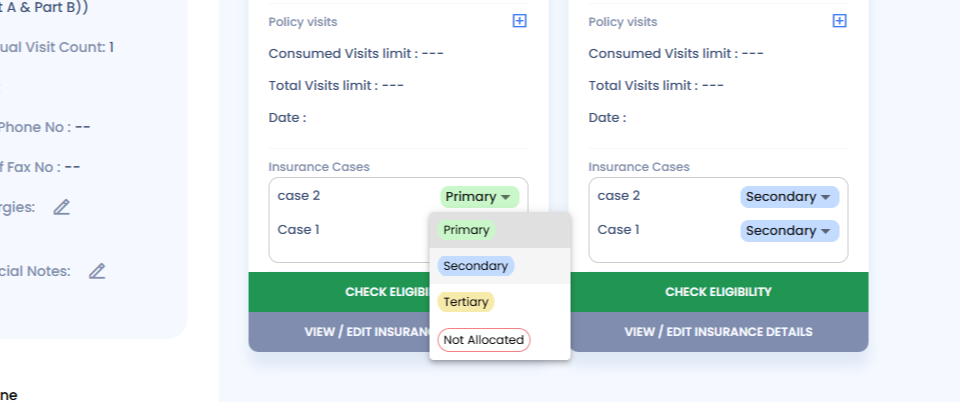
Step 3: Make your changes. These will automatically update across all cases. For example, if you make Aetna secondary in case 1, Signal will not be allocated by default.

Step 4: If you change the default type from secondary to tertiary, the system will ask if you want to update this in all cases.
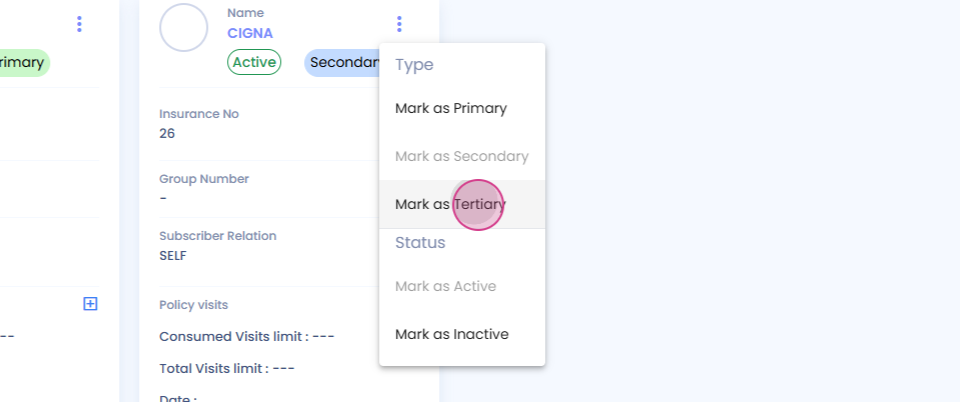
Step 5: You have the option to update all cases or maintain the status quo for some.
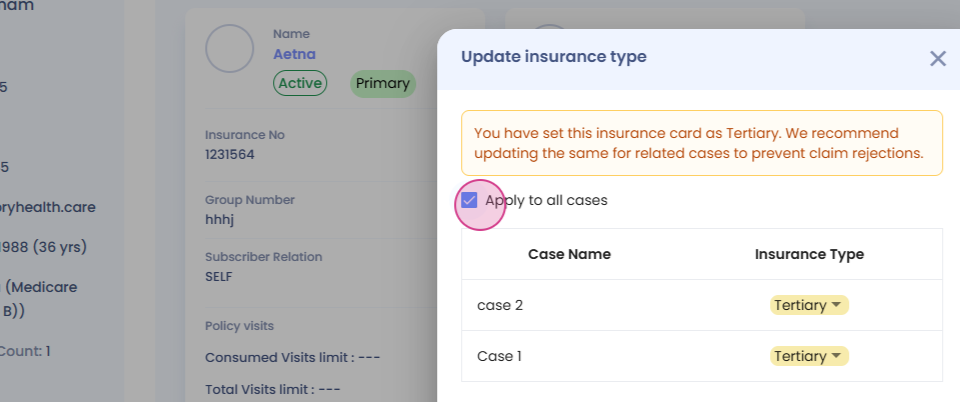
Step 6: In this example, we're updating all cases.
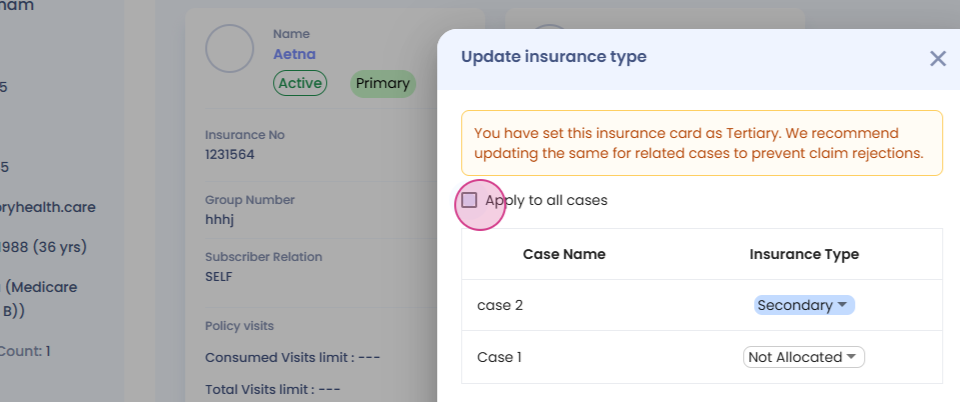
Step 7: Once you save, the tertiary type will update across all cases.

And that's it! You've successfully changed the insurance card mapping.