
Accessing SPRY Scribe from Your EMR
This guide explains how to access and use Scribe Ally from your Electronic Medical Record (EMR). Scribe Ally is a tool that allows you to dictate or record conversations with patients, which it then transcribes and fills into your documentation template.Accessing Scribe Ally
Step 1: Locate the Scribe Ally icon within the documentation template in your EMR.
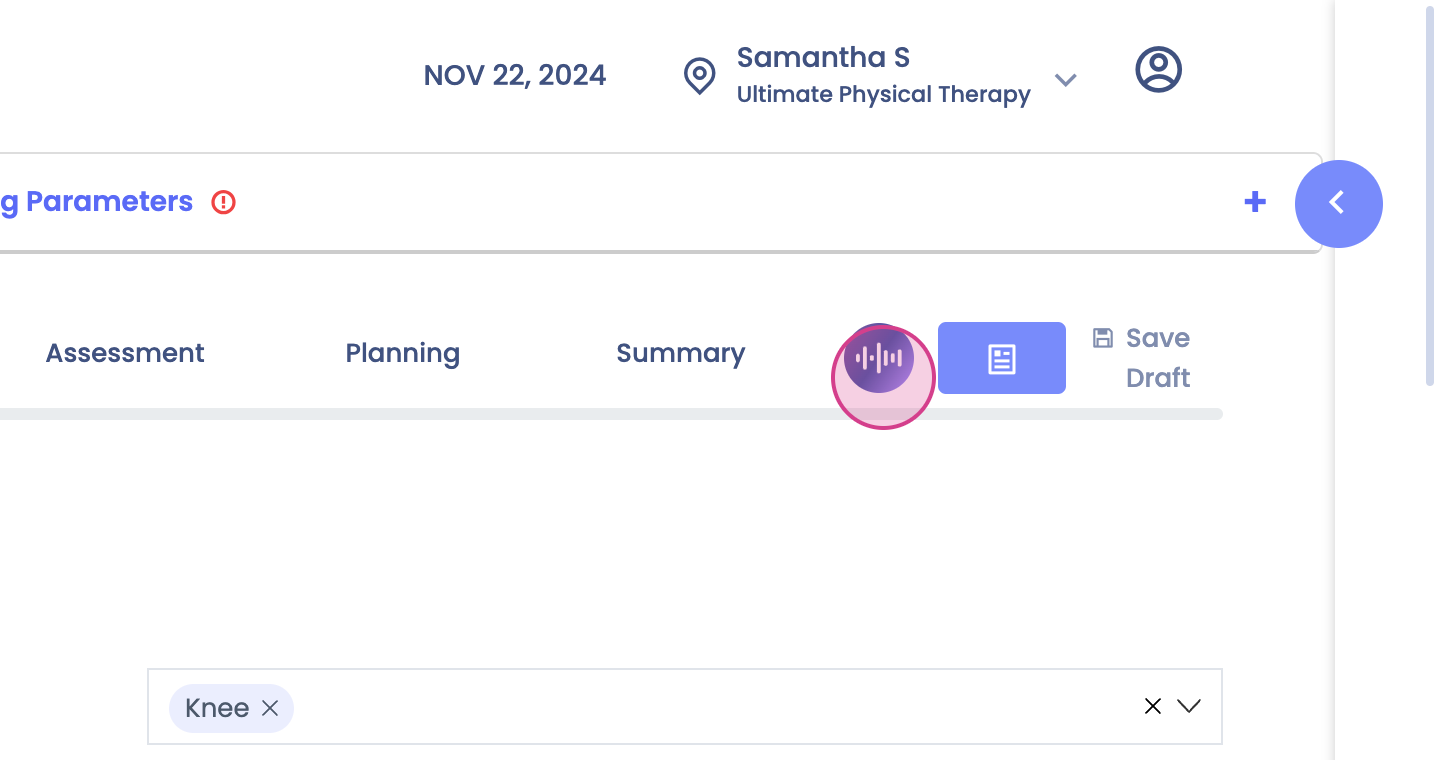
Step 2: Click on the Scribe Ally icon.Using Scribe Ally
Step 3: Choose to dictate a quick note or record the full conversation with your patient.
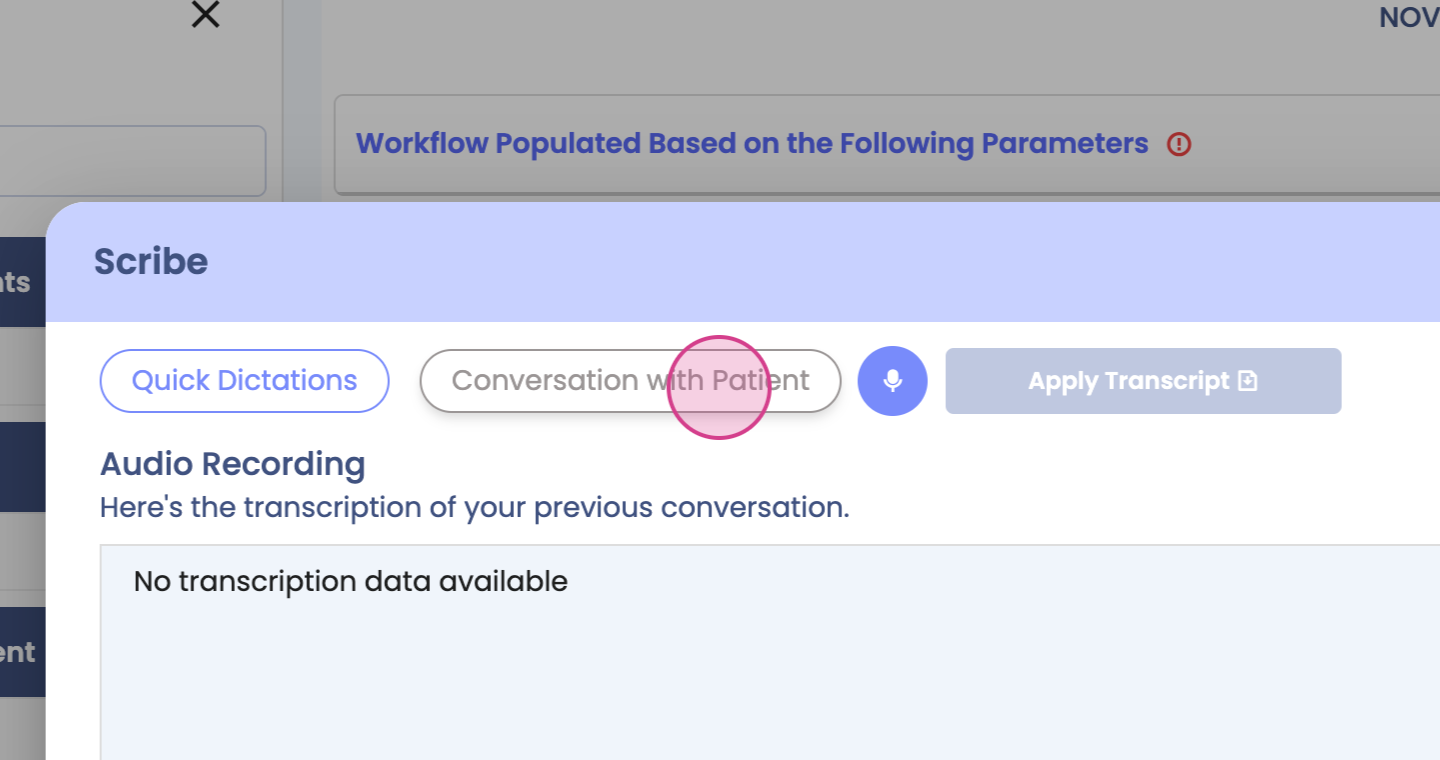
Step 4: Click on the 'Start Recording' option.
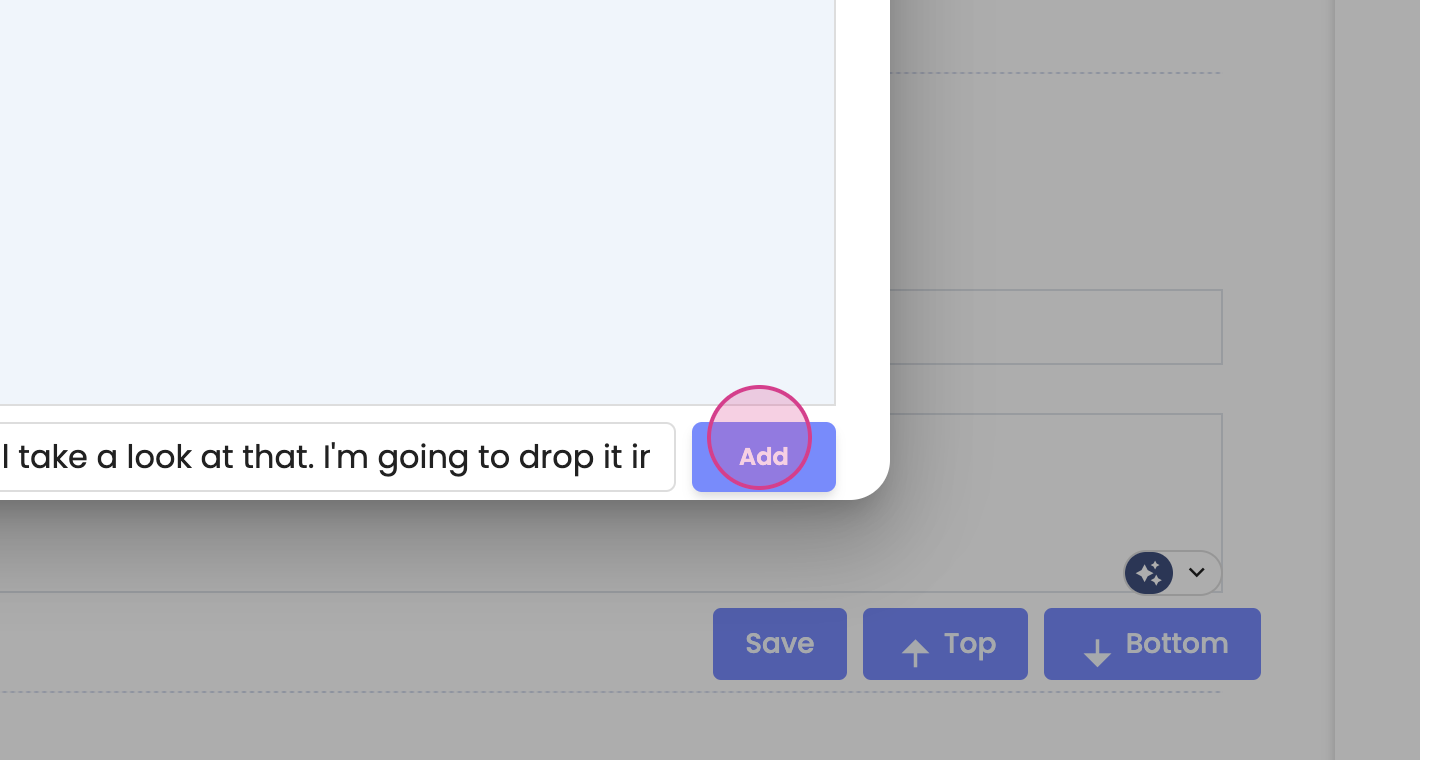
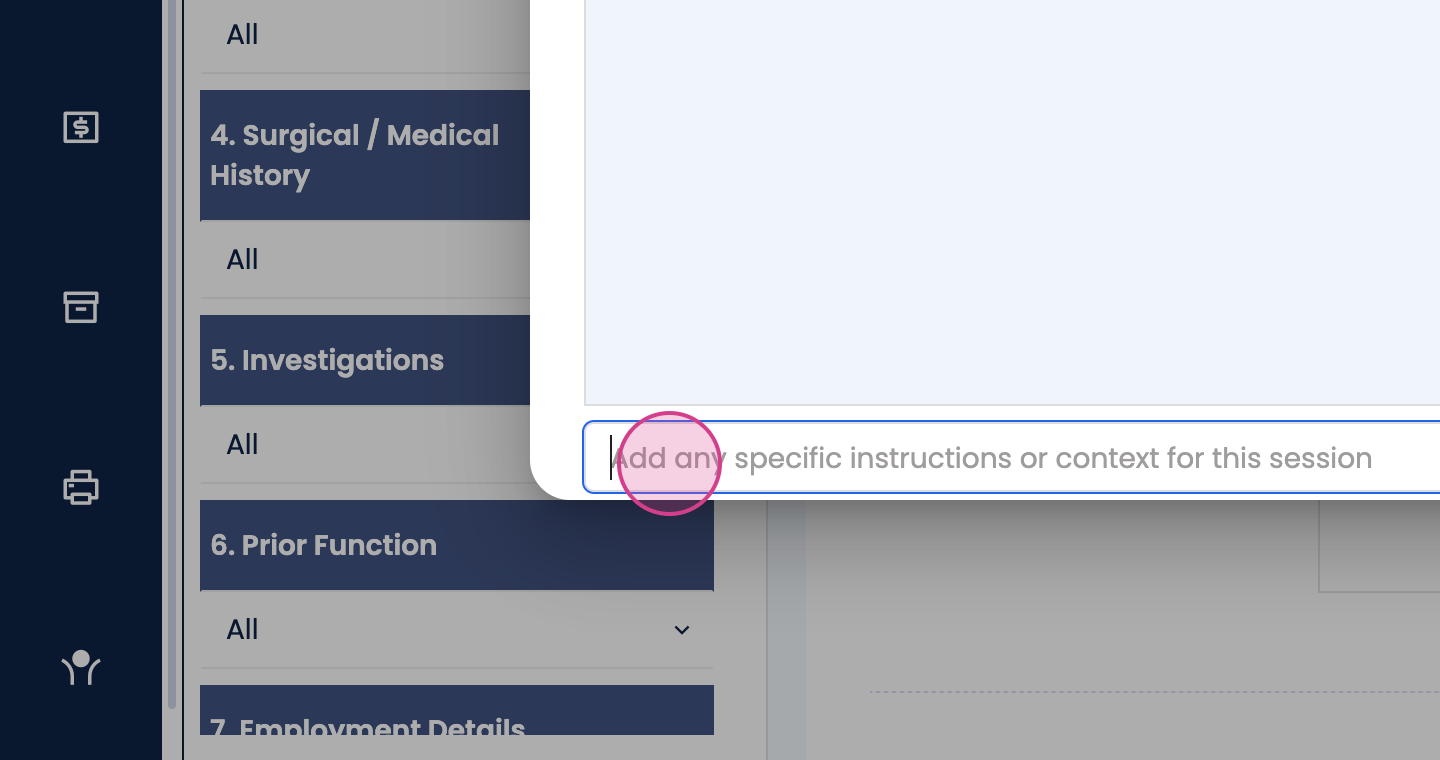
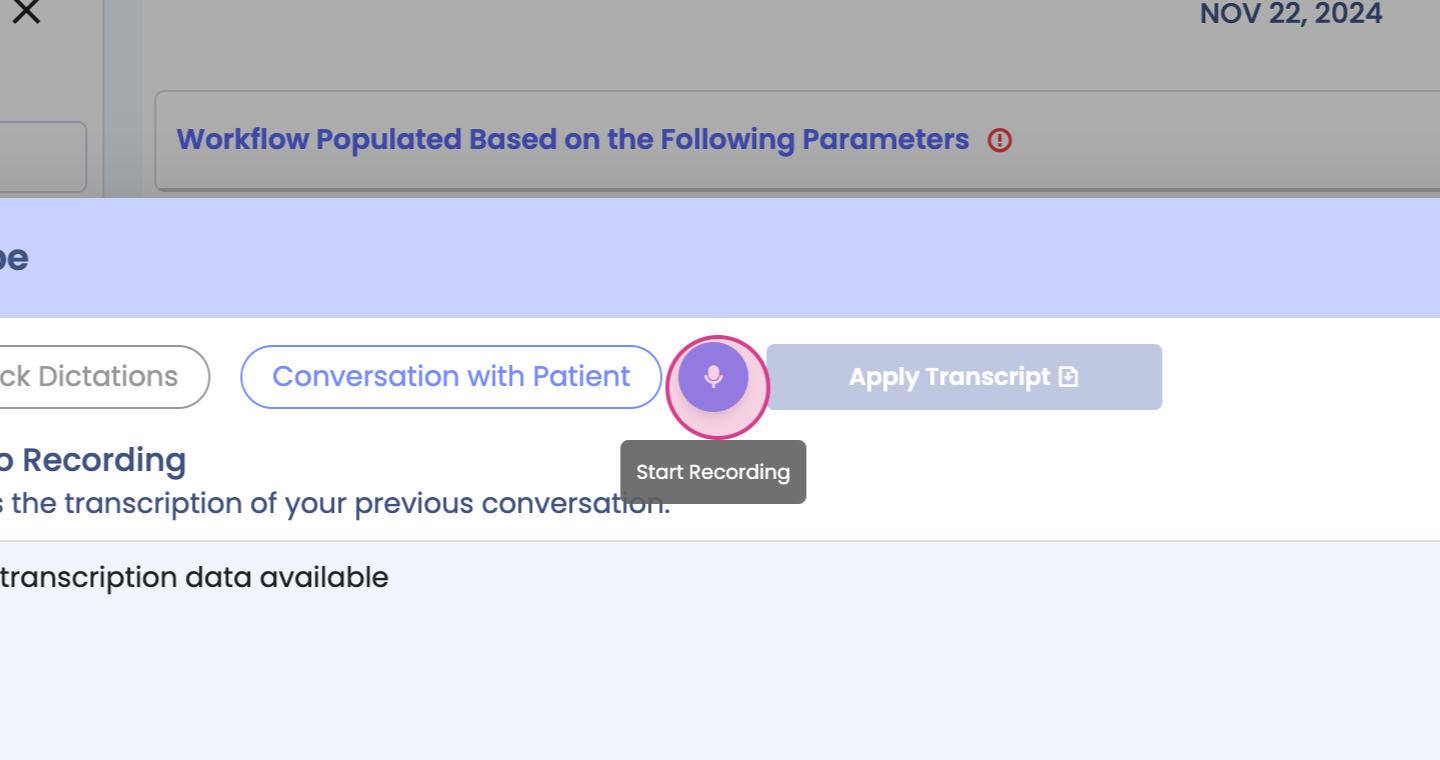
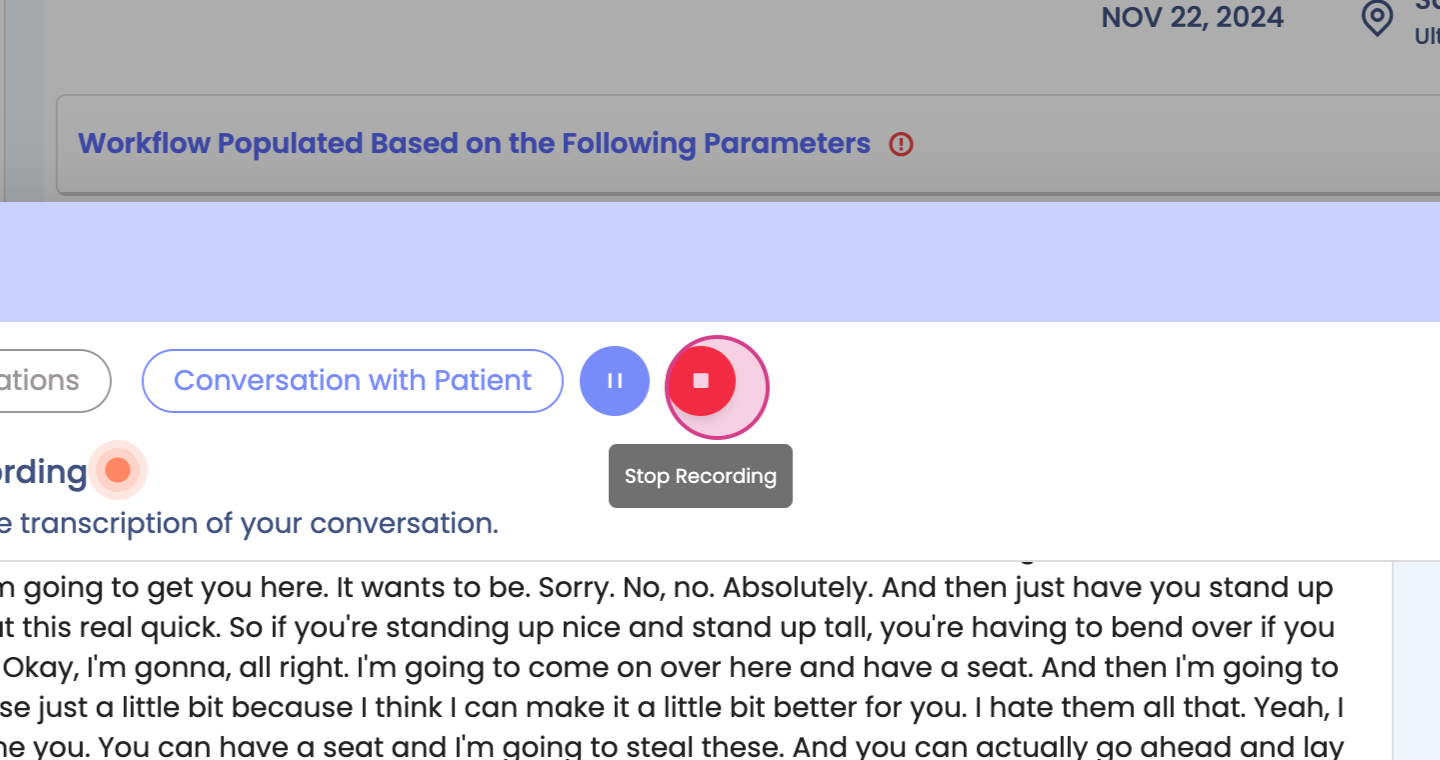
Step 5: For this guide, a transcript of a patient-provider conversation has been uploaded. Click 'Stop Recording' once the conversation is complete.
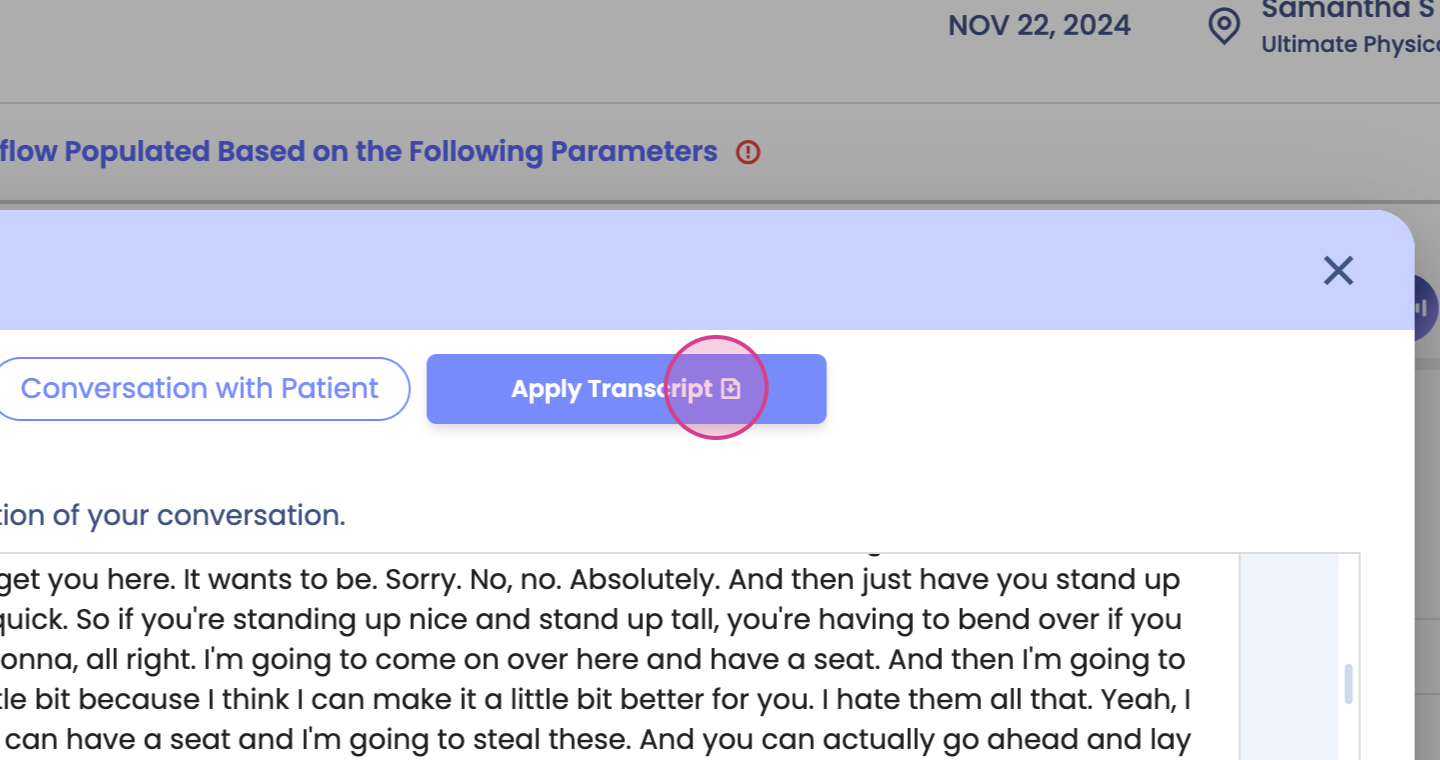
Step 6: Click 'Apply Transcript'. Scribe Ally will then fill in your template.
Reviewing the Transcription
Step 7: Review the filled-in details in the 'Subjective' form. Scribe Ally fills in the details per field where applicable.
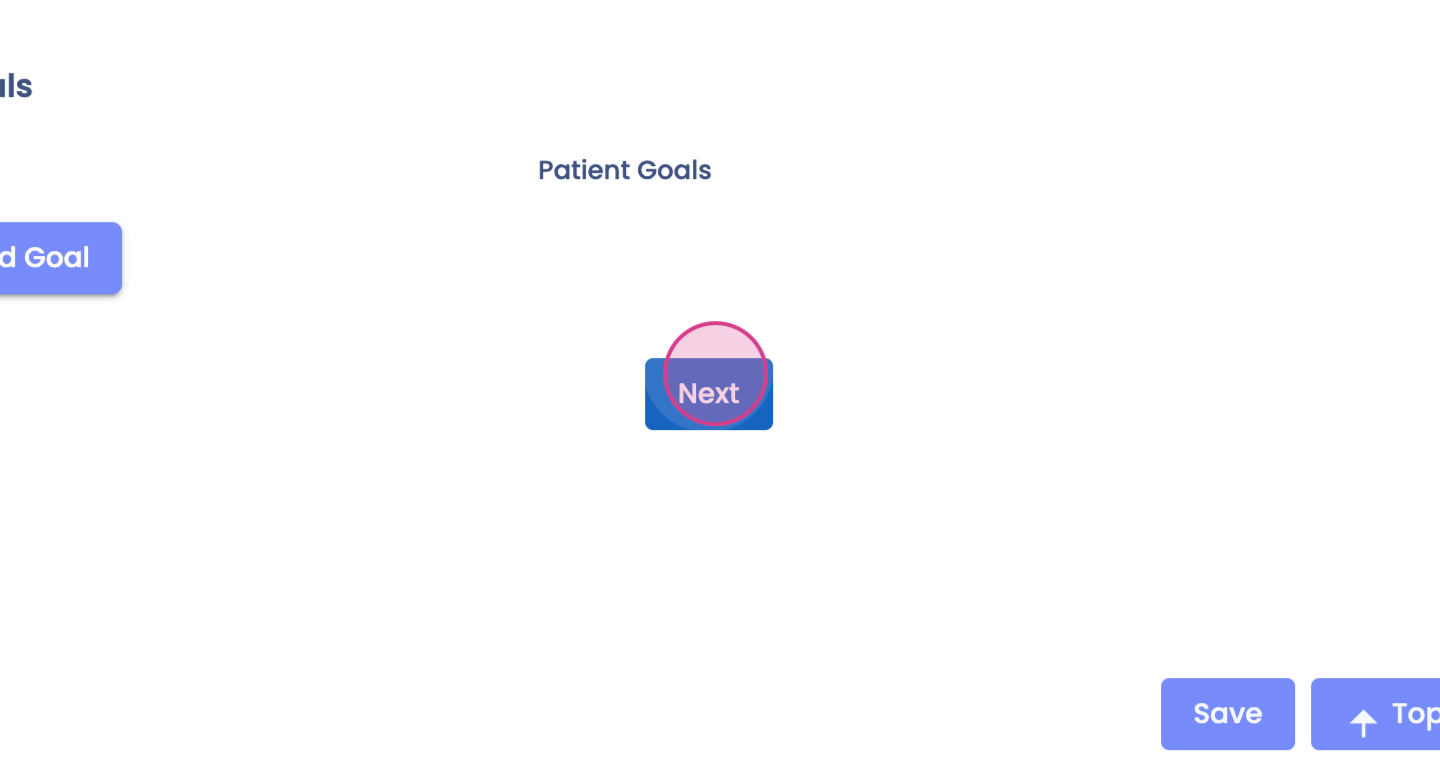
Step 8: Check the 'Objective' template. It's also filled in per field where applicable.
Step 9: In the 'Assessment' tab, review the clinical presentation of the patient. The assessment codes and therapist goals will be filled in after using the system for some time. Scribe Ally learns from your preferences over time.
Step 10: Review the 'Plan' section. Scribe Ally also fills this in based on your preferences.
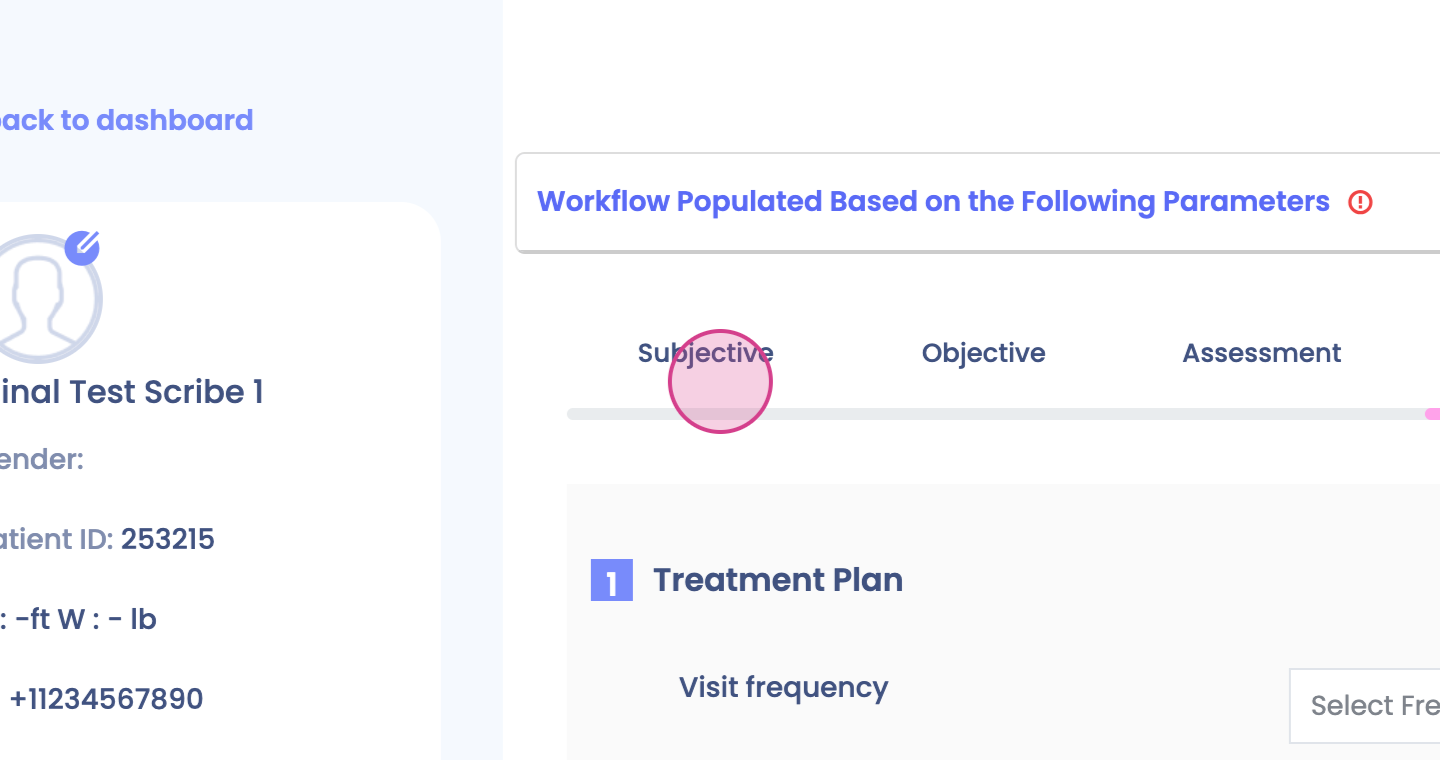
Remember, the templating in your 'Subjective' and 'Objective' sections is completely customizable. You decide what kinds of fields you want and how you want the output to present.